 Free Practice Workbook
Julian dates typically refer to the number of days` that have elapsed since the beginning of the Julian Period on January 1, 4713 BCE. However, in more common usage, “Julian date” often refers to a format representing the day of the year (1 to 365 or 1 to 366) within a specific year. This guide will focus on converting dates to this latter format.
Key Takeaways:
- Julian dates usually refer to the number of days since January 1, 4713 BCE but often represent the day of the year within a specific year in formats like YYYYDDD or YYDDD.
- In Excel, Julian dates are used for precise and straightforward date tracking, simplifying calculations by eliminating month and day formats.
- The common Julian date format in Excel consists of the last two digits of the year followed by the day of the year, such as “24001” for January 1, 2024.
- Converting to Julian dates involves extracting the year and calculating the day of the year, then combining them into the Julian date format using Excel functions.
- Julian dates are essential in industries like finance, manufacturing, and logistics for inventory management, batch tracking, and interfacing with systems using Julian dates.
Table of Contents
Steps to Convert Dates to Julian Format
Let’s convert a date in Excel to the Julian date format. Suppose I have the date in a cell A1.
STEP 1: Extract the Year.
Use the YEAR function to extract the year from the date =YEAR(A1)
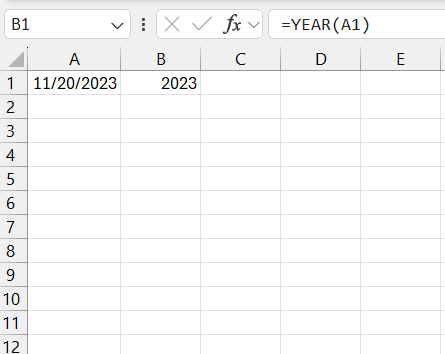
This formula will give us the year of the date in A1.
STEP 2: Extract the Last Two Digits of the Year. We can use the RIGHT function to get the last two digits of the year.
=RIGHT(YEAR(A1), 2)
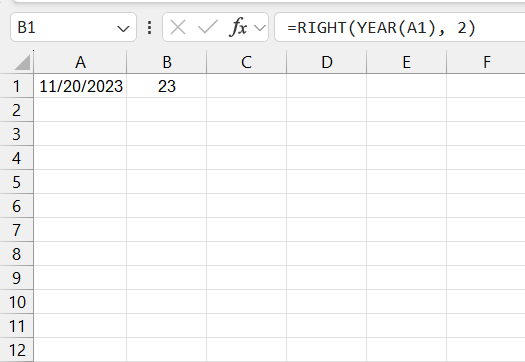
The RIGHT function can extract the last two digits from the date.
STEP 3: Calculate the Day of the Year
You can use the TEXT function to format a date into a three-digit number.
=TEXT(A1 – DATE(YEAR(A1), 1, 0), “000”)
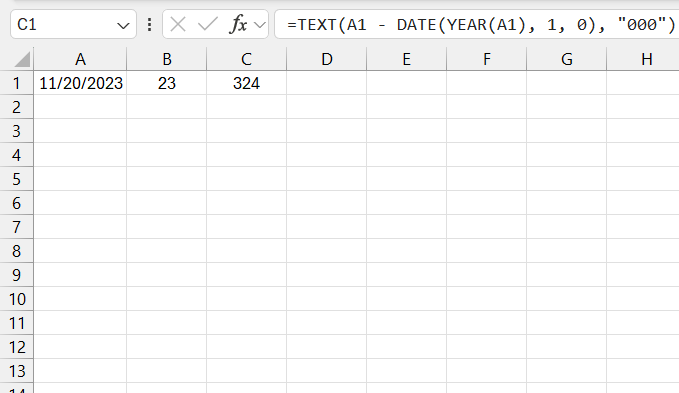
This formula calculates the day of the year by subtracting the date of the previous year’s December 31 from the date in A1 and formats it as a three-digit number.
STEP 4: Combine the Year and Day of the Year
Combine the two parts to get the Julian date.
=RIGHT(YEAR(A1), 2) & TEXT(A1 – DATE(YEAR(A1), 1, 0), “000”)
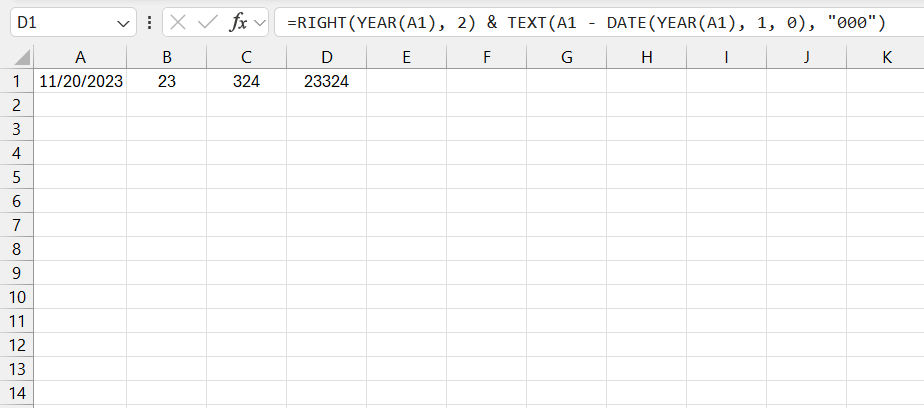
This formula concatenates the last two digits of the year with the day of the year to form the Julian date.
Example
Let’s say cell A1 contains the date November 20, 2023 –
=YEAR(A1)returns2023.=RIGHT(YEAR(A1), 2)returns23.=TEXT(A1 - DATE(YEAR(A1), 1, 0), "000")returns324(November 20 is the 324th day of the year).
Combining these parts, =RIGHT(YEAR(A1), 2) & TEXT(A1 - DATE(YEAR(A1), 1, 0), "000") returns 23324.
Now we can convert any date to the Julian format in Excel using this method!
FAQs
How to calculate Julian date in Excel?
To calculate a Julian date in Excel, I use the formula =DATE(YEAR(A1), MONTH(A1), DAY(A1)) - DATE(1900, 1, 1) + 2, where A1 contains the calendar date I’m converting. This formula takes into account Excel’s date system, which starts on January 1, 1900. Remember to format the result as a number to see the Julian date. If a more traditional Julian date format is needed, I could use the TEXT function: =TEXT(A1,"yy") & TEXT(A1-"01/01/" & TEXT(A1,"yy"),"000"). This will create a Julian date formatted as yyddd.
How Do I Convert a Gregorian Date to Julian Date in Excel?
To convert a Gregorian date to a Julian date in Excel, I start by breaking down the Gregorian date into the year, month, and day using the YEAR, MONTH, and DAY functions. Then, I calculate the day of the year by adjusting the serial number of the date to account for the start of the year, like this: =DATE(YEAR(A1),MONTH(A1),DAY(A1))-DATE(YEAR(A1),1,0), assuming A1 holds the Gregorian date. Finally, I combine this with the year to get the Julian date in ‘yyyddd’ format using the formula =YEAR(A1)&TEXT(A2,"000"). Adjust A1 and A2 references based on your worksheet layout.
Can I Automatically Enter Today’s Date in Julian Format?
Yes, I can automatically enter today’s date in Julian format in Excel. To do this, I use the formula =TEXT(TODAY(),"yy")&TEXT(TODAY()-DATE(YEAR(TODAY()),1,0),"000"). This formula combines the current year in two digits and the day of the year in three digits, automatically updating each day to reflect the current Julian date. Just remember to format the cell as ‘General’ to display the result as text.
Is There an Excel Function That Specifically Handles Julian Dates?
No, Excel does not have a built-in function specifically designed to handle Julian dates. However, I can utilize a combination of standard Excel functions like DATE, YEAR, and TEXT to convert between Julian and Gregorian dates. Custom formulas and macros can also be crafted to handle Julian dates more efficiently, especially in large datasets or specialized applications.
How to Convert Julian Date Back to Regular Date?
To convert Julian date in the format ‘yyyyddd’ to a regular date, you can use the formula =DATE(LEFT(A1,4),1,RIGHT(A1,3)). This formula will automatically convert the Julian date to calendar date, you just need to format it correctly.

John Michaloudis is a former accountant and finance analyst at General Electric, a Microsoft MVP since 2020, an Amazon #1 bestselling author of 4 Microsoft Excel books and teacher of Microsoft Excel & Office over at his flagship MyExcelOnline Academy Online Course.

 30 Days - Full Access









