 Free Practice Workbook
When working with trigonometry in Excel, one of the useful functions you’ll encounter is the TAN formula. The TAN formula is used to calculate the tangent of an angle. In this article, you will learn how to calculate the Excel TAN formula.
Key Takeaways:
- The TAN function calculates the tangent of an angle in radians
- You can convert degrees to radians using the RADIANS function.
- Make sure that angles are in the correct format for accurate results.
- Combine TAN with IF statements for dynamic categorization.
- Make sure that the inputs are numeric to avoid errors.
What is TAN Formula?
The TAN function returns the tangent of an angle. The tangent is a ratio of the opposite side and the adjacent side in a right-angle triangle.
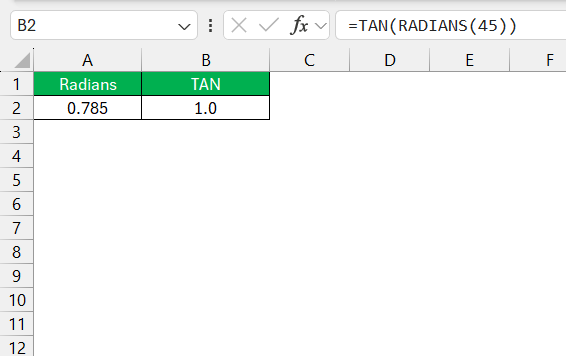
For example: TAN 45° = 1
This means that the opposite side and adjacent sides are equal. Excel has a built-in function to calculate the tangent of an anlge i.e., TAN.
=TAN(number)
Make sure that the number entered as an angle is in radians and not degrees.
Table of Contents
How to use the TAN Formula
TAN of an Angle
To calculate the angle’s tangent, make sure that the angle is in the correct format, i.e., radian. If the angle is 45 degrees, you can use the RADIANS formula to convert it.
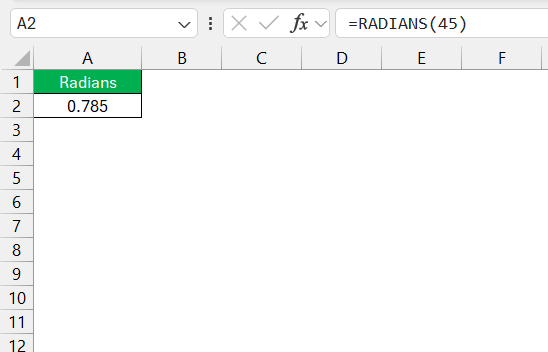
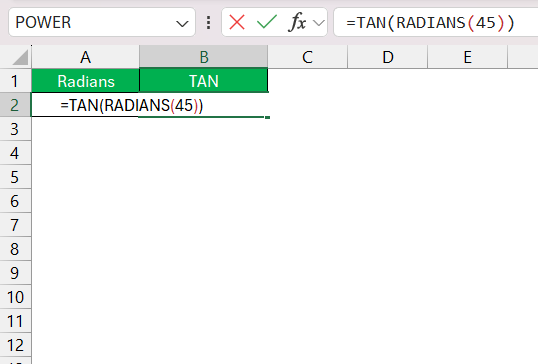
Apply the TAN formula.
By hitting enter, Excel gives me the precise tangent of the angle.
Calculate Height
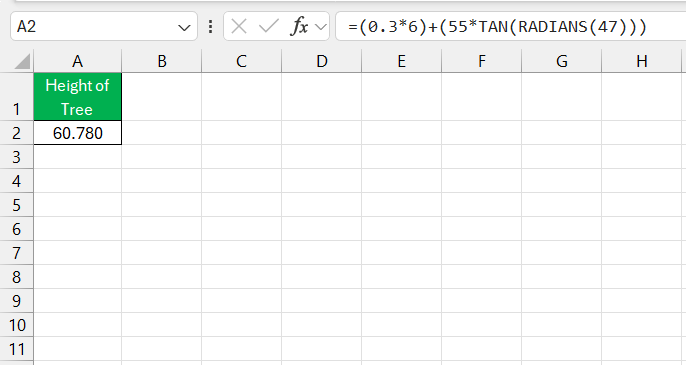
The TAN formula can be used to calculate the height of a tree when you know the following values:
- Distance from the tree
- Angel for elevation
Let’s say a 6-foot-tall person is standing 55 meters from a tree, looking up at the top at a 47-degree angle. The height of the tree will be:
TAN with IF Function
Integrating logical operations with TAN gives Excel formulas more versatility. We can manipulate data based on conditions, such as categorizing slopes of hills into ‘steep’ and ‘gentle’ categories. For example, I might employ an IF statement alongside TAN:
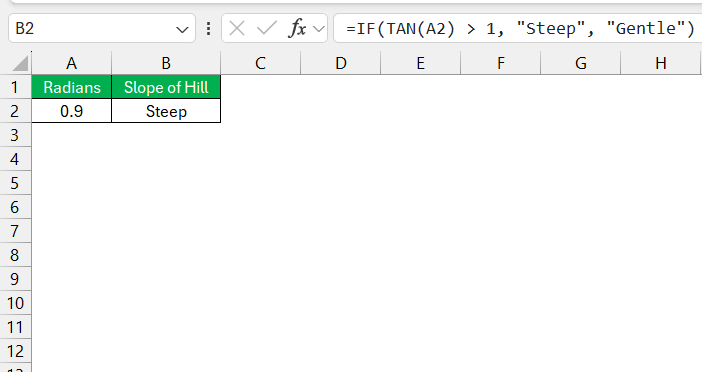
This checks the tangent value and returns ‘Steep’ if it exceeds 1, which corresponds to a 45-degree angle.
Common Errors
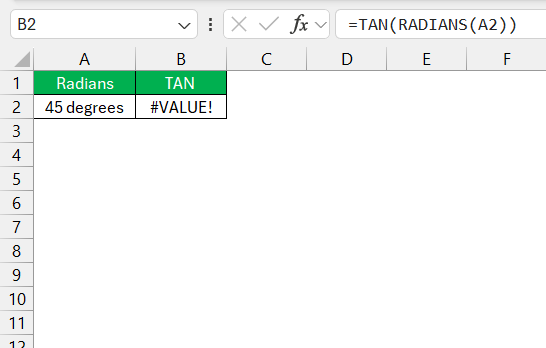
- #VALUE! Error: This occurs if the input is not a numeric value. Makes sure that the angle is a number or a cell reference containing a number.
- #NUM! Error: The tangent function is undefined for angles where the cosine is zero, such as π/2 (90 degrees) or 3π/2 (270 degrees). Avoid using these values as input.
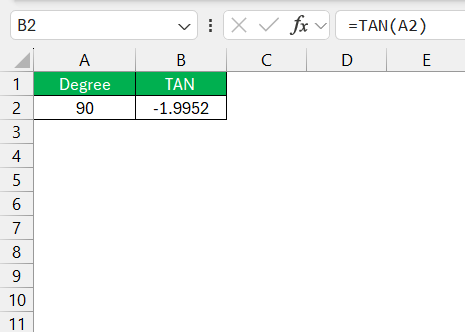
- Incorrect Units: If you input degrees directly without converting them to radians, the result will be incorrect. Always convert degrees to radians first.
FAQs
What is the tan formula?
The TAN formula in Excel calculates the tangent of an angle provided in radians. A tangent is a trigonometric ratio of the sides of a right-angled triangle that’s essential for various mathematical and engineering calculations.
How to calculate tan in Excel?
To calculate tan in Excel, enter =TAN(number) into a cell, where ‘number’ is the angle in radians. If your angle is in degrees, first convert it by using =RADIANS(degrees). Then apply the TAN function.
How to Calculate the Inverse of a Tangent in Excel?
Calculate the inverse of a tangent in Excel using the ATAN function. Simply type =ATAN(number) into a cell, and it will return the arctangent of your ‘number’, in radians.
Can TAN Be Used in Conjunction with Conditional Formatting?
Yes, TAN can be used with conditional formatting in Excel to dynamically apply formatting based on the tangent values of certain angles. For example, spotting cells containing tangent values greater than 1.
What Are Some Common Errors When Using TAN?
When using the TAN function, below are the errors you may face:
- #VALUE! error – When you enter a non-numeric value
- #NUM! error – When you enter an invalid number
- When you use degrees instead of radians,

John Michaloudis is a former accountant and finance analyst at General Electric, a Microsoft MVP since 2020, an Amazon #1 bestselling author of 4 Microsoft Excel books and teacher of Microsoft Excel & Office over at his flagship MyExcelOnline Academy Online Course.

 30 Days - Full Access









