Key Takeaways
- A fax cover sheet is a document that accompanies a fax.
- Microsoft Word has several built-in fax cover sheet templates.
- You can customize the template using the company’s branding.
- You can also create a fax cover sheet from scratch.
- It includes details such as the sender and recipient names, as well as other information.
Introduction to Fax Cover Sheet
What is a fax sheet?
Fax cover sheets are like the front door to your documents. It is a document attached to a fax and includes information such as the sender’s and recipient’s names, email addresses, subject, and more. It signals that you’re not just sending information over; you’re sending it with intent and professionalism. They help set the tone for the message you’re conveying. With clarity in sender and recipient details, you’re ensuring swift and accurate handling of your docs.
Elements of a Fax Cover Sheet
- Include the date and time the fax was sent.
- Add your company name and contact details.
- Include your name and contact information.
- Provide the recipient’s name and fax number.
- Add a brief description of the fax.
- Include a reference or client ID if needed.
- Mention the total number of pages.
- Add a subject line.
- Include comments or instructions if necessary.
Table of Contents
How to Create a Fax Cover Sheet
From Template
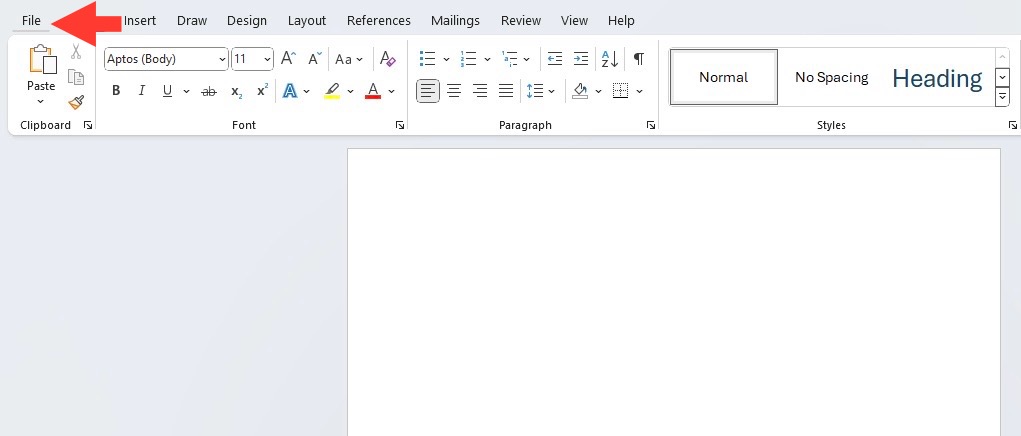
STEP 1: Go to the File tab > New.
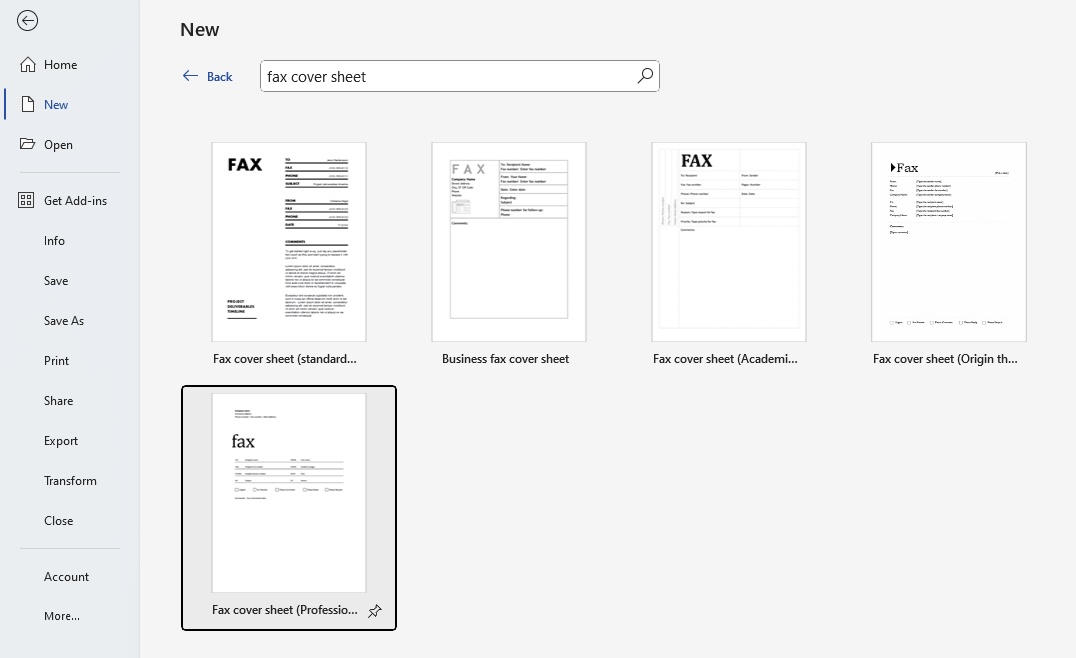
STEP 2: Search for the word ‘fax’ directly in the search bar.
A selection of fax cover sheet templates will appear, and you can pick the one you want.
Step-by-Step Creation Process
Selecting the Appropriate Template for Your Fax
When it comes to choosing the right attire for your fax, the occasion calls the shots. Browse through the array of templates Microsoft Word offers, and imagine what suits the nature of your message. For something that whispers sophistication, lean towards templates with more polished designs and formal fonts. On the flip side, if you’re faxing a quick update to a colleague, a template with a touch of simplicity and minimal design might just do the trick. Remember, the template is just the baseline – you’ll tailor it to your needs, making sure it aligns with the purpose and gravity of your document.
Customizing Your Fax Cover Sheet
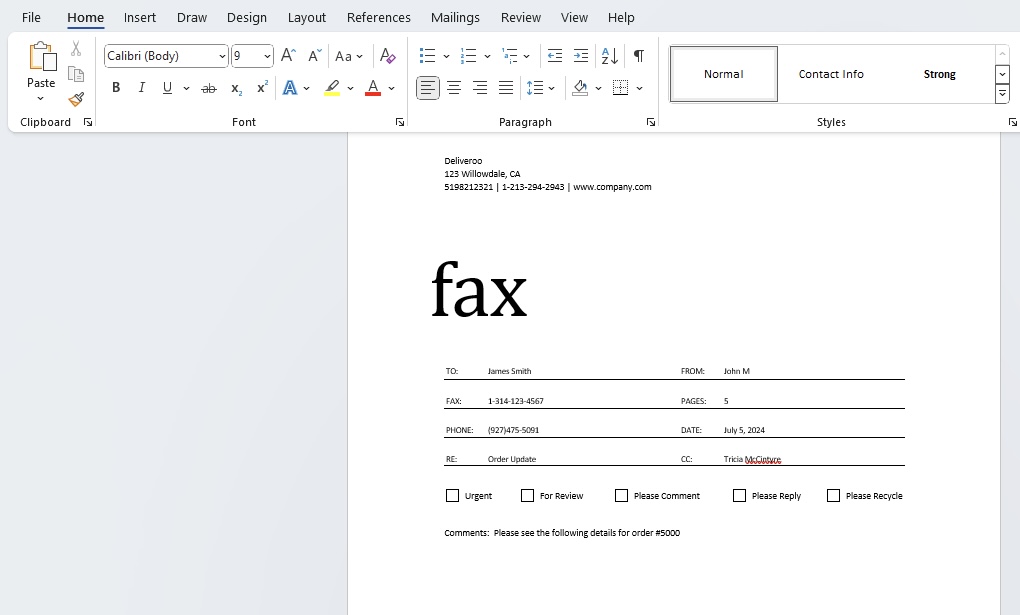
Customization is key – it’s what turns a generic cover sheet template into a reflection of you or your business. Once you’ve selected a template, dive in and start personalizing. Click into the placeholders to add your name, contact information, and all the vital details. If the default look isn’t quite your style, tweak the font and color scheme to match your brand. Don’t forget to save as a new document so you can use it as a future template. A bespoke cover sheet not only looks professional but also distinguishes your faxes amidst a sea of standard communications.
Tips & Tricks
- Give it Some Brand Personality: Use your company logo, use your brand colors, or include your tagline to give it a distinct brand identity.
- Keep it Tidy: Clutter-free layouts win races. Make sure there’s plenty of white space so it doesn’t look crowded, and all the important bits stand out.
- Use Bullets for Clarity: Key points are easier to scan when they’re bulleted, which is great if you’re including instructions or comments.
- Highlight Urgency: If it’s important, make it known. Use a bold type or color to flag the fax as ‘Urgent’ or ‘For Immediate Review’.
- Add a Personal Touch: A personable comment or a sign-off can add warmth and encourage a prompt response.
Personalize Fax Cover Sheet
Add Brand Elements and Logos
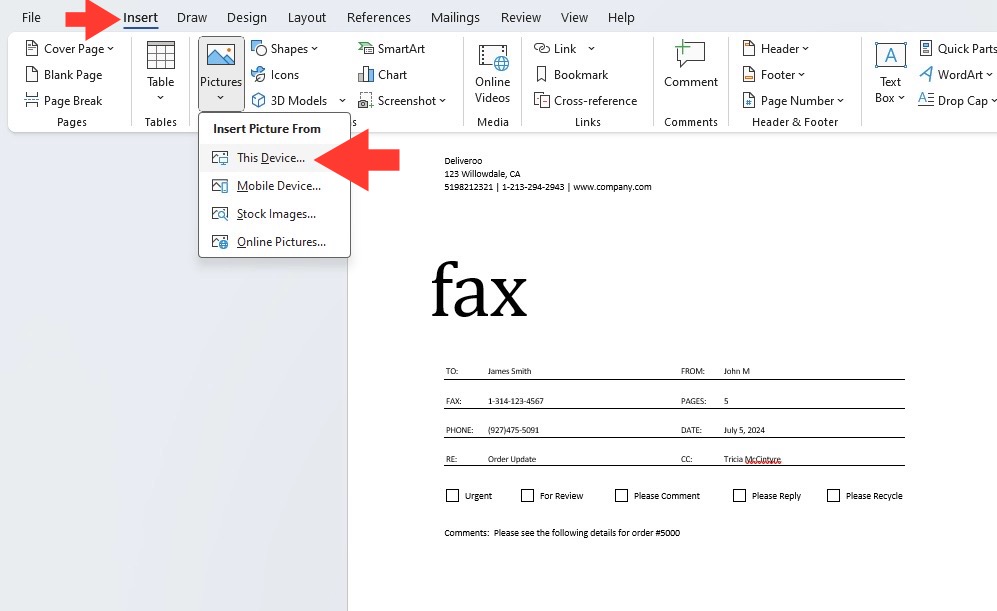
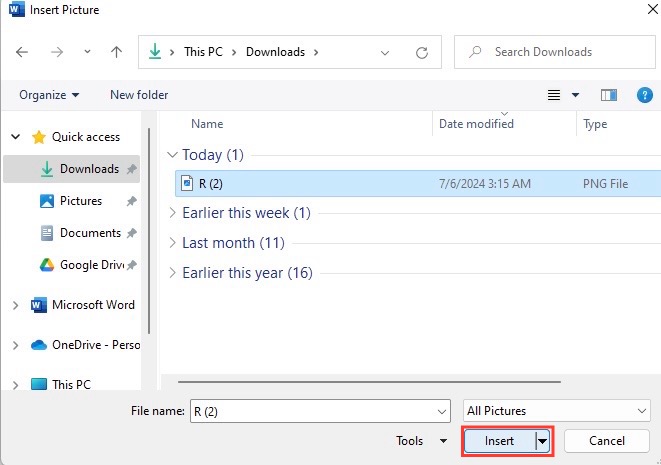
STEP 1: Click “Insert,” followed by “Image,” and select your logo from where you’ve saved it.
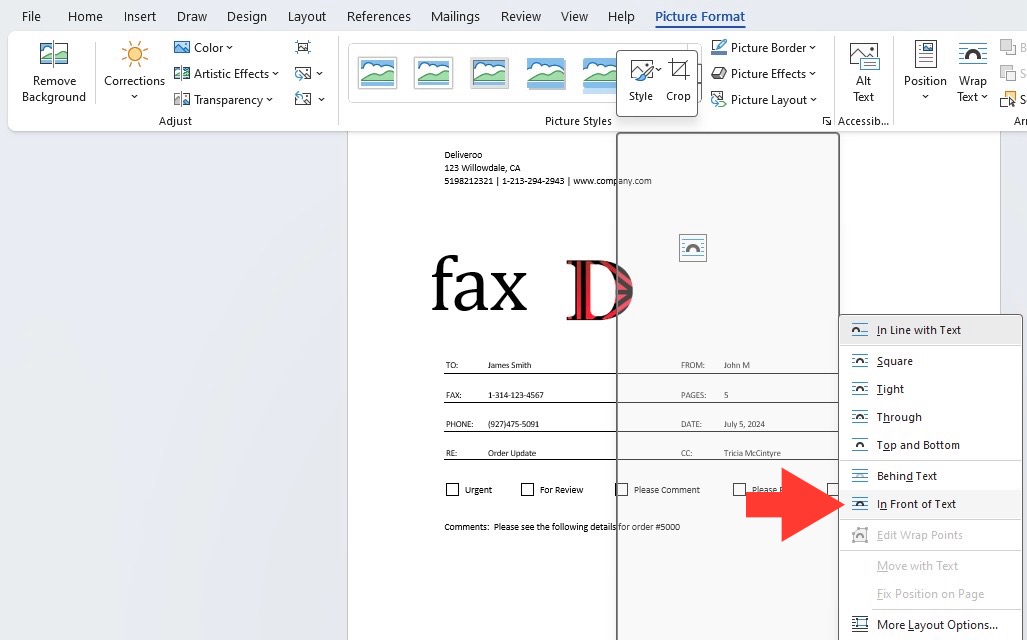
STEP 2: Then, right-click the logo, choose “Wrap Text,” and click “In front of text.” This allows you to drag the logo to the ideal spot on the page, maybe in the top corner or front and center for impact.
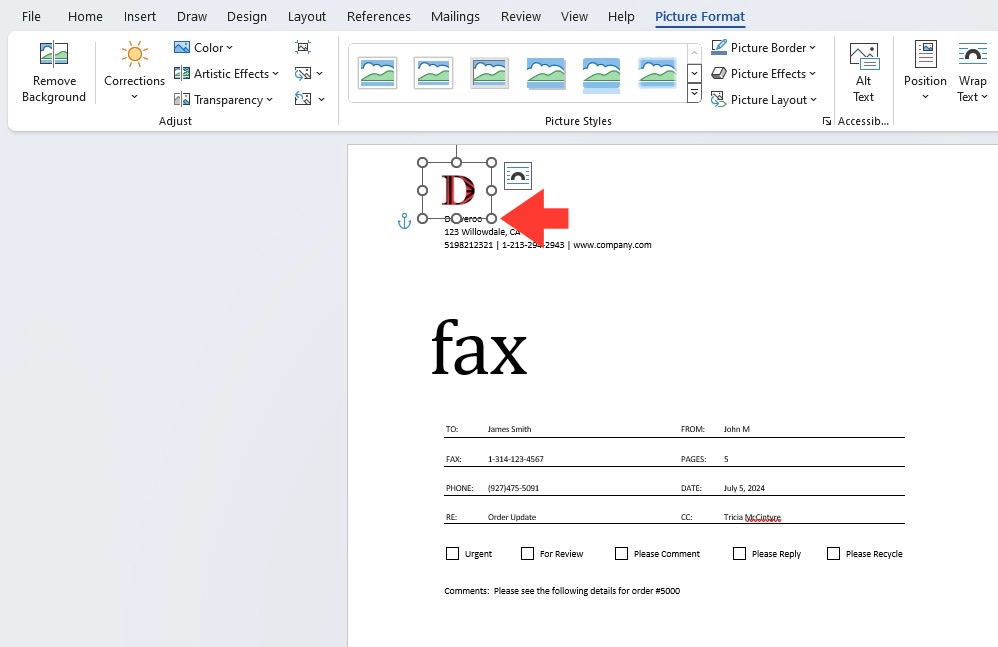
STEP 3: Adjust the size as necessary; just make sure it’s clear but not overpowering – your logo is there to play a supporting role, not to take the lead.
Save Custom Template
STEP 1: Click ‘File’ and then ‘Save As.’
STEP 2: Choose a location that’s easy for you to remember.
STEP 3: In the ‘Save as type’ drop-down menu, select ‘Word Template’ (*.dotx).
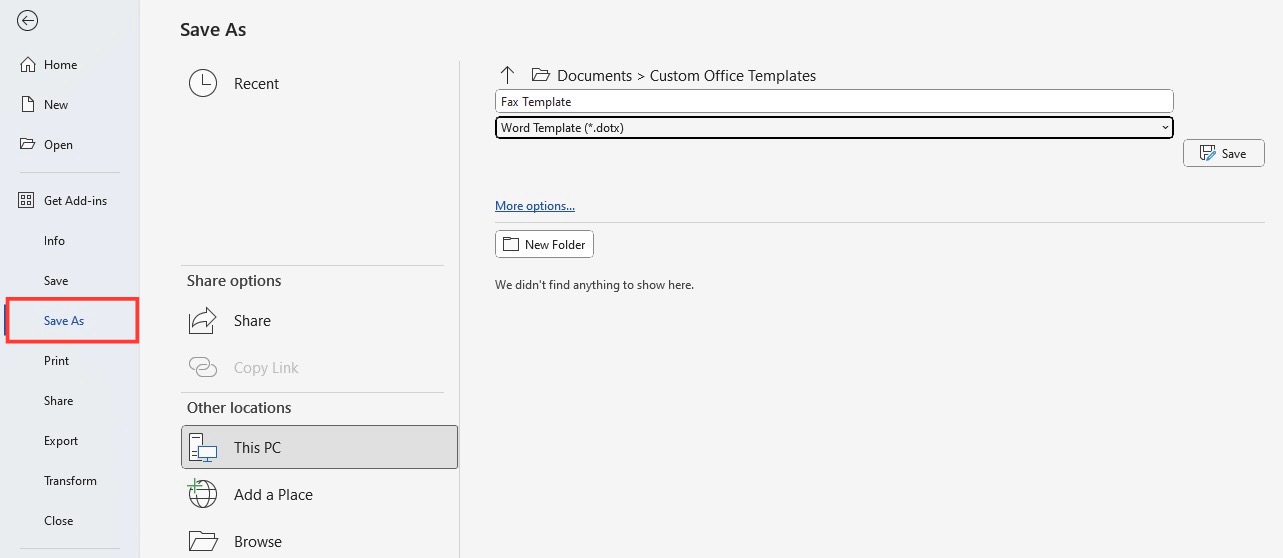
STEP 4: Name your template.
FAQs
Can I create a fax cover sheet without a template?
Absolutely! Open a blank document in Word, and just include the key elements like sender and recipient details, fax number, number of pages, and a message. It’s a bit more work, but totally doable.
How to create a fax in Word?
- Go to the ‘File’ tab
- Select ‘New’
- Type ‘fax cover sheet’ in the search bar.
- Choose a template
- Customize with your information
How to make sure my fax cover sheet remains confidential?
To keep your fax cover sheet confidential, add a bold “Confidential” at the top. Add a privacy notice that instructs unintended recipients to not to peek or pass on the info. For extra secrecy, opt for an online fax service that zips it straight to the recipient’s inbox.

John Michaloudis is a former accountant and finance analyst at General Electric, a Microsoft MVP since 2020, an Amazon #1 bestselling author of 4 Microsoft Excel books and teacher of Microsoft Excel & Office over at his flagship MyExcelOnline Academy Online Course.

 30 Days - Full Access









