 Free Practice Workbook
Key Takeaways
- Excel treats feet and inches with symbols as text.
- Store measurements as numbers for accurate calculations.
- Use formulas to display feet and inches symbols.
- CONCAT and TEXTJOIN can combine measurements into one cell.
- Power Query and VBA can automate measurement conversions.
Table of Contents
Understand Feet and Inches
Feet and inches are common units for measuring length. There are 12 inches in a foot, and when writing the measurement, you may need to use both units. For example:
Height of 5 feet 8 inches is written as 5′ 8″
Excel doesn’t have a specific format for feet and inches. It does not recognise the data as a number but as text. Since it is stored as text, it cannot be used in mathematical calculations. The best practice is to store measurements in numeric format and display symbols only when needed.
How to Enter and Format Feet and Inches Symbols in Excel
Method 1: Store Feet and Inches in Separate Columns
- Enter feet in column A and inches in column B.
- You can use this formula to combine into a single decimal value in column C:
=A2 + (B2/12)
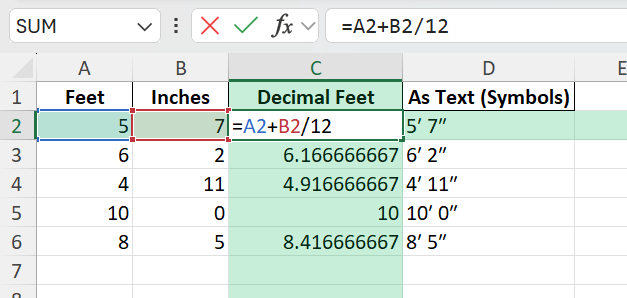
Method 2: Display Feet and Inches with Symbols
If you want to show the measurement as text, use:
=INT(C2)&"′ "&ROUND((C2-INT(C2))*12,0)&"″"

This converts a decimal feet value to a readable format with symbols.

Method 3: CONCAT Function
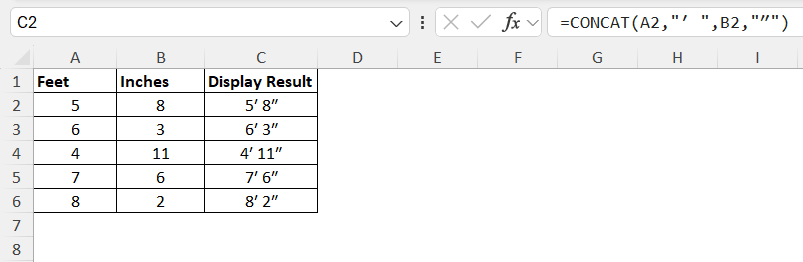
The CONCAT function combines text from multiple cells into a single value. If your feet value is in A2 and your inches value is in B2, you can combine them with the feet and inches symbols using the following formula:
=CONCAT(A2,”′ “,B2,”″”)
Method 4: TEXTJOIN Function
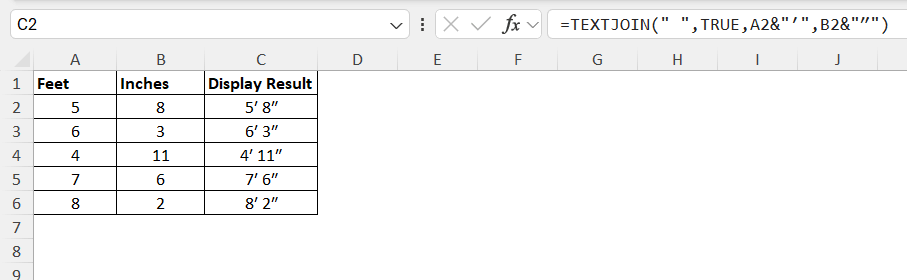
The TEXTJOIN function can be used to combine text from multiple cells and add a separator between them. To combine feet and inches with a space between them, use:
=TEXTJOIN(” “,TRUE,A2&”′”,B2&”″”)
Common Mistakes and Tips
- Excel treats measurements with feet (′) and inches (″) symbols as text, not numbers.
- Keep feet and inches in separate columns when you need to perform calculations.
- Not rounding inches can give incorrect results after conversion.
- Use
ROUND(...,0)to display whole inches. - Test your formulas with a few sample measurements before using them on a large dataset.
Bonus Tips and Advanced Scenarios
Power Query
You can use Power Query to split a text value like “5′ 7\”” into separate feet and inches columns using “Split Column” and “Replace Values.”
VBA
Add this VBA function for batch conversion:
Function FeetInchesToDecimal(measure As String) As Double
    Dim parts() As String
    measure = Replace(measure, "′", "'")
    measure = Replace(measure, "″", """")
    parts = Split(measure, "'")
    If UBound(parts) = 1 Then
        FeetInchesToDecimal = Val(parts(0)) + Val(Replace(parts(1), """", "")) / 12
    Else
        FeetInchesToDecimal = Val(measure)
    End If
End Function
Use =FeetInchesToDecimal(A2) in your sheet.
FAQ
Q: Can we use Excel to calculate data with feet and inches symbols?
A: No. If you add symbols to the value, Excel treats them as text. You can store them separately as text and display symbols only when needed.
Q: How do I convert decimal feet to feet and inches?
A: Use the INT and ROUND functions to display the measurement with symbols.
Q: What is the difference between CONCAT and TEXTJOIN?
A: CONCAT joins text, while TEXTJOIN also lets you add a separator and ignore empty cells.
Q: Why should I keep measurements as numbers?
A: Numeric values make calculations and conversions much easier.
Q: Can I automate feet and inches conversions in Excel?
A: Yes. You can use Power Query or VBA to automate the process.

John Michaloudis is a former accountant and finance analyst at General Electric, a Microsoft MVP since 2020, an Amazon #1 bestselling author of 4 Microsoft Excel books and teacher of Microsoft Excel & Office over at his flagship MyExcelOnline Academy Online Course.

 30 Days - Full Access









