 Free Practice Workbook
Understanding business days is key to effective project planning and time management. Unlike regular calendar days, business days exclude weekends and public holidays and reflect the operational days of businesses. Microsoft Excel serves as a great tool in the calculation of workdays. In this guide, we will cover the steps to calculate how long is 3 business days in Excel.
Key Takeaways:
- Business days exclude weekends and public holidays.
- Business days focus on the operational days when businesses are open.
- WORKDAY and NETWORKDAYS functions can help in calculating business days.
- WORKDAY function adds or subtracts a specified number of working days from a start date, excluding weekends and holidays.
- NETWORKDAYS calculates the number of business days between two dates, excluding weekends and holidays.
- The WORKDAY.INTL and NETWORKDAYS.INTL functions allow for the customization of weekend days and the inclusion of holiday lists.
Table of Contents
Introduction to Business Days in Excel
Business days are the heartbeat of the corporate world. Unlike regular calendar days, they exclude weekends and public holidays. When you are setting deadlines, scheduling meetings, or planning projects, you count the number of business days.
These are the days when businesses are typically open and operational.
Excel has several functions to track, calculate, and analyze dates and times. It helps you avoid the manual tallying of days that can be time-consuming. Instead, you can focus on the bigger picture, knowing that Excel can correctly calculate schedules and deadlines.
Excel’s Time Functions
WORKDAY Function
The WORKDAY function is designed to quickly add or subtract a specified number of working days to or from a start date. By default, it skips weekends and can optionally consider holidays too. Here’s what you need to know: the syntax is straightforward –
WORKDAY(start_date, days, [holidays])
When you feed in the start date and the number of business days you’re aiming for, Excel crunches the numbers, presenting you with a precise end date.
NETWORKDAYS Function
NETWORKDAYS can count of the working days between two dates, while automatically excluding weekends and holidays. It is used for understanding the actual scope of workdays within a project’s timeline.
- Syntax:
NETWORKDAYS(start_date, end_date, [holidays]) - Example: To measure the workdays from April 1st to April 30th, excluding Easter Monday on April 17th, you’d input
=NETWORKDAYS("2023-04-01", "2023-04-30", "2023-04-17"), and discover there are 20 effective working days.
With NETWORKDAYS, planning and tracking your project timelines become an informed and strategic process, allowing you to allocate resources more efficiently and with confidence.
How Long is 3 Business Days
Using the WORKDAY Function
STEP 1: Open your Excel sheet and click on the cell where you want the result to appear.
STEP 2: Type in the function ‘=WORKDAY(‘.
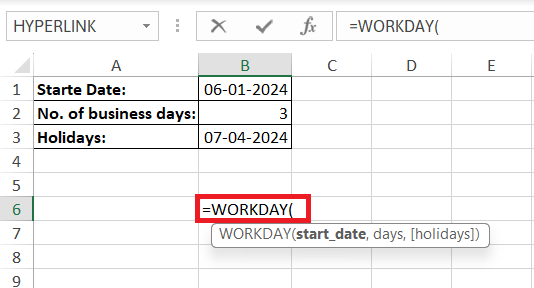
STEP 3: Click on the cell that contains the start date or type it in manually, followed by a comma.
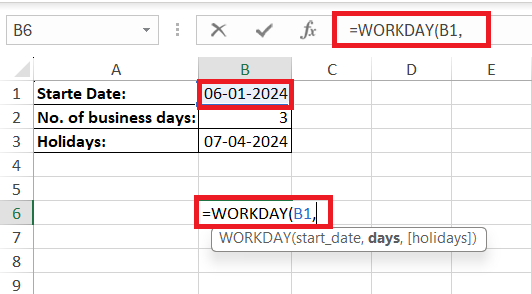
STEP 4: Enter the number of business days you want to add (in this case, 3).
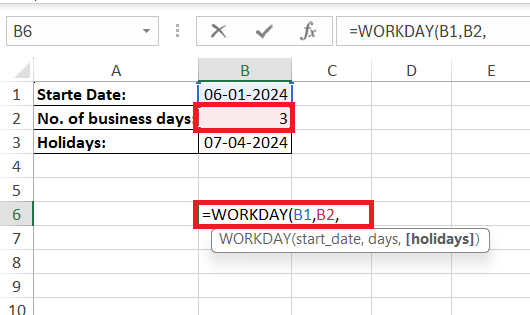
STEP 5: Optionally, you can add another comma and select the range that contains any holidays you want to exclude, followed by closing the bracket.
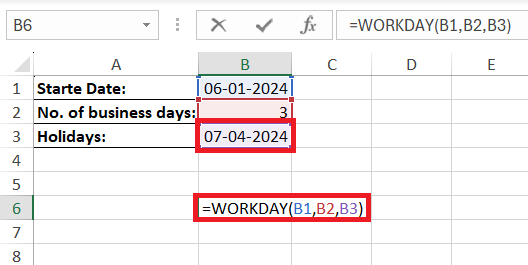
STEP 6: Hit Enter, and voilà! The cell now displays the date that is 3 business days from the start date, taking into account weekends and any listed holidays.
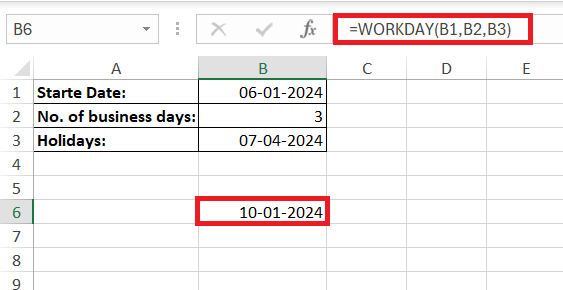
Remember, Excel assumes weekends are Saturday and Sunday, so if you’re dealing with a different weekend schedule, you might need the WORKDAY.INTL function instead.
Weekends and Holidays
If you’ve got a conventional Saturday/Sunday weekend and no holidays, it is a simple process. You can just enter the arguments, and the result will be displayed.
For non-standard weekends, though, the WORKDAYS.INTL function can be used. It allows you to define which days to treat as weekends using customizable numeric codes. With this tool, whether your week includes a Friday, a working Saturday or every day is a grind, Excel’s got your calendar covered.
=WORKDAY.INTL(start_date, days, [weekend], [holidays])
Weekend number values indicate the following weekend days:
- 1 or omitted – Saturday, Sunday
- 2 – Sunday, Monday
- 3 – Monday, Tuesday
- 4 – Tuesday, Wednesday
- 5 – Wednesday, Thursday
- 6 – Thursday, Friday
- 7 – Friday, Saturday
- 11 – Sunday only
- 12 – Monday only
- 13 – Tuesday only
- 14 – Wednesday only
- 15 – Thursday only
- 16 – Friday only
- 17 – Saturday only
Practical Examples for Real-World Scenarios
Scheduling Project Deadlines Like a Pro
Picture this: you’re tasked with orchestrating a project that has a series of critical deadlines. With Excel’s WORKDAY function, you pinpoint exact due dates for each milestone, setting a clear path toward the finish line. Here’s your game plan:
- Define each phase’s starting point and duration in business days.
- Use WORK’s seamless calculation to leap over weekends and holidays effortlessly.
- Share the schedule with your team, keeping everyone in sync and on track for project success.
Before you know it, you’ve evolved from deadline-juggler to deadline-master, orchestrating your team’s effort with precision and poise.
Managing Payment Due Dates with Precision
When dealing with invoices and payments, timing is everything—making the WORKDAY function your trusty sidekick. Input your billing date, tack on the payment terms (say, “net 3 business days”), and Excel will deliver the due date with laser precision.
By deploying this simple method, you’ll ensure:
- Timely billing cycles to maintain cash flow.
- Clear-cut due dates for clients to follow.
- Minimized confusion with holidays and weekend exclusions naturally factored in.
Aligning your accounts receivable with the WORKDAY function transforms your financial workflow into an efficient, fuss-free operation.
Tips for Avoiding Common Mistakes
Common Pitfalls
- Missteps in Syntax: Make sure that you’re using commas to separate each part of the function and wrapping text dates in quotes.
- Overlooking Custom Weekends: The default weekend days are Saturday and Sunday. If yours are different, you might be adding extra days unintentionally. Double-check your settings or use the WORKDAY.INTL function.
- Neglecting Holidays: Failing to account for holidays can lead to skewed timelines. Always include a complete list of holidays relevant to your project or business context for an unerring schedule.
Errors when using WORKDAY or NETWORKDAYS
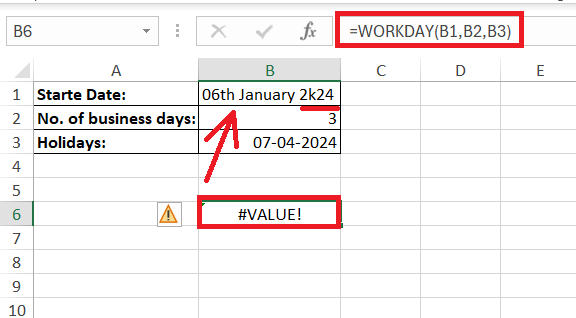
- Check date formats: Make sure that all dates are in a recognized Excel format.
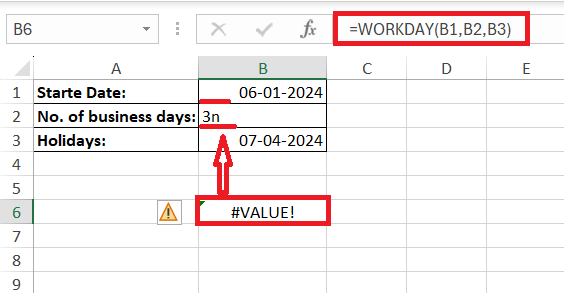
- Validate arguments: Confirm that the “days” parameter is numeric.
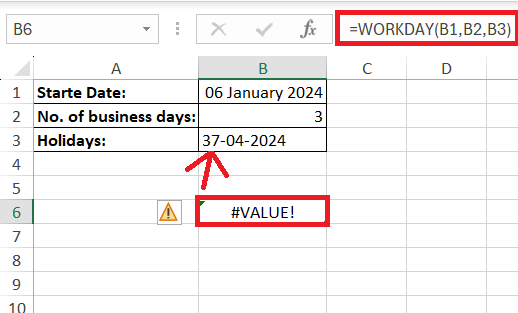
- Review holiday list: Make sure it consists of actual date values.
- Adjust for custom weekends: Remember to use NETWORKDAYS.INTL or WORKDAY.INTL for non-standard weekends.
Automate Date Calculations
Conditional Formatting
STEP 1: Select the cells containing deadlines.
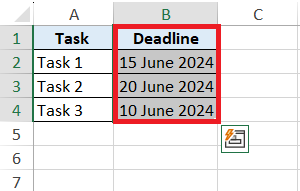
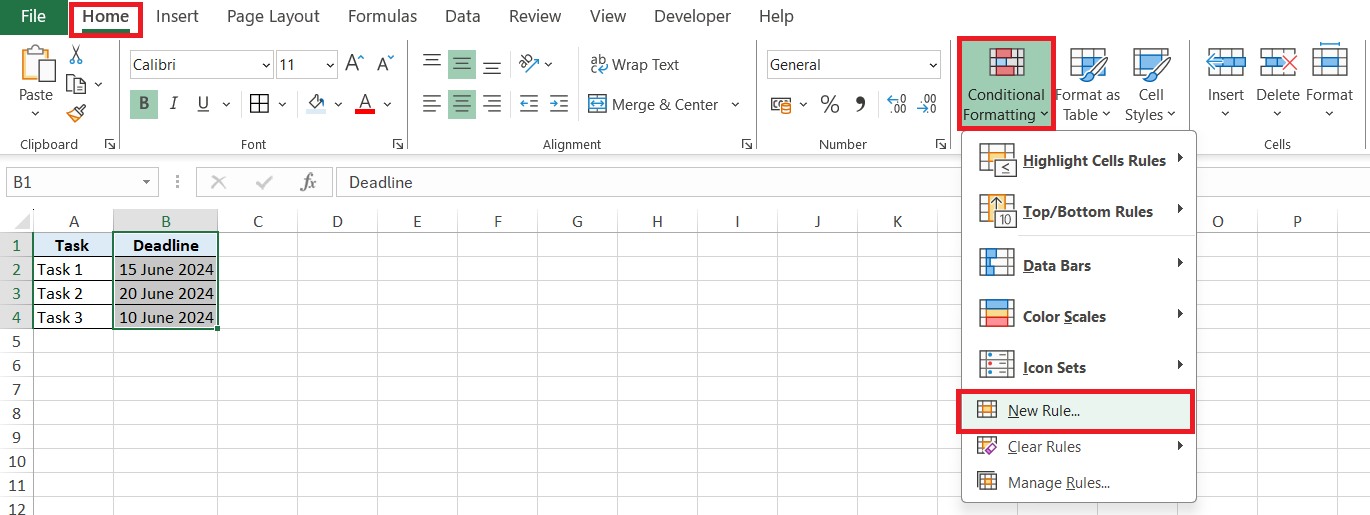
STEP 2: Go to the ‘Home’ tab, and choose ‘Conditional Formatting’, then ‘New Rule’.
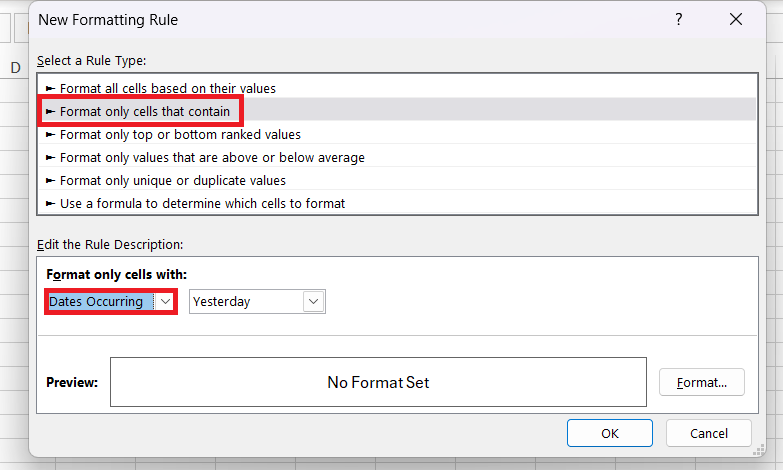
STEP 3: Pick ‘Format cells that contain’, followed by ‘Dates Occurring.
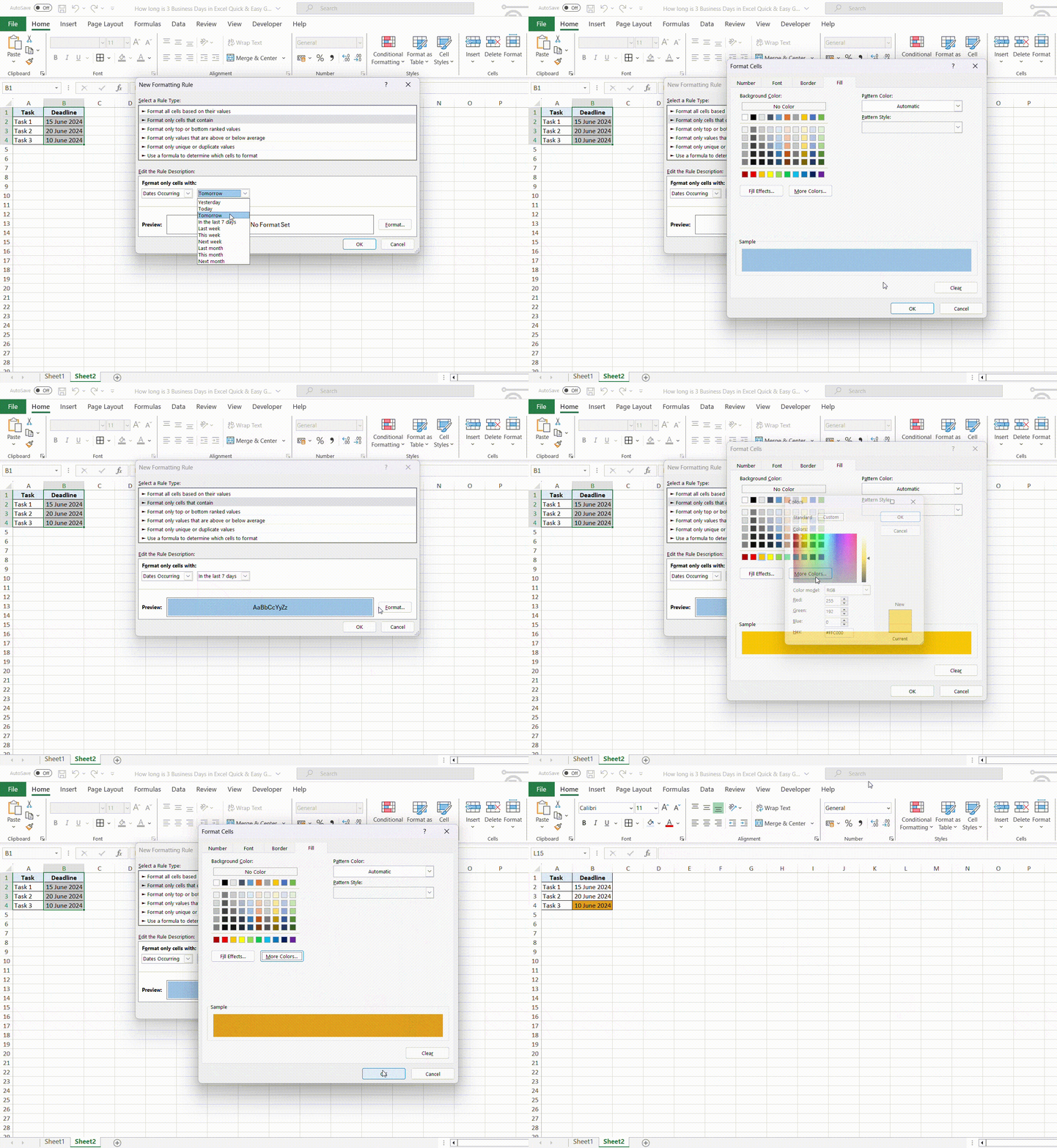
STEP 4: Play with the possibilities—maybe you want ‘tomorrow’ in blue or ‘in the last 7 days’ in orange? Finally, define your format—the boldness of text; the warmth of colors.
FAQs
What Defines a Business Day in Excel?
A business day in Excel refers to any day of the week that is not a weekend or a public holiday. By default, Excel considers Saturdays and Sundays as non-business days.
How to calculate 3 business days in Excel?
To calculate 3 business days from a start date in Excel, use the WORKDAY function.
=WORKDAY(start_date, 3)
This will exclude weekends and can also exclude holidays if you specify them in the formula as an optional range.
Can Excel Account for Public Holidays in Business Day Calculations?
Absolutely, Excel can factor in public holidays when you’re calculating business days. Just list the holidays in a column and reference that range within the WORKDAY or NETWORKDAYS functions to exclude those dates from your business day calculations.
How to Fix Errors When Using WORKDAY or NETWORKDAYS Functions?
- Check all dates are in a recognized Excel format.
- Confirm that the “days” parameter is numeric.
- Make sure that the holiday list consists of actual date values.
- Remember to use NETWORKDAYS.INTL or WORKDAY.INTL for non-standard weekends.

John Michaloudis is a former accountant and finance analyst at General Electric, a Microsoft MVP since 2020, an Amazon #1 bestselling author of 4 Microsoft Excel books and teacher of Microsoft Excel & Office over at his flagship MyExcelOnline Academy Online Course.

 30 Days - Full Access









