 Free Practice Workbook
It is important to know how many weekends fall in a month for planning work schedules, project timelines, or personal events. Excel offers different methods to calculate the number of weekends in a month. In this guide, we will learn how to calculate the number of weekends in a month.
Key Takeaways
- You can calculate weekends by subtracting working days from the total days.
- The NETWORKDAYS function can count working days between two dates.
- You can customise weekend days using different codes in the formula.
- Always make sure that the dates are in the correct format.
Table of Contents
NETWORKDAYS.INTL Function
The NETWORKDAYS.INTL function can be used to calculate the number of working days between two dates. The syntax will be:
=NETWORKDAYS.INTL(start_date, end_date, [weekend], [holidays])
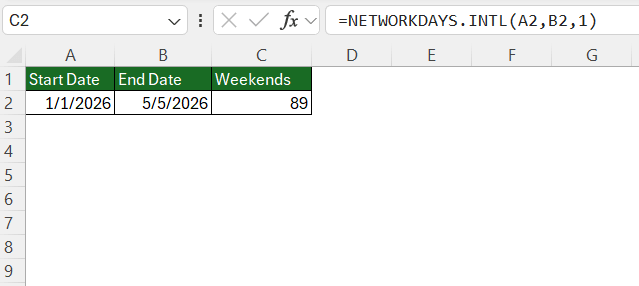
You can use this formula to count the number of working days between the start date and end date mentioned in cells A2 and B2, respectively.
How to Count Weekends in a Month
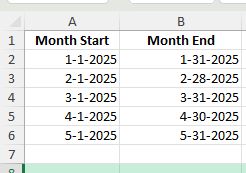
STEP 1: Create two columns for the month start and month end dates.
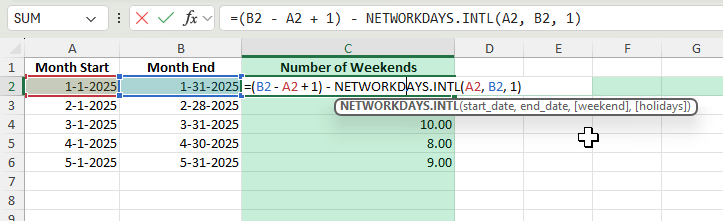
STEP 2: In a new column, enter the formula:
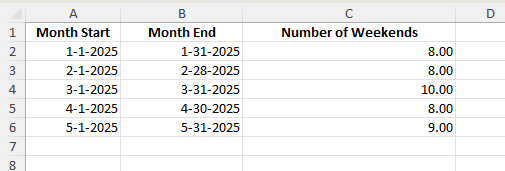
STEP 3: Copy the formula down to apply it to the rows below.
Advanced Techniques
Customize Weekends
The number 1 in the formula defines the weekend as Saturday and Sunday. You can change it if your weekend is different.
Examples:
- 1 – Saturday & Sunday
- 2 – Sunday & Monday
- 7 – Friday & Saturday
You can also use custom patterns like:
= NETWORKDAYS.INTL(A2, B2, “0000011”)
Here:
- 1 = non-working day
- 0 = working day
Adding Holidays
If you want to exclude public holidays from working days:
=(B2 – A2 + 1) – NETWORKDAYS.INTL(A2, B2, 1, D2:D10)
- D2:D10 contains holiday dates
These will be excluded from working days
Common Mistakes and How to Avoid Them
- Make sure that the dates are not stored as text.
- Counting individual weekend days may require dividing by 2 if you want the number of full weekend pairs.
Tips & Tricks
- You can modify the WEEKDAY formula if weekends fall on days apart from Saturday and Sunday.
- Use Power Query to generate all dates in the month. You can then filter for weekend days and count them.
- Use a macro to loop through dates and count weekends:
Sub CountWeekends()
    Dim startDate As Date, endDate As Date
    Dim countSatSun As Integer
    Dim d As Date

    startDate = Range("A2").Value
    endDate = Range("B2").Value
    countSatSun = 0

    For d = startDate To endDate
        If Weekday(d, vbSunday) = 1 Or Weekday(d, vbSunday) = 7 Then
            countSatSun = countSatSun + 1
        End If
    Next d

    Range("C2").Value = countSatSun / 2
End Sub
FAQs
1. How to count weekends in Excel?
You can count weekends in Excel by using the formula below:
=(end date – start date + 1) – NETWORKDAYS.INTL(start date, end date, 1).
2. What is NETWORKDAYS.INTL function?
The NETWORKDAYS.INTL function calculates the number of working days between two dates. It can also exclude holidays if you provide a range of holiday dates.
3. How to change weekend days in NETWORKDAYS.INT formula?
To change weekend days in the NETWORKDAYS.INTL formula, you can use the weekend argument:
=NETWORKDAYS.INTL(A1, B1, 7)
- 7 means Friday and Saturday are weekends.
4. Why is my formula not working correctly?
If the dates are stored as text, then the formula will not work. You have to make sure that the dates are stored in the proper date format.
5. How to include holidays in the NETWORKDAYS.INT function?
To include holidays in the NETWORKDAYS.INTL formula, you add a range of holiday dates as the fourth argument.
=NETWORKDAYS.INTL(A1, B1, 1, D2:D10)

John Michaloudis is a former accountant and finance analyst at General Electric, a Microsoft MVP since 2020, an Amazon #1 bestselling author of 4 Microsoft Excel books and teacher of Microsoft Excel & Office over at his flagship MyExcelOnline Academy Online Course.

 30 Days - Full Access









