 Free Practice Workbook
Calculating a batting average is a common task for tracking baseball or softball statistics. Excel provides a great way to record, analyze, and visualize player performance. In this article, you will learn how to calculate batting average in Excel.
Key Takeaways
- The batting average formula is Hits divided by At Bats.
- Excel can track player stats and automatically calculate batting averages.
- You can format results as a decimal or a percentage.
- You can quickly apply the formula to entire columns for multiple players or games.
- Advanced users can add conditional formatting, automate calculations, and visualize trends with charts or Power Query.
Table of Contents
Understand Batting Average in Excel
Batting average is a commonly used metric for analysing a player’s performance. It shows how often a player gets a hit. Coaches, analysts, and players often use batting averages to compare performance over a season.
A higher batting average generally indicates more successful batting results.
It can be calculated by using this formula:
Batting Average = Hits / At Bats
For example, if a player has 35 hits in 108, the batting average will be:
= 35 / 108
= 0.324
This means the player records a hit in approximately 32.4% of official at-bats.
Calculate Batting Average in Excel
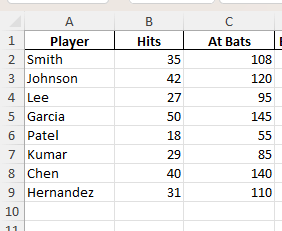
Step 1: Create a table with three columns:
Step 2: Create a column for Batting Average and enter the formula:
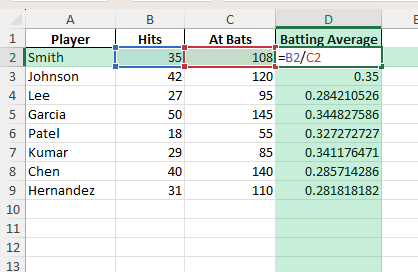
Copy the formula down for each player.
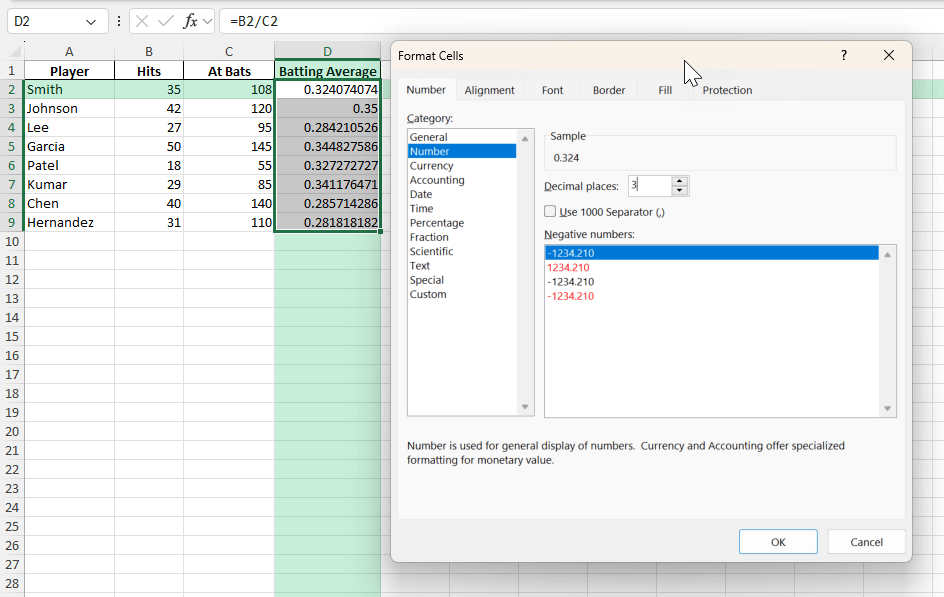
Step 3: Select the Batting Average column.
Right-click and choose Format Cells.
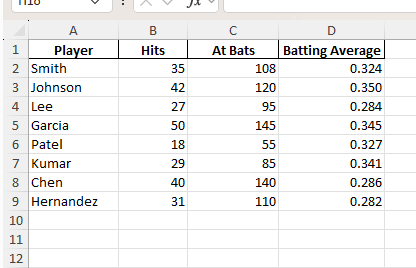
Select Number and set Decimal places to 3.
Common Mistakes to Avoid
- Including walks or other non-at-bat appearances in the calculation.
- Forgetting to format the result to three decimal places.
- Ignoring
#DIV/0!errors when at-bats are zero. - Not updating formulas when new player data is added.
- Entering hits or at-bats as text instead of numbers.
Bonus Tips and Advanced Scenarios
- Use Conditional Formatting to highlight batting averages above .300 for top performers.
- Use Power Query to import season stats from a CSV file and calculate averages for each player.
- Use a VBA Macro to automatically fill the Batting Average column for each row.
VBA Macro Example:
Sub CalculateBattingAverage()
    Dim ws As Worksheet
    Set ws = ActiveSheet
    Dim lastRow As Long
    lastRow = ws.Cells(ws.Rows.Count, "A").End(xlUp).Row
    Dim i As Long
    For i = 2 To lastRow
        If ws.Cells(i, 3).Value <> 0 Then
            ws.Cells(i, 4).Value = ws.Cells(i, 2).Value / ws.Cells(i, 3).Value
        Else
            ws.Cells(i, 4).Value = ""
        End If
    Next i
End Sub
FAQ
What is the formula for batting average in Excel?
The batting average can be used to divide the number of hits by at bat.
How to round the batting average to three decimals?
To round the batting average to 3 decimals:
- Right-click on the number
- Select Format Cells
- Select Number
- Set Decimal places to 3.
Can I calculate averages for multiple games or players?
Yes, copy the formula down for each player or game.
How to handle zero at bats?
If the at bats is zero, the battign average formula can return an error. To avoid it, use this formula:
=IF(C2=0,"",B2/C2)
- where, B2 is number of hits
- C2 is at bats
Can I automate this with VBA or Power Query?
Yes, see the VBA code above or use Power Query for larger datasets.

John Michaloudis is a former accountant and finance analyst at General Electric, a Microsoft MVP since 2020, an Amazon #1 bestselling author of 4 Microsoft Excel books and teacher of Microsoft Excel & Office over at his flagship MyExcelOnline Academy Online Course.

 30 Days - Full Access









