 Free Practice Workbook
Return on Investment is an important measure to calculate the profitability of an investment. ROI helps you to determine if your investment is making money. In this article, you will learn how to calculate ROI in Excel.
Key Takeaways:
- ROI measures the profitability of an investment.
- It compares net gain to investment cost as a percentage.
- It helps compare different investments and select the best option.
- Excel functions like SUM and IF improve accuracy.
Table of Contents
What is ROI?
ROI stands for Return on Investment. It is a simple way to determine how much profit you made compared to the amount you invested. It can be calculated by dividing the net gain by the investment cost.
ROI = Net Gain /Investment Cost * 100
where;
- Net Profit = Final Value − Initial Investment
- Investment Cost = Total amount invested
ROI is expressed in the form of a percentage.
This is used to track the performance of an investment or compare multiple investments. It can automate your calculations and remove the chance of manual error.
How to Calculate ROI
Organise Spreadsheet
Enter your initial data into the Excel spreadsheet. Begin by labeling the first row of your worksheet with headings.
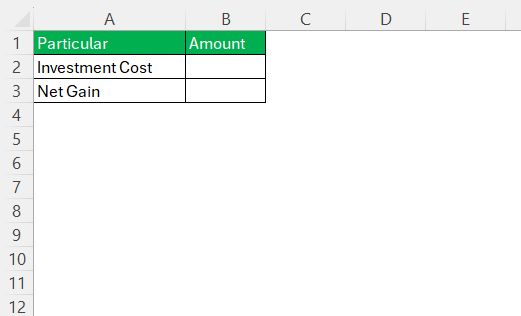
Input the corresponding values for each variable.

It is important to double-check these numbers for accuracy.
You can apply different cell colors or borders to different sections. Applying bold font or light fill color can be useful to point out important values.
You can also add comments or notes to explain details about any specific cells.
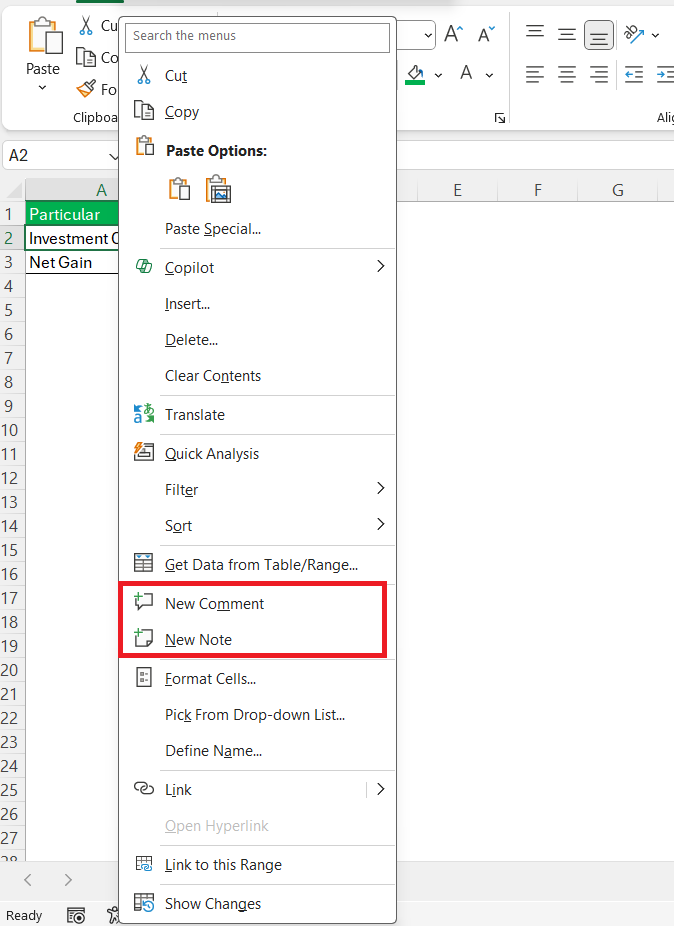
Step-by-Step Guide
The standard formula for calculating ROI is:
ROI = (Final Value – Investment Cost)/Investment Cost * 100
- Click on the cell where you need the ROI displayed.
- Type the formula with the cell references.
- Press Enter
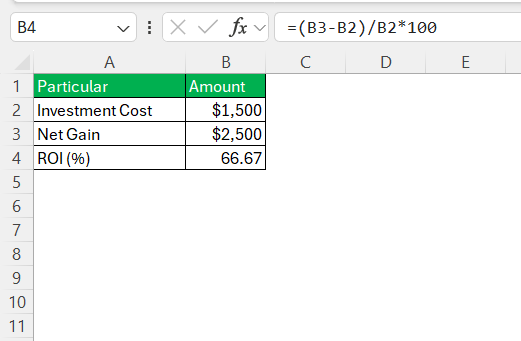
This formula will calculate the ROI as a percentage.
Advanced Techniques for Accurate Calculations
Use SUM to aggregate multiple costs or revenue streams. This will make sure that all components contributing to the total investment or gain are considered.
=SUM(B2:B6)
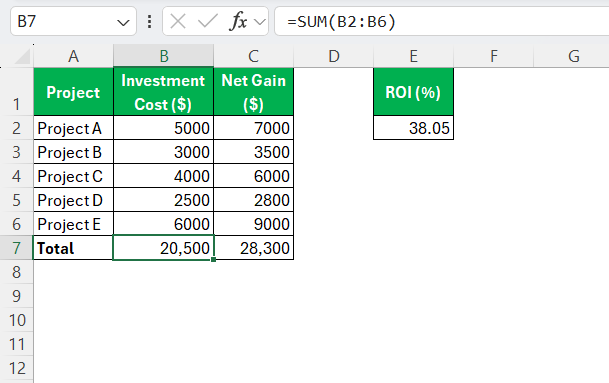
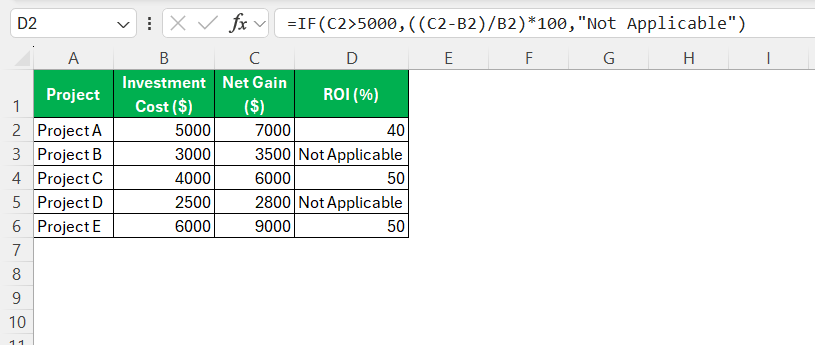
The IF function can be used to check if your net gain exceeds a certain threshold:
=IF(C2 > 5000, (C2 - B2) / B2 * 100, "Not Applicable")
Interpret Results
First, we need to compare our results with the industry standards.
- If ROI is greater than the benchmark, it means that the investment is performing well. You can consider reinvesting in it.
- If it is less than the benchmark, you need to change the strategy and look for a better alternative.
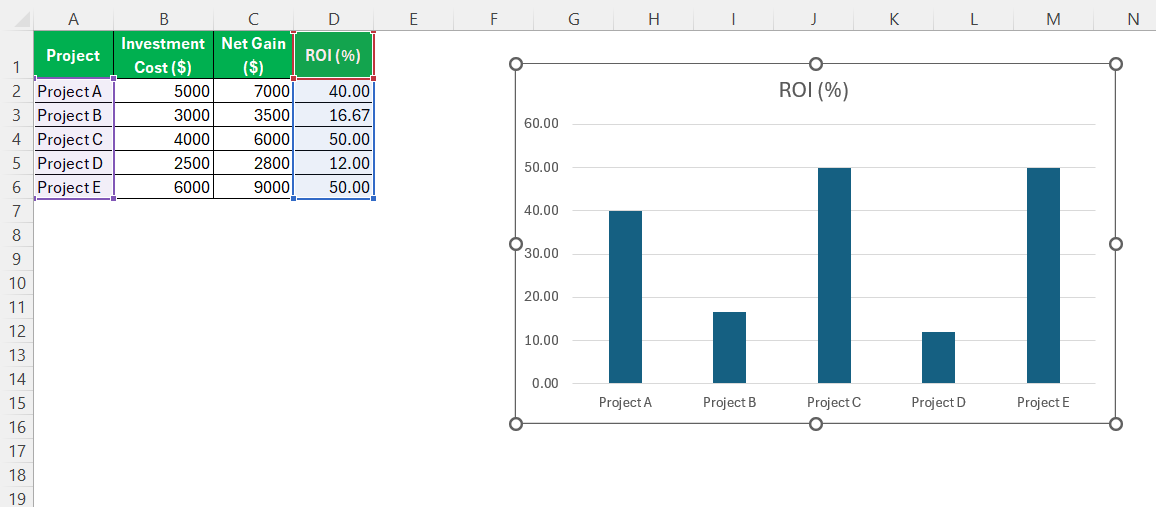
You can also plot ROI in charts to examine the trend over time. Charts can help you to spot patterns and look for any outliers. It can help you check which investment is providing the highest returns and which one you may need to re-evaluate.
Tips & Tricks
- Remember to multiply the result by 100 to express ROI as a percentage.
- Do not ignore negative ROI.
- Even when the ROI of two investments are same, one can be riskier than the other.
- If money is added or woithdrawn overtime, ROI may not be an ideal method.
FAQs
What is the basic formula for calculating ROI in Excel?
The basic formula for calculating ROI is:
ROI = (Net Gain – Investment Cost)/Investment Cost * 100
What is return on investment (roi)?
Return on Investment (ROI) is a financial metric used to evaluate the profitability of an investment. It is calculated by dividing the net profit by the initial cost of the investment. The result is then multiplied by 100.
Where to use ROI calculations?
ROI calculations can be applied to:
- Stocks
- Real estate
- Projects
- Personal purchases.
By comparing the ROI across different investment types, we can decide where to allocate capital to get the best returns.
When can ROI be negative?
ROI can be negative. This happens when the final value is less than the invested amount.

John Michaloudis is a former accountant and finance analyst at General Electric, a Microsoft MVP since 2020, an Amazon #1 bestselling author of 4 Microsoft Excel books and teacher of Microsoft Excel & Office over at his flagship MyExcelOnline Academy Online Course.

 30 Days - Full Access









