With constant messages, calls, and activities, it’s easy for your Teams workspace to feel cluttered. If you’re like me and want to manage your digital workspace, clearing history in Microsoft Teams is a straightforward way to stay organized.
Key Takeaways:
- Microsoft Teams does not have a clear history button, but you can manage chats and cached data.
- Deleting your own messages removes them from your view, however recipients can still see a placeholder showing that is was deleted.
- Clearing the app’s cache improves performance and resets temporary data without affecting saved chats or files.
- Admin settings and retention policies may limit your ability to delete specific messages or activity logs.
Table of Contents
How to Clear History in Microsoft Teams
Delete Messages in Chat
If you sent a message you no longer need or that’s irrelevant, you can delete it. Here’s how:
STEP 1: Open the Chat where the message you want to delete is located.
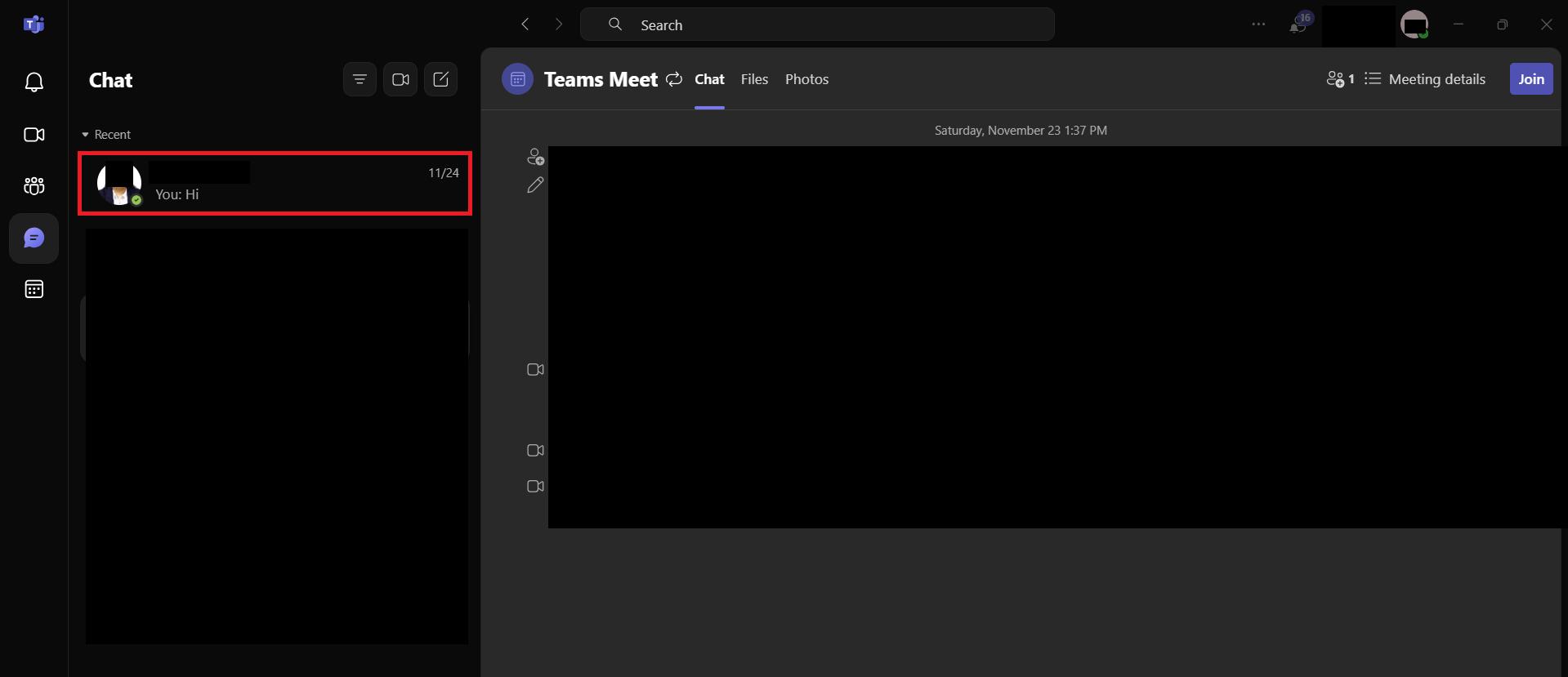
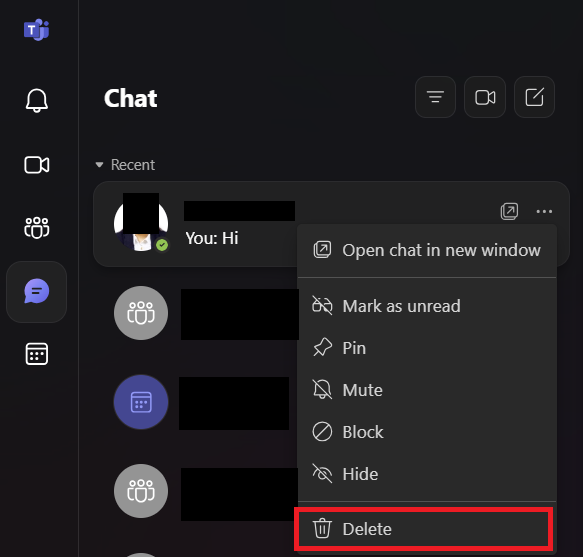
STEP 2: Go over the message and click on the three dots (More Options) that appear. Select Delete.
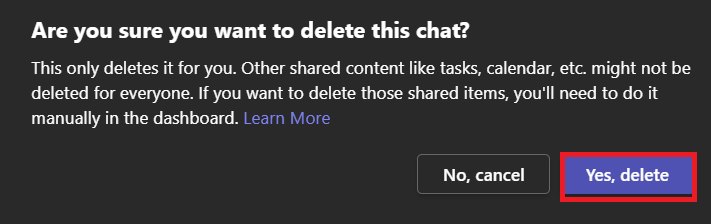
STEP 3: A prompt will appear showing the deletion. Click Delete again.
Hide or Leave Chats
STEP 1: Go to the Chat section in Teams.

STEP 2: Right-click on the chat or click the three dots (More Options) next to it.
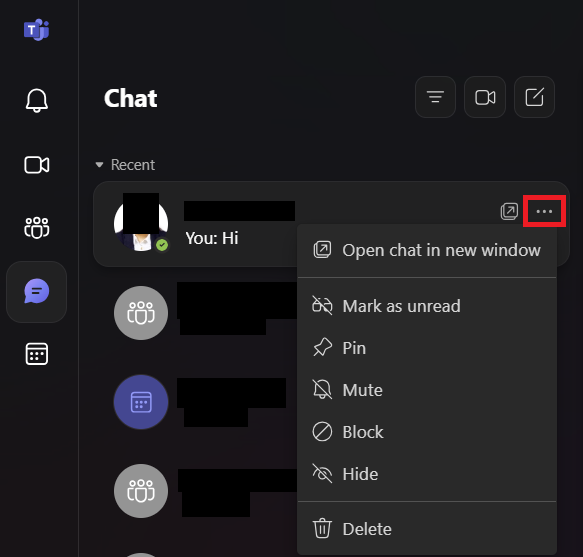
STEP 3: Select Hide.
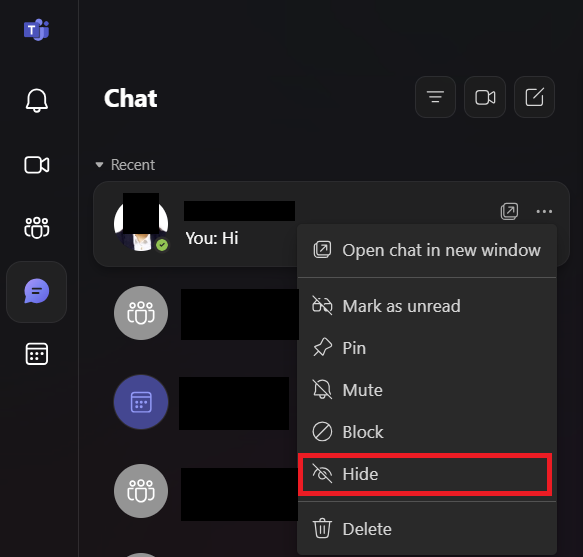
Hiding doesn’t delete the chat. it only removes it from your view.
To leave a group chat:
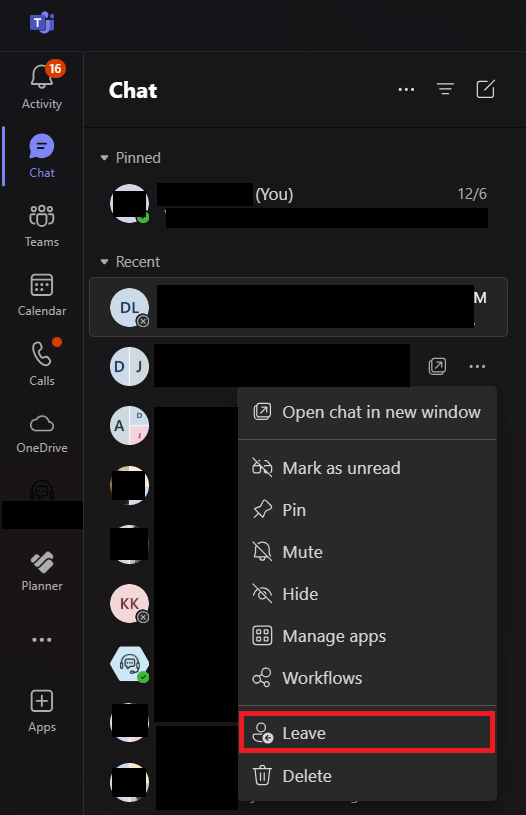
STEP 1: Open the group chat you want to leave.
STEP 2: Click on the three dots (More Options) in the chat header.
STEP 3: Select Leave.
Clear Cached Data in Microsoft Teams
Sometimes, Teams retains cached data that can make the app run slower. Clearing the cache can help. Follow the steps below –
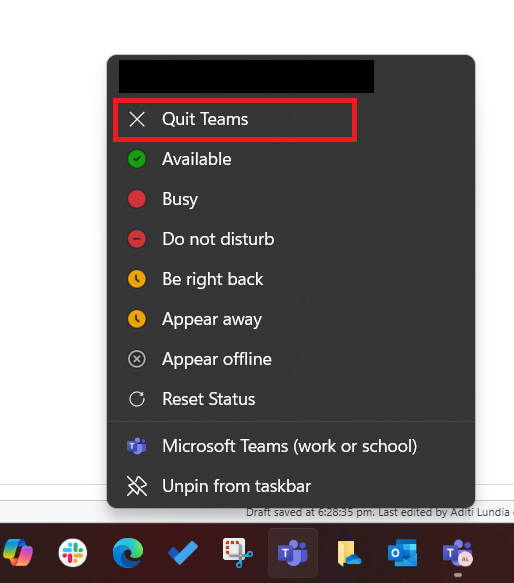
STEP 1: Close Microsoft Teams, then right-click the Teams icon and select Quit.
STEP 2: Open File Explorer and go to: %appdata%\Microsoft\Teams
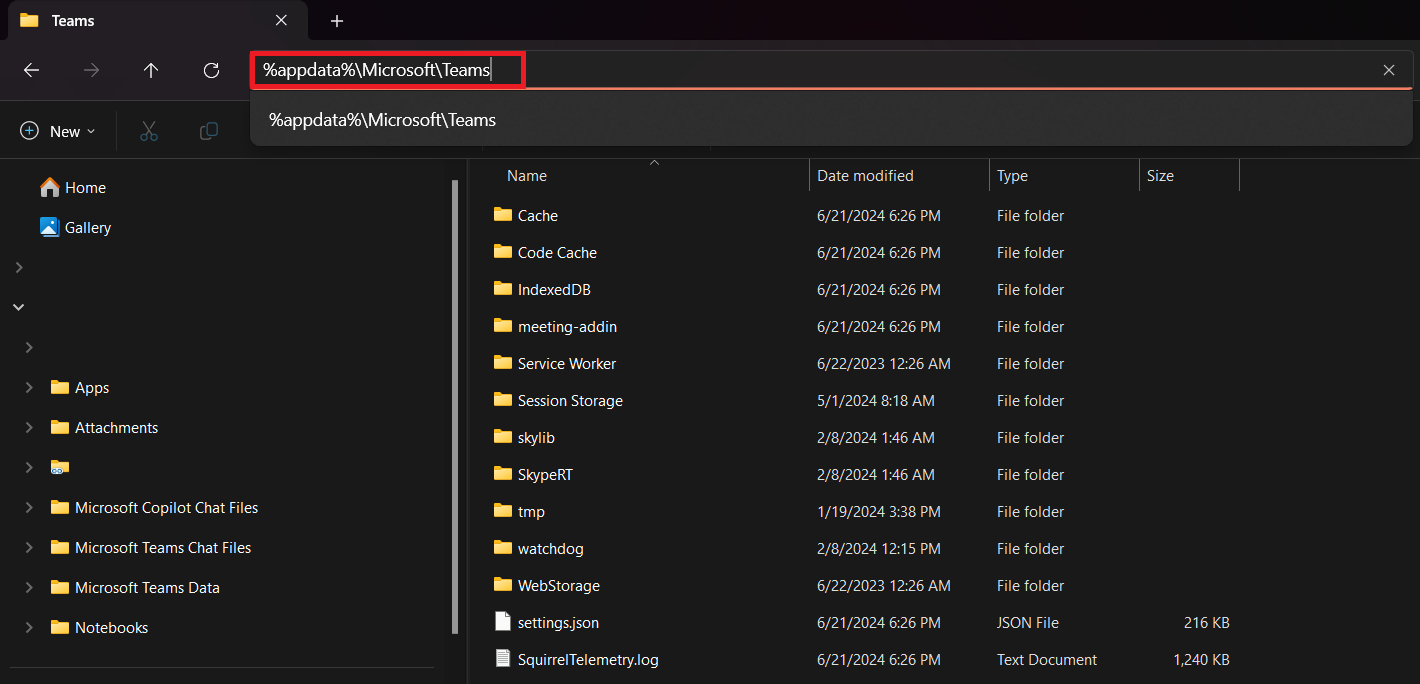
STEP 3: Delete the following folders: Application Cache, Cache, databases, GPUCache, IndexedDB, Local Storage, tmp.
STEP 4: Restart Teams.
Manage Activity Feed
While there’s no clear all option in the Activity Feed, you can manually manage it:
STEP 1: Open the Activity tab in Teams.

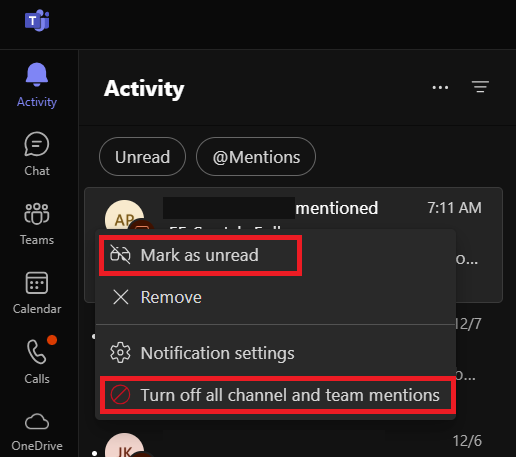
STEP 2: Right-click or click on the three dots.
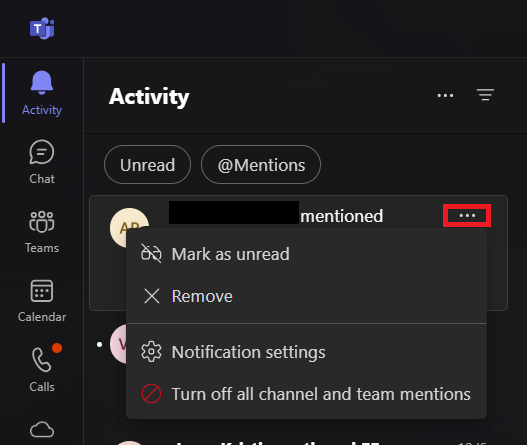
STEP 3: Select Mark as Read or Turn off Notifications.
Frequently Asked Questions
How do I delete activity history on Teams?
To delete activity history on Teams, you can manage specific items by marking them as read or hiding notifications, but you cannot delete the entire activity feed.
What are the Limitations of Microsoft Teams’ Chat Delete Function?
This function allows users to remove their own messages, but not system messages or entire chat histories. Deletion can be restricted by administrative settings, and certain compliance or retention policies could override it.
What is the duration for which Microsoft teams retains call history?
Microsoft Teams retains call history indefinitely unless you manually delete call entries. There is no automatic deletion over time, so it’s up to users to manage their call logs as necessary.

John Michaloudis is a former accountant and finance analyst at General Electric, a Microsoft MVP since 2020, an Amazon #1 bestselling author of 4 Microsoft Excel books and teacher of Microsoft Excel & Office over at his flagship MyExcelOnline Academy Online Course.

 30 Days - Full Access









