 Free Practice Workbook
When working with data in Excel, I often need to compare an experimental value to a theoretical value. One of the best ways to measure it is by calculating the percent error. In this article, I will show you how to calculate Percent Error in Excel.
Key Takeaways:
- Percent error shows how far a value is from the true value.
- Use the formula:
=ABS(A2 - B2) / ABS(B2) * 100in Excel. - Use the ABS function to convert negative results to positive.
- Format the result as percentages.
- Handle zero values to avoid errors.
Table of Contents
Introduction to Percentage Error
What is Percentage Error?
Percentage error is the difference between the observed value and the true value. This result is expressed as a percentage.
The formula to calculate the percentage error is:
Percent Error = (Observed Value−True Value)/True Value × 100
- Observed Value – It is the exact number we actually measured.
- True Value – It is the number we expect
Why Percent Error?
Percent error plays an important role in measuring the reliability of data. Understanding the margin of error is key to gauging the trustworthiness of results. It helps us compare the different datasets. It is a quantifiable way to measure the precision of outcomes against expected values.
How to Calculate Percent Error in Excel
Set Up Workbook
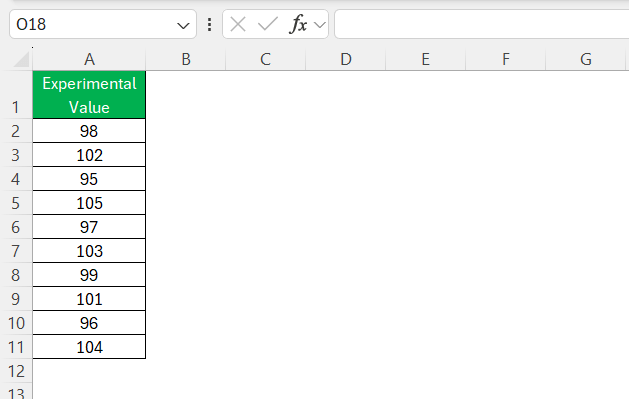
STEP 1: In Column A, enter the Observed Value.
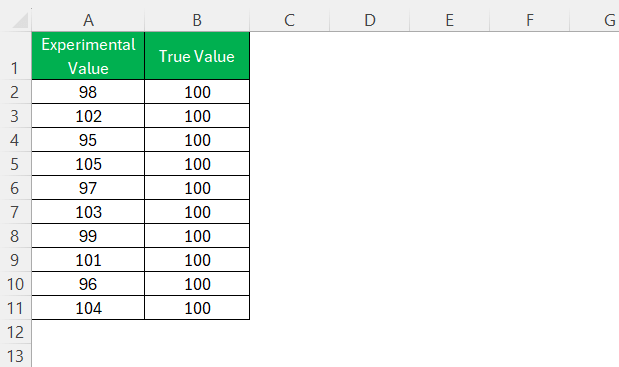
STEP 2: In Column B, enter the True Value.
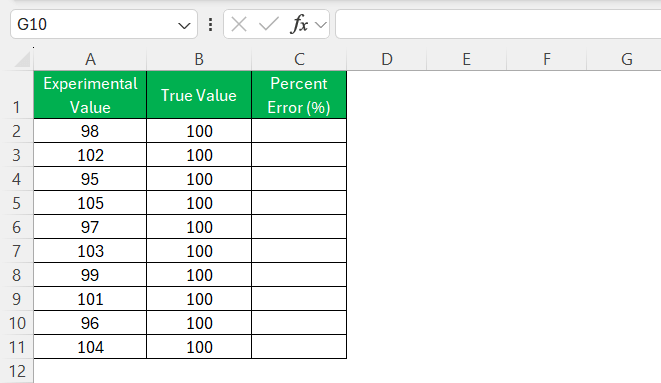
STEP 3: Create another Column C for Percent Error.
The Formula
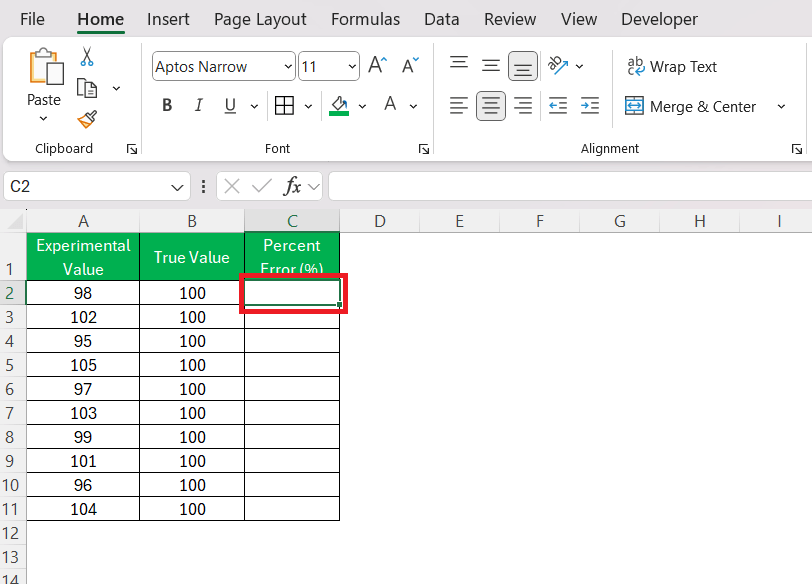
STEP 1: Click on the first cell under the Percent Error column.
STEP 2: Enter the Excel formula:
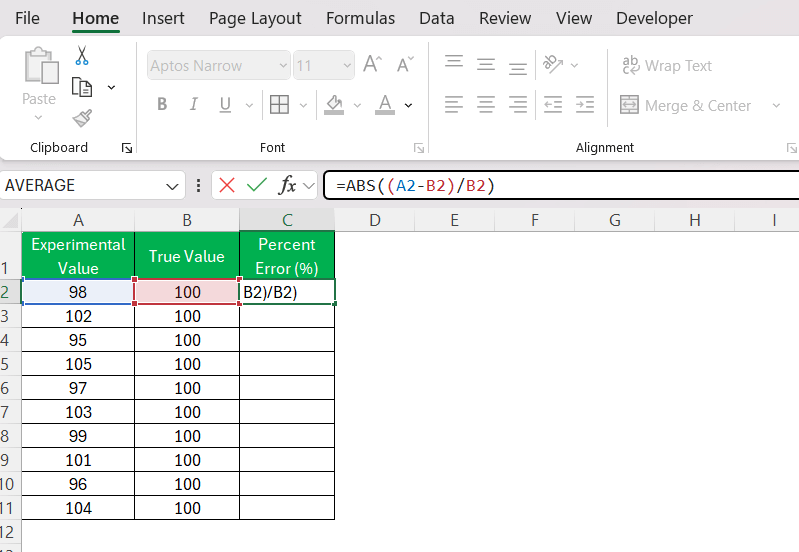
STEP 3: Press Enter.
Excel will display the percent error for the first entry.
STEP 4: Drag the formula down.
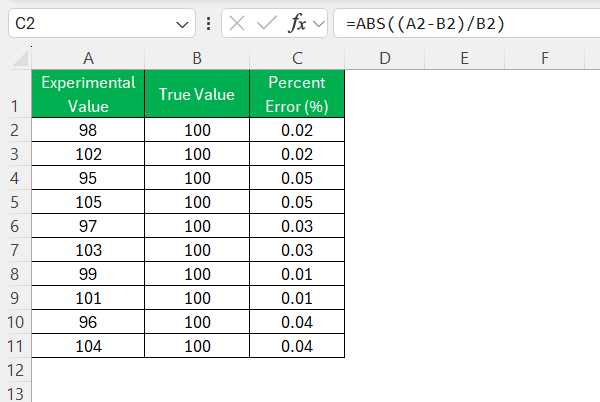
STEP 5: Go to the Home tab and click on the percentage icon.
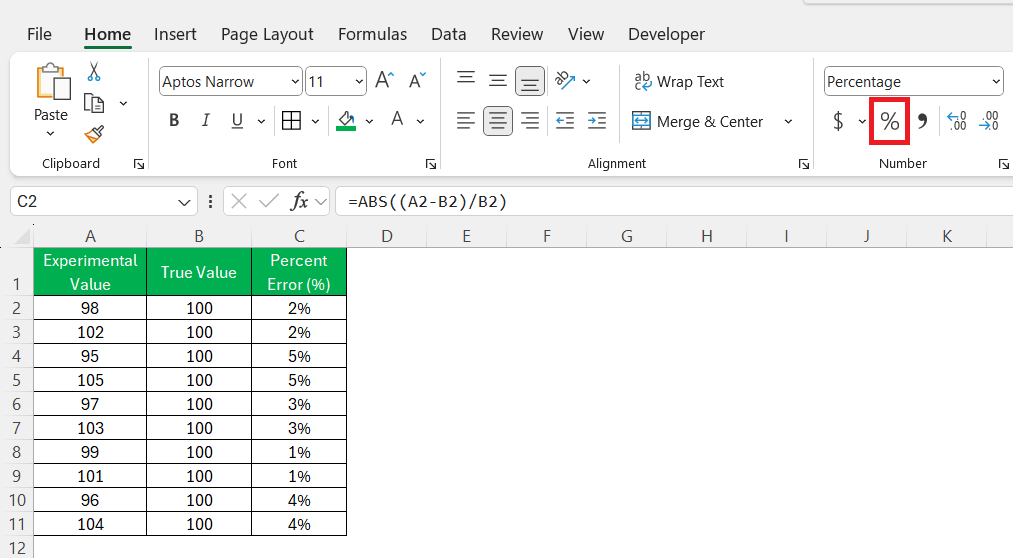
The ABS function will make sure that the percent error is always positive.
Tips and Tricks
Handle Zero or Blanks
If the true value is 0, the formula will return an error. The IF function can be used to avoid this error:
=IF(B2=0, “”, ABS(A2 – B2) / ABS(B2) * 100)
This avoids division errors and keeps your sheet clean.
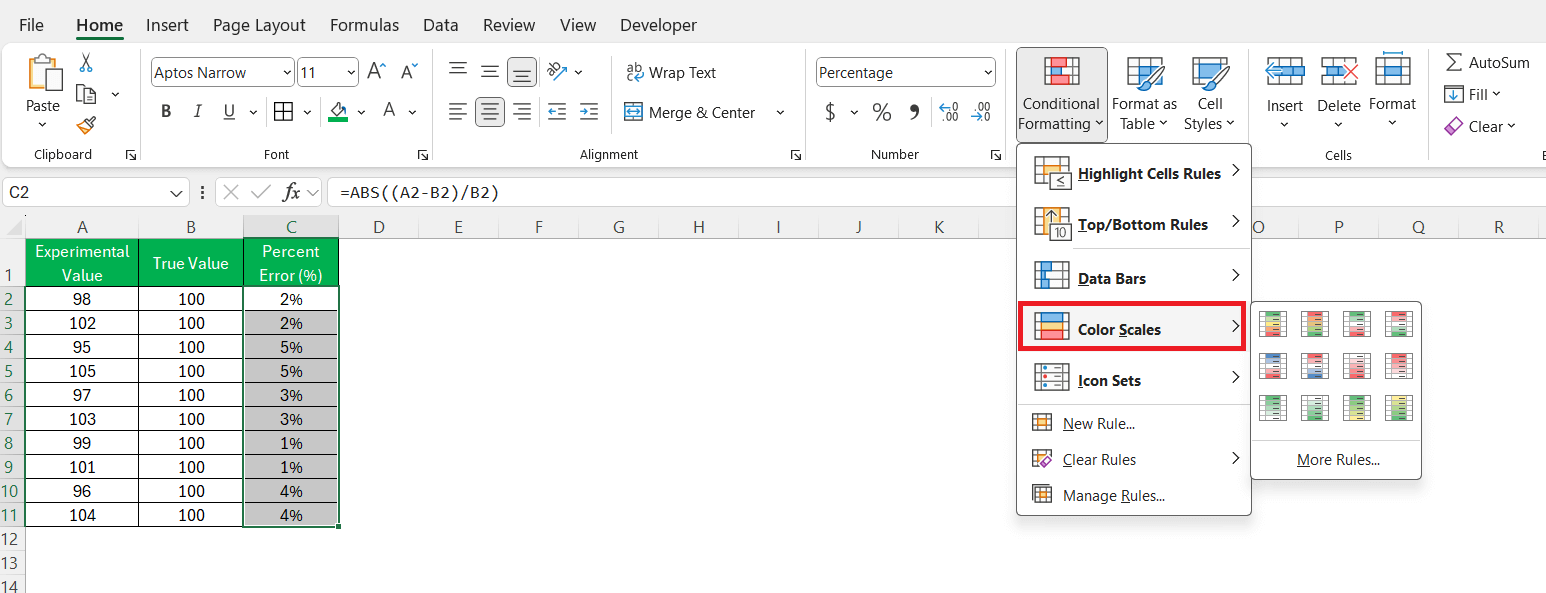
Conditional Formatting
Conditional formatting can be used to highlight cells. It can visualize which values exceed a certain threshold.
STEP 1: Select the percent error results in your column.
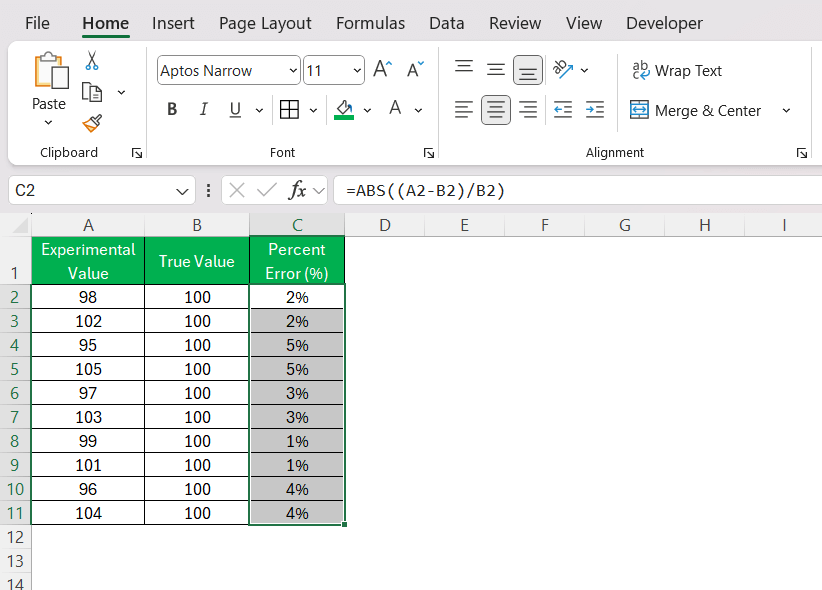
STEP 2: Go to the “Home” tab.

STEP 3: Click “Conditional Formatting” and select “Color Scales” to apply a gradient of colors.
Data Validation
Data validation can be used to make sure that the inputs fall within a specified range.
STEP 1: Go to the Data tab.
STEP 2: Select Data Validation.

FAQs
What is percentage error?
It shows the difference between observed and true values as a percentage.
What is the formula for percent error in Excel?
The formula for percent error in Excel is
=ABS((A2-B2)/B2)*100
Why use ABS in the formula?
The ABS formula can convert a negative value to a positive.
Can percent error be negative?
Percent error is always shown as a positive value.
How to calculate 20% in Excel?
To calculate 20% of a number in Excel, use the formula
=number*0.2

John Michaloudis is a former accountant and finance analyst at General Electric, a Microsoft MVP since 2020, an Amazon #1 bestselling author of 4 Microsoft Excel books and teacher of Microsoft Excel & Office over at his flagship MyExcelOnline Academy Online Course.

 30 Days - Full Access









