 Free Practice Workbook
When I first started using Excel to work with percentages, I quickly realized that multiplying percentages is a common task. It is useful when determining discounts, growth rates, or proportionate values. In this article, you will learn how to multiply percentages in Excel.
Key Takeaways:
Table of Contents
Understand the Basics
What are percentages?
In Excel, percentages are more than just fractions of 100. They are a way of expressing decimal values in a visually intuitive format. For instance, 25% is represented as 0.25 in Excel.
When Excel processes percentage calculations, it converts the percentage into its decimal equivalent. For example, when calculating 15% of a number, Excel multiplies the number by 0.15. This foundational understanding is important for your calculations.
Set Up Excel
Before diving into calculations, formatting your Excel sheet to handle percentages is essential. Without proper formatting, Excel might misinterpret your inputs or outputs, leading to errors. The following steps will prepare your worksheet for accurate percentage calculations.
STEP 1: Select the cells where you’ll input percentages and right-click the selected cells and choose “Format Cells” from the context menu.

STEP 2: In the “Format Cells” dialog box, go to the “Number” tab, select “Percentage,” and set the desired number of decimal places.
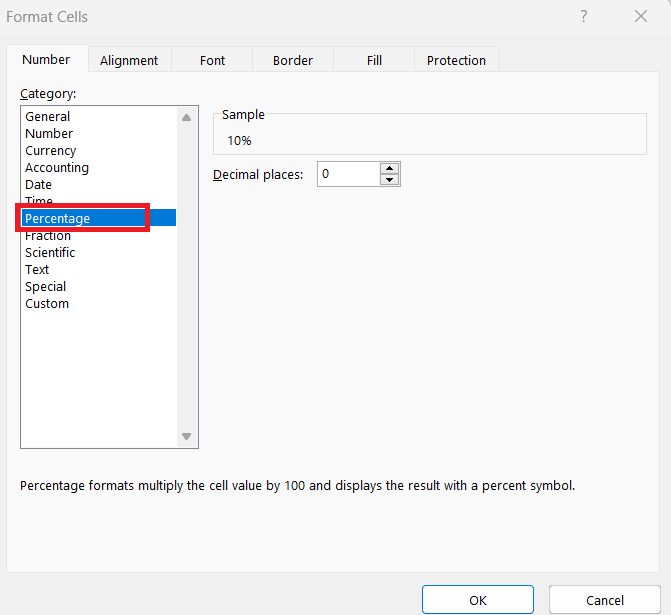
This step is particularly useful when dealing with complex percentage-based formulas.
Step-by-Step Guide on How to Multiply Percentages
Direct Multiplication of Percentages
If you have two percentages and you want to multiply them directly, here’s how I do it:
STEP 1: Type the first percentage (e.g., 25%) into cell A2 and the second percentage (e.g., 30%) into cell B2.
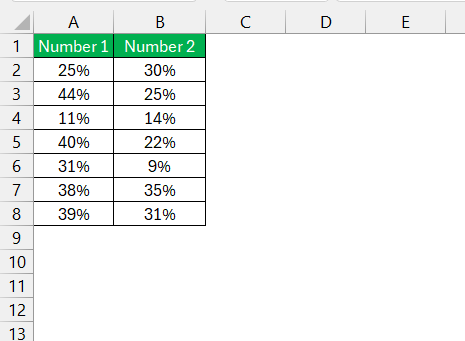
STEP 2: In cell C2, enter the formula: =A2*B2.
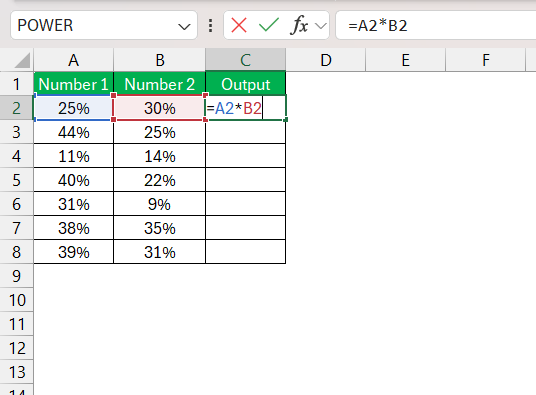
STEP 3: Press Enter.

The result will show 8%. If you want the result to appear as a percentage, format the cell as a percentage by clicking the % button in the toolbar.
Multiplying a Percentage by a Number
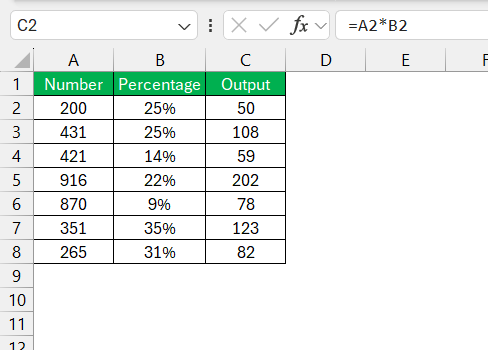
Sometimes, I need to calculate a percentage of a specific value. For example, if I want to find 25% of 200:
STEP 1: Type 200 into cell A2 and 25% into cell B2.
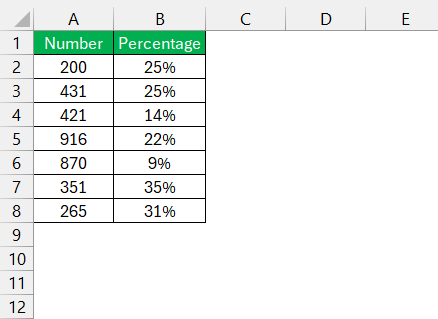
STEP 2: In cell C2, enter: =A2*B2.

STEP 3: Press Enter.
Tips & Tricks
Use Absolute References
When applying the same percentage to multiple cells, use an absolute cell reference. This will make sure that the percentage value stays fixed when copying the formula.
For example, if cell B1 contains 15% and your values are in column A, use:
=A2*$B$1
Then drag the formula down to calculate the percentage for all rows quickly.
Adjust Prices by Adding or Subtracting Percentages
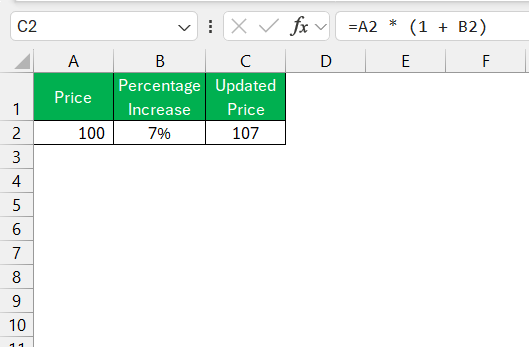
You can update the prices by adding or subtracting percentages. It may be useful when you are increasing your price by a percentage annually or providing a seasonal discount. For instance, if I want to increase the price of a product by 7%, I use the formula
=A2 * (1 + B2)
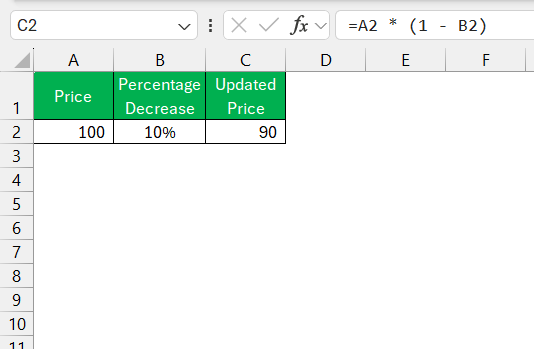
Applying a percentage decrease is also very simple. To decrease the price by 10%, I use
=A2 * (1 – B2)
FAQs
How to Multiply Multiple Cells by a Percentage?
To multiply multiple cells by the same percentage,
- Enter the percentage in a cell
- Use a formula to reference that cell across your calculations.
How to Convert My Result Back to a Percentage after Multiplication?
To convert a result back to a percentage after multiplication,
- Right-click the cell
- Select Format Cells
- Choose the Percentage
- Enter the number of decimal places.
How to calculate 20% in Excel?
To calculate 20% in Excel,
- In cell A1, input the value.
- In another cell, type the formula =A1*0.2.
How to add a 5% increase in Excel?
To add a 5% increase to a value in Excel,
- In cell A1, enter the original amount.
- In cell B1, use the formula =A1*1.05.

John Michaloudis is a former accountant and finance analyst at General Electric, a Microsoft MVP since 2020, an Amazon #1 bestselling author of 4 Microsoft Excel books and teacher of Microsoft Excel & Office over at his flagship MyExcelOnline Academy Online Course.

 30 Days - Full Access









