 Free Practice Workbook
Converting inches to decimals in Microsoft Excel involves transforming fractional inch measurements into the decimal format for easier calculations and data analysis. This process typically requires the use of mathematical formulas and functions within Excel to ensure accurate conversion. By understanding how to input and manipulate these values, users can streamline their data management and enhance the precision of their work.
Key Takeaways:
- Quickly converting feet to decimals assures accurate data entry.
- Excel offers built-in functions for conversions, reducing the need for manual errors.
- Excel allows both manual and automated conversion methods.
- Create custom functions in Excel for repeated conversions.
Table of Contents
How to Convert Feet and Inches to Decimal
Method 1 – Manual Conversion
When you don’t want to use automated tools for converting feet to decimals, you can use the manual conversion method.
- First, convert inches to feet by dividing by 12.
- Add the feet value to the result.
For example:
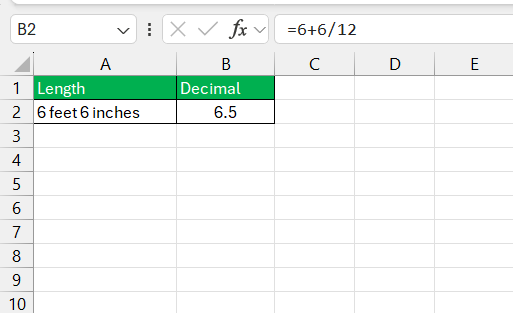
If the measurement is 6 feet 6 inches, you would convert 6 inches into 0.5 feet and then add it to the 6 feet. The result of 6.5 will be displayed.
Method 2 – Using Formulas
For those who crave efficiency and precision, Excel’s formulas are the magic wand. To convert feet and inches to decimal, you can use this formula in Excel: Separate the feet and the inches using the TEXTBEFORE() and TEXTAFTER() functions to handle them individually. Follow the steps below –
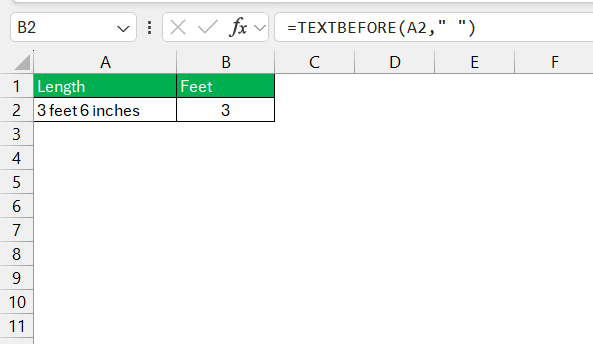
STEP 1: Extract feet using this formula: =TEXTBEFORE(A2,” “)
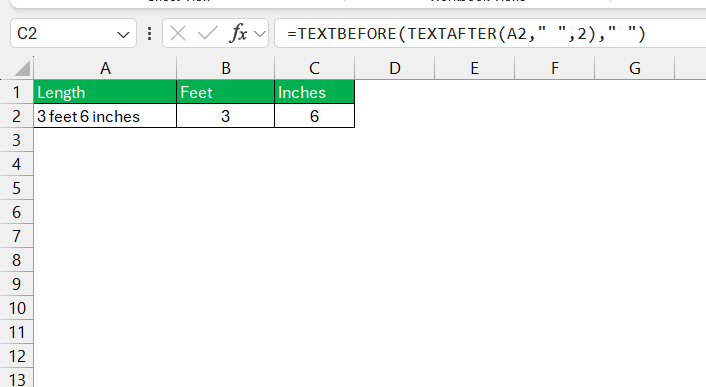
STEP 2: Extract inches using this formula: =TEXTBEFORE(TEXTAFTER(A2,” “,2),” “)
STEP 3: Now, take the value of feet and add it to the value of inches divided by 12.
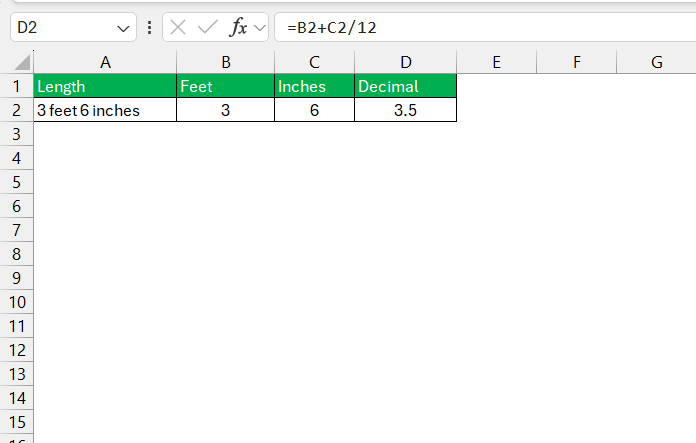
For inches to feet, you have a formula:
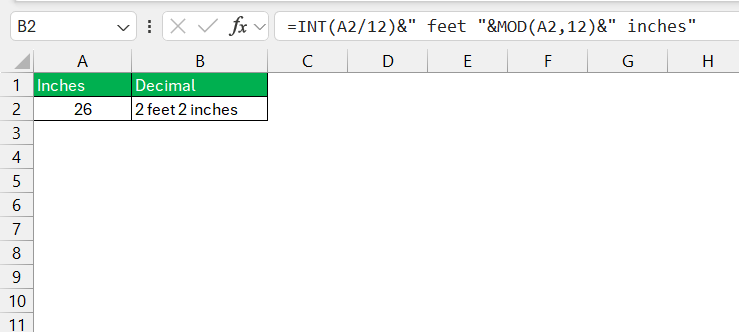
This formula converts inches to decimal and also displays the measurement units in the cell.
Excel’s formula magic doesn’t stop there. Excel is like a Swiss Army knife for data; you just need to choose the right tool—or formula, in this case!
Method 3 – Custom Functions for Repeated Use
If you need to do a conversion daily, you should create a custom function in Excel. Using this function, you need to input feet and inches, and the value in decimal form will appear.
Below is the code to create User Defined Function:
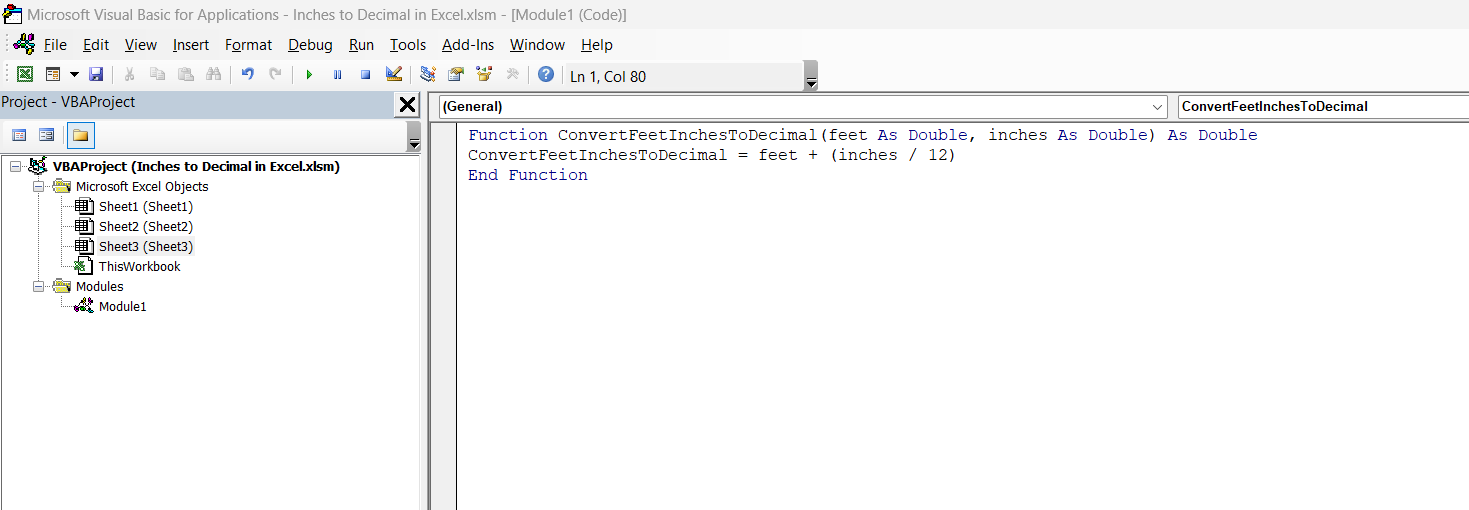
Place it in the VBA editor, and then use the formula:
=ConvertFeetInchesToDecimal(B2, C2)
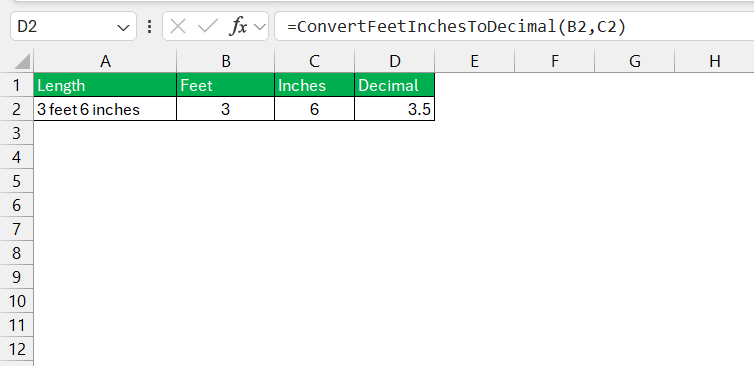
A custom function is beneficial for working on large datasets.
FAQs
How to convert inches to decimals?
To convert inches to decimals, divide the number of inches by 12, since there are 12 inches in a foot. For example, for 8 inches, you would do 8 ÷ 12, giving you 0.667 as a decimal. This conversion allows you to work more easily with other measurements and is commonly used in different fields and applications.
How to convert feet and inches to decimal format using Excel?
In Excel, you can convert feet and inches to decimal format using the formula: =TEXTBEFORE(A2,"'")+TEXTBEFORE(TEXTAFTER(A2,"'"),"""")/12. Simply replace A2 with the cell containing your measurement. This formula extracts the feet and inches from a text string and converts the inches to a decimal of a foot, then adds it to the feet for the final decimal value.
How to create a reusable template for converting measurements in Excel?
Absolutely! Creating a reusable template for conversions in Excel is a savvy move. Start by setting up a spreadsheet with designated input areas for feet and inches, and include cells where the formulas for conversion are pre-entered. Save this format and every time you need to do a conversion, input your measurements and let the formulas do the work. This template can be used repeatedly, ensuring consistent and accurate conversions every time.
How to format inches in Excel?
To format inches in Excel, right-click on the cell or range of cells you wish to format, select ‘Format Cells‘, and choose ‘Custom. In the Type box, enter “##”” to display inches. This will format the cell to show numbers followed by a double-quote symbol, indicating inches. Remember to calculate your values accordingly before applying this format for the correct display.
How to convert decimal to inches?
To convert decimal feet to inches in Excel, simply take the decimal fraction of the feet and multiply it by 12, since one foot is equal to 12 inches. For instance: =(A2-INT(A2))*12, where A2 contains the decimal. This will give you the inch portion. Pair it with an INT() function to separate the feet, and you have both measurements.

John Michaloudis is a former accountant and finance analyst at General Electric, a Microsoft MVP since 2020, an Amazon #1 bestselling author of 4 Microsoft Excel books and teacher of Microsoft Excel & Office over at his flagship MyExcelOnline Academy Online Course.

 30 Days - Full Access









