 Free Practice Workbook
In Microsoft Excel, checkboxes are a useful tool that improves user interaction. A checkbox is a small square that allows users to mark a selection. In this article, you will learn how to insert checkboxes within a cell in Excel.
Key Takeaways:
- Checkboxes are small boxes used to mark selections.
- They can make spreadsheets more interactive.
- You can quickly add a checkbox from the Insert tab.
- Multiple checkboxes can be added by selecting a range of cells.
Table of Contents
Introduction to Checkboxes
A checkbox is a small box that you can click to select or deselect an option. It can be used for any task that requires binary choices.
They are easy to use and add an interactive element to the spreadsheet.
How to Add Checkbox
Follow the steps below –
STEP 1: Open an Excel file.
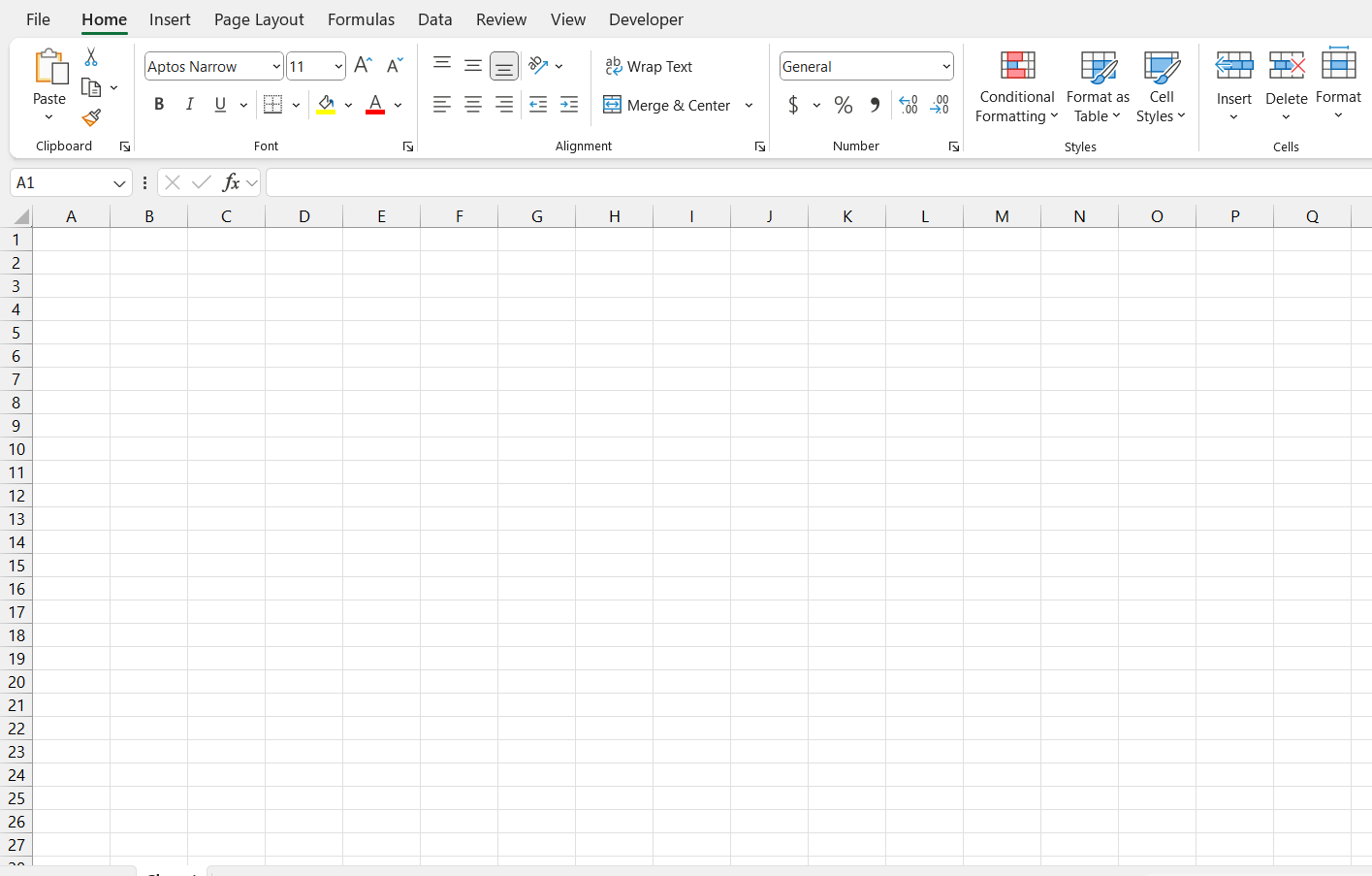
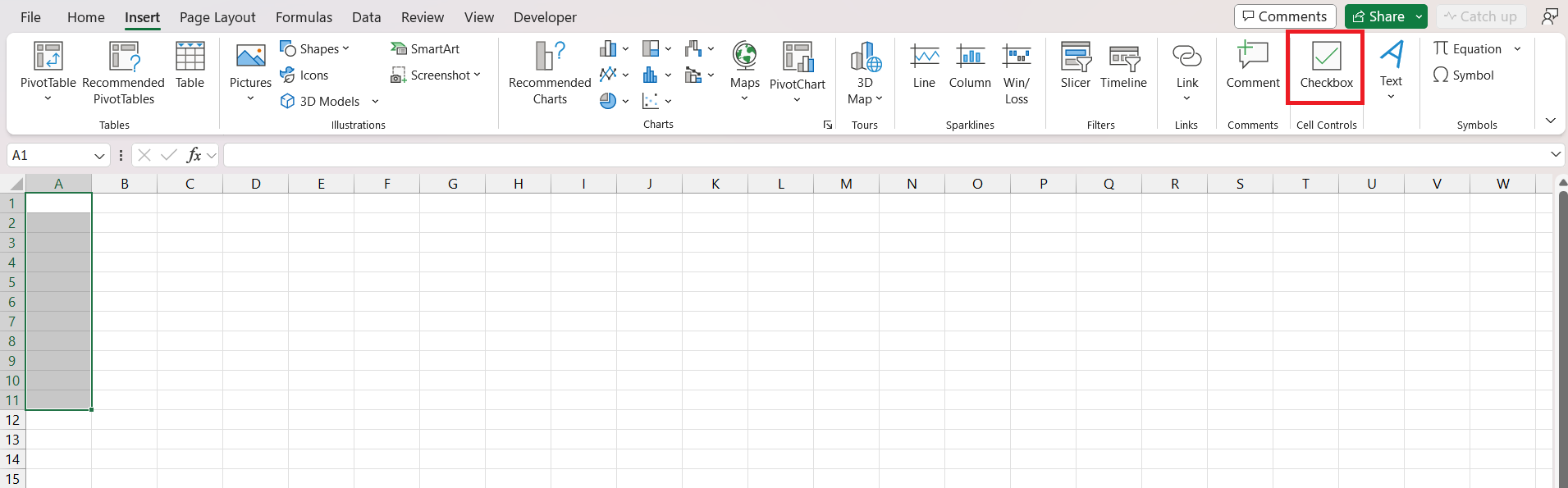
STEP 2: Go to the Insert tab and choose Checkbox.

The checkbox will be inserted in the cell.
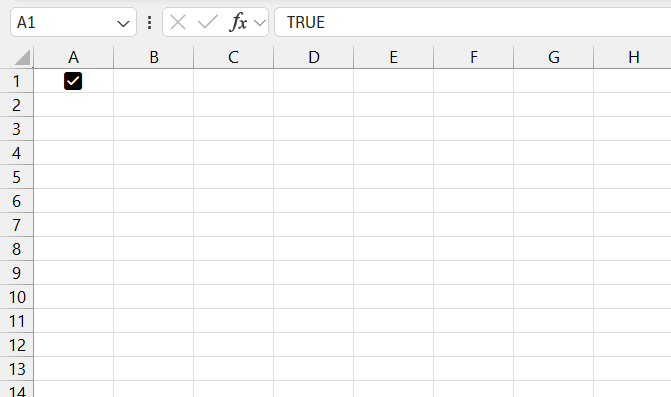
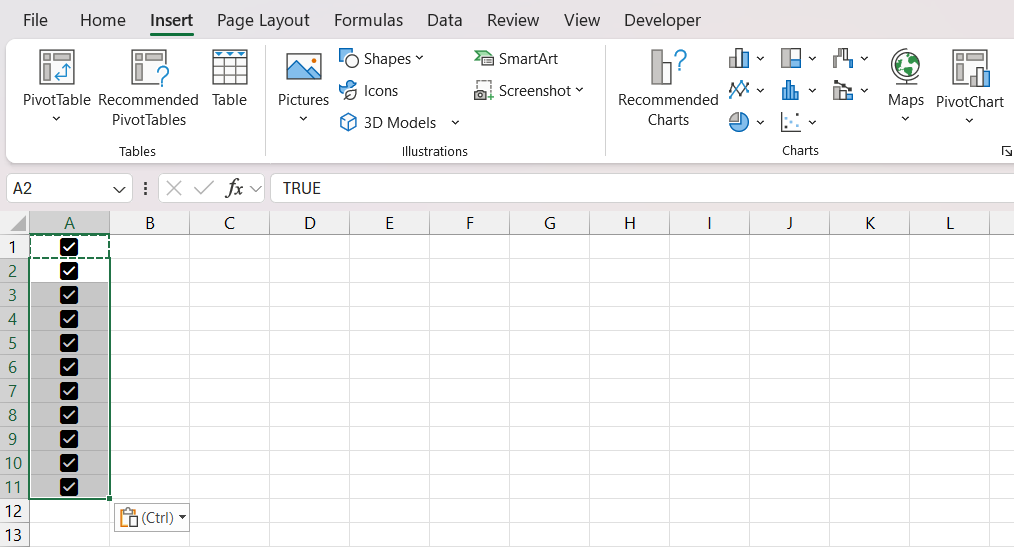
When you select the checkbox, the value displayed in the formula bar will be TRUE; otherwise, it will be FALSE.
Insert Multiple Checkboxes
STEP 1: Follow the steps for inserting a single checkbox to add the first checkbox.
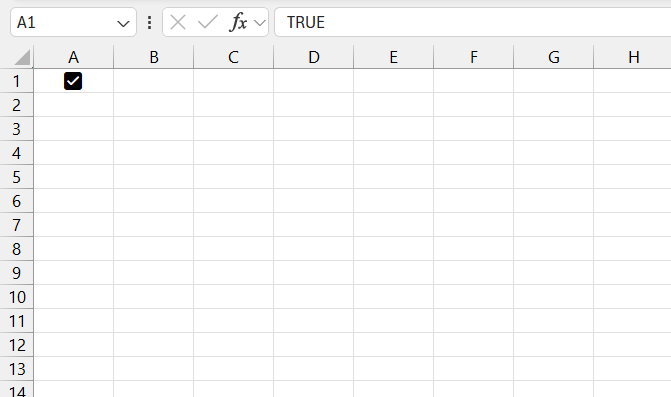
STEP 2: Instead of inserting them one by one, copy the first checkbox by selecting it and using CTRL + C.
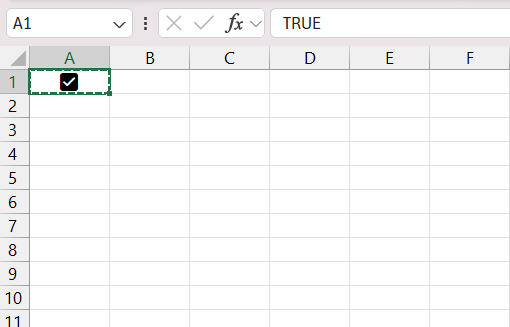
STEP 3: Select multiple cells where you want additional checkboxes.
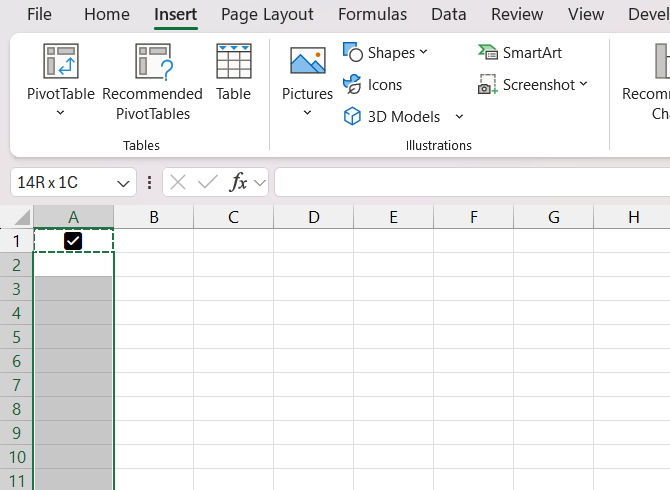
STEP 4: Paste the copied checkbox using CTRL + V. Excel will place a checkbox in each selected cell.
Alternatively, checkboxes can be inserted in bulk:
STEP 1: Select the range of cells where you want to add checkboxes.
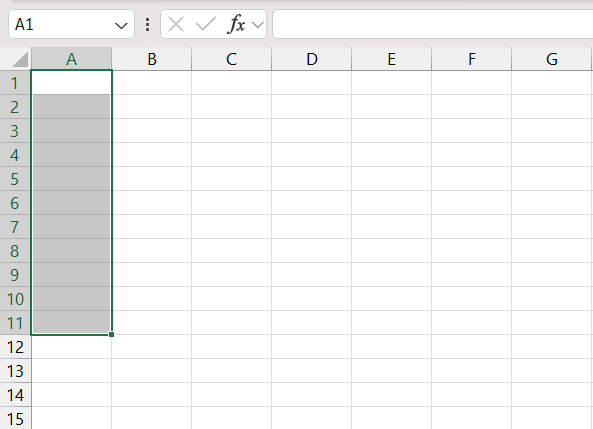
STEP 2: Go to the Insert tab and click Checkbox.
Remove Checkbox
STEP 1: Start by selecting the cell or range of cells where the checkbox formatting is applied.
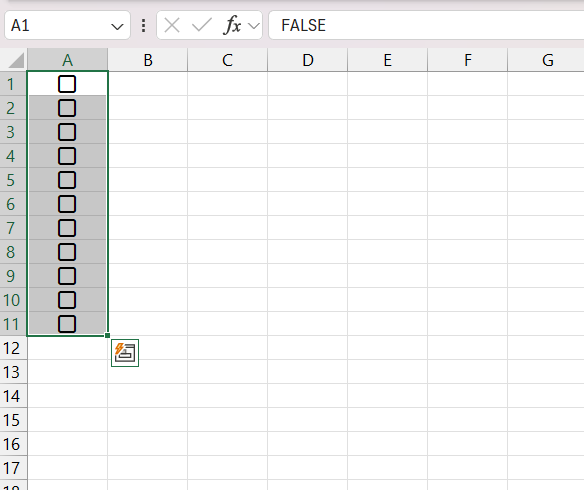
STEP 2: Go to the Home tab, click on the Clear button, and choose Clear Formats.
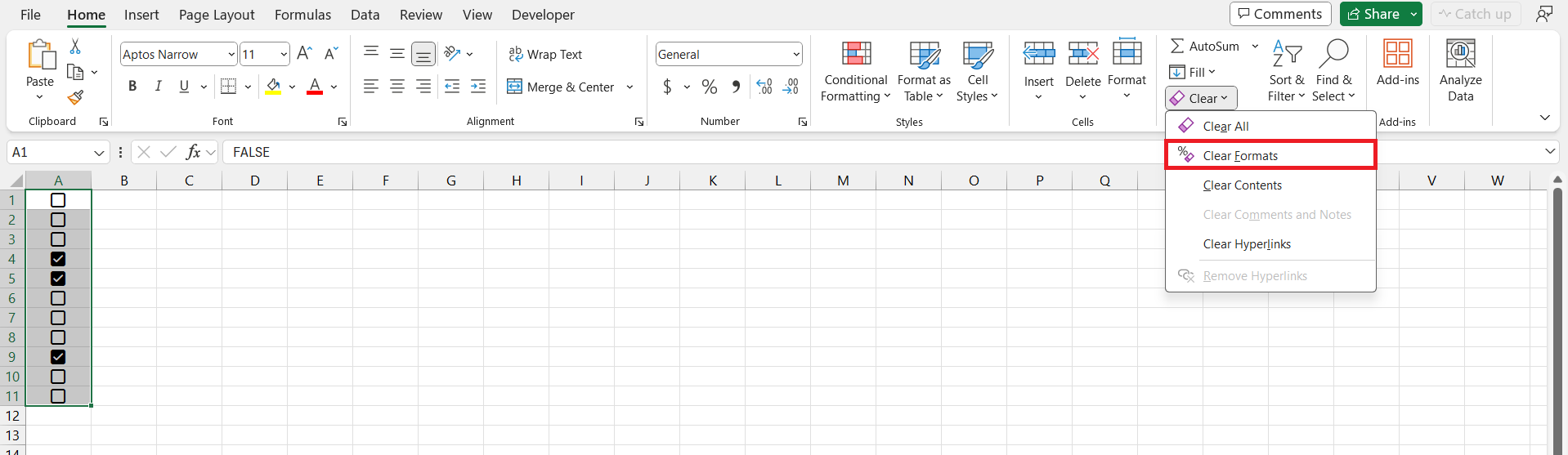
This action will remove any formatting, including the checkbox.
FAQ Section
What is a checkbox?
A checkbox in Excel is an interactive control element. It is a small square box that is used to select or deselect an option. It allows users to make multiple selections within a spreadsheet.
How to add checkbox?
To insert a checkbox, follow the steps below:
- Go to the Insert tab
- Select Checkbox from the Cell Controls
A checkbox will be inserted.
How to remove checkbox within a cell?
To remove checbox in Excel:
- Go to the Home tab
- Select Clear
- Select Clear Formats
How to add multiple checkboxes?
To insert multiple checkboxes, follow the steps below:
- Select the cells where you want multiple checkboxes.
- Go to the Insert tab
- Click Checkbox.
What are the uses for checkboxes?
Excel checkboxes can be used to create:
- Interactive task lists
- Quizzes
- Data display toggle
- Immediate feedback

John Michaloudis is a former accountant and finance analyst at General Electric, a Microsoft MVP since 2020, an Amazon #1 bestselling author of 4 Microsoft Excel books and teacher of Microsoft Excel & Office over at his flagship MyExcelOnline Academy Online Course.

 30 Days - Full Access









