Pinterest Pixel

Excel String Tricks: Unravel the Opposite of Concatenate Function in Excel

John Michaloudis
Excel users often know how to combine text using CONCATENATE, CONCAT, or TEXTJOIN.
But what if you want to do the opposite of concatenating? Excel has a variety of functions to split text as well.

In this article, you will learn how to split text into multiple cells using different functions.

Introduction to Excel String

The Power of Concatenation

Concatenation is a process of merging two or more texts into a single text. It means combining values together to form a single text. It is commonly used to combine first and last names, create a full address, or create employee IDs. So, you can use it anytime when you want the result to be a combined cell instead of being scattered in different cells.

Why Split Data?

You may have encountered a situation with all the data in one cell. And, you want to reverse this concatenated data into separate cells. It is a useful process as:

  • Split data is more useful in analyzing and manipulating the data. You can easily use filters or create Pivot Tables.
  • Well-organized data can be read better and reduce complexity.
  • It also minimizes the chance of error and privde clear view of data.


How to Reverse Concatenation

Text to Column

Text to Columns is a feature in Excel that can be used to split data into separate columns. Follow the steps below to know how to split text –

STEP 1: Highlight the cells containing the combined data that you want to split.
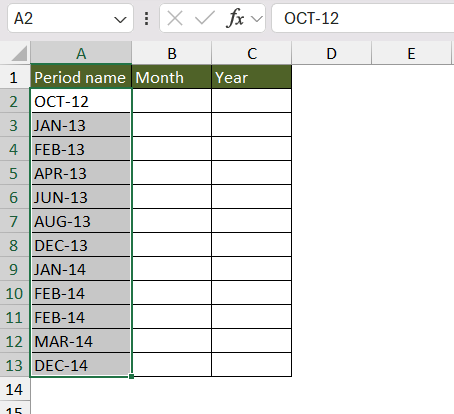
opposite of concatenate

STEP 2: Go to the Data tab and select the Text to Columns button.

opposite of concatenate

STEP 3: In the dialog box, select Delimited.
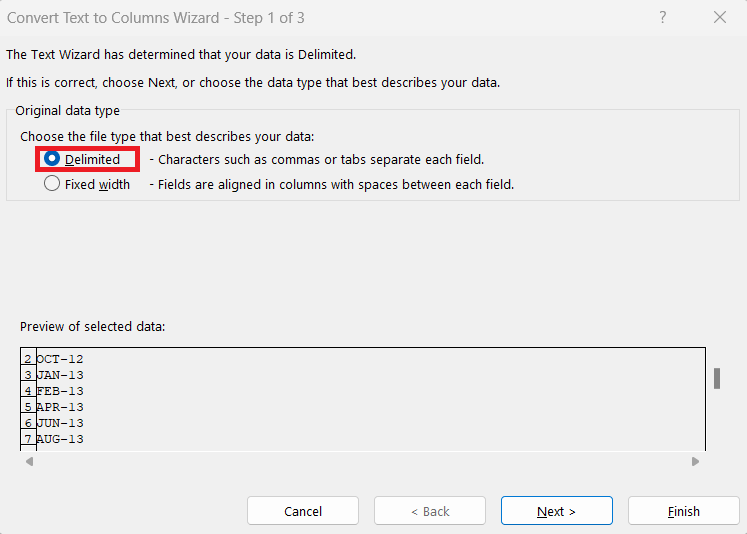
opposite of concatenate

STEP 4: Check the box of the delimiters that are separating the data.
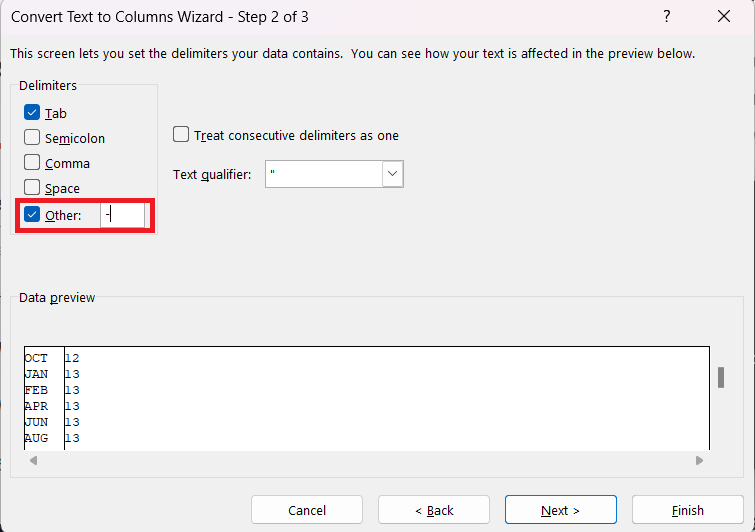
opposite of concatenate

STEP 5: Input the destination cell and press Finish.
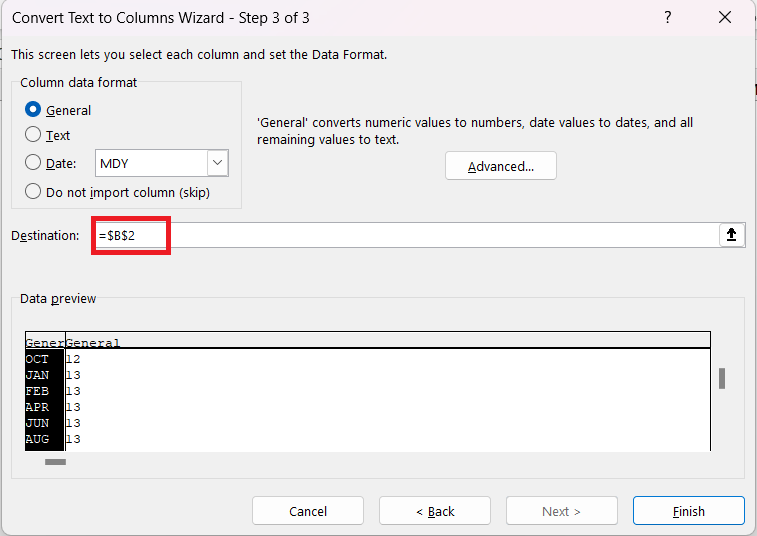
opposite of concatenate

Excel will split the single column into 2 different columns.
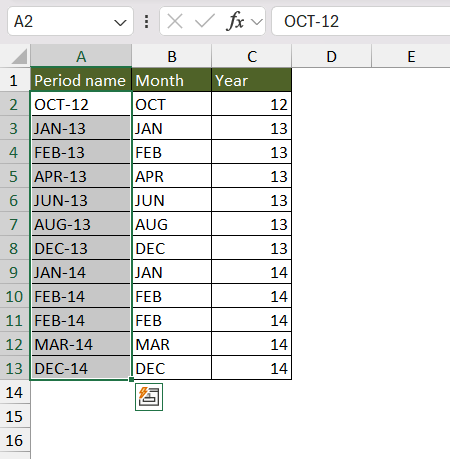
opposite of concatenate

Flash Fill

Flash fill is an important feature that is used to split data. You can type the first few rows manually, and Excel will then detect the pattern and complete it for the other rows. It removes the need for creating any complex formula to split data. It can adjust to any pattern, be it names, dates, or any other alphanumeric combination.

Follow the steps below to learn how to use flash fill –

STEP 1: Begin to split the data manually. For example, if you want to split full names in 2 columns, you should type the first name in column B.
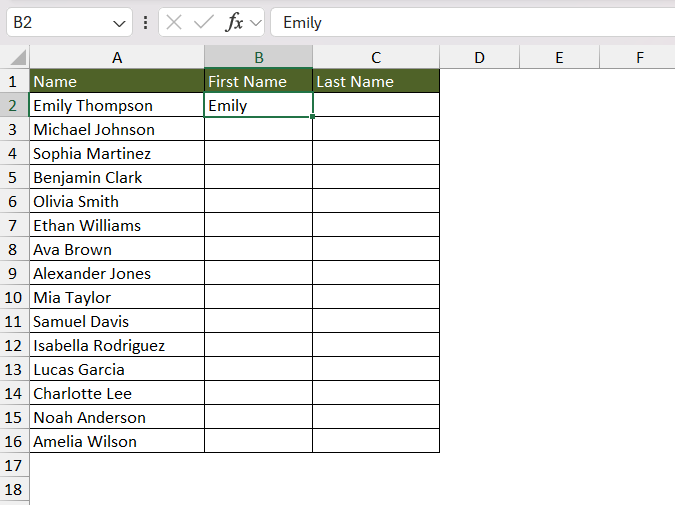
opposite of concatenate

STEP 2: Do the same for the second row, and you will see that Flash Fill will complete the rest for you.
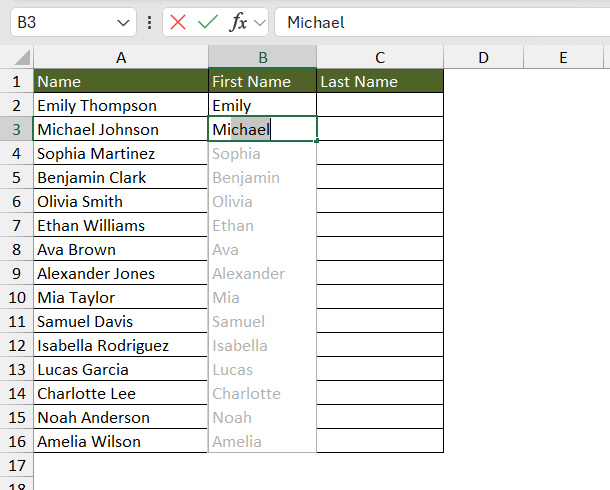
opposite of concatenate

STEP 3: If the suggestions are correct, you can press Enter.
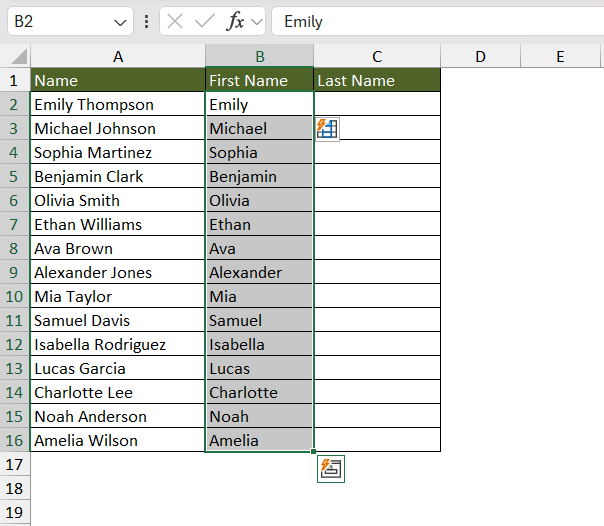
opposite of concatenate

Flash Fill is not dynamic, i.e., the result will not change if the source data changes.

TEXTSPLIT function

The TEXTSPLIT function is used to split text into multiple columns. This split is based on a specified delimiter, like a comma, a space, dashes, etc. Let us see how –

STEP 1: Click on the cell where you’d like your split text to appear.
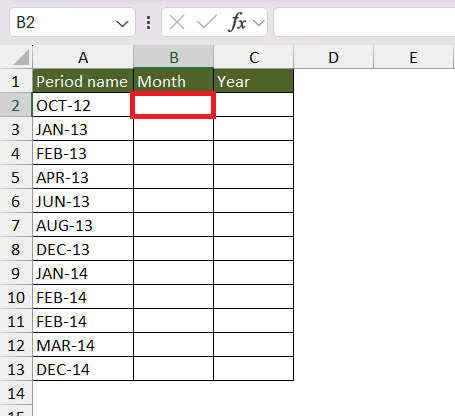
opposite of concatenate

STEP 2: Use the function =TEXTSPLIT(source_cell, “delimiter”). Here, the source data will be the period date and delimiter will be ‘-‘.
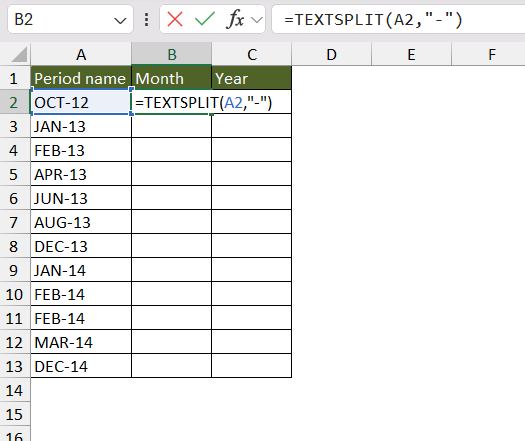
opposite of concatenate

STEP 3: Hit Enter. The Date will spill into the month and year.
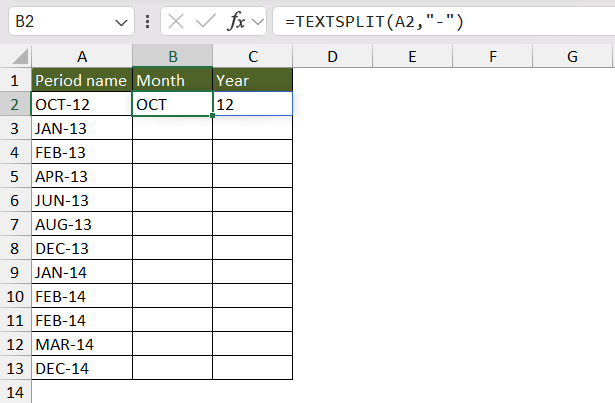
opposite of concatenate

The TEXTSPLIT function is dynamic. This means any change that you make to the data source will be refelected to the split text. hich means any changes to your source data will immediately be reflected in your split text. Other methods like the Text-to-Columns tool or Flash Fill feature, are static and do not have this adaptability edge.


Optimizing Your Workflow

Tips for Efficient Data Management

Consider these tips to efficiently manage data in Excel –

  • Remove trailing spaces, irregular capitalization, and other inconsistencies in the data.
  • Back up your original data before making any changes.
  • Convert the range into a table to manage data easily.
  • Use named ranges to make formulas cleaner.
  • Use a macro to automate the splitting process.

Best Practices

You should follow these best practices to make your data look more professional:

  • You should use the same font, cell style, and color.
  • You should organize the data and label the columns.
  • Use data validation rules to prevent incorrect data entries.
  • Use error-checking tools to spot any discrepancies.
  • Always use a formula over manual typing, as it minimizes the chance of human error.


FAQs

What is Text to Column?

Excel can automatically split data based on specific delimiters using the Text-to-Columns feature. You can choose the delimiter that is present in your data, like space, comma, colon,m tab, etc.

How to reverse concatenate without formulas?

Flash Fill is a feature in Excel that is used to split data. You need to split the data manually for a few rows. It will detect the pattern and complete it for the rest of the rows.

What is the opposite of concatenate?

The opposite of the CONCAT() function in Excel is typically a process that splits combined data back into separate components. This can be achieved using the Text-to-Columns feature, the ‘Flash Fill’ tool, or the TEXTSPLIT() function.

How to separate first and last name in Excel?

You can use the Text to Column feature in Excel to separate first and last names. The delimiter that has to be used is a space that is in between the first and last names.

How to split data in a cell in Excel?

You can split data in Excel by using the Text to Column feature. It is used to split text into multiple columns based on a delimiter like space, comma, tab, etc. You can also use Flash Fill to separate text into different columns.

If you like this Excel tip, please share it


Founder & Chief Inspirational Officer

at

John Michaloudis is a former accountant and finance analyst at General Electric, a Microsoft MVP since 2020, an Amazon #1 bestselling author of 4 Microsoft Excel books and teacher of Microsoft Excel & Office over at his flagship MyExcelOnline Academy Online Course.

See also  Remove Second Hyphen with Excel's SUBSTITUTE Formula

Star 30 Days - Full Access Star

One Dollar Trial

$1 Trial for 30 days!

Access for $1

Cancel Anytime

One Dollar Trial
  • Get FULL ACCESS to all our Excel & Office courses, bonuses, and support for just USD $1 today! Enjoy 30 days of learning and expert help.
  • You can CANCEL ANYTIME — no strings attached! Even if it’s on day 29, you won’t be charged again.
  • You'll get to keep all our downloadable Excel E-Books, Workbooks, Templates, and Cheat Sheets - yours to enjoy FOREVER!
  • Practice Workbooks
  • Certificates of Completion
  • 5 Amazing Bonuses
Satisfaction Guaranteed
Accepted paymend methods
Secure checkout

Get Video Training

Advance your Microsoft Excel & Office Skills with the MyExcelOnline Academy!

Dramatically Reduce Repetition, Stress, and Overtime!
Exponentially Increase Your Chances of a Promotion, Pay Raise or New Job!

Learn in as little as 5 minutes a day or on your schedule.

Learn More!

Share to...









