Pinterest Pixel

How to Make Attendees Optional in Outlook – Step by Step Guide

John Michaloudis
Outlook can be used to schedule a meeting with your teammates and clients to handle various tasks.
While creating a meeting, Outlook allows you to add attendees under Optional criteria.

These attendees are provided with the benefit of attending the meeting, but are not required to do so.

Managing the Attendee List

Understanding who to loop into your meeting can be likened to crafting a guest list for a special event. In the Outlook universe, it’s handy to know that not everyone needs to be an MVP. Making attendees optional in Outlook is what you need to do when you want to keep them in the loop with the freedom to join at their discretion. Think of them as your informed bystanders — aware and able to step in if needed, but not obligated.

By clearly separating out the must-haves from the nice-to-haves on your attendee list, you’re communicating priorities and maintaining an organized approach to meeting management.

Download our 141 Free Excel Templates and Spreadsheets!

Key Takeaways

  • Outlook makes scheduling and managing meetings simple and organized.
  • You can provide information to the Optional attendee, without forcing them to attend.
  • Separating required and optional attendees sets clear priorities.
  • Optional attendees are useful when input is helpful but not critical.
  • Clear invites and updates keep everyone aligned and confusion-free.


Unraveling the Role of Optional Attendees

When to Consider Someone an Optional Attendee

When setting the foundation for your Outlook meeting, discerning who needs a seat at the table and who can pop in as they wish is crucial. Consider tagging someone as an optional attendee if their input could enrich the discussion, but their absence wouldn’t derail your agenda. This might include subject matter experts who can explain if needed, or team members from peripheral projects who might benefit from the updates but aren’t the task’s owners.

Here’s a swift guide to identify optional attendees:

  • Are they key decision-makers or executors? If not, they might not need to be required.
  • Does the meeting cover content that directly influences their work? If the answer is vague, optional may be the way to go.
  • Could their information offer added value to the discussion? Then, bring them into the fold without making it a priority.

By focusing on these points, you can skillfully curate your meeting’s attendee list so that everyone present has a distinct role, and those on the periphery are not burdened with unnecessary commitments.


Add Optional Attendees in Outlook

You can easily add optional attendees to your Outlook meeting by following the steps below –

STEP 1: Open your Outlook calendar.

STEP 2: Select New Meeting.

STEP 3: Fill in the required attendees in the To field.

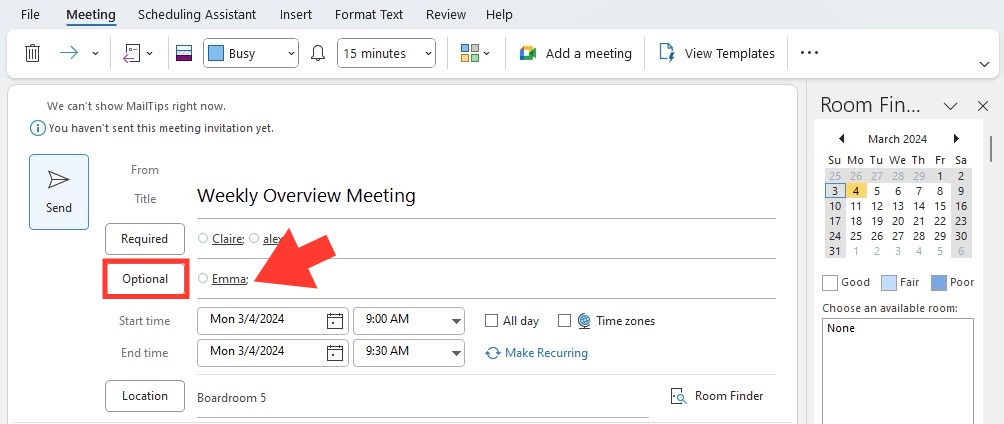
STEP 4: Go to the Optional field.
Optional in outlook
STEP 5: Enter the email addresses of those you’re inviting on an optional basis.

STEP 6: Hit Send.

For Mobile:

STEP 1: Open the Outlook app and tap on the calendar icon.

STEP 2: Tap ‘+’ to create a new meeting.

STEP 3: Required attendees go in the ‘Invitees’ section.

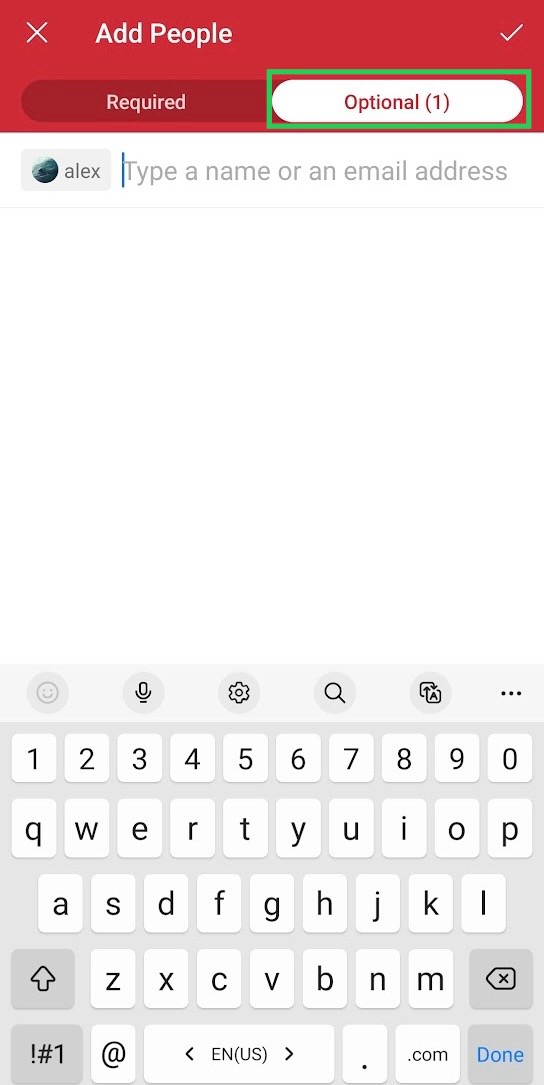
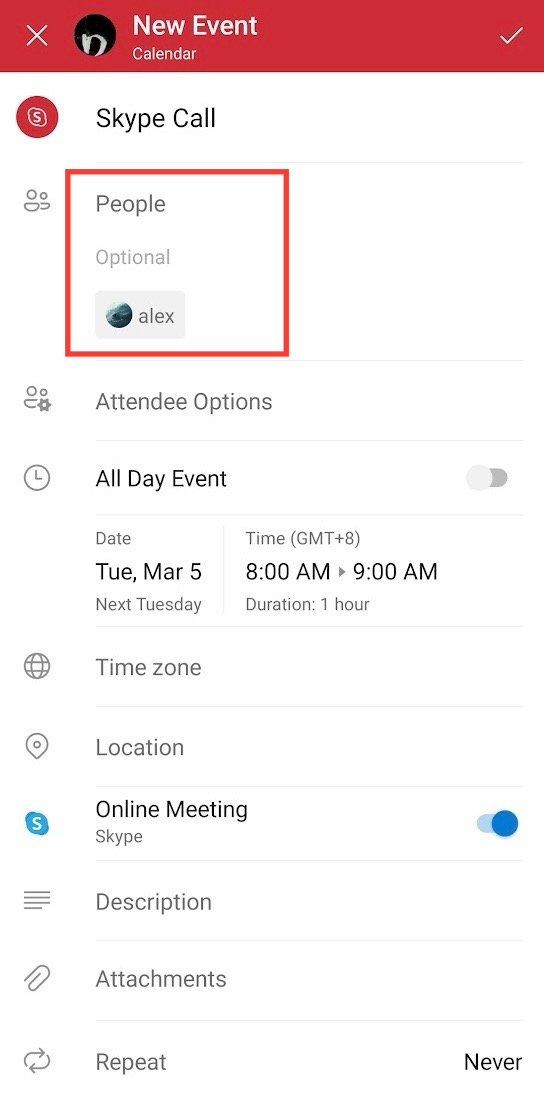
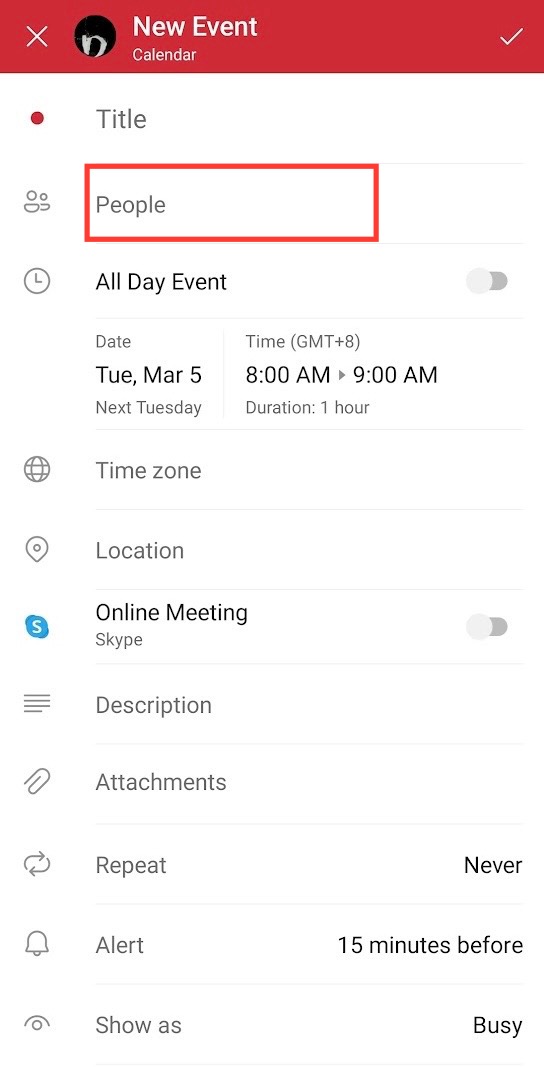
STEP 4: Tap on the ‘People’ sign to include optional attendees.
Optional in outlook
Optional in outlook
Optional in outlook
STEP 5: Fill in the meeting details and tap ‘Send’.

Adapting these steps to your device makes sure that everyone, required or optional, gets looped into the meeting without hiccups, and your invite list is always spot-on, no matter where you are.


Best Practices

Transparent Communication with All Attendees

To manage Outlook invites properly, you should maintain clear communication with the participants. Follow the points below for this –

  • In the email, you should mention the role of both required and optional attendees.
  • If you change the meeting’s details or there is a material that needs to be reviewed before the meeting, you should send an email to inform the same.
  • After the meeting ends, it is advised to send a summary of the meeting to all participants. Make sure to send it to those participants who couldn’t attend as well.

Updating Participants

  • Edit the Meeting: You can open the meeting invite and make the changes.
  • Send Selective Updates: If there is a change in the meeting, make sure to inform only those participants who will be affected by it.
  • Communicate Clearly: Clearly mention what changes you have made.
  • Use Response Options: To track responses, enable the Request Response or Allow New Time Proposal options.


FAQs

Mention the difference between optional and required.

Below are the differences between required and optional attendees –

  • Required – It is necessary for these participants to attend the meeting. Their presence and input are important and required for the meeting.
  • Optional – It is not necessary for these participants to attend the meeting. They were included in the meeting invite, but their attendance is not important, and the meeting can proceed without them.

Can optional attendees view the responses of other participants?

If the organizer has enabled the Request Response feature, the optional attendees will be able to see each other’s responses. This helps us in maintaining transparency and provides everyone with information about who will be attending the meeting.

How do changes to a meeting invite impact optional attendees?

When you make any changes to the meeting, like a new meeting time, location, or agenda, both required and optional attendees are informed. They receive the same notification at the same time.

Can we change the attendee’s status from required to optional?

You can change an attendee’s status from required to optional after the invite has been sent.

  • You need to first open the meeting request.
  • Move the attendee to the optional field
  • Send the update.

Once you have sent the update, the participants will be informed about this change.

If you like this Excel tip, please share it


Founder & Chief Inspirational Officer

at

John Michaloudis is a former accountant and finance analyst at General Electric, a Microsoft MVP since 2020, an Amazon #1 bestselling author of 4 Microsoft Excel books and teacher of Microsoft Excel & Office over at his flagship MyExcelOnline Academy Online Course.

See also  Free Printable Excel Calendar Templates for Fast Scheduling

Star 30 Days - Full Access Star

One Dollar Trial

$1 Trial for 30 days!

Access for $1

Cancel Anytime

One Dollar Trial
  • Get FULL ACCESS to all our Excel & Office courses, bonuses, and support for just USD $1 today! Enjoy 30 days of learning and expert help.
  • You can CANCEL ANYTIME — no strings attached! Even if it’s on day 29, you won’t be charged again.
  • You'll get to keep all our downloadable Excel E-Books, Workbooks, Templates, and Cheat Sheets - yours to enjoy FOREVER!
  • Practice Workbooks
  • Certificates of Completion
  • 5 Amazing Bonuses
Satisfaction Guaranteed
Accepted paymend methods
Secure checkout

Get Video Training

Advance your Microsoft Excel & Office Skills with the MyExcelOnline Academy!

Dramatically Reduce Repetition, Stress, and Overtime!
Exponentially Increase Your Chances of a Promotion, Pay Raise or New Job!

Learn in as little as 5 minutes a day or on your schedule.

Learn More!

Share to...