 Free Practice Workbook
Mastering string manipulation is important for data management. It is a useful skill to be able to modify text strings. In this article, you will learn how to remove the last character from strings.
Key Takeaways:
- LEFT and REPLACE functions can be used to remove unwanted characters from strings.
- Use Flash Fill to automate pattern recognition and speed up data processing.
- Use VBA to create custom scripts for specific text manipulation tasks.
- Shortcut keys and the Quick Access Toolbar can streamline workflow.
Table of Contents
Introduction to Text Manipulation
Text data has different challenges, such as inconsistent formatting, extra spaces, or unwanted characters. These issues can impact your data when you are sorting ot searching for records. The right skill can help you save time and make sure that your data is clean and consistent.
Removing characters from strings might seem like a minor action. But it holds significant weight when processing text data. It is useful when you want the data in the beginning and remove the last charcater as they are invaluable.
How to Remove Last Character
LEFT Function
Imagine you have a string of text, but the only part you need is snugly sitting at the beginning. That’s when you ignite the power of the LEFT function. This function is perfect for surgical precision in text trimming, adeptly extracting characters from the starting point of your string.
To illustrate, let’s say you want to get rid of the word ” miles” from a distance value like “120 miles”. By utilizing the LEFT function in conjunction with the LEN function, you can determine the number of characters to keep. The formula =VALUE(LEFT(A2, LEN(A2) - 6)) calculates the total length of the text in A2, subtracts the length of the unwanted ” miles”, and extracts just the number “120”.
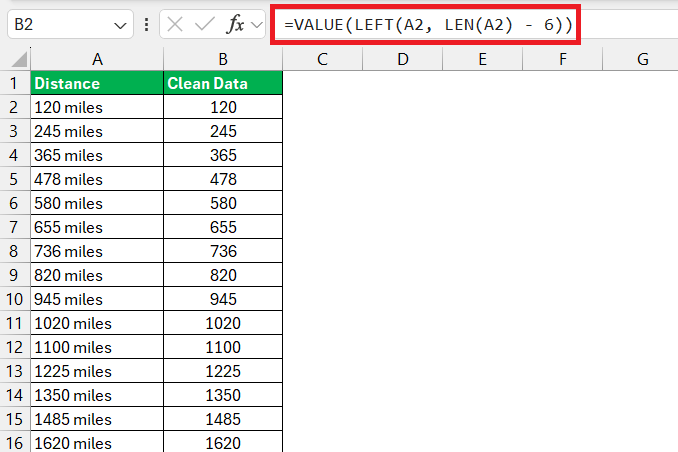
This technique is especially useful when your text strings have a consistent ending you wish to eliminate. By customizing the number to subtract in the formula, the LEFT function can cater to different cases, ensuring you’re left with the precise data you need, nothing more, nothing less.
REPLACE Function
To trim the last character from a text string in Excel, similar to using the RIGHT function, you can employ the REPLACE function as a versatile alternative. This function allows you to specify exactly which parts of a string to replace and with what. This will be fuseful for manipulating text data such as Student IDs.
For instance, consider you have a Student ID in cell B5 that includes an unwanted last character. You want to remove this character without affecting the rest of the ID. The REPLACE function can be employed to achieve this efficiently.
To remove the last character from the Student ID in cell B5 using the REPLACE function, the formula would be:=REPLACE(A2, LEN(A2),1,"")
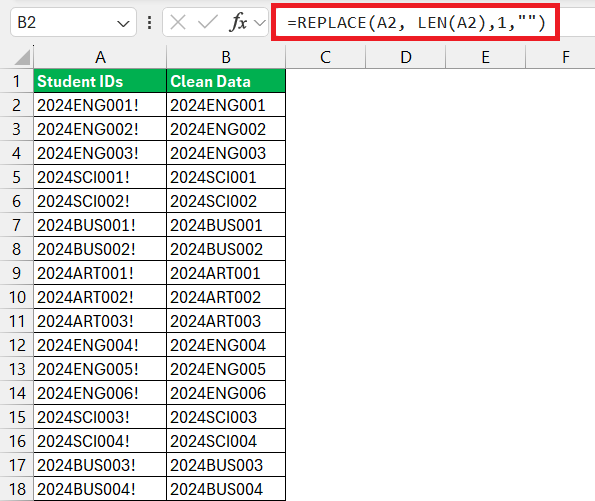
This method is straightforward and ensures precise manipulation of text strings. By adjusting the parameters, you can remove characters from any position in your strings, not just the end. Just like handling text with precision, it’s important to input the correct parameters to ensure you modify exactly what you intend and avoid unintended text alterations.
Advanced Techniques
Flash Fill
Even in a sea of functions and formulas, Excel offers another lifeboat with its Flash Fill feature—a real time-saver when it comes to text manipulation. It’s like an intuitive assistant that recognizes your pattern after just one or two examples and replicates it automatically across your data.
Say you have a list of email addresses and you want to extract only usernames without the domain. You’d type the first username correctly in an adjacent cell and as soon as you start typing the next one, Flash Fill leaps into action. It gives you a sneak peek of what the rest of the column will look like, based on your pattern. Hit Enter, and voilà, your column is populated with just the data you need, comma and domain-free.
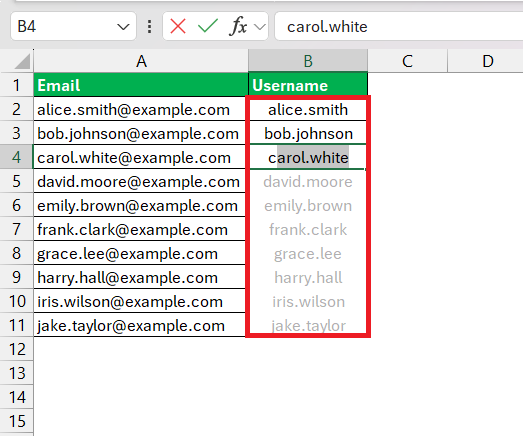
The beauty of Flash Fill lies in its simplicity and power to understand patterns without complex formulas. It’s about efficiency—reducing what could have been several clicks and keystrokes into just a couple. Plus, it’s adaptable, working with numbers, dates, and text strings seamlessly.
VBA Code
If removing the last character is a repetitive task for you, you can use a VBA code for that.

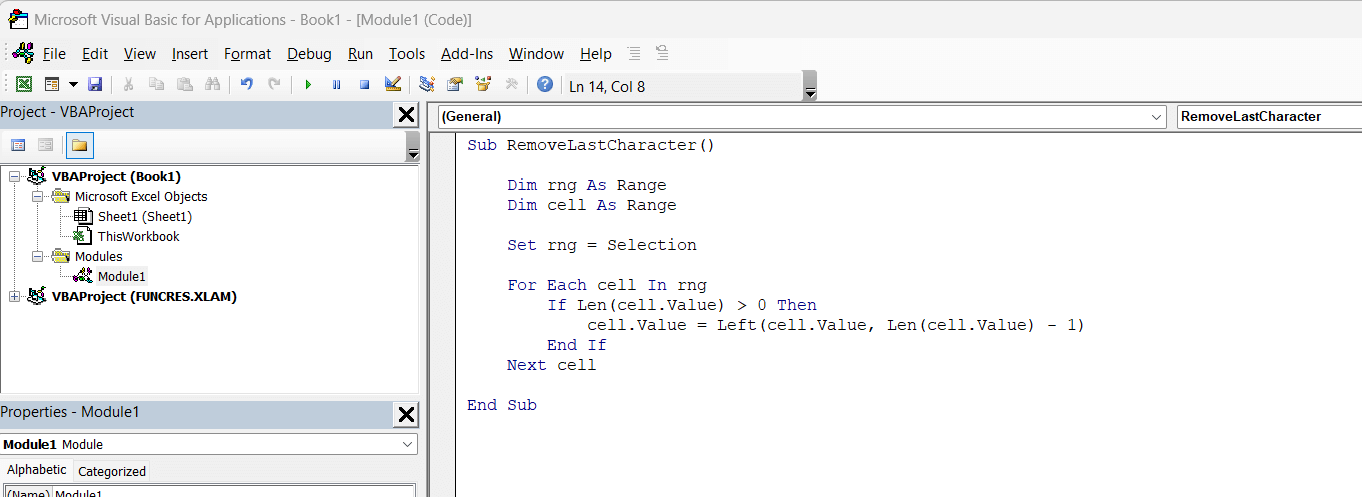
This script will rub cell by cell and remove the last character.
Tips and Tricks
You can use shortcut keys or the Quick Access Toolbar to quickly perform actions:
- Use Ctrl + C and Ctrl + V to copy and paste the data.
- Use Ctrl + Z to undo a task.
- Place tools that you use the most in the Quick Access Toolbar.
FAQs
How to remove the last character in Excel?
The quickest way to remove the last character from a cell in Excel is to use the LEFT and LEN functions together in a formula like this: =LEFT(A1, LEN(A1) - 1). Simply replace A1 with the cell address you’re working with, and this will trim the last character from the string in that cell.
How to remove the last character from multiple cells at once?
You can remove the last character from multiple cells at once:
- Enter the formula in one cell
=LEFT(A1, LEN(A1) - 1). - Drag the fill handle over the range.
How to undo character removal?
If you make a mistake while removing the last character, simply press Ctrl+Z to undo the last action. If you’ve made a series of actions, use the Undo icon in the Quick Access Toolbar, where you can reverse up to 100 steps.
How to remove the last 5 characters in Excel?
The formula to remove the last 5 characters in a string in Excel is =LEFT(A1, LEN(A1) - 5), where A1 is the cell with the original string. This will give you the string without the last 5 characters.

John Michaloudis is a former accountant and finance analyst at General Electric, a Microsoft MVP since 2020, an Amazon #1 bestselling author of 4 Microsoft Excel books and teacher of Microsoft Excel & Office over at his flagship MyExcelOnline Academy Online Course.

 30 Days - Full Access









