Reminders play an important role in improving productivity and staying on track. It is a useful tool when you are managing projects, coordinating with team members, or just trying to remember to send a follow-up message. In this article, you will learn all about reminders in Microsoft Teams.
Key Takeaways
- Set reminders to keep track of events in Teams.
- Customize frequency and time for these reminders.
- Specify the days or date for recurring reminders.
- Create folders and categories for your reminders in Microsoft Teams.
Table of Contents
Reminders in Microsoft Teams
Setting up reminders in Microsoft Teams is a breeze, ensuring you don’t miss important meetings or deadlines. Imagine it as planting little digital flags throughout your workday landscape. These flags are visible cues that keep you on track with your tasks and commitments. This built-in functionality plays an important role in project management and individual productivity by keeping all team members aligned with scheduled tasks, milestones, and deadlines. By using Microsoft Teams, you’ll find that setting these reminders not only saves time but also reduces the mental load of having to remember each event manually.
Step-by-Step Guide to Setting Reminders
Follow the steps below to set a reminder in Microsoft Teams:
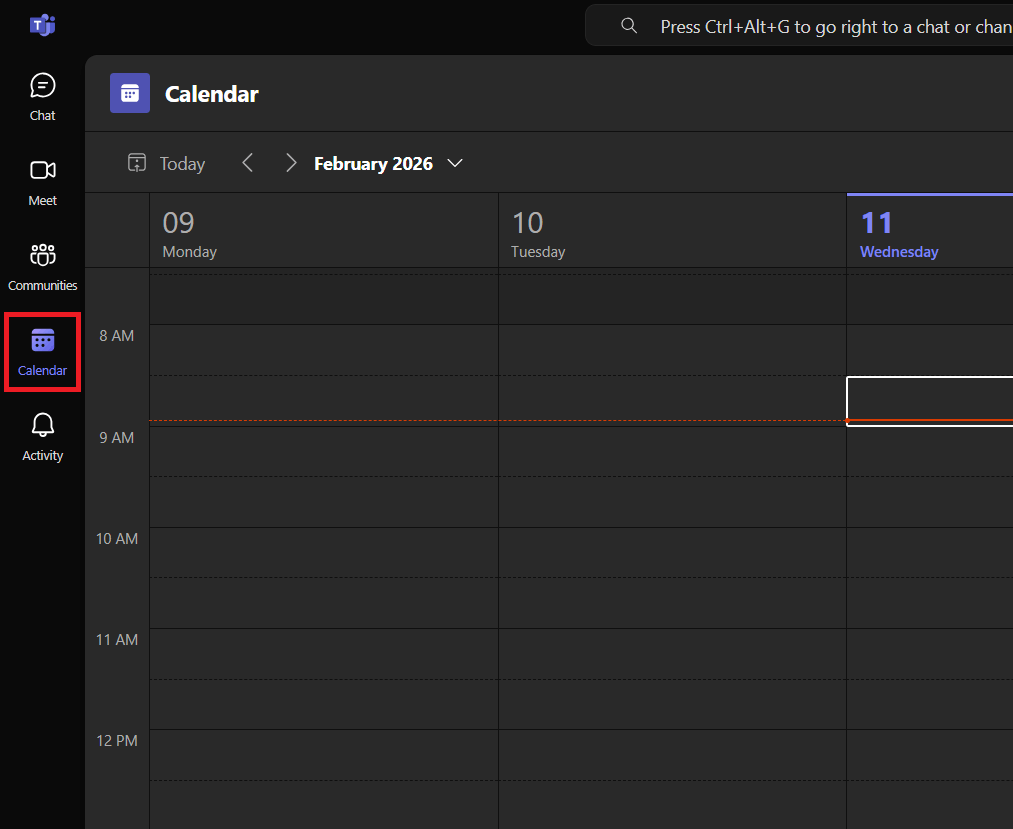
STEP 1: Open Microsoft Teams and go to Calendar.
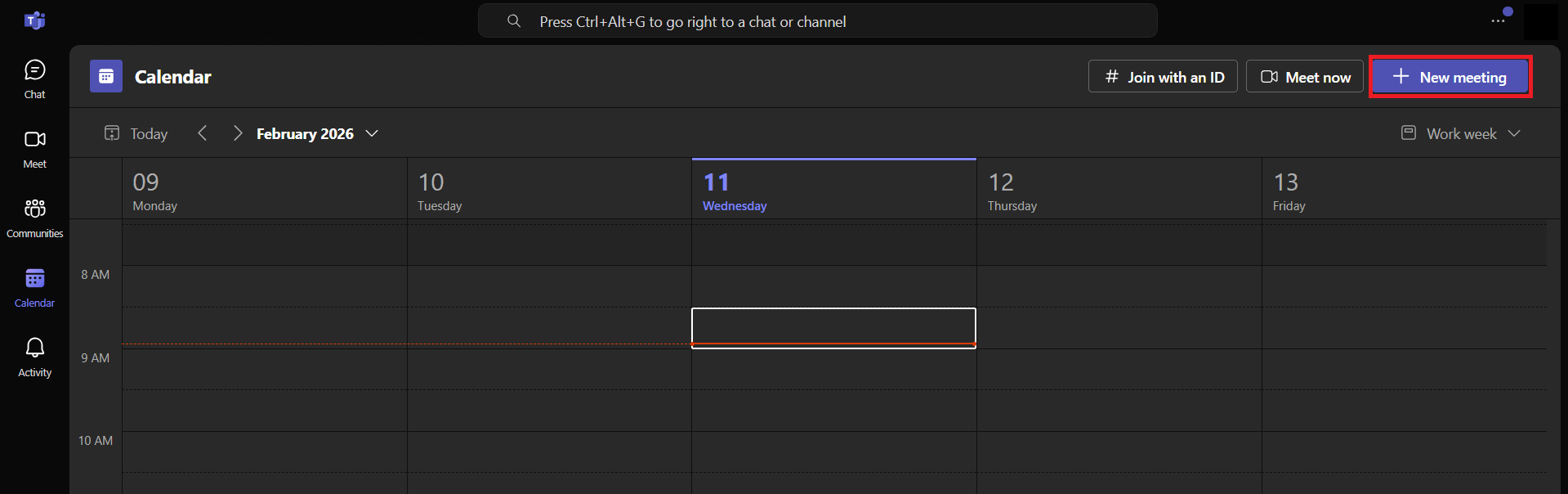
STEP 2: In the Calendar tab, click on New Meeting.
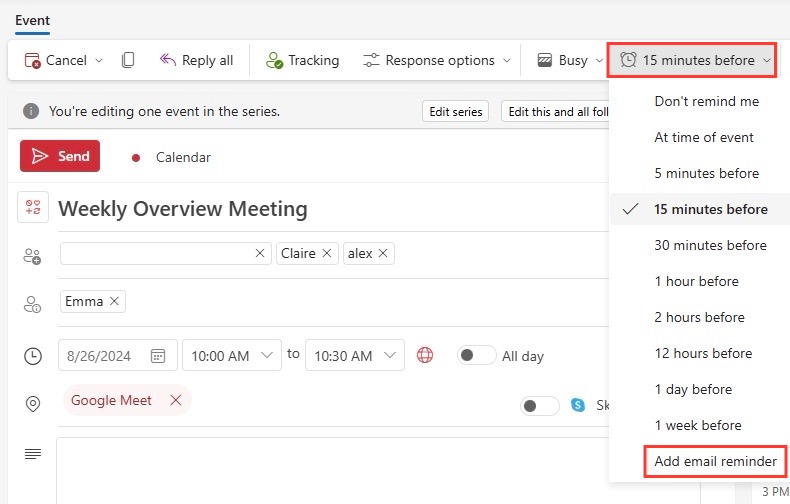
STEP 3: Add a title, date, and time for the meeting.
STEP 4: Set a reminder time (for example: 15 minutes before). You can also add an email reminder if you want.
STEP 5: Click Save.
Microsoft Teams will now remind you about this meeting at the time specified by you.
Fine-Tuning Your Reminder Settings
Advanced Customization Options
You can change the following features to add customization to your reminders:
- Create to do list and flag messages for follow-up.
- Assign different notification tones for different types of reminders.
- Add due date if required.
- Add repeat intervals like daily, weekly, or monthly.
- Add additional notes for details.
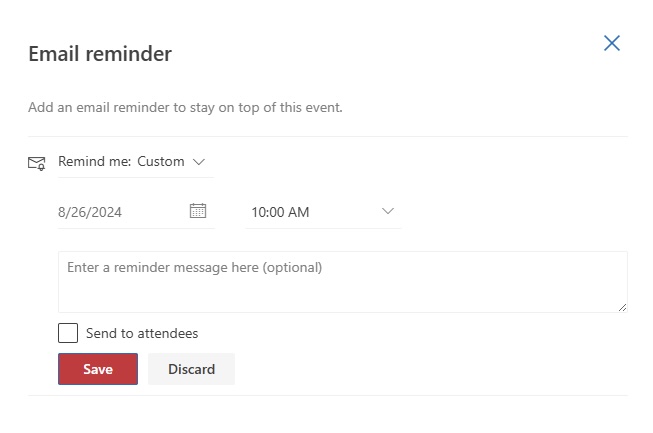
- Add an email reminder to stay on top.
Troubleshooting Common Issues
Inconsistent Notification Delivery
Sometimes, the reminder notification can be inconsistent and cause disarray. Follow the steps below to understand how to fix it:
- Check for any network issues or software glitches.
- Verify that notifications are enabled on both the app and the device.
- Check that the app is granted permission to send alerts.
Uninstalling or Reinstalling Trouble-Causing Apps
When the applications are causing more issues than expected, follow the steps below:
- Go to Teams settings and click on Uninstall.
- Go to the Teams app store.
- Click on the Add button.
- Reinstall the app and give it another chance.
FAQs
How to ensure that my team receives their reminders on time?
To ensure that my team receives their reminders punctually, I set reminders well in advance and synchronize them across all relevant devices and platforms. I verify that notification settings are properly configured in Microsoft Teams and encourage the team to do the same. Regularly checking in with team members about notifications and providing a quick refresher on managing their settings can also help maintain a seamless reminder system.
What are the best practices for setting up effective reminders?
The following are the best practices for setting up reminders in Teams:
- Clearly mention the details about the meeting in the description.
- Use categories to assign priority to the meetings.
- Change notification settings based on the importance of the meeting.
- Keep margin time for preparation.
- Review and update reminders.
Can I set recurring reminders in Teams?
Yes, you can set recurring reminders at daily, monthly, or custom intervals in Microsoft Teams.
How to manage reminders in Microsoft Teams?
- Create categories and folders to sort reminders.
- Use the search functionality for quick retrieval of specific reminders.
- Use Planner or Taks app to track deadlines on a calendar.
- Regularly review the reminders and update if required.
What to do if reminders are not working?
If the reminders are working as expected:
- Check that the app is updated.
- Make sure that the network connection is stable.
- Check that the notification permissions are enabled.
- Clear the cache.
- Contact the team’s support.

John Michaloudis is a former accountant and finance analyst at General Electric, a Microsoft MVP since 2020, an Amazon #1 bestselling author of 4 Microsoft Excel books and teacher of Microsoft Excel & Office over at his flagship MyExcelOnline Academy Online Course.

 30 Days - Full Access









