 Free Practice Workbook
Severance pay is compensation given to employees because of layoffs, restructuring, or company closure. Calculating severance pay manually can be a daunting task. In this article, you will learn how to calculate severance pay in Excel.
Key Takeaways:
- Excel can streamline the complex process of severance pay calculation.
- Make sure that the employee data is labelled correctly.
- Use functions like DATEDIF, IF, and VLOOKUP to easily calculate severance pay.
- Column misalignment and formula errors can be avoided with data validation and conditional formatting.
Table of Contents
What is Severance Pay?
Severance pay is the amount paid to an employee when they leave the company under certain circumstances. These situations are commonly layoffs, redundancy, or company downsizing. The severance amount is influenced by factors such as length of service, salary, and company policy.
A common formula used by the company is:
Severance Pay = Years of Service × Base Pay × Severance Multiplier
The advantages of calculating severance pay in Excel are:
- It allows you to automate repetitive calculations.
- It minimized the risk of human error.
- It allows you to store and manipulate large amounts of data.
- It allows you to include various factors like employment length and salary history.
- If the company policy changes, you can easily update the formula.
Step-by-Step Guide to Setting Up Your Excel Sheet
Creating the Base Structure
To create the base structure of a severance pay calculator in Excel, I start by organizing the spreadsheet for clarity and efficiency. First, I’ll designate separate columns for essential information: Employee Name, Start Date, End Date, Total Employment Length, Base Pay Rate, Bonuses, Benefits, Severance Multiplier, and Final Severance Amount.
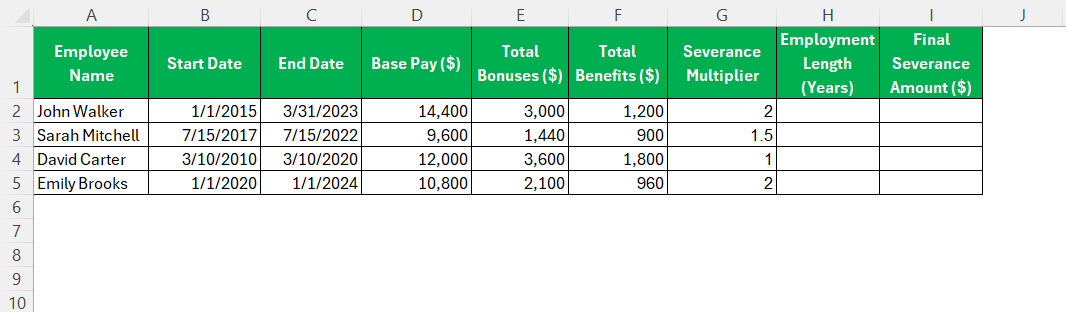
In the first few rows, I label each column with a clear title, ensuring easy navigation. I might also use formatting tools, such as bold or colored text, for improved readability. For the employment length, I set up a formula to calculate the difference between the End Date and Start Date, converting this into an easily interpretable number of years or months.
By establishing a well-organized base structure, I set the stage for smooth data entry and accurate calculations as the project progresses.
Formulas for Severance Pay
Setting up accurate formulas for severance pay in Excel is essential. The core formula combines the base pay rate with the employment length and severance multiplier. Here’s how I can structure it:
Employment Length Calculation:
Formula: =DATEDIF(Start_Date, End_Date, "Y")
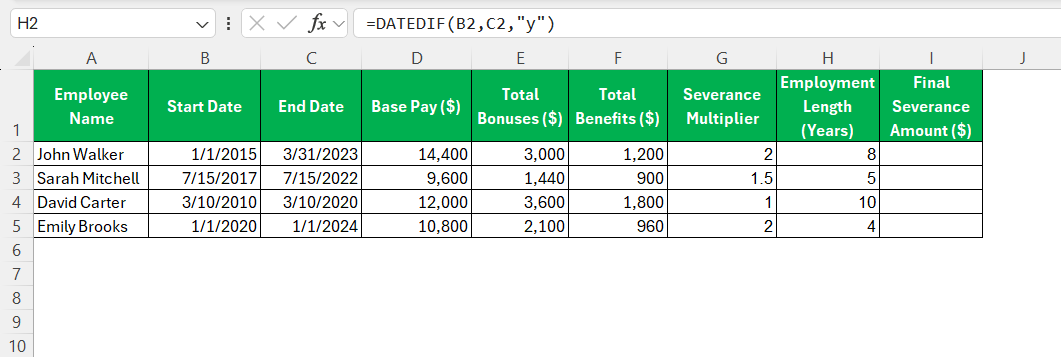
This calculates the total years employed.
Severance Pay Calculation:
Formula: =Base_Pay * Employment_Length * Severance_Multiplier

Here, the Base_Pay is directly linked to the employee’s annual salary.
Incorporating Bonuses:
Formula: =Bonus_Amount + (Base_Pay * Employment_Length * Severance_Multiplier)
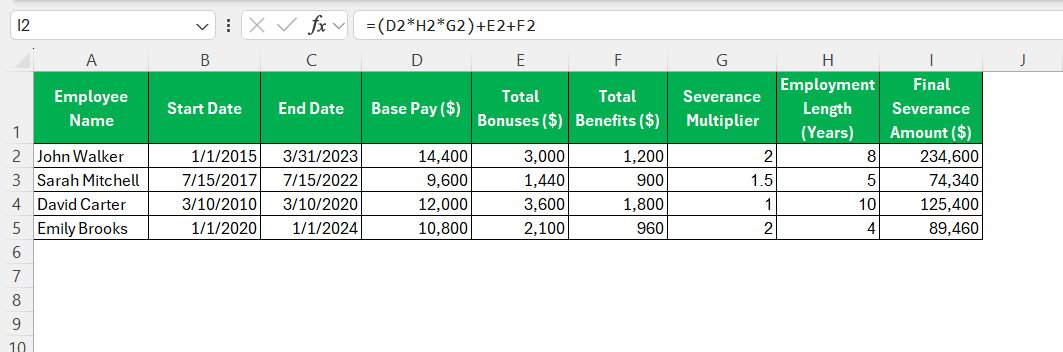
This includes any bonuses accumulated over the employment period.
These formulas give me a comprehensive calculation of severance pay, ensuring all necessary variables are considered. By integrating these into the Excel sheet, I can automate the severance calculation process, minimizing the chance of errors and ensuring consistent results.
Tips & Tricks
- Using headings will make sure that you enter the data under the correct column.
- Data validation will prevent you from entering incorrect data types.

- Conditional Formatting will help you identify outliers and errors in data.

- Use well strcutured template to prevent misalignment of data.
- Error Checking button will help you identify common mistakes like #VALUE! or #NAME? errors.

- Evaluate Formula can be used when you have a nested formula. It will check each part of the formula one by one.

- Misplaced parentheses or incorrect syntax can lead to errors.
- Using named ranges to prevent errors due to accidental reference changes
FAQs
What is Severance Pay?
Severance pay is the amount offered to an employee when he/she leaves the company under certain circumstances. These situations are commonly layoffs, redundancy, or company downsizing. The severance amount is influenced by factors like length of service, salary, company policy, etc.
How to calculate severance pay in Excel?
Follow the steps below to calculate severance pay in Excel:
- Use DATEDIF to calculate employment length in years.
- Multiply the base pay by the number of years and the severance multiplier.
- Add the result to the bonus amount.
How to troubleshoot common Excel issues?
To troubleshoot Excel issues, follow the points below:
- Use Error Checking feature to identify problem areas.
- Use Evaluate Formula tool to step through complex formulas and pinpoint errors.
- Make sure all cell references are correct.
- Check the data types for consistency.
- Review parentheses and syntax for any oversights.
How to include age adjustments?
You can include age adjustments by adding a new column for it. Use the IF function to apply different severance multipliers based on age groups.
=IF(Age_Cell > 50, Age_Enhanced_Multiplier, Standard_Multiplier)

John Michaloudis is a former accountant and finance analyst at General Electric, a Microsoft MVP since 2020, an Amazon #1 bestselling author of 4 Microsoft Excel books and teacher of Microsoft Excel & Office over at his flagship MyExcelOnline Academy Online Course.

 30 Days - Full Access









