 Free Practice Workbook
Using Microsoft Excel as an anniversary calculator is a quick way to keep track of important milestones. With the DATEDIF and YEARFRAC functions, users can determine the next upcoming anniversary. Even when these events occur at multi-year intervals.
Key Takeaways
- Excel has date formulas like DATEDIF and YEARFRAC to calculate the next anniversary dates, considering days, months, or years between two dates.
- To calculate years of service, you need to format dates and employ the correct date formats.
- Updates to date entries should be made yearly to reflect changes in the fiscal year.
Download the workbook and follow along with the tutorial on Anniversary Calculator in Excel – Download excel workbookExcel-Years-of-Service-Formula-Simple-Anniversary-Calculator.xlsx
Table of Contents
Key Functions for Your Year Service Calculation
DATEDIF Function: A Prime Tool for Service Calculation
DATEDIF stands for “Date Difference and here’s how it works:
- DATEDIF function takes three arguments – a start date, an end date, and a unit of time to measure the difference.
- For example, if you want to find out how many years someone has been in service, you’d use “Y” as the unit of time.
To calculate service years, here’s a basic syntax you might use:
This simple formula will yield the number of whole years between the start date mentioned in cell A2 and today’s date mentioned in cell B2. For example, the formula will be if the start date is mentioned in cell A2 and the end date in cell B2:
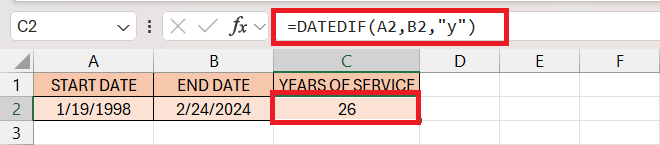
If you want to include years, months, and days, the function might be expanded:
In this expanded formula, “ym” calculates the remaining months after complete years are accounted for, and “md” calculates the days after complete months are accounted for. For example, the formula will be if the start date is mentioned in cell A2 and the end date in cell B2:

Under its flexibility, DATEDIF proves itself indispensable for precise service calculations in various professional scenarios.
YEARFRAC Formula: Assessing Partial Years Accurately
In certain situations, reckoning just the complete years of service might not be sufficient, especially when partial years need to be accounted for with precision. This is where the YEARFRAC formula is useful.
The formula is structured as follows:
The start_date and end_date are self-explanatory – they are the two points in time between which you want to calculate the duration. The [basis] argument is optional and determines the “day count basis” to use, i.e., how Excel should count the days within a year. Typically, for a standard year, you would use 0 or omit the argument entirely.
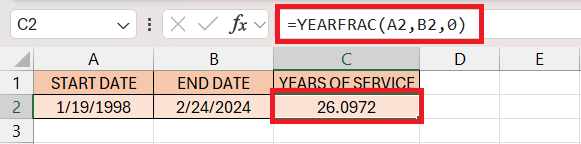
To assess partial years with accuracy, the YEARFRAC formula can be adjusted to account for scenarios such as leap years. This is done by incorporating a yearly basis that defines the average length of a year. Consequently, one might use the formula as follows to include leap years by averaging them in:
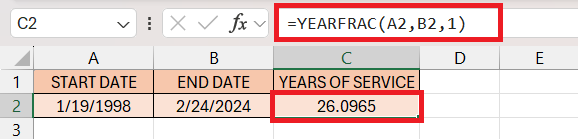
Pairing the YEARFRAC function with the INT function allows you to separate the complete years from the fractional part to determine the exact tenure:
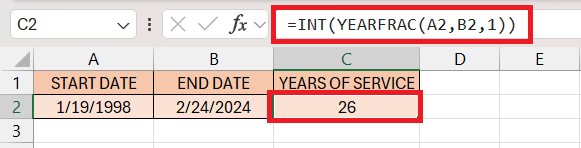
This gives you the number of full years.
FAQs: Your Questions Answered
How do I account for different start dates when calculating service years?
To account for different start dates while calculating service years, you should individually input each employee’s specific hire date into the formula you’re using, such as the `DATEDIF` function in Excel. Replace the start date reference (B2 in the example) with the cell reference that contains the respective start date for each employee to ensure that the calculation reflects their unique period of service.
What is the most efficient way to calculate upcoming work anniversaries?
To calculate a work anniversary in Excel using the DATEDIF function, you would input the function with three arguments: the start date (the employee’s start date), the end date (typically the current date or a specific date for evaluation), and the unit “Y” to denote years as the interval to be calculated. For example, use the formula `=DATEDIF(A1,TODAY(),”Y”)` in a cell, where A1 is the cell containing the employee’s start date, to find out how many complete years they have worked until the current date. The result will show the number of full years of service, thus giving you the employee’s work anniversary.
Can Excel automatically update service years as time progresses?
Yes, Excel can automatically update the calculation of service years as time progresses by using dynamic functions that recalculate every time the worksheet is opened or updated. One such function is the TODAY() function, which provides the current date.

John Michaloudis is a former accountant and finance analyst at General Electric, a Microsoft MVP since 2020, an Amazon #1 bestselling author of 4 Microsoft Excel books and teacher of Microsoft Excel & Office over at his flagship MyExcelOnline Academy Online Course.

 30 Days - Full Access









