 Free Practice Workbook
Managing large datasets can become difficult, but sorting can bring order to chaos. Sort by name in Excel is a great tool to quickly organize and retrieve data alphabetically. In this article, you will learn how to sort by name in Excel.
Key Takeaways
- Organizing data makes it easier to analyze and navigate.
- Use the Sort feature in Excel to arrange names alphabetically from A to Z or Z to A.
- For full names in one cell, separate first and last names before sorting by last name.
- Hidden rows, blank cells, and incorrect headers can affect sorting results.
- Excel offers Custom Sort and Sort & Filter options for advanced sorting.
Download the spreadsheet and follow along with the tutorial on How to Sort by Name in Excel – Download excel workbookSort-by-name-in-Excel.xlsx
Table of Contents
How to Sort by Name
STEP 1: Select the columns you are planning to organize.
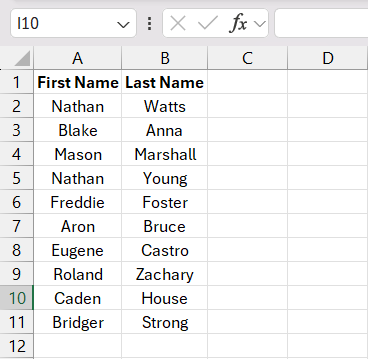
STEP 2: You can click and drag across the data range or select any cell within a continuous data table.
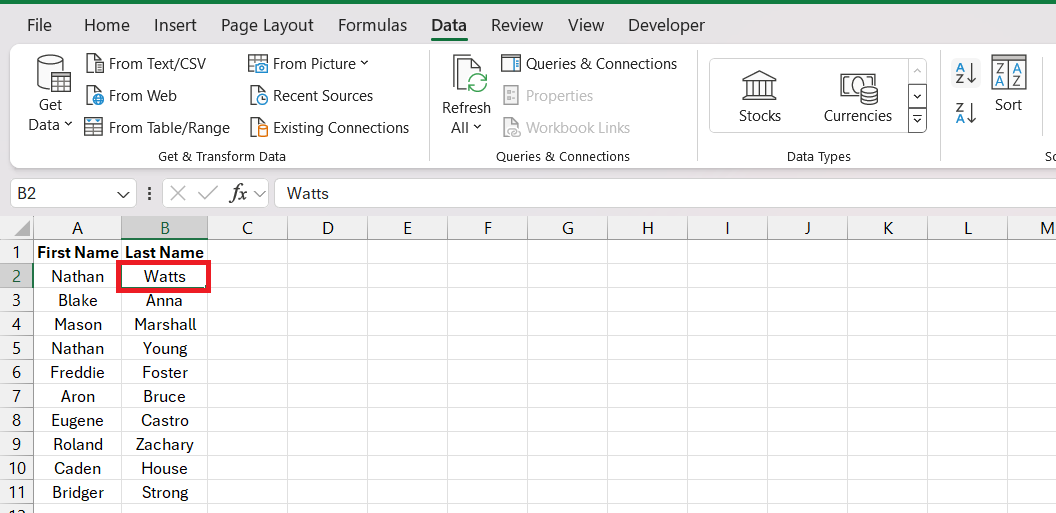
STEP 3: Go to Excel’s ribbon and find the “Data” tab. Here lies the “Sort” command.
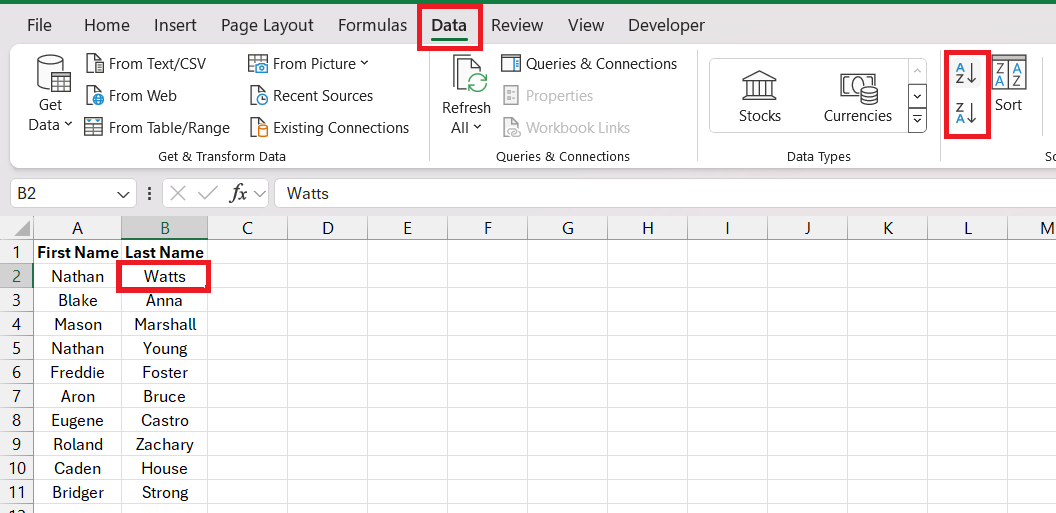
STEP 4: Click A to Z to sort names in ascending order or Z to A to sort them in descending order.
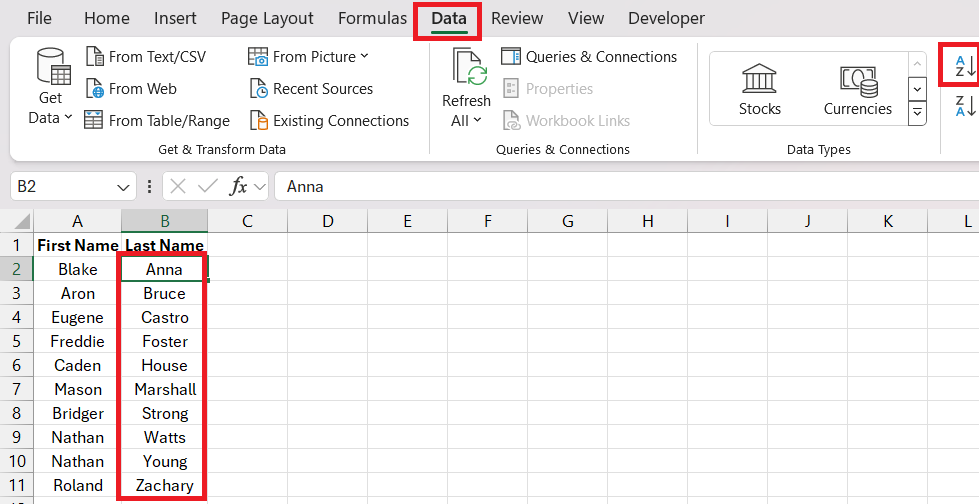
Advanced Sorting Techniques
Multiple Names in a Single Cell
Sometimes a cell contains a full name, such as “John Smith”. Separating first and last names into different columns makes sorting and analysis easier. This method is especially useful when you need to sort records by surname.
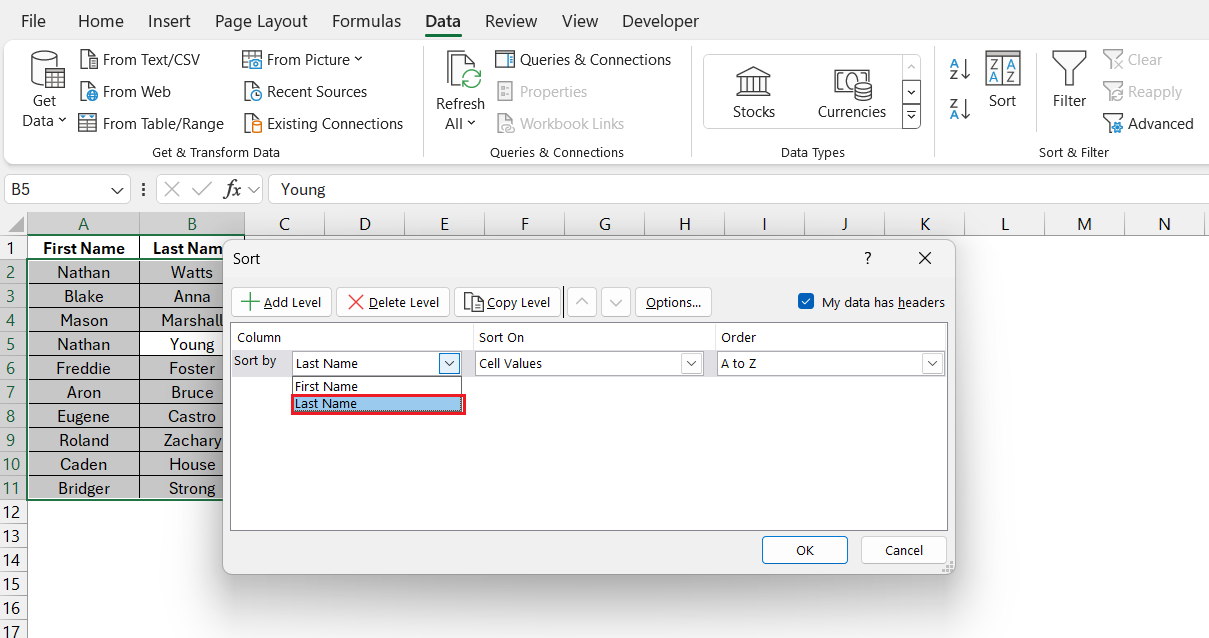
Sorting by Last Name
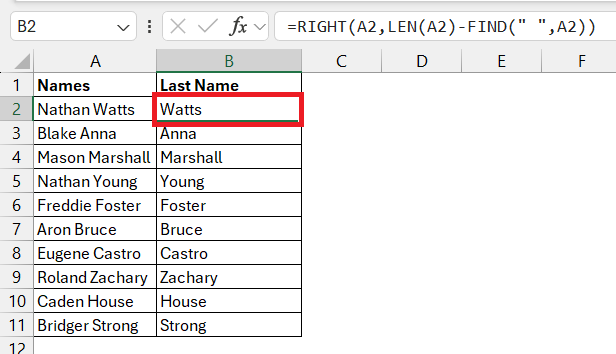
STEP 1:Extract the last name using this formula.
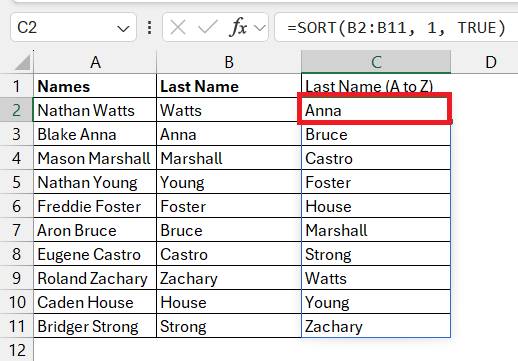
STEP 2: You can also use the SORT function to sort the last name.
Common Challenges and Solutions
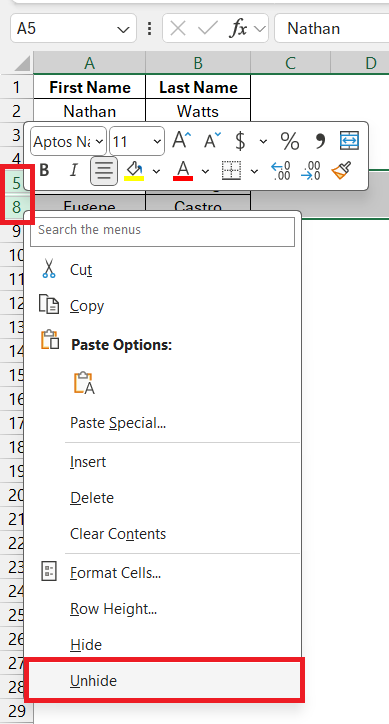
Hidden or Blank Row or Column
If your data has empty or hidden spots, and you only click on one cell before sorting, Excel will only sort up to the first empty or hidden spot. To fix this, you can remove the empty spots and make sure nothing is hidden before you sort. If there are empty rows (but not hidden ones), you can select the whole table first, then sort it.
Unrecognizable column headers
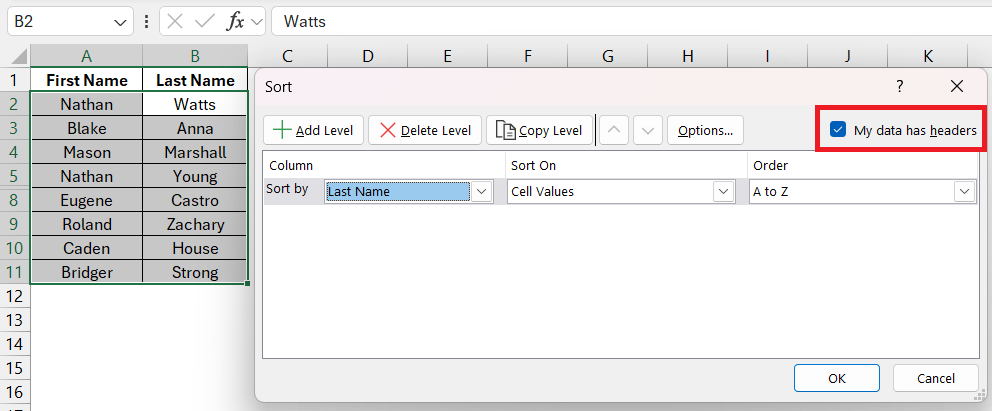
If the top row of your table looks different from the rest, Excel can tell it’s a header and won’t mix it up when you sort. But if the top row looks like the rest of your data, Excel might get confused and shuffle it into the middle when you sort. To avoid this, just select the data without the top row before sorting. If you’re using the sort window, remember to check the box that says “My data has headers”.
Tips and Tricks
Apply Custom Sort Options
STEP 1: Click on the top of the column that is to be sorted.
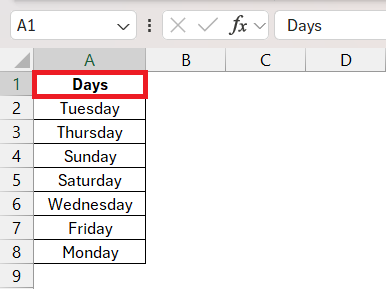
STEP 2: Go to ‘Sort’ under the Data tab and select ‘Custom Sort’.
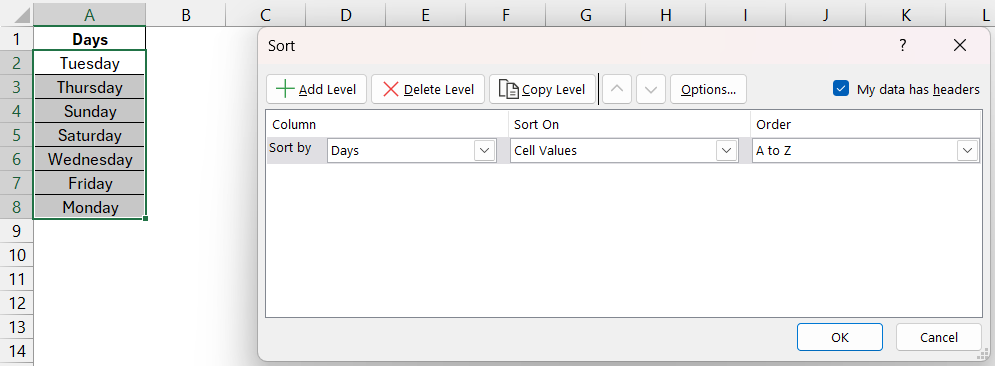
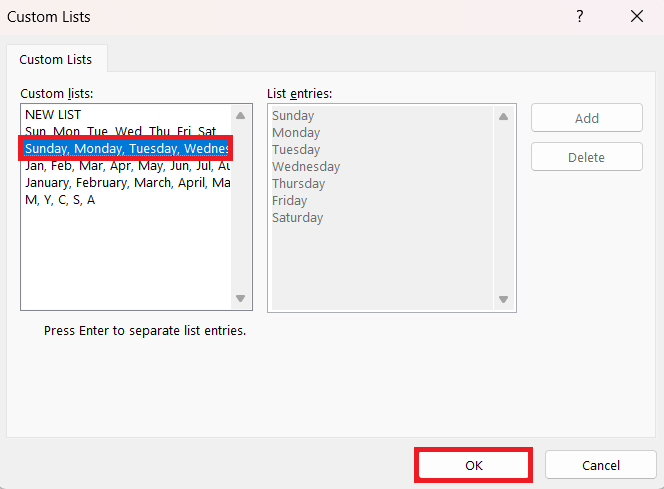
STEP 3: Then, choose the column you want to sort by, and under ‘Order’, pick ‘Custom List’.
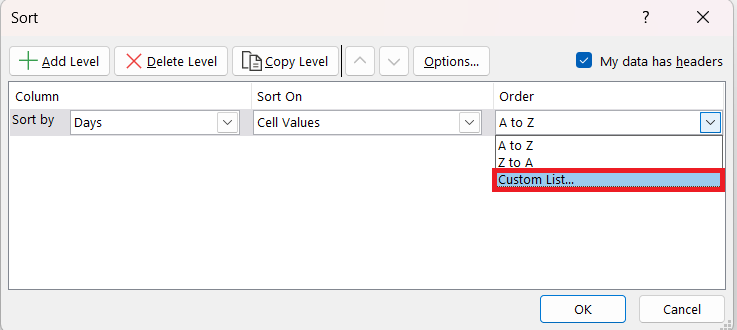
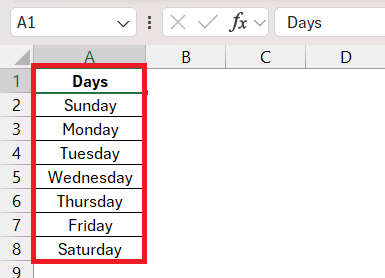
STEP 4: From there, define your unique sorting sequence and watch as Excel sorts it just the way you envisioned. For example, select the day custom list.
STEP 5: Press enter to find the result.
Use the “Sort & Filter” Dropdown
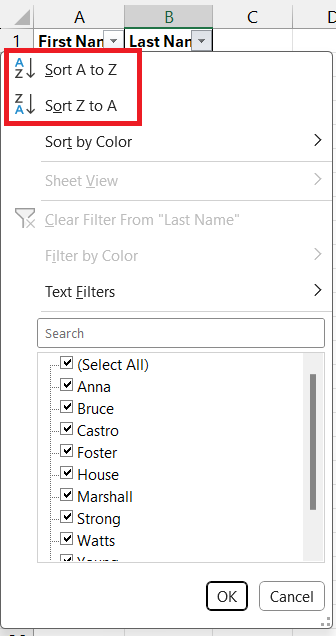
The Sort & Filter option provides a quick way to sort data directly from column headers. Simply click the dropdown arrow and choose Sort A to Z or Sort Z to A. This method saves time when working with tables.
Case Sensitivity
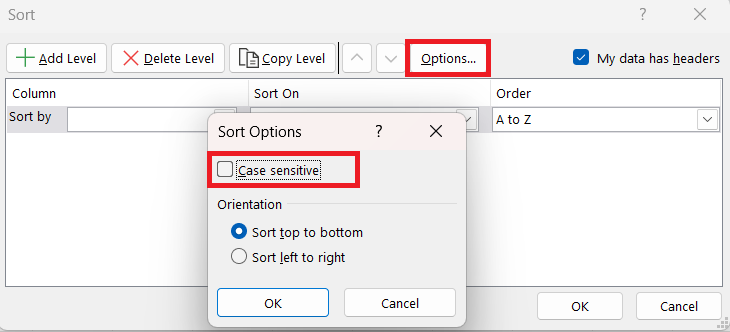
By default, Excel ignores letter case when sorting. If uppercase and lowercase letters need to be treated differently, open the Sort dialog box, click Options, and select Case sensitive.
FAQ
How do I sort by name in Excel?
To sort by name in Excel,
- Select the column containing the names
- Go to the ‘Data’ tab
- Click on ‘Sort’
- Choose ‘Sort by’ your selected column
- Select ‘A to Z’ for ascending or ‘Z to A’ for descending order
- Click ‘OK’
How to filter by name in Excel?
To filter by name in Excel,
- Click the column header
- Go to the ‘Data’ tab
- Click on ‘Filter’
- Click the dropdown arrow in the header cell
- Uncheck Select All
- Check the names you want to see
How to alphabetize names that include middle names or initials?
Split the full name into separate columns using Text to Columns or formulas. Once separated, you sort by the column with last names.
Why is Excel not sorting all my data?
Excel may not be sorting the data if there are blank rows, hidden rows, or incomplete selections.
What is Custom Sort in Excel?
Custom Sort lets you sort data using your own order, such as weekdays, months, or priority levels.

John Michaloudis is a former accountant and finance analyst at General Electric, a Microsoft MVP since 2020, an Amazon #1 bestselling author of 4 Microsoft Excel books and teacher of Microsoft Excel & Office over at his flagship MyExcelOnline Academy Online Course.

 30 Days - Full Access









