Status messages for Microsoft Teams are an essential communication used by professionals to inform their availability to their colleagues and clients. They can easily tell your teammates if you are available, busy, or away. You can also set a custom message like ‘Out for lunch’, ‘In a meeting, back at 3 PM’, ‘On leave today’, etc.
Key Takeaways
- A custom status message can inform your availability clearly
- A status message can boost productivity and reduce any interruptions
- It tells your teammates whether you are available, busy, or away
- It leads to more efficient team collaboration and allows a smoother workflow.’
Table of Contents
Introduction to Status Message
Exploring the basics of status messaging in Microsoft Teams is quite straightforward. Based on your activity, Microsoft Teams automatically displays status as Available, Busy, or Away. But the status message becomes more useful if you provide a custom message to provide more details related to your availability and response time.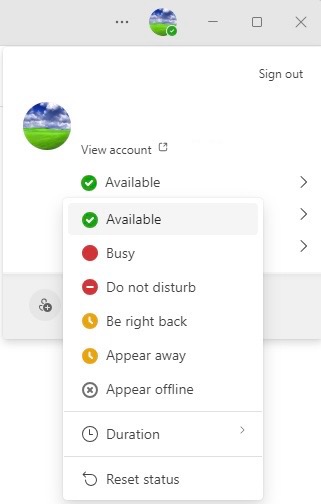
When you want to clearly communicate your situation, you can set a custom status message that appears when others view your profile or attempt to message you.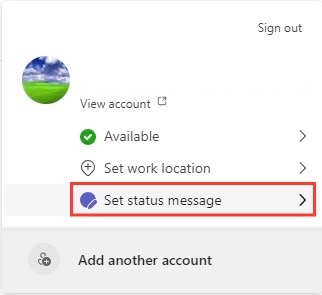
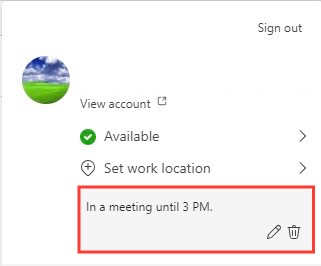
For example, if I set my status to “In a meeting until 3 PM” my colleagues will know that I will not be able to reply to them before 3 PM. This keeps the communication transparent and expectations real among team members. I can interact with the clients without having to respond to them individually during busy periods or in my absence.
Create a Perfect Status Message
A perfect status message is both informative as well as concise. You should be able to inform your clients about your availability without providing unnecessary details. It should be crafted in such a way that it respects the time for both the one crafting the message and the one reading it.
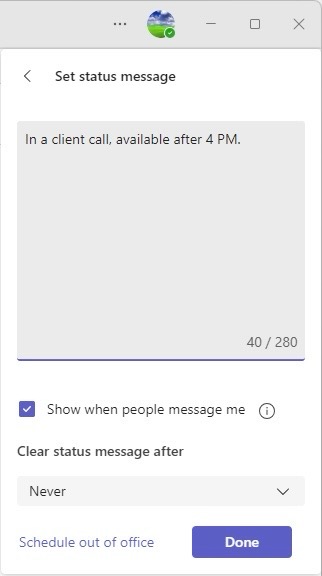
For example, a status message would be “In a client call, available after 4 PM”. This message is written well as it informs that you are busy and that you will reply after a set time. The following information should be included in your status message:
- Your availability or activity
- When will you be available
- Whom to contact for urgent needs
It is important to remember that the status message should contain complete information.
Real-life Examples
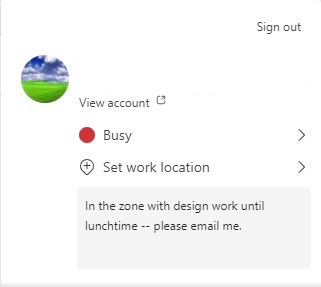
Here are a few examples of status messages for various situations:
- “On a creativity adventure — back soon!”
- “Working on fresh ideas. Free after 3 PM.”
- “Focussed on Work. Will be back at 5 PM.”
- “Offline for some time. Will reply after 12 PM.”
- “Handling multiple tasks right now. Will reply shortly.”
Each message informs the clients about your current activity and when you will be free to reply back.
Creative Status Message Ideas
Out-of-Office Messages
Out-of-office message is really helpful as it informs your teammates that you are not currently available and they can plan their work accordingly. It should be informative so that they know when you will be back and whom to contact if there are any emergencies.
Here’s an example: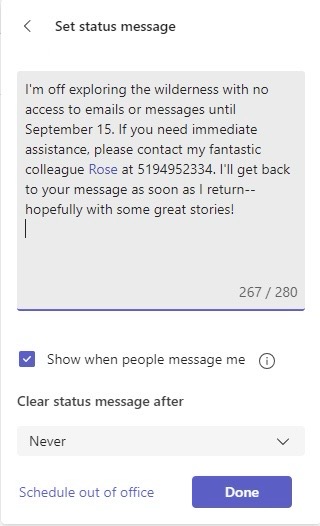
Reasons:
- Specifies unavailability
- Personalised message
- Provides alternate contact for emergencies
- Provides a response date
Fun Status Updates
Adding an element of fun in your daily status message will boost the team’s morale. Here’s an example: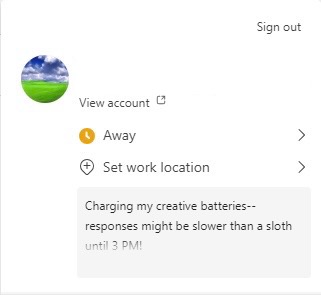
Reasons:
- Adds humour to your status message
- Makes the message memorable
- Indicates that you are busy and may not reply instantly
- Breaks the monotony of other common messages.
Tips and Tricks
Set Custom Status Like a Pro
Setting a custom message is a quick and easy task. Just go to your profile picture and select ‘Set status message’.Here, simply type the message you want your clients to know.
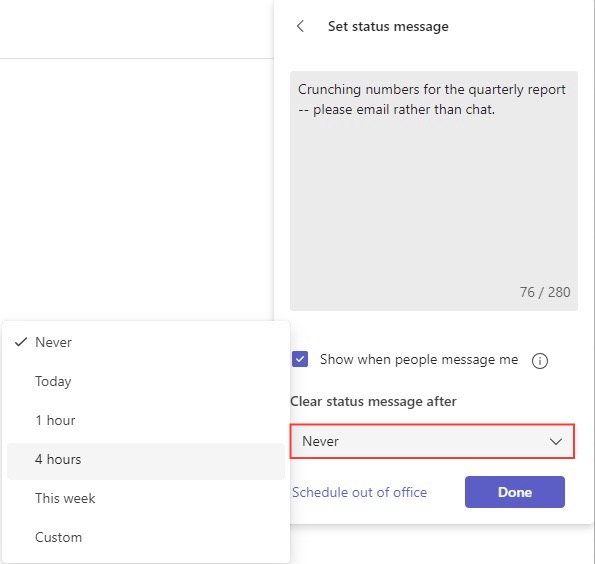
In terms of duration, I carefully choose how long the message will be displayed.
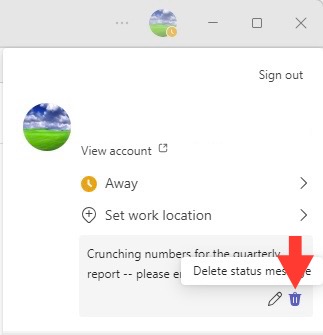
To clear a this, I simply click my profile picture again, choose “Set status message,” and either select the trash icon after my current message or overwrite it with a new one.
Frequently Asked Questions
What is the Purpose of a Status Message in Microsoft Teams?
The purpose of a status message in Microsoft Teams is to communicate my current availability and activity to colleagues. It lets them know when I’m free to chat, when I’m busy in a meeting or focused on work, or when I’m out of the office.
Can I Schedule Status Messages on Teams?
Yes, you can schedule status messages in advance on Teams. This is particularly useful when you are going on vacation, have planned days off, or have focus sessions scheduled. This allows you to inform your clients about your availability without having to set a message when you’re unavailable.
How Do I Make Sure That My Status Message Is Seen by Others?
To confirm that my status message is seen by others in Microsoft Teams, I select the option “Show when people message me.” This displays my message whenever someone tries to contact me, making it highly visible. Consistency and clarity in the status message also help others to notice and respect my availability.

John Michaloudis is a former accountant and finance analyst at General Electric, a Microsoft MVP since 2020, an Amazon #1 bestselling author of 4 Microsoft Excel books and teacher of Microsoft Excel & Office over at his flagship MyExcelOnline Academy Online Course.

 30 Days - Full Access









