Key Takeaways
- To stop meeting notifications, navigate to File > Options > Mail, then in the Tracking section uncheck “Automatically process meeting requests and responses to meeting requests and polls.”
- Disable meeting acceptance notifications by customizing tracking settings in Outlook.
- Enable the option to automatically dismiss reminders for past events via File > Options > Advanced, by selecting “Automatically dismiss reminders for past events.”
Table of Contents
Step-by-Step Instructions to Alter Meeting Alert Settings
Accessing the notifications menu in Outlook
STEP 1: Open Outlook and click on the ‘File’ tab at the top left corner of the screen.
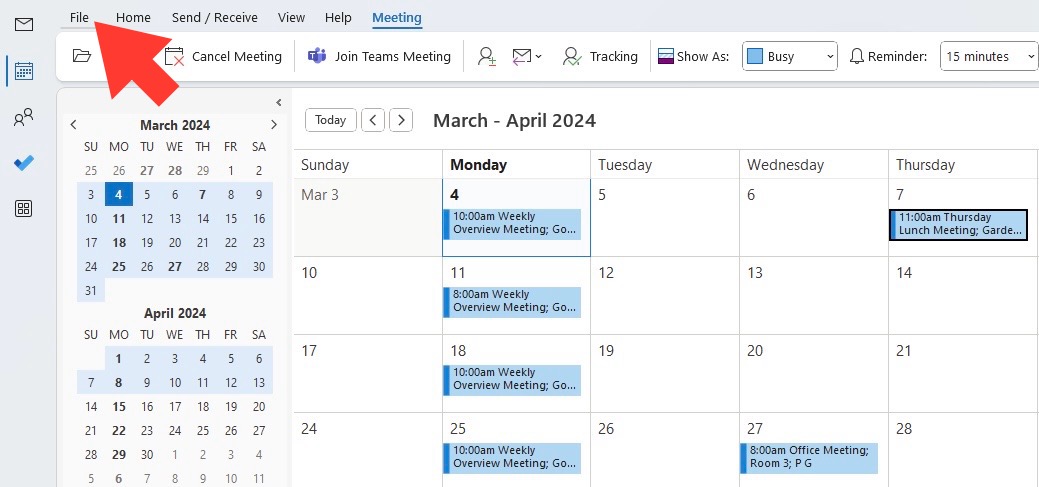
STEP 2: Find and click on ‘Options’ to open the Outlook Options dialog box.
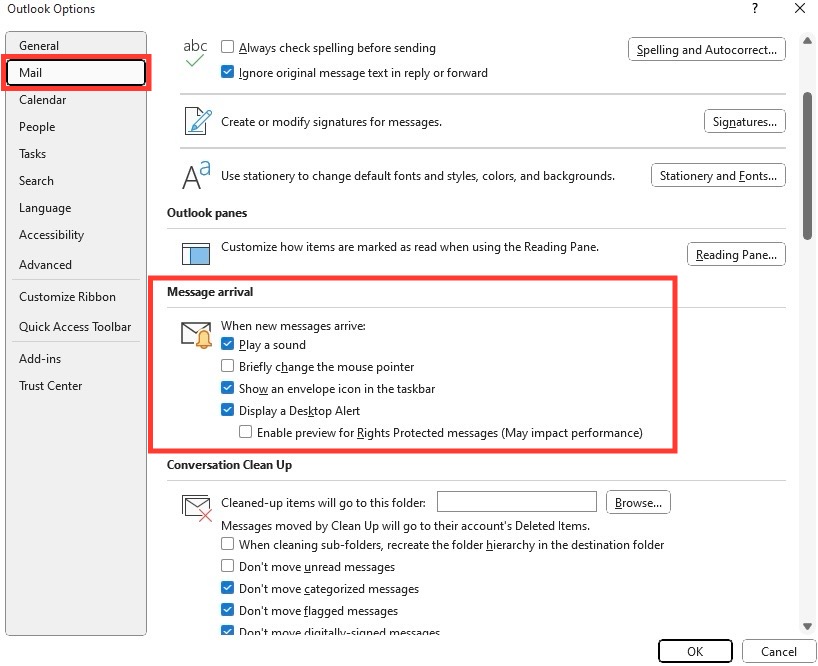
STEP 3: In the dialog box, look to the left-hand menu and click on ‘General’ (or ‘Mail’ in some versions).
STEP 4: Go to the ‘Message arrival’ section to start customizing your alert preferences.
Tips for Outlook Calendar Management
Customizing your preferences for meeting reminders
STEP 1: Once in the ‘Notifications’ menu, look for settings related to calendar alerts or meeting reminders.
STEP 2: You’ll see options to modify the delivery of notices. Choose the method that works best for you—visual pop-ups, sounds, the delegation of emails, or a combination of these.
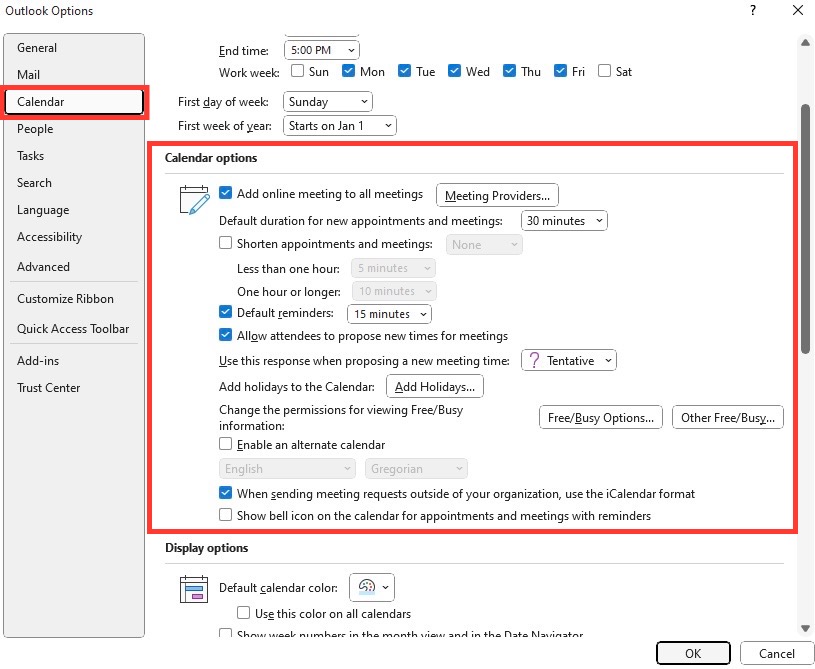
STEP 3: Go to the ‘Calendar’ settings to fine-tune how far in advance you want the reminders. You can set different reminders for each meeting, or a default time for all calendar events.
Handling Special Cases and Options
Stopping Outlook from auto-adding calendar invites to your schedule
To prevent Outlook from automatically adding calendar invites to your schedule, you can adjust the settings to better reflect your preferences:
STEP 1: Go to ‘File’ and click ‘Options’ in the Outlook navigation pane.
STEP 2: Navigate to the ‘Mail’ section, and then scroll down to the ‘Tracking’ area.
STEP 3: Here you’ll find the option that says “Automatically process meeting requests and responses to meeting requests and polls.” Uncheck this box.
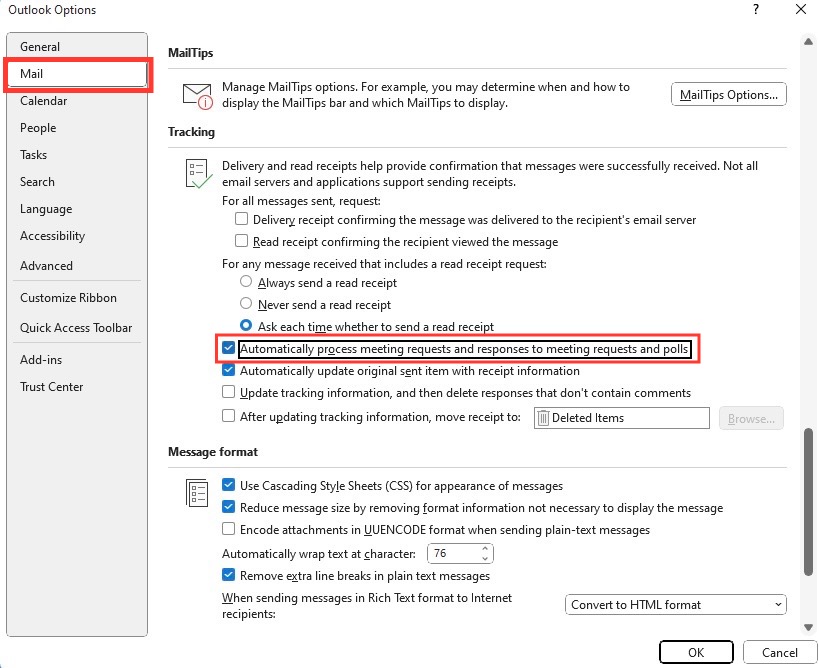
With this change, Outlook will stop booking time slots as ‘Tentative’ on your calendar and leave you to manually respond to invites. This puts the power back in your hands, allowing you to review and decide which events make it onto your daily agenda, ensuring you only commit to what aligns with your priorities.
Configuring exceptions for VIP meetings and contacts
STEP 1: Use the ‘rules’ feature in Outlook to create a custom rule for specific people.
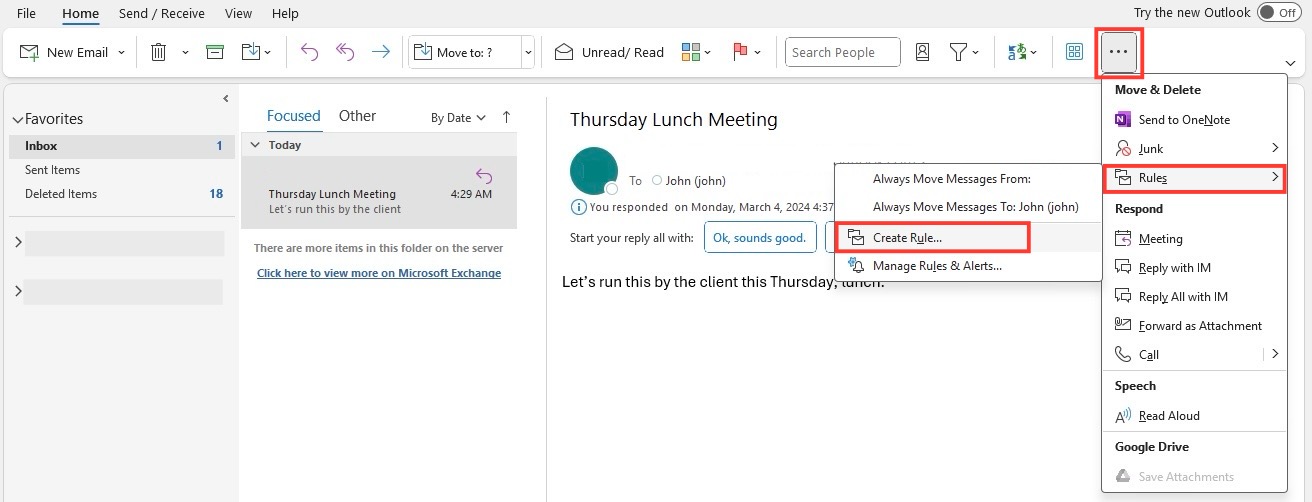
STEP 2: Set it up so that invites from select contacts will trigger a specific action, such as a distinct notification sound or moving the invite to a priority folder.
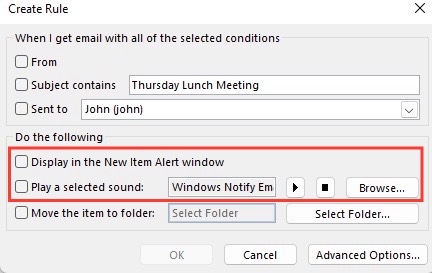
STEP 3: Ensure that these invitations are set to bypass the settings that prevent auto-adding to your calendar.
By fine-tuning these exceptions, you can balance the benefit of not having your calendar automatically cluttered by every invitation while still maintaining responsiveness to critical contacts and meetings.
FAQs About Managing Outlook Meeting Notifications
Can I selectively stop notifications for certain meetings? Yes, you can adjust the reminder settings for individual meetings by opening the event and changing its reminder setting, or disable reminders altogether for new events.
Can you turn off Outlook calendar acceptance notifications? To turn off automatic acceptance notifications, go to ‘Options,’ then ‘Mail,’ and under ‘Tracking,’ uncheck “Automatically process meeting requests and responses to meeting requests and polls.
How do I handle notifications for group calendars? For group calendars, you can manage your own alert settings or work with your team to establish uniform notification rules tailored to the group’s needs.
Can I selectively stop notifications for certain meetings?
Yes, you certainly can selectively stop notifications for certain meetings in Outlook. Simply follow these steps:
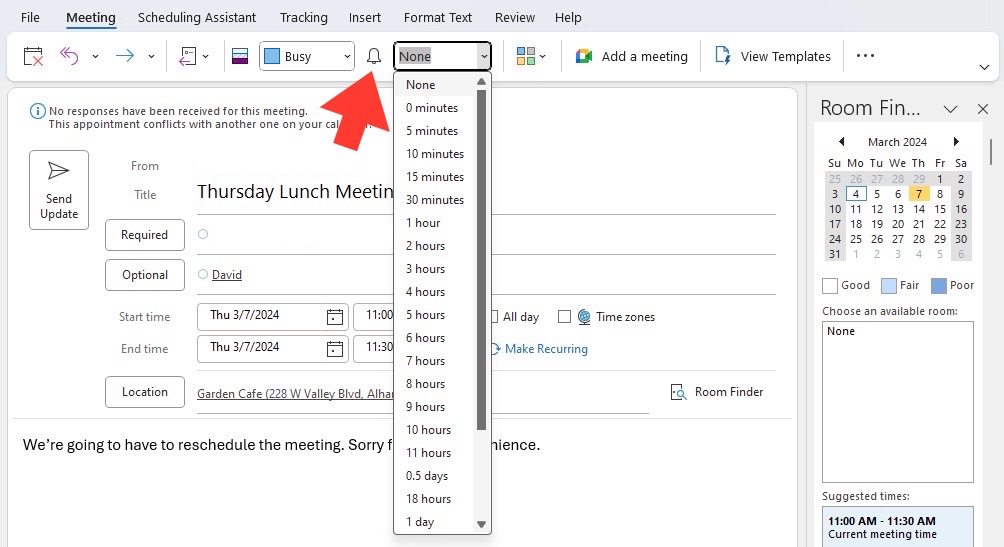
STEP 1: Open the calendar event for which you want to stop notifications.
STEP 2: In the event details, look for the ‘Reminder’ drop-down menu.
STEP 3: Select ‘None’ to stop any reminders for that particular event.
Can you turn off Outlook calendar acceptance notifications?
Yes, to turn off Outlook calendar acceptance notifications, follow these instructions:
STEP 1: Click ‘File’>’Options’>’Mail’>’Tracking.’
STEP 2: Uncheck the options “Automatically process meeting requests and responses to meeting requests and polls.”
This action disables the automatic acceptance of meeting responses, so your inbox won’t be cluttered with RSVPs from attendees.

John Michaloudis is a former accountant and finance analyst at General Electric, a Microsoft MVP since 2020, an Amazon #1 bestselling author of 4 Microsoft Excel books and teacher of Microsoft Excel & Office over at his flagship MyExcelOnline Academy Online Course.

 30 Days - Full Access









