 Free Practice Workbook
Sometimes, you may need to perform calculations on visible cells only. This is where the SUBTOTAL function comes in use. It allows you to do the calculation while ignoring filtered and hidden rows. In this article, you will learn how to use the SUBTOTAL function in Excel.
Key Takeaways:
- SUBTOTAL performs calculations on a range of cells.
- It can calculate totals, averages, counts, and other values.
- It can ignore filtered-out rows.
- Function numbers from 101 to 111 also ignore hidden rows.
- SUBTOTAL is useful for working with filtered data.
Table of Contents
Introduction
Define SUBTOTAL
The SUBTOTAL function is used to perform functions on a range of cells. The functions include sum, average, count, maximum, or minimum value. It is useful function as it allows you to ignore filtered or hidden rows.
The syntax of the SUBTOTAL function is:
=SUBTOTAL(function_num,ref1,[ref2],…)
- function_num – It tells Excel which function needs to be performed. Required.
- ref1 – It is the first range. Required.
- ref2, ref3,.. – They are additional references. Optional.
Function Numbers
The function number determines which calculation Excel performs.
- 1 – AVERAGE
- 2 – COUNT
- 3 – COUNTA
- 4 – MAX
- 5 – MIN
- 6 – PRODUCT
- 7 – STDEV
- 8 – STDEVP
- 9 – SUM
- 10 – VAR
- 11 – VARP
- 101 – AVERAGE
- 102 – COUNT
- 103 – COUNTA
- 104 – MAX
- 105 – MIN
- 106 – PRODUCT
- 107 – STDEV
- 108 – STDEVP
- 109 – SUM
- 110 – VAR
- 111 – VARP
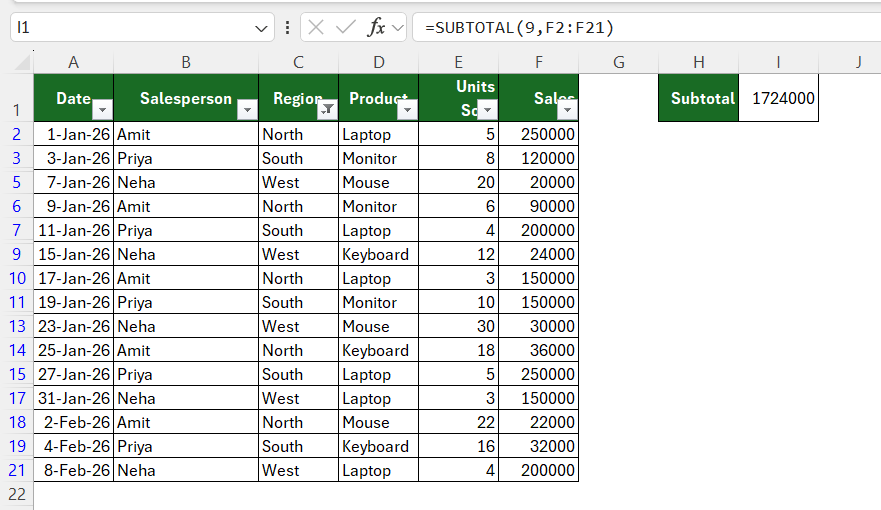
Numbers from 1 to 11 ignore filtered-out rows but include manually hidden rows. Whereas numbers from 101 to 111 ignore both filtered-out and manually hidden rows.
How to Use the SUBTOTAL function
Calculate Total
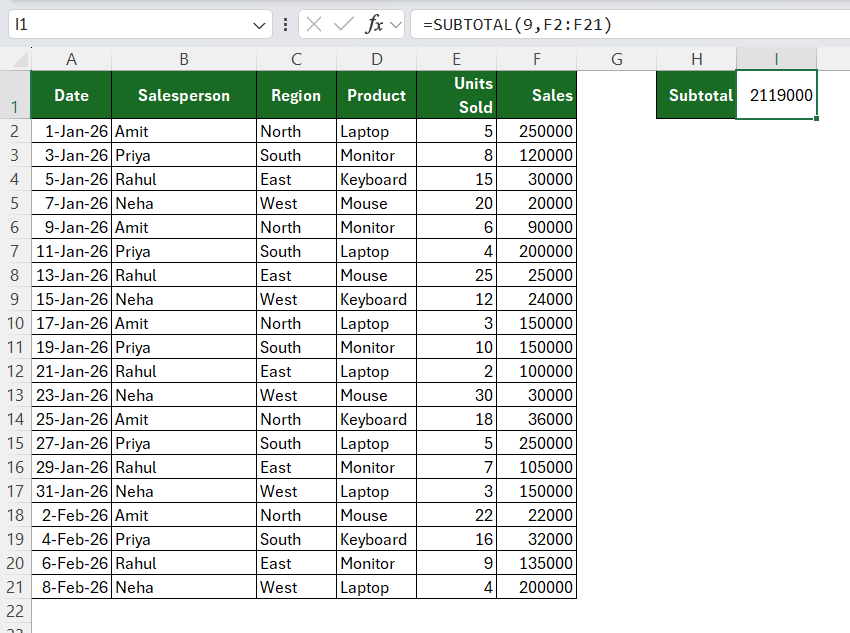
STEP 1: Click the cell where you want the total.
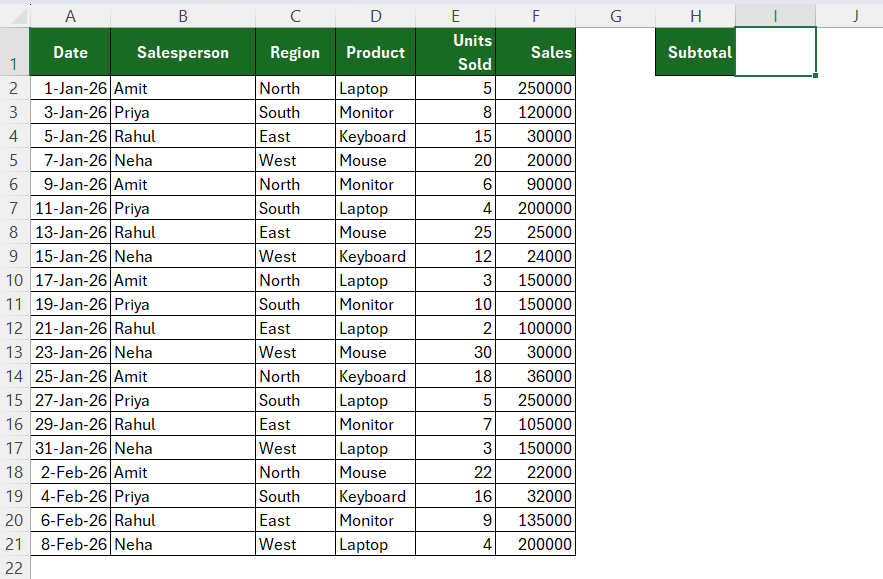
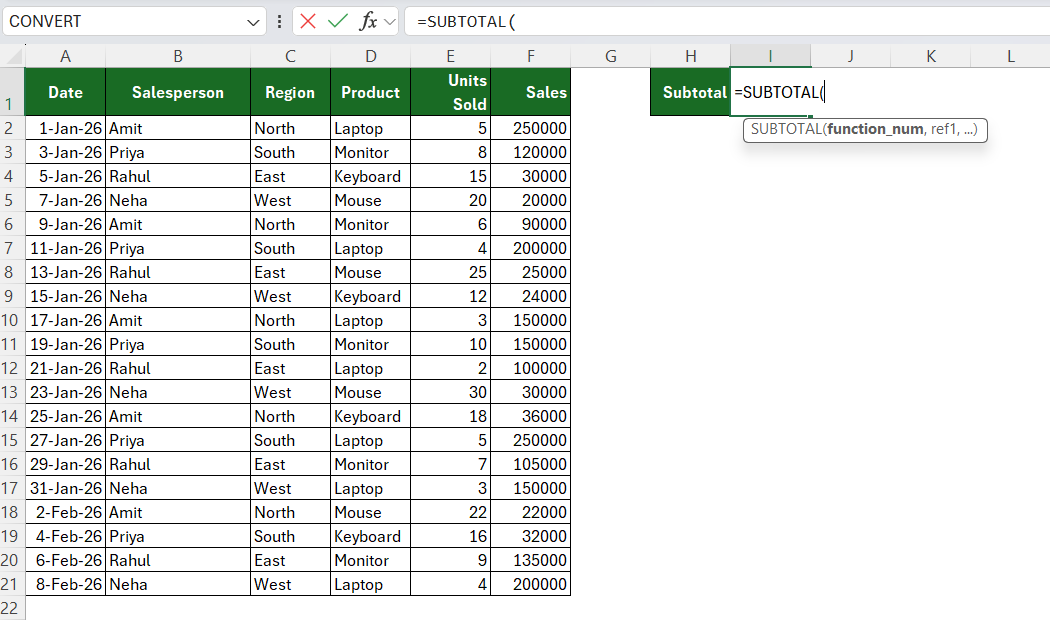
STEP 2: Type the function name and open bracket.
=SUBTOTAL(
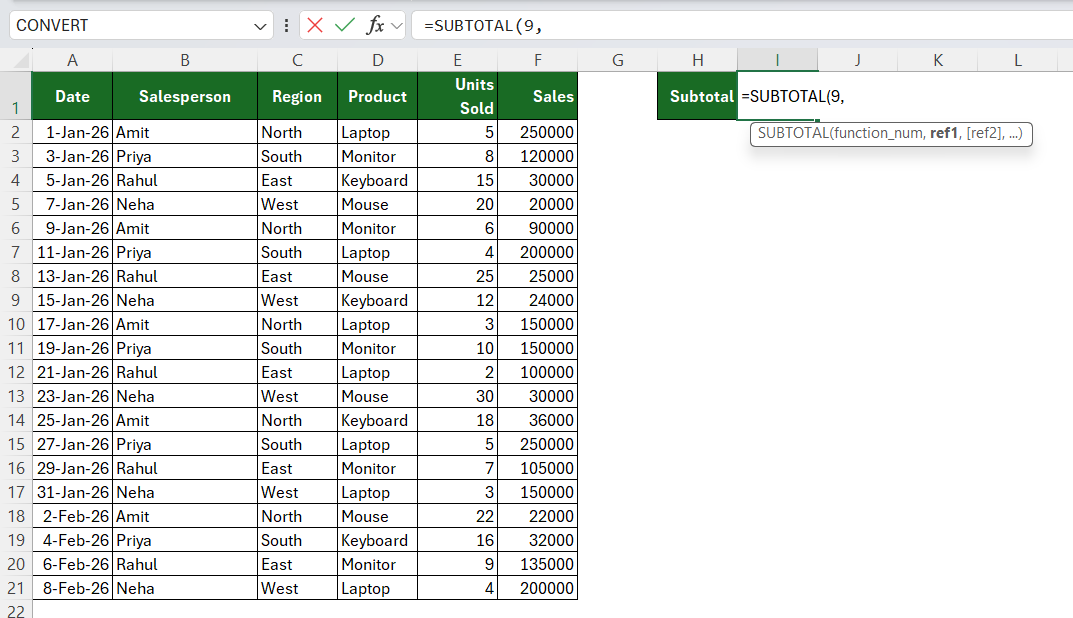
STEP 3: Choose your function number as:
- 9 for ignoring filtered rows but including hidden rows
- 109 for ignoring both filtered and hidden rows
=SUBTOTAL(9,
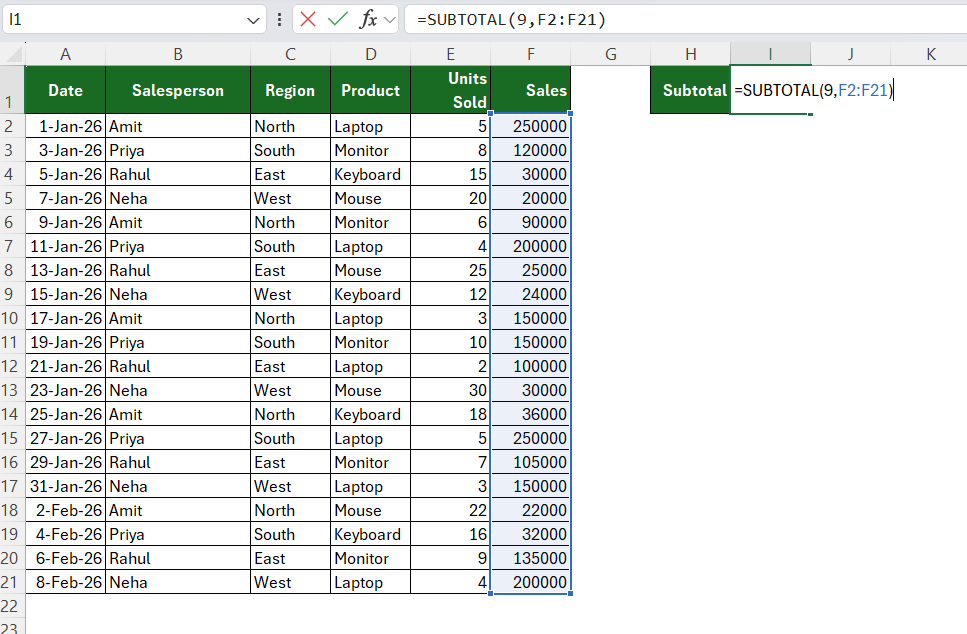
STEP 4: Select the range that contains the values.
=SUBTOTAL(9, F2:F21)
STEP 5: Press Enter.
STEP 6: Go to the Data tab and select the Filter button.

STEP 7: Apply the filter to test it.
Calculate Average
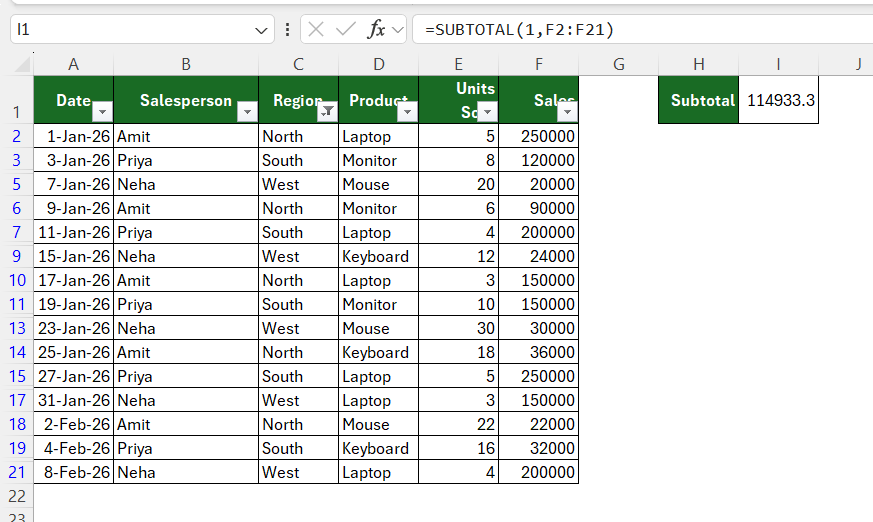
To get the value as an average of the range of cells, you can use this formula:
SUBTOTAL vs AGGREGATE
SUBTOTAL and AGGREGATE can both perform calculations while ignoring certain rows.
However, AGGREGATE provides more options for ignoring errors, hidden rows, and other values.
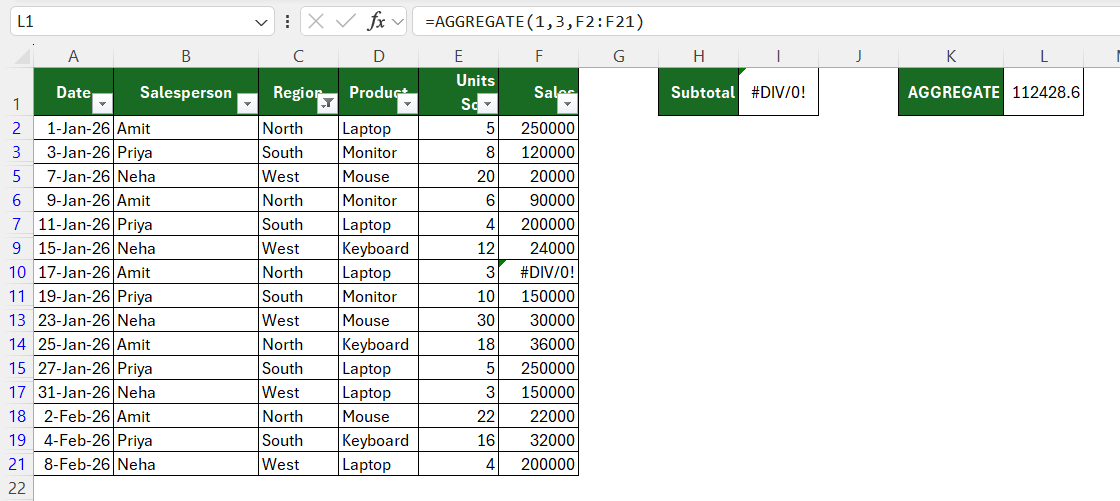
- For simple filtered totals and averages, SUBTOTAL is often easier to use.
- For more advanced calculations, AGGREGATE may provide better control.
Common Mistakes When Using SUBTOTAL
- If you use an incorrect function number in the formula, the result will be incorrect too.
- Make sure not to include the cell containing the SUBTOTAL formula.
- The SUM function cannot ignore hidden or filtered rows.
- Do not get confused between when to use 9 and 109.
FAQs
1. What is the SUBTOTAL function in Excel?
The SUBTOTAL function performs calculations on a range of cells. It can also ignore filtered or hidden rows.
2. What does 9 mean in the SUBTOTAL function?
The number 9 tells Excel to calculate the SUM while ignoring filtered-out rows.
3. What does 109 mean in the SUBTOTAL function?
The number 109 calculates the SUM while ignoring both filtered-out and manually hidden rows.
4. Does SUBTOTAL ignore filtered rows?
Yes, SUBTOTAL ignores rows that are filtered out.
5. What is the difference between SUBTOTAL and AGGREGATE?
AGGREGATE provides more options for handling errors and hidden rows. SUBTOTAL is simpler for basic calculations.

John Michaloudis is a former accountant and finance analyst at General Electric, a Microsoft MVP since 2020, an Amazon #1 bestselling author of 4 Microsoft Excel books and teacher of Microsoft Excel & Office over at his flagship MyExcelOnline Academy Online Course.

 30 Days - Full Access









