Pinterest Pixel

Quick Tornado Chart Tutorial – Excel’s Powerful Analysis Tool

John Michaloudis
A Tornado Chart in Microsoft Excel is a specialized bar chart used primarily for sensitivity analysis.
They are used to visually compare the impact of different variables on a particular outcome.

It has bars stacked horizontally and in decreasing order.

This effectively shows data comparisons and evaluates the relative importance of variables.

A Tornado Chart in Microsoft Excel is a specialized bar chart used primarily for sensitivity analysis. They are used to visually compare the impact of different variables on a particular outcome. It has bars stacked horizontally and in decreasing order. This effectively shows data comparisons and evaluates the relative importance of variables.

Key Takeaways

  • Tornado Charts are used to compare different factors that impact the result.
  • Excel uses a stacked bar chart to create a tornado chart.
  • They can be used in sensitivity or risk analysis.
  • Each factor is sorted from highest to lowest impact.
  • They make complex data easy to understand.

Download the Excel Workbook and follow along with the tutorial – Download excel workbookTornado-Chart-in-Excel.xlsx


Introduction to Tornado Charts

Basics of Tornado Charts

A Tornado Chart is a bar chart that helps you understand how different variables affect the final result. Each bar represents a factor, and they are sorted based on their impact. This makes it easier to spot which factor matters the most. The final chart looks like a tornado, with the widest bar at the top and the narrowest at the bottom.

Tornado Charts in Data Analysis

A tornado chart is really useful as it quickly displays which factor matters the most in your data.

  • Sensitivity Analysis: This allows us to see how changing input variables can affect the final result.
  • Decision-Making: Helping decision-makers to understand which factors matter the most.
  • Comparative Studies: Comparing different scenarios or groups.


How to Create Tornado Charts

Preparing Data

Before creating a tornado chart, make sure that the data is accurate.

  • Define Your Variables: Decide which factor you want to analyze.
  • Collect Data: Use accurate and relevant data for each variable.
  • Organize Your Data: Arrange categories in one column and values in another.
  • Sort Your Data: Sort the data based on its impact. with the largest value at the bottom.
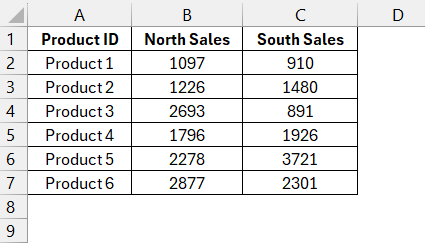
tornado chart

Now that the data is ready, you can visualize it by creating the chart.

Crafting the Chart

Follow the steps below to create a tornado chart in Excel –

STEP 1: Highlight the table columns that contain your categories and corresponding values.
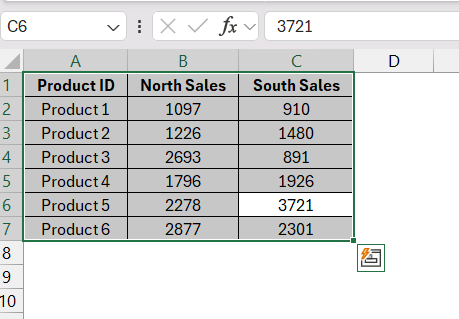
tornado chart

STEP 2: Go to Excel’s Insert tab, choose ‘2-D Bar,’ and select the ‘Stacked Bar’ option.
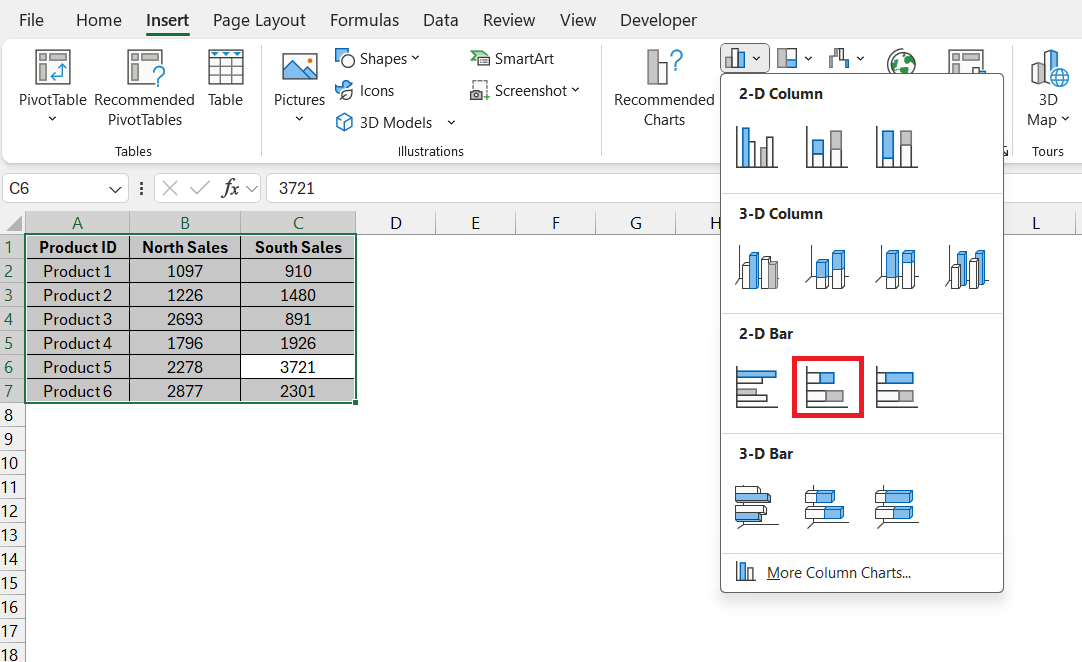
tornado chart

STEP 3: Right-click on the second variable chart and select ‘Format Data Series’.
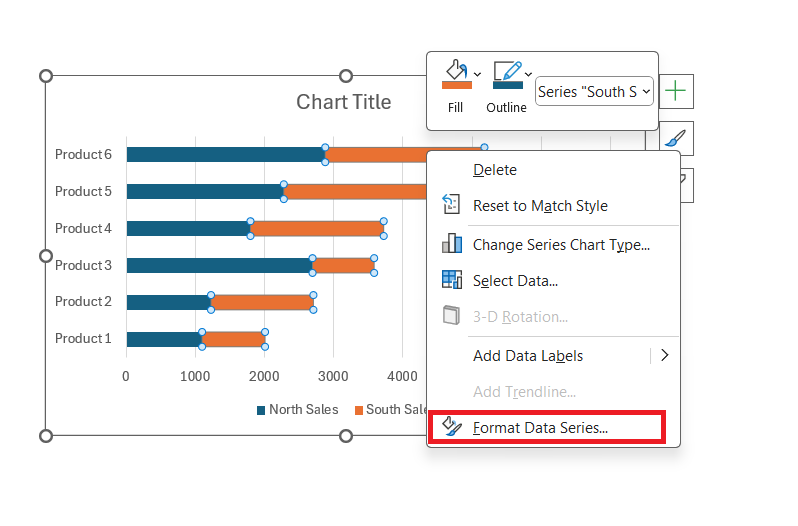
tornado chart

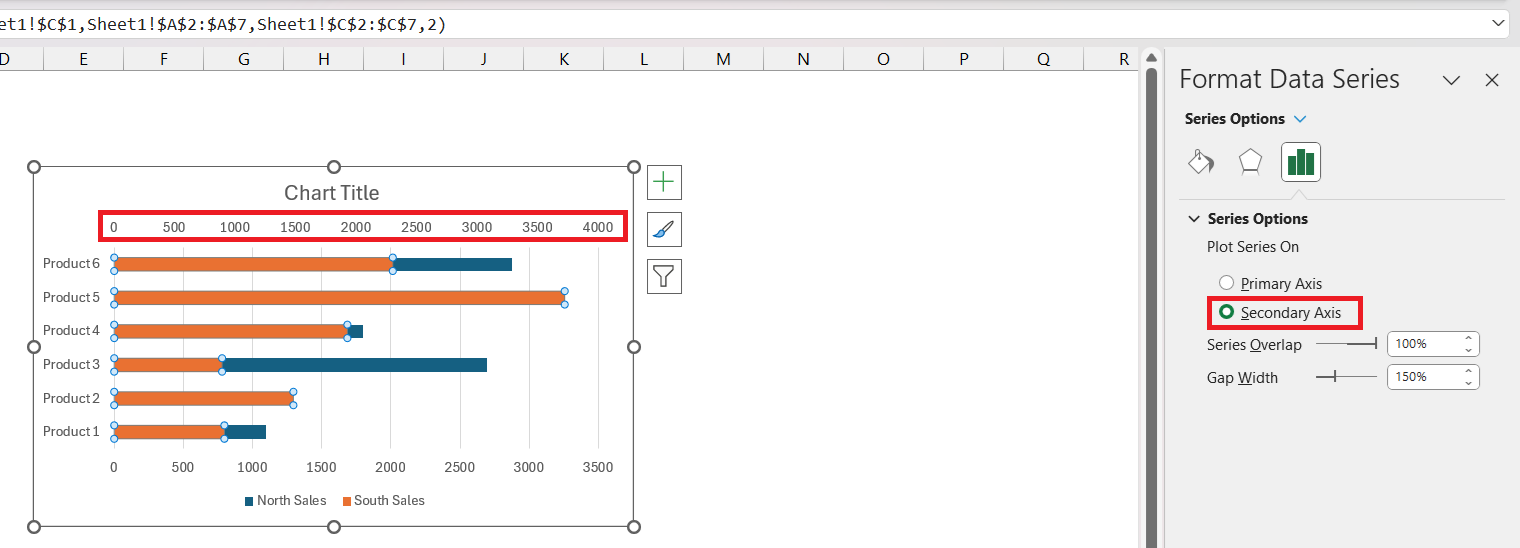
STEP 4: In the Format Data Series dialog box, select ‘Secondary Axis’.
tornado chart

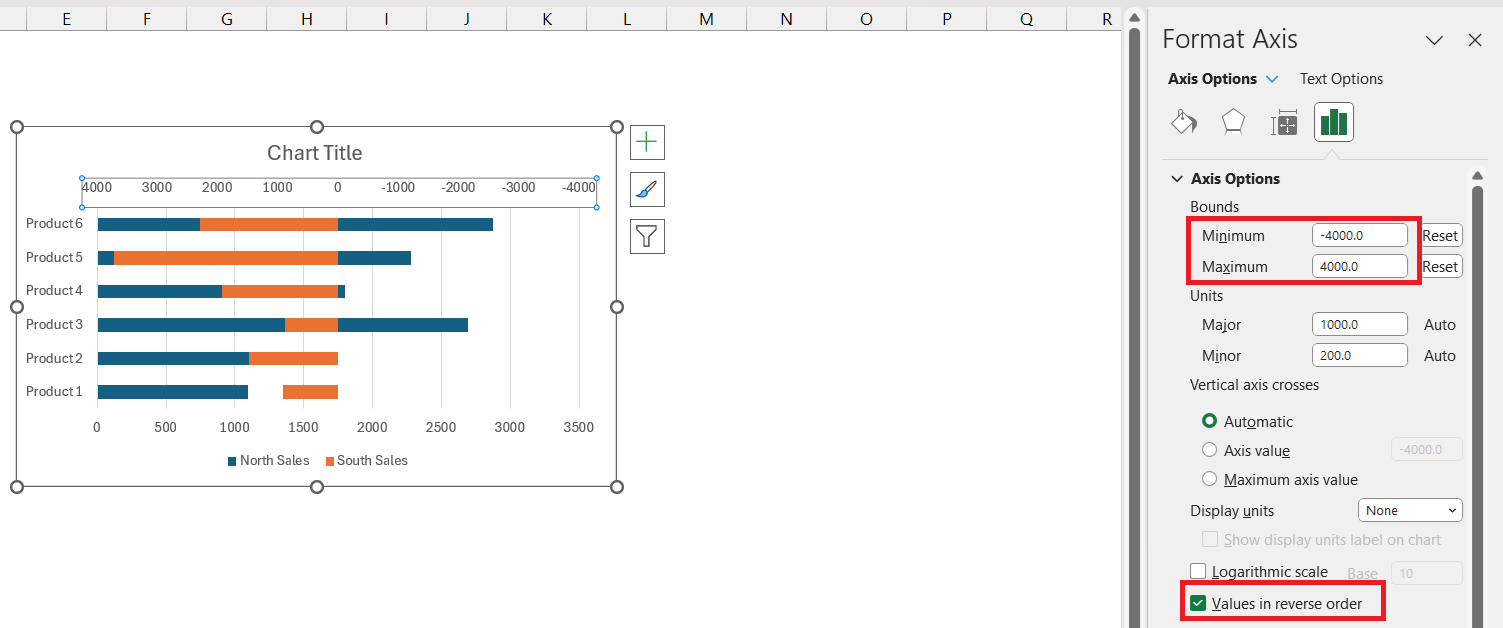
STEP 5: Right-click on the secondary axis and select ‘Format Axis’. Adjust the bounds to reflect –

  • Maximum – The maximum value of your data.
  • Minimum – To be the negative of the maximum value.

Also, check ‘Values in reverse order’.
tornado chart

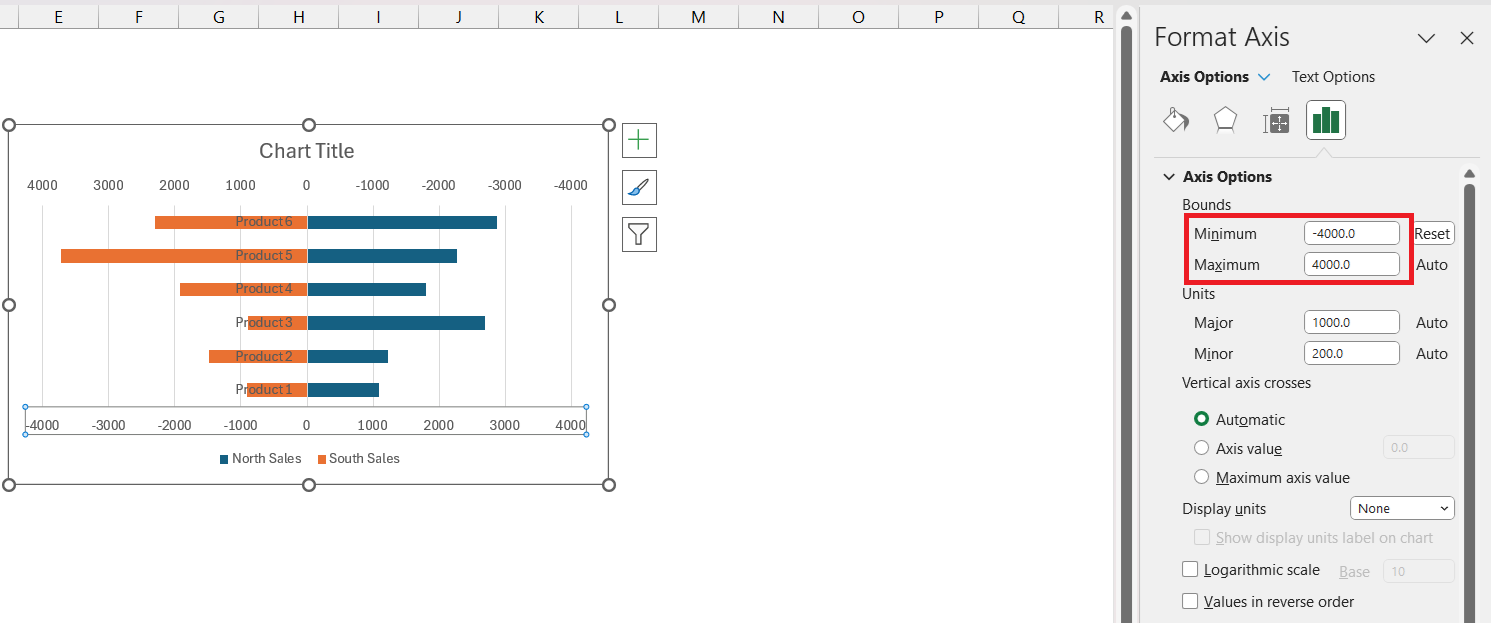
STEP 6: Right-click on the Primary Axis and select ‘Format Axis’. In the Format Axis dialog box, set the bounds the same as the secondary axis.
tornado chart

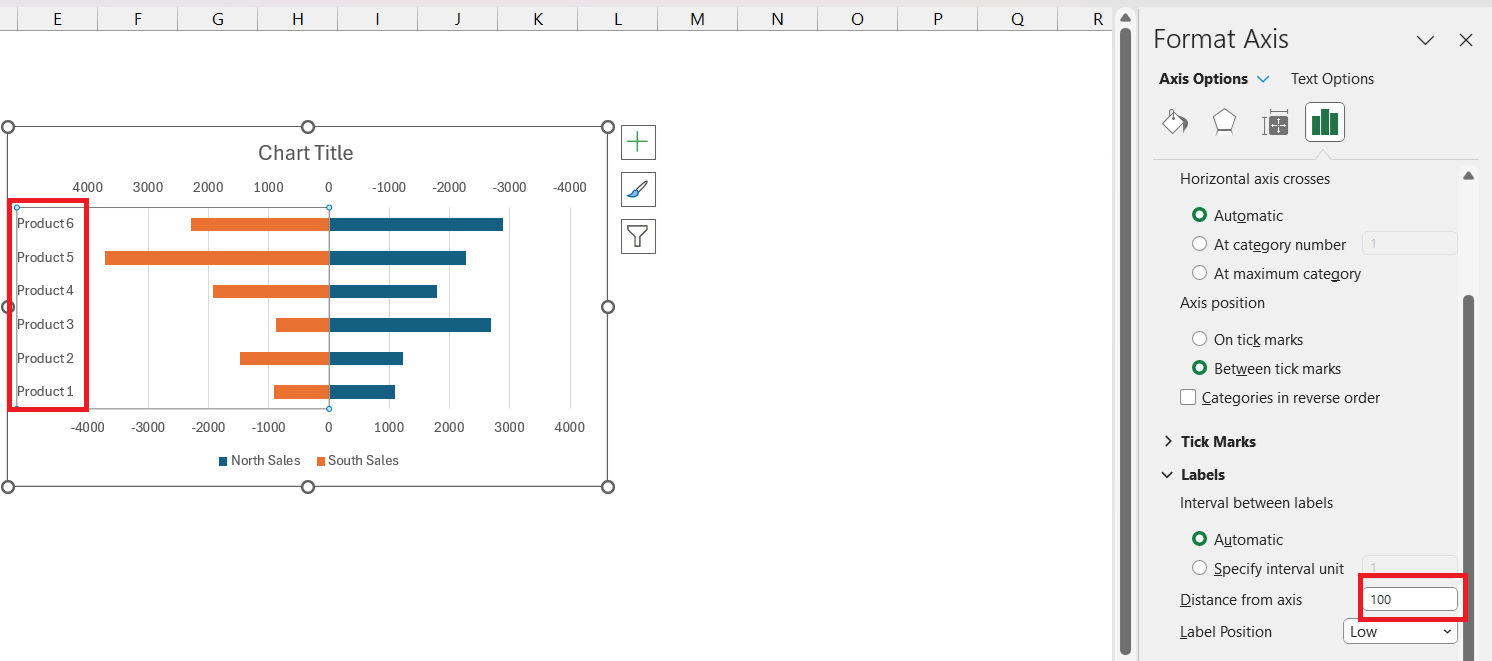
STEP 7: Right-click on the Vertical Axis and select ‘Format Axis’. Set ‘Label Position’ to ‘Low’.
tornado chart

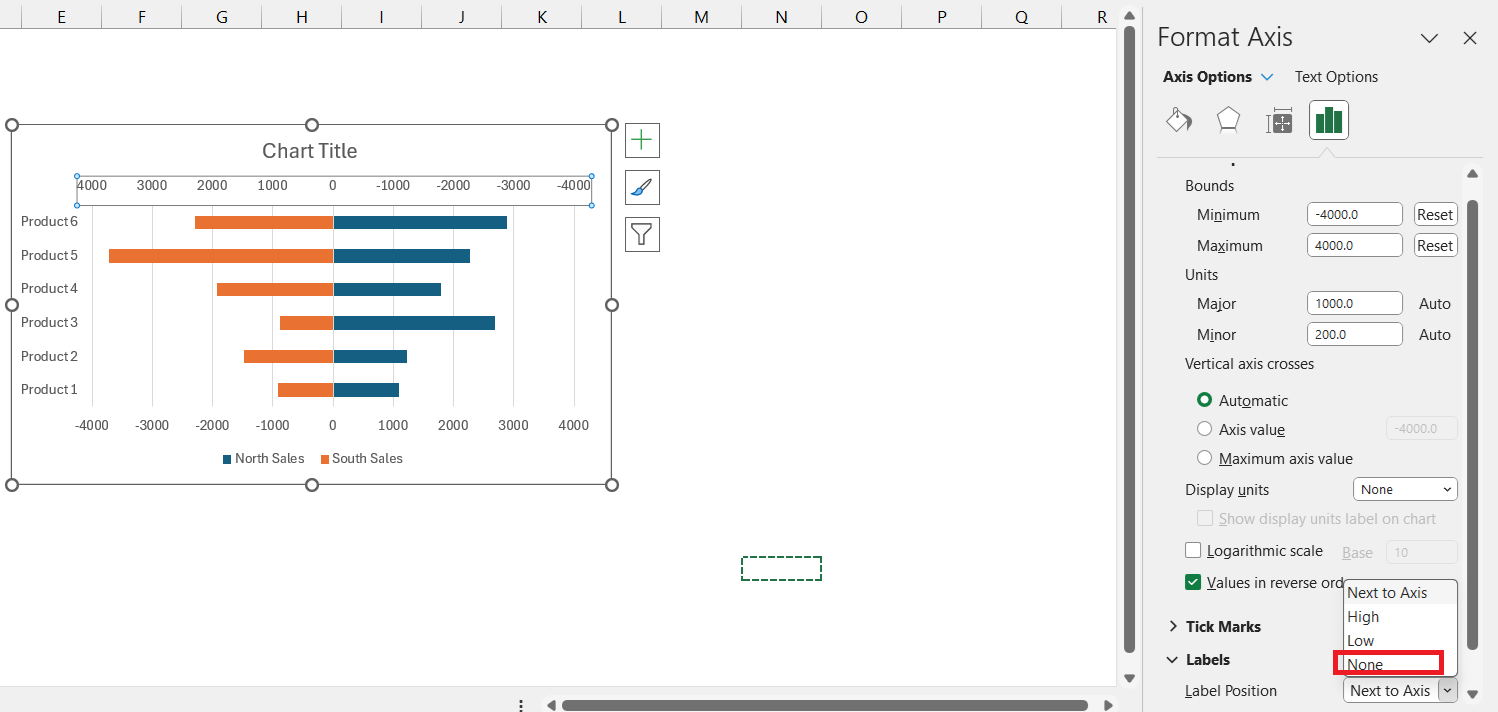
STEP 8: Right-click on the ‘Primary Axis’ and select ‘Format Axis’. Now, select Label Position as ‘None’. Repeat the same step for the Secondary Axis.
tornado chart

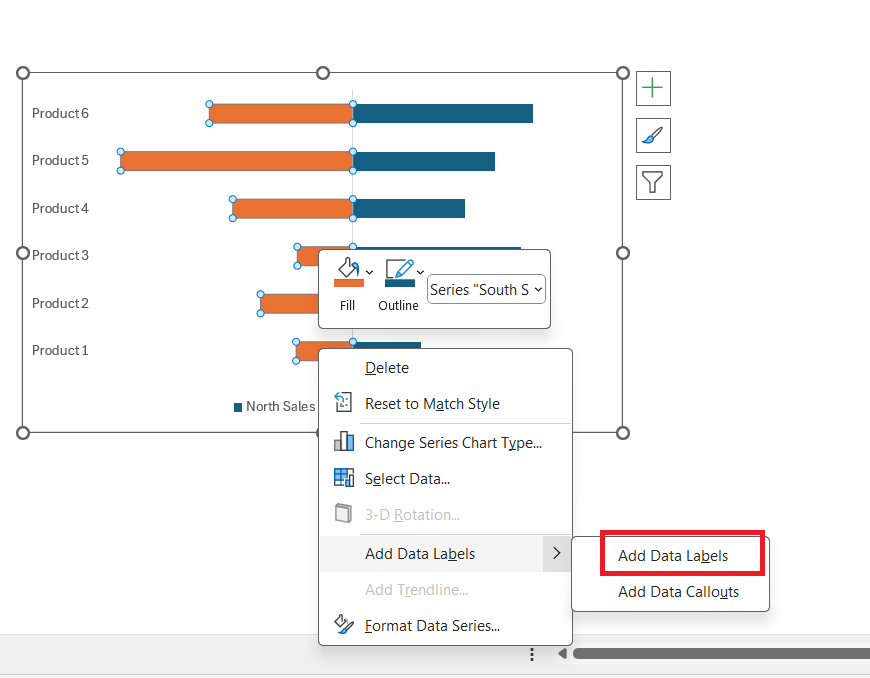
STEP 9: Right-click on the bar and select ‘Add Data Labels’.
tornado chart

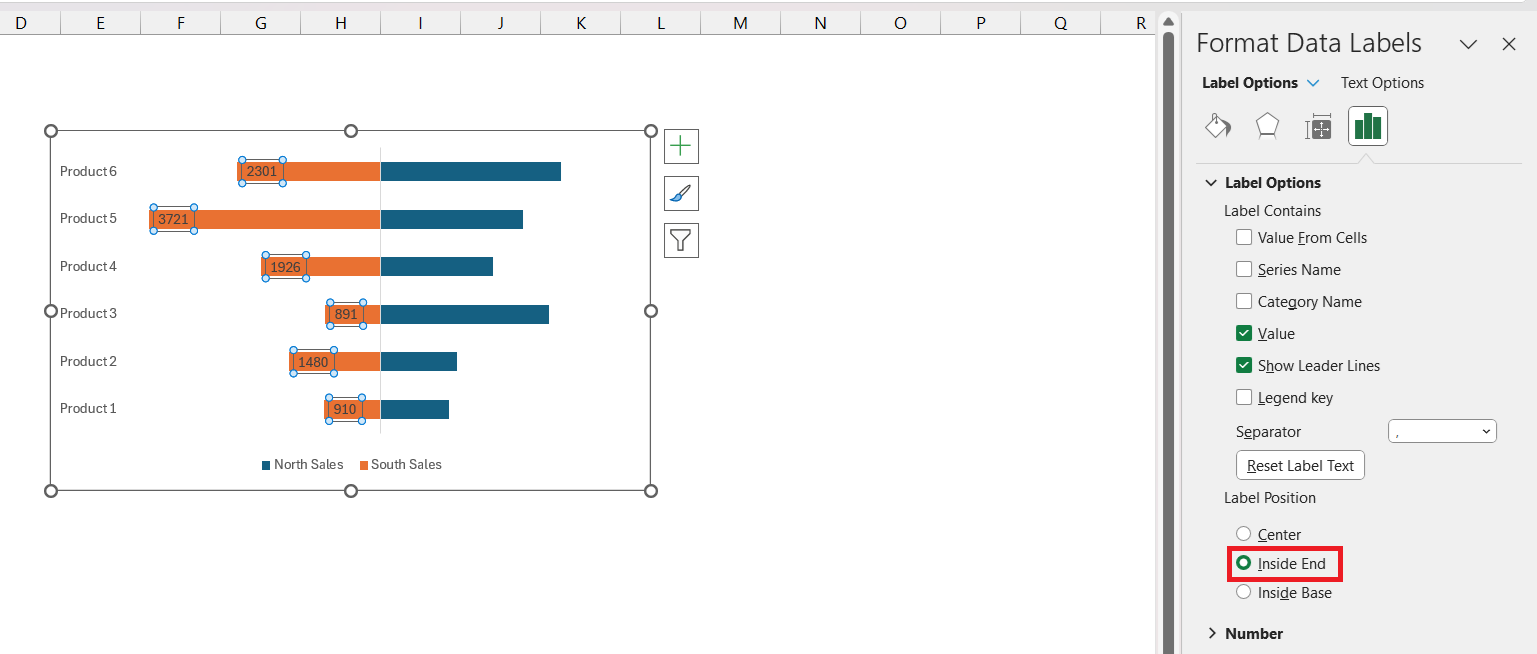
STEP 10: Right-click and select ‘Format Data Label’ and select Inside End as Label Position.
tornado chart

Repeat the same steps for the second variable as well to add data labels.

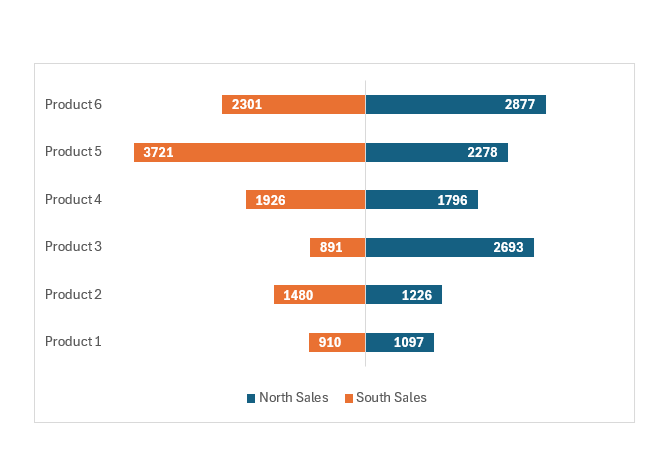
STEP 11: Format the data labels if necessary and format your chart accurately.
tornado chart

By following these steps, you’ll transform a simple data table into an insightful Tornado Chart, suitable for a vast array of analytical purposes.


Tips and Tricks for Effective Tornado Charts

Customizing Tornado Chart Appearance for Better Clarity

Enhancing the clarity of your Tornado Chart in Excel can be achieved with a few customization tweaks:

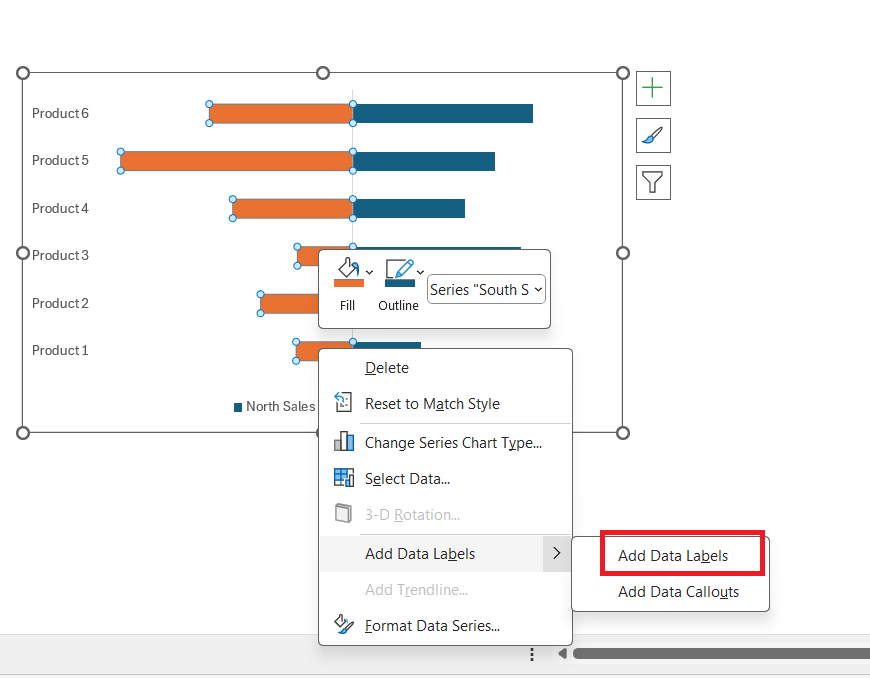
  • Add Data Labels: For precise value reading, right-click on a bar and select “Add Data Labels.” This puts the exact figures at the tips of each bar for immediate comprehension.
tornado chart

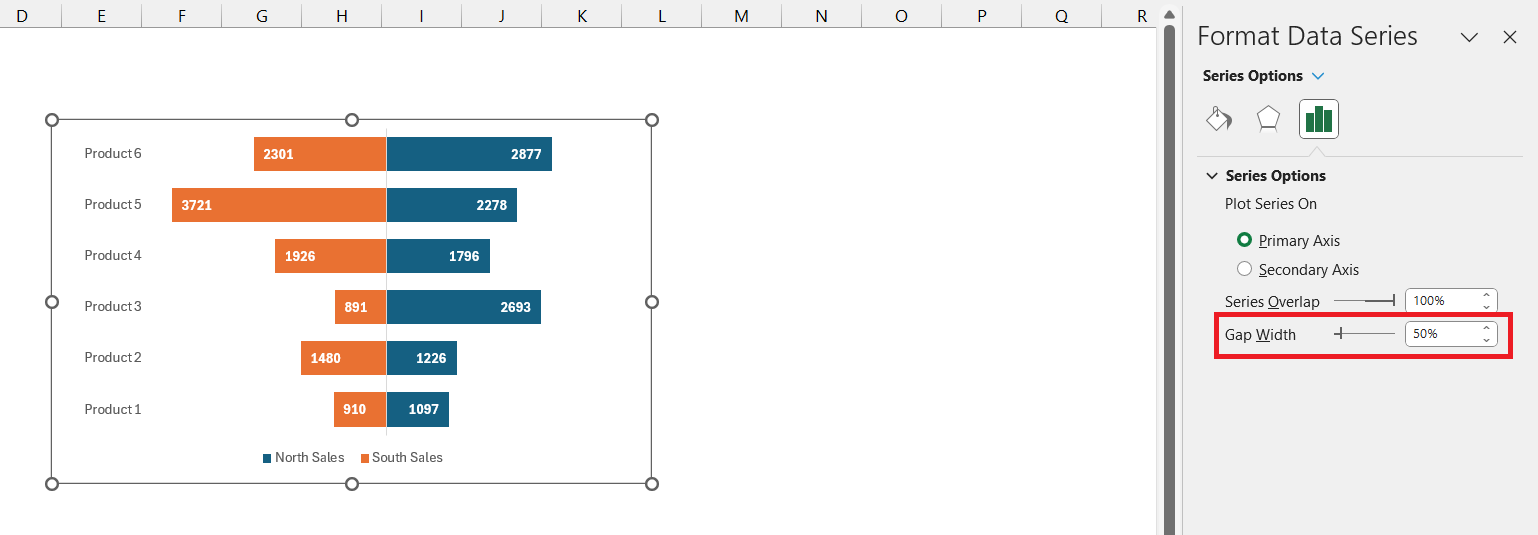
  • Adjust Bar Width: To make the chart bolder and the values stand out, decrease the “Gap Width” under “Format Data Series” to 50%, giving the bars a fuller appearance.
tornado chart

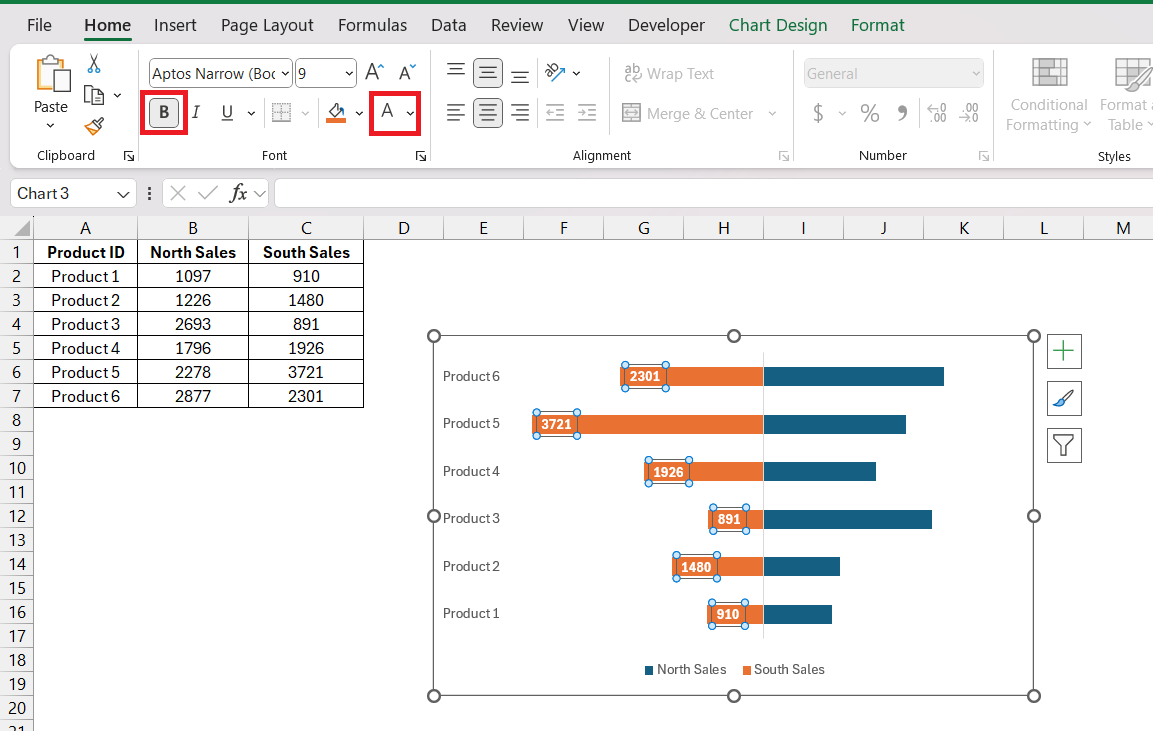
  • Improve Readability: Consider changing the text color to white if the bars are dark and making it bold.
tornado chart

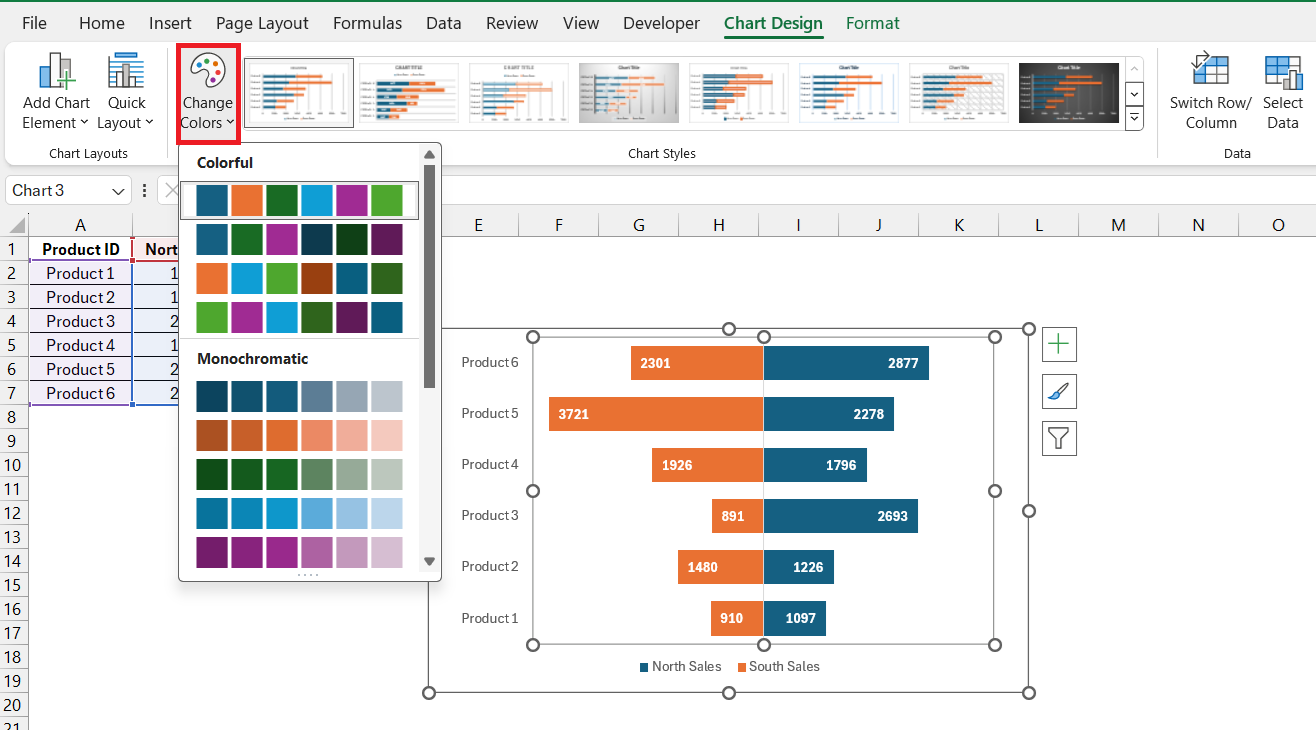
  • Harmonize Style: Match the chart to your branding or report theme by customizing the chart color scheme. Consistent chart styling can really improve the presentation’s look and feel.
tornado chart

With these few steps, your chart comes to life, becoming not just a data visualization tool but a clear and sleek graphical asset.


Common Uses and Applications of Tornado Charts

Risk Analysis and Decision-Making with Tornado Charts

Tornado Charts are effective tools in risk analysis and decision-making as they allow stakeholders to weigh different risks based on their potential impact. In scenarios where multiple factors contribute to the outcome, Tornado Charts:

  • Pinpoint Critical Factors: They highlight which inputs have the largest influence on the bottom line, thus identifying where risk mitigation strategies could be most effective.
  • Aid in Resource Allocation: By visualizing the effect of various uncertainties, decision-makers can allocate resources strategically, targeting areas with the greatest potential for return or risk reduction.

Using Tornado Charts can facilitate a more nuanced and focused approach to business strategy, helping you to focus on efforts where they count the most.

Comparing Variables – Where Tornado Charts Excel

When you need to compare variables, Tornado Charts excel in picturing how different factors stack against each other in terms of influence and magnitude. For example:

  • Scenario Analysis: Comparing how changes in inputs affect outputs across various scenarios.
  • Budget Allocation: Identifying which budget items have the greatest scope for reduction or increase.
  • Performance Metrics: Evaluating competing products, services, or investments based on a set of variables.

Tornado charts focus on direct comparison, checking each factor side by side.


Troubleshooting Common Issues

Resolving Problems

Follow the points below to understand how to resolve common errors when creating tornado charts –

  • Misaligned Bars: Center the bars properly by using the Format Data Series option.
  • Data Not Updating: Refresh the data and make sure that they are not pointing to any old connections.
  • Confusing Layout: Remove extra elements and make the chart clean and readable.
  • Incorrect Sorting: Check that the data is sorted correctly and the largest value is at the bottom.
  • Formatting Issues: Make the chart look professional by changing fonts, colors, or bar width.

Accuracy in Chart

Follow the tips below to make sure that the data used in charts is:

  • Verify Source Data: Check the source data first.
  • Regular Audits: Review the charts regularly and make sure that it is using the updated data.
  • Validation: Use data validation instead of manually entering the data.
  • Cross-Check: Ask someone to review the output. A fresh eye can spot mistakes faster.
  • Data Labels: Add data labels to clearly view the numbers.


Use Tornado Charts in Reports

Transferring your Tornado Chart from Excel to PowerPoint for sharing is straightforward:

  1. Copy-Paste Method: Simply copy the chart in Excel and paste it into PowerPoint. For consistent scaling, use the ‘Paste Special‘ as ‘Picture’.
  2. Embed Excel: Embed your Excel file within PowerPoint for a dynamic chart that can be updated in real-time during your presentation.
  3. Focus on Clarity: Make sure the chart is sized appropriately for visibility. Larger presentations may require adjusting text size and chart elements for readability.

These methods help you to transfer the chart directly to different applications.


FAQs

What is a Tornado Chart?

A Tornado Chart is a type of bar chart that enables sensitivity analysis, often used in risk management to compare the impact of variables. It lays out variables side by side in descending order, like a tornado. It’s especially helpful in decision-making where understanding the relative importance of variables is important.

Can Tornado Charts Be Created Automatically in Excel?

While Excel doesn’t have a built-in feature for Tornado Charts, they can be created using a Stacked Bar Chart and customizing it accordingly.

How Do You Interpret Results from a Tornado Chart?

To interpret results from a Tornado Chart, look at the length and position of bars, which indicate the variable’s impact. Longer bars mean greater impact, and their order helps understand which variables are most important. This allows you to assess risks or make decisions based on their potential effect on the outcome.

What type of chart did we use to build a tornado chart?

To build a Tornado Chart, you typically start with a Stacked Bar Chart in Excel. Then, by customizing and formatting it, you convert the standard bar chart into a Tornado Chart, which displays variables in descending order to analyze their sensitivity or impact.

If you like this Excel tip, please share it


Founder & Chief Inspirational Officer

at

John Michaloudis is a former accountant and finance analyst at General Electric, a Microsoft MVP since 2020, an Amazon #1 bestselling author of 4 Microsoft Excel books and teacher of Microsoft Excel & Office over at his flagship MyExcelOnline Academy Online Course.

See also  How to Create a Waterfall Chart in Excel

Star 30 Days - Full Access Star

One Dollar Trial

$1 Trial for 30 days!

Access for $1

Cancel Anytime

One Dollar Trial
  • Get FULL ACCESS to all our Excel & Office courses, bonuses, and support for just USD $1 today! Enjoy 30 days of learning and expert help.
  • You can CANCEL ANYTIME — no strings attached! Even if it’s on day 29, you won’t be charged again.
  • You'll get to keep all our downloadable Excel E-Books, Workbooks, Templates, and Cheat Sheets - yours to enjoy FOREVER!
  • Practice Workbooks
  • Certificates of Completion
  • 5 Amazing Bonuses
Satisfaction Guaranteed
Accepted paymend methods
Secure checkout

Get Video Training

Advance your Microsoft Excel & Office Skills with the MyExcelOnline Academy!

Dramatically Reduce Repetition, Stress, and Overtime!
Exponentially Increase Your Chances of a Promotion, Pay Raise or New Job!

Learn in as little as 5 minutes a day or on your schedule.

Learn More!

Share to...









