 Free Practice Workbook
In our globally connected world, it is important to know the techniques to convert between different time standards. Whether you’re scheduling meetings or analyzing data, these techniques will enhance your time management skills. In this article, you will learn how to convert UTC-0800 to Pacific Time in Excel.
Key Takeaways:
- UTC is the global standard time.
- PST is UTC -8, and PDT is UTC -7.
- Convert UTC to PST by subtracting 8 hours from the given time.
- Adjust for daylight saving time using IF logic to switch between -7 and -8 hours.
- Use the VALUE function and custom formatting to fix errors.
Table of Contents
How to Convert UTC -0800 to Pacific Time
Excel Functions for Time Conversion
To convert UTC -0800 to Pacific Time in Excel, you can use simple arithmetic combined with Excel functions. Since PST is typically eight hours behind UTC, you subtract eight hours from the UTC time. If your data includes timestamps, you can use the following formula:
In a new column, enter:
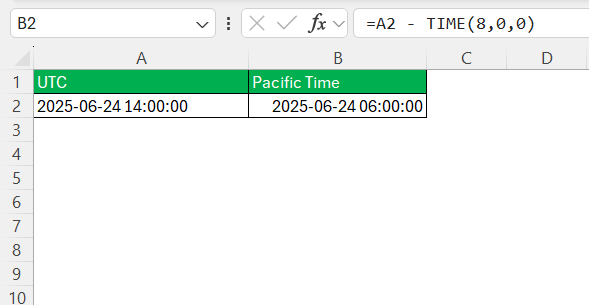
The TIME function subtracts this eight-hour difference.
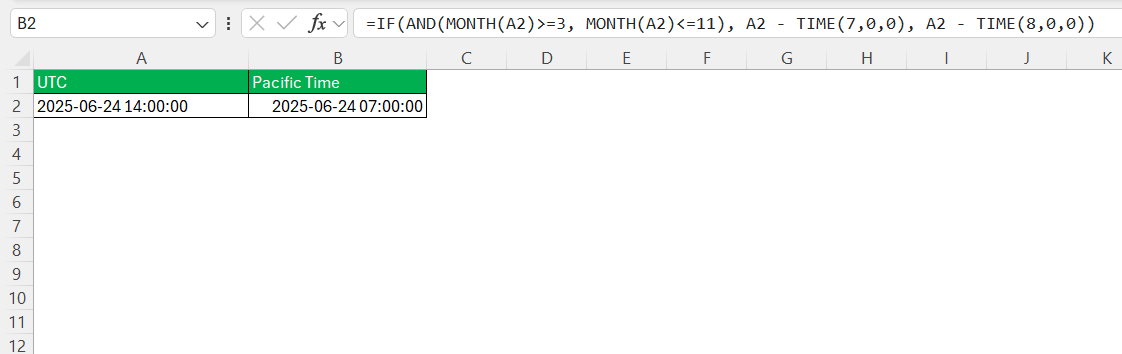
Adjust for Daylight Saving Time
Pacific Standard Time (PST) is UTC -0800, while Pacific Daylight Time (PDT) is UTC -0700 during daylight saving time.
To automate this adjustment in Excel, you may use:
Common Errors and Troubleshooting
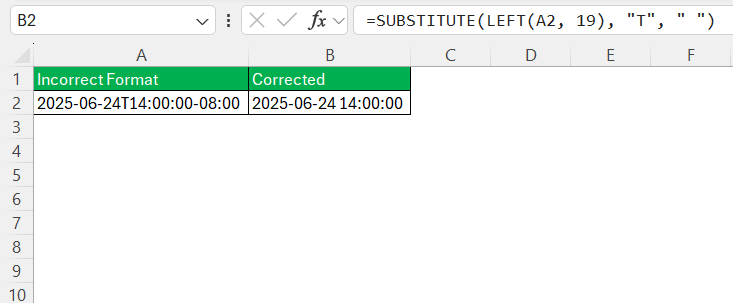
#VALUE! Error
The VALUE error occurs when Excel does not understand the format you are using. To fix it, make sure you’re using LEFT() and SUBSTITUTE() to trim the timezone offset.
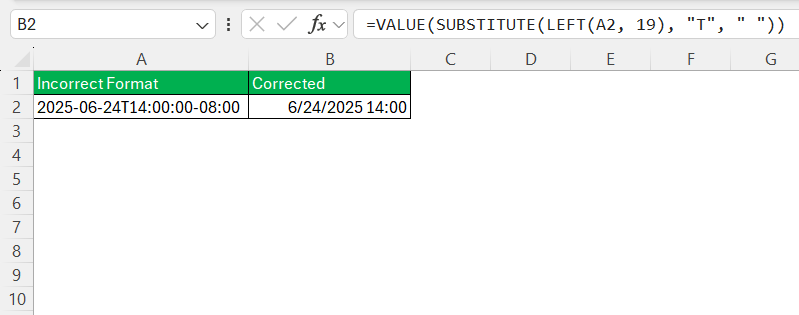
Date not recognised
You’ve cleaned the string, but Excel still treats it as text. You can use the VALUE function to convert it with a proper datetime format.
Dates Turn Into Five-Digit Numbers
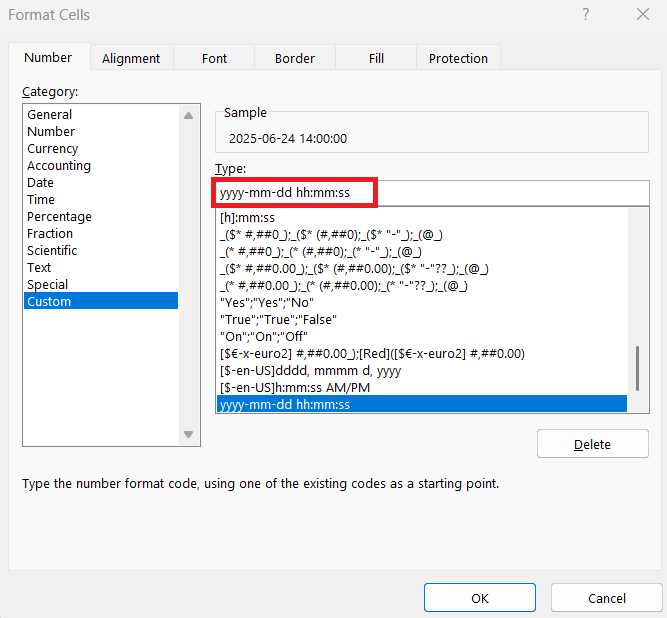
If the date turns into five-digit numbers, you need to change the format:
- Right-click
- Format Cells
- Select Custom
Type yyyy-mm-dd hh:mm:ss
#NAME? or #REF! Errors
It may occur if you are referencing the wrong cell, missing a comma, or typing a function name incorrectly.
Use Excel’s Evaluate Formula tool to see what each part of your formula is doing.

Tips & Tricks
- You can use the TIME function to subtract hours.
- You should store date and time as Excel datetime values and not text.
- Apply a custom date and time format such as
yyyy-mm-dd hh:mm:ss. - Use IF formulas to switch between PST and PDT.
- Check for daylight saving time when working with dates between March and November.
- Use the VALUE function if Excel does not recognize imported date and time values.
- Test your formula with a few sample dates before applying it to a large dataset.
- Use Fill Down to quickly apply the conversion formula to multiple rows.
- Consider using Power Query for automatic time conversions when working with large datasets.
FAQs
1. What is UTC -0800?
UTC -0800 is a time zone that is 8 hours behind Coordinated Universal Time (UTC).
2. Is Pacific Time always UTC -0800?
No. Pacific Standard Time (PST) is UTC -0800, while Pacific Daylight Time (PDT) is UTC -0700 during daylight saving time.
3. How to convert UTC -0800 to Pacific Time?
During daylight saving time, you need to add 1 hour to Pacific time to get PDT.
4. Why does Excel show a #VALUE! error?
The #VALUE! error occurs when Excel does not recognize the date or time format being used. You can fix this by cleaning the data and using the VALUE() function to convert text into a valid datetime value.
5. How to display the time in Excel?
To format the cell as a date and time,
- Right-click on the cell
- Select Format Cell
- Select Custom
- Type yyyy-mm-dd hh:mm:ss.

John Michaloudis is a former accountant and finance analyst at General Electric, a Microsoft MVP since 2020, an Amazon #1 bestselling author of 4 Microsoft Excel books and teacher of Microsoft Excel & Office over at his flagship MyExcelOnline Academy Online Course.

 30 Days - Full Access









