 Free Practice Workbook
One of the most powerful lookup functions in Excel is XLOOKUP. It can search for a value in a range and return the corresponding result from another range. It has an option to provide an additional argument called the match mode. It allows you to control how Excel should find the lookup value.
In this article, you will learn how to use XLOOKUP match mode in Excel.
Key Takeaways:
- XLOOKUP is used to tell Excel how to find the lookup value.
- Match mode 0 searches for an exact match.
- Match mode -1 returns the next smaller item if an exact match is not found.
- Match mode 1 returns the next larger item if an exact match is not found.
- Match mode 2 allows you to use wildcards in the lookup.
Table of Contents
Introduction to XLOOKUP
What is XLOOKUP?
The XLOOKUP function searches for a value in one range and returns a corresponding value from another range. The syntax of this function is:
=XLOOKUP(lookup_value, lookup_array, return_array, [if_not_found], [match_mode], [search_mode])
- lookup_value – the value you want to search;
- lookup_array – the range or array where you want to search the value;
- return_array – the range or array from which you want the result;
- [if_not_found] – the value you want to display if there are no results found;
- [match_mode] – It controls how Excel should find the lookup value;
- [search mode] – It controls the direction of search.
Match Mode Argument
There are 4 options that can be entered as match mode:
- 0: It looks for an exact match. Default.
- -1: It looks for an exact match, or the next smaller item if no exact match is found.
- 1: It looks for an exact match, or the next larger item if no exact match is found.
- 2: It looks for a wildcard match using
*,?, and~.
How to use XLOOKUP match mode
Match Mode 0: Exact Match
If the match mode in XLOOKUP is 0, it searches for an exact match. This is the default setting; Excel searches for an exact match even when you don’t specify a match mode. In the data below, you have a price list, and you want to know the price of a monitor.
To find the price of a monitor, you can use this formula:
=XLOOKUP(“Monitor”,A2:A6,B2:B6,,0)
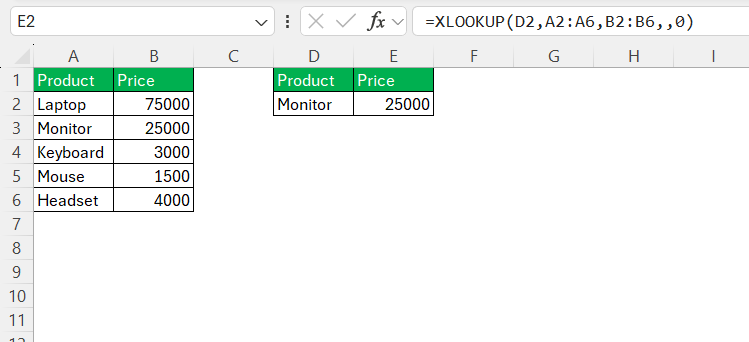
Since 0 is the default match mode, you can also write the formula without specifying it:
=XLOOKUP(“Monitor”,A2:A6,B2:B6)
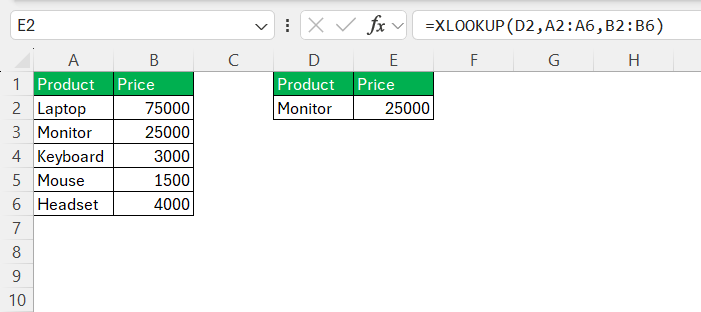
Both formulas return the same result.
Match Mode -1: Exact Match or Next Smaller Item
If the match mode is 0, Excel will look for an exact match. And, if no result is found, Excel returns the value associated with the next smaller item.
For example, suppose I have tax rates based on income:
=XLOOKUP(75000,A2:A6,B2:B6,, -1)
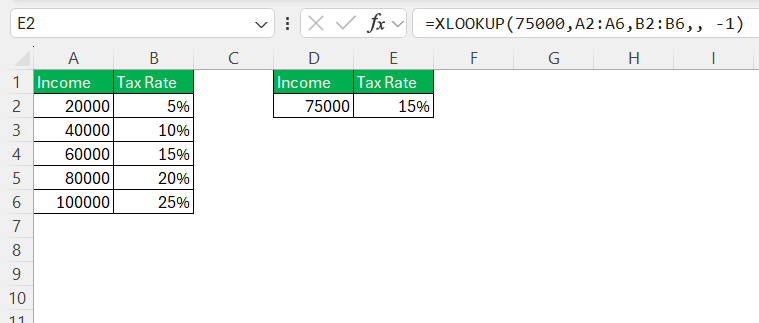
If my income is 75000, there is no exact match. Because 75000 is not available, it uses the next smaller value, which is 60000. So, it will return 15%.
Match Mode 1:
When the match mode is 1, XLOOKUP looks for an exact match. If it cannot find one, it returns the value associated with the next larger item.
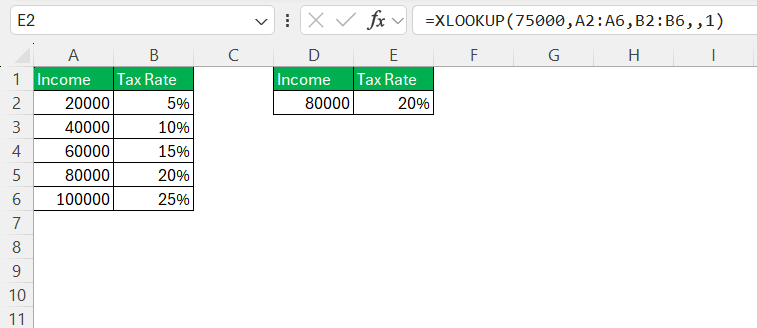
There is no exact match for 75000. The next larger value is 80000, so XLOOKUP returns the corresponding tax rate of 20%.
Match Mode 2:
When the match mode is 2, XLOOKUP will allow wildcard matching. This is useful when you do not know the complete lookup value.
The three wildcard characters are:
- * – Matches any number of characters.
- ? – Matches any single character.
- ~ – Finds an actual asterisk or question mark.
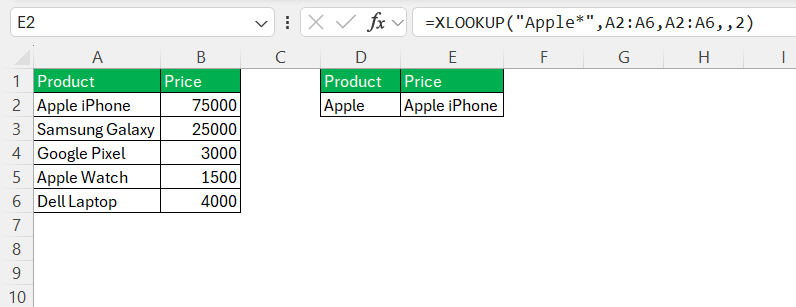
If you want to find the first product that starts with Apple, you can use:
=XLOOKUP(“Apple*”,A2:A6,A2:A6,,2)
XLOOKUP Match Mode vs Search Mode
The match mode and search mode arguments in XLOOKUP perform different functions.
- Match mode controls how Excel matches the lookup value.
- Search mode controls the direction or method Excel uses to search.
In this example, you will see that both match mode and search mode arguments are mentioned.
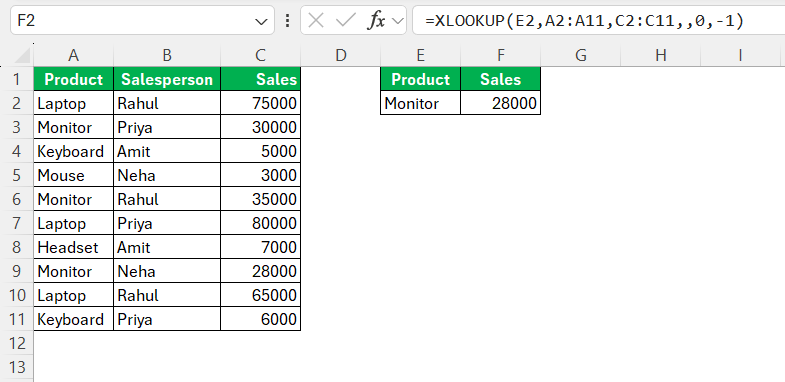
In this formula,
- 0 is the match mode, so Excel looks for an exact match,
- -1 is the search mode, so Excel searches from the bottom of the lookup range.
Tips & Tricks
- Use 0 for exact lookups – Use match mode
0when you want XLOOKUP to return a result only when an exact match is found. - Use -1 for the next smaller value – Use match mode
-1when you want XLOOKUP to return the closest smaller value if an exact match is unavailable. - Use 1 for the next larger value – Use match mode
1when you want XLOOKUP to return the closest larger value if an exact match is unavailable. - Use 2 for partial text searches – Use match mode
2with wildcards when you want to search for part of a text value. - Use the if_not_found argument – It can be used to add a custom message, such as
"Not Found"when there is no match.
FAQs
1. What is match mode in XLOOKUP?
The match mode controls how XLOOKUP searches the lookup value in the table.
2. What is the default match mode in XLOOKUP?
The default match mode in XLOOKUP function is 0. It will search for an exact match in the table and return NA if it is not found.
3. What does -1 mean in XLOOKUP?
If the match mode is -1, Excel returns an exact match or the next smaller item when an exact match is not found.
4. What does 1 mean in XLOOKUP?
Match mode 1 returns an exact match or the next larger item when an exact match is not found.
5. What does 2 mean in XLOOKUP?
If the match mode is mentioned as 2 in the formula, it means that the search uses a wildcard.

John Michaloudis is a former accountant and finance analyst at General Electric, a Microsoft MVP since 2020, an Amazon #1 bestselling author of 4 Microsoft Excel books and teacher of Microsoft Excel & Office over at his flagship MyExcelOnline Academy Online Course.

 30 Days - Full Access









