 Free Practice Workbook
Yahoo Finance is one of the most popular websites for checking stock prices. It is useful for tracking stock quotes for making decisions. You can create your own portfolio tracker, calculate profit or loss, and monitor price changes. In this article, you will learn how to use Yahoo Stock Quotes in Excel.
Key Takeaways:
- You can use Yahoo Finance to check stock prices and market data.
- The Stocks data type can be used to get live stock details.
- The STOCKHISTORY function is used to get historical stock prices.The
- STOCKHISTORY function is available in Microsoft 365.
- You can manually copy and paste data for small updates.
Table of Contents
Why use Yahoo stock quotes?
Using Yahoo stock quotes in Excel can save time. Instead of checking each stock manually, you can keep all your stock symbols in one sheet and update the data when needed.
Using stock quotes in Excel makes it easier to manage and review stock data in one place. You do not need to open Yahoo Finance again and again for every stock. Once the data is in Excel, you can use formulas to calculate profit, loss, total value, and percentage change.
It is also useful for creating a simple portfolio tracker. You can enter the stock name, quantity, buying price, and current price. Excel can then calculate the current value of your investment.
Methods to Import Yahoo Stock Quotes
Manual Copy and Paste Technique
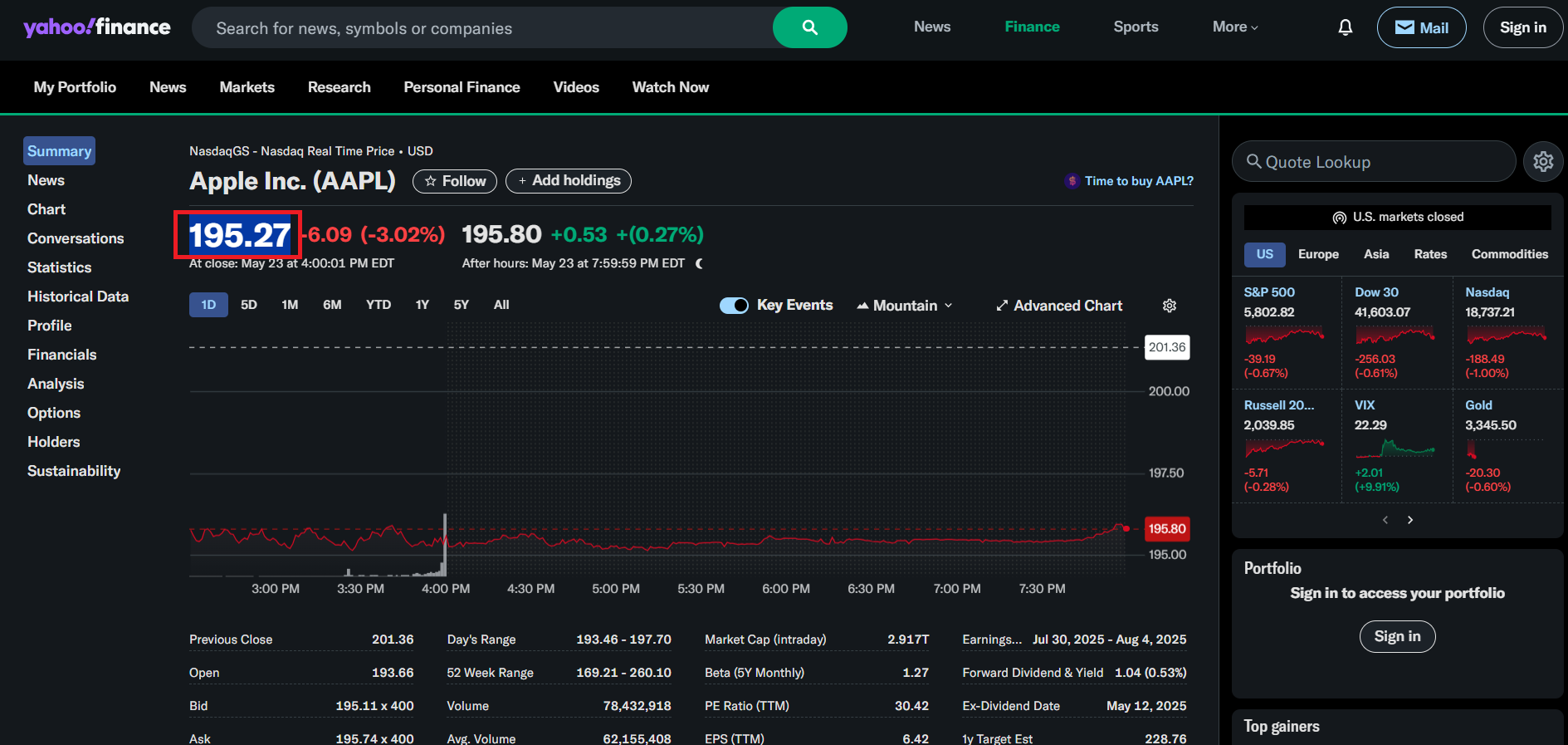
The manual copy and paste technique is a method for importing Yahoo Finance data into Excel. We simply navigate to the Yahoo Finance website and locate the desired stock information. Once we highlight the relevant data, such as stock prices or historical trends, a quick copy allows us to paste this data directly into an Excel worksheet.
STOCK DATATYPE
The Stock Data Type is one of the easiest ways to get stock quotes in Excel. It is available in Microsoft 365 and some newer versions of Excel.
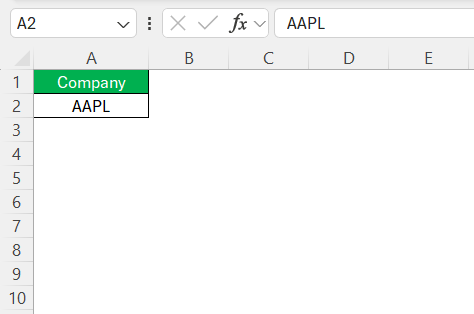
STEP 1: In any cell, type the name or ticker of a company.
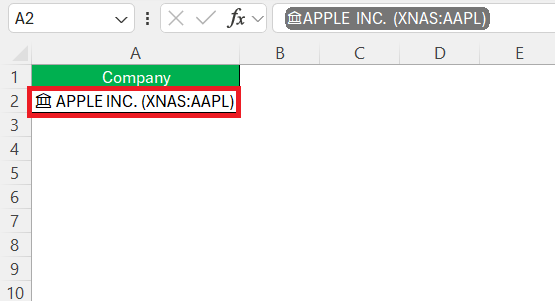
STEP 2: Go to the Data tab > Stocks.

Excel instantly converts the text into a rich data type. A small bank icon appears. Click it, and you’ll see all sorts of stock info: price, volume, market cap, P/E ratio, and more.
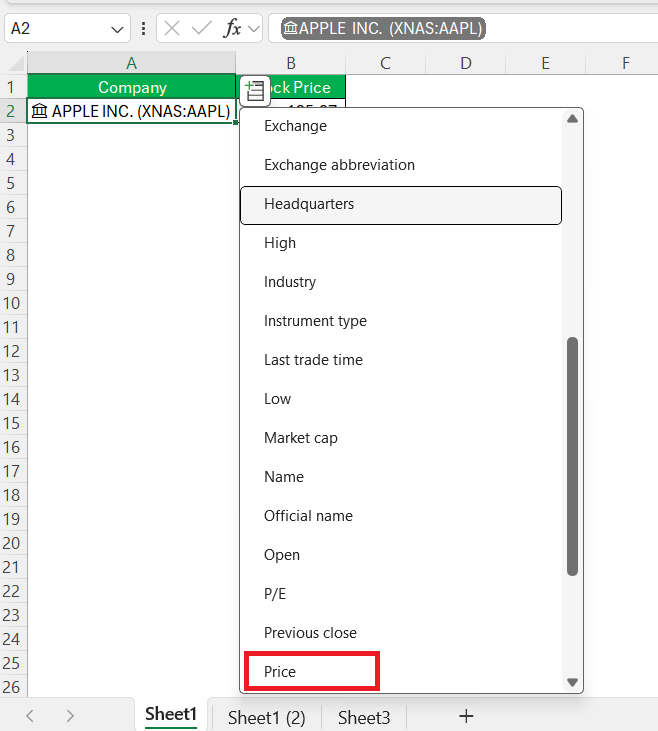
STEP 3: Click the small Insert Data button to choose fields like Price, Change %, Market Cap, etc.
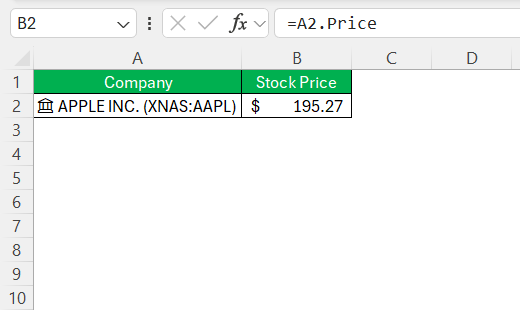
Enter this formula to get the latest price of the stock ticker.
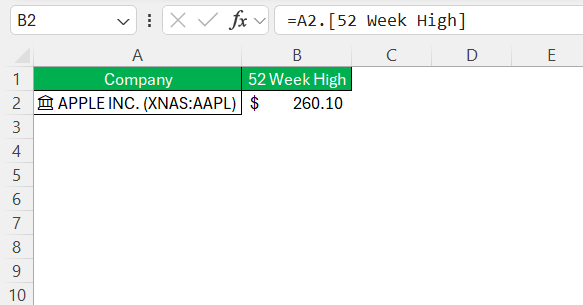
Enter this formula to get the 52-week high.
STOCKHISTORY Function
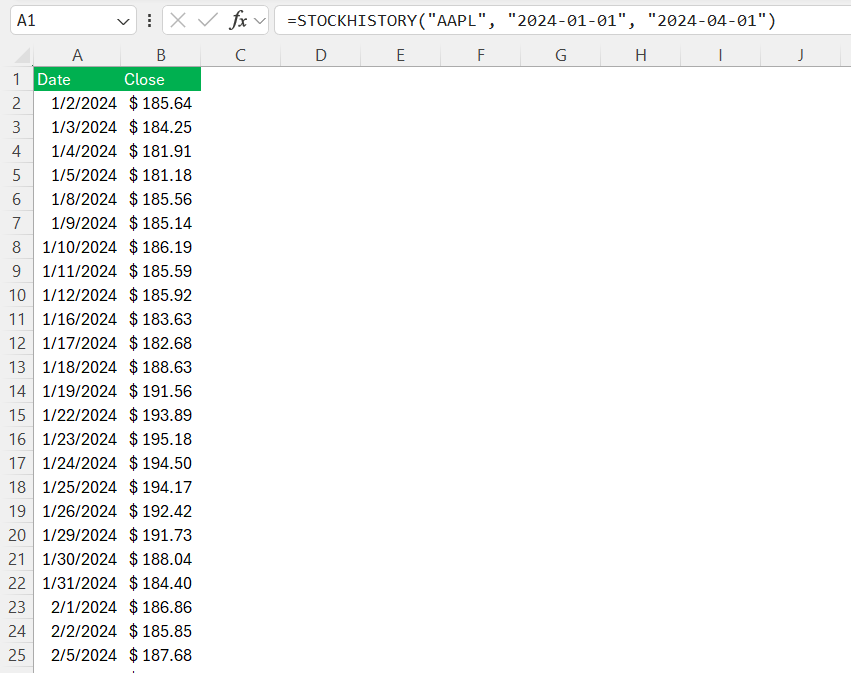
The STOCKHISTORY function is used to get past stock prices in Excel. It helps you check how a stock performed over a selected time period.
Tips & Tricks
Stock quotes in Excel are helpful, but they may not always update instantly. Prices can change quickly during market hours, so the data in Excel may have a small delay. Also, some ticker symbols may not be recognized correctly. If this happens, check the stock symbol and exchange name. You can also use the company name instead of the ticker symbol.
For historical data, make sure the dates are entered correctly. If the date format is wrong, the STOCKHISTORY function may show an error. It is also a good idea to refresh the data before making any report or calculation. Go to the Data tab and click Refresh All to update the stock information.
FAQs
Can I get Yahoo stock quotes in Excel?
Yes, you can import stock data into Excel using different methods.
What is the easiest way to get stock prices in Excel?
The Stocks data type is the easiest method in Microsoft 365.
What is the STOCKHISTORY function?
The STOCKHISTORY can be used to get historical stock prices for the specified date range.
Why does #FIELD! error occur?
The #FIELD! error can occur when Excel doesn’t recognize the stock ticker symbol.
How to update stock prices in Excel?
- Enter a stock symbol
- Go to the Data tab.
- Select Stocks from the Data Types.

John Michaloudis is a former accountant and finance analyst at General Electric, a Microsoft MVP since 2020, an Amazon #1 bestselling author of 4 Microsoft Excel books and teacher of Microsoft Excel & Office over at his flagship MyExcelOnline Academy Online Course.

 30 Days - Full Access









