As someone who relies on Microsoft Outlook for daily communication, I’ve found that keeping up with emails can be a time-consuming task. Microsoft 365 Copilot in Outlook can help automate many parts of the email process. In this article, I’ll walk you through how to use Copilot in Outlook.
Key Takeaways:
- Copilot simplifies email creation by drafting messages based on your instructions.
- You can quickly generate responses to emails.
- It can save time and maintain consistent communication.
- It provides summaries of lengthy email chains.
- It analyzes attached documents or spreadsheets.
Table of Contents
Introduction to Copilot
What is Microsoft Copilot?
Before diving into the steps, it’s important to understand what Copilot is. Microsoft Copilot is an AI-driven assistant integrated into Microsoft 365 applications like Word, Excel, and Outlook. Copilot uses machine learning to assist in drafting content, analyzing data, and providing intelligent insights, all while you focus on more critical tasks.
In Outlook, Copilot excels in drafting emails, summarizing long email threads, analyzing attachments for quick insights, and automating routine replies.
Tailoring Your Outlook to Welcome Copilot
To ensure that Copilot is a seamless fit, I like to start by preparing my Outlook environment. This involves a few steps that are crucial for smooth integration. Initially, I check my Outlook version to guarantee its compatibility with Copilot, as it’s designed to work best with the latest updates.
Next, I take the time to clean up my inbox—filing away what I no longer need, which makes it easier for Copilot to understand my current workflow and priorities.
Lastly, I assess my existing email management habits so I can set up Copilot to complement them, ensuring that the transition to AI-assisted email is as smooth as possible.
How to Use Copilot in Outlook
Access Copilot in Outlook
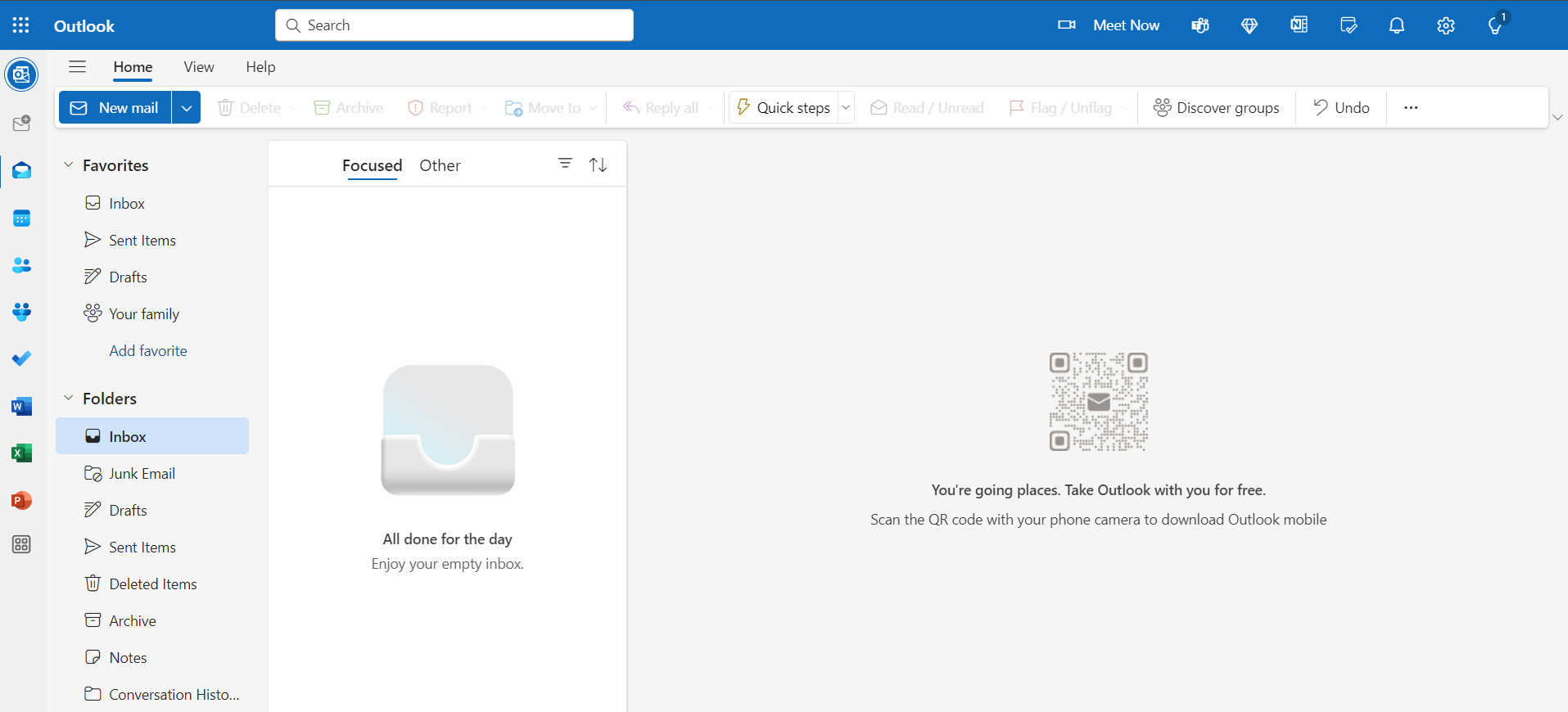
STEP 1: Open Outlook on your desktop or web browser.
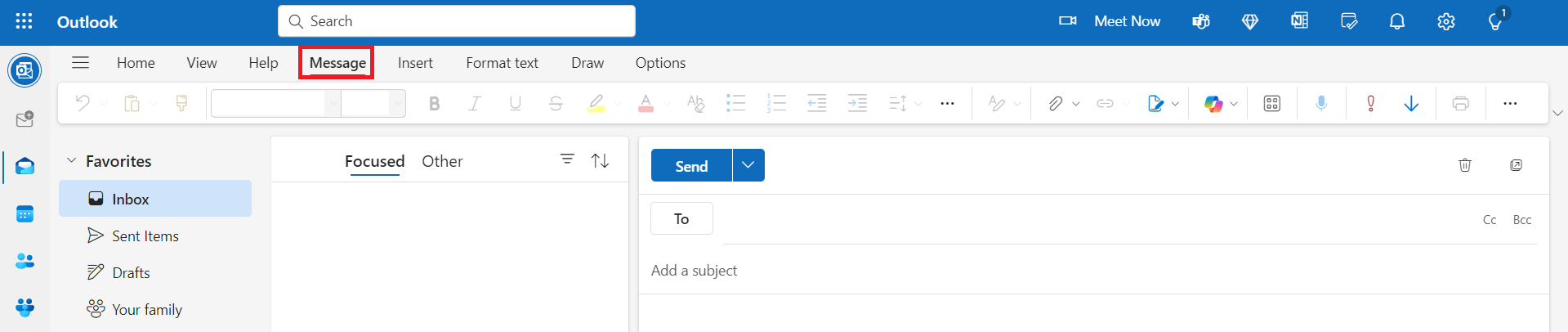
STEP 2: Go to the Message tab on the ribbon.
STEP 3: Look for the Copilot icon.
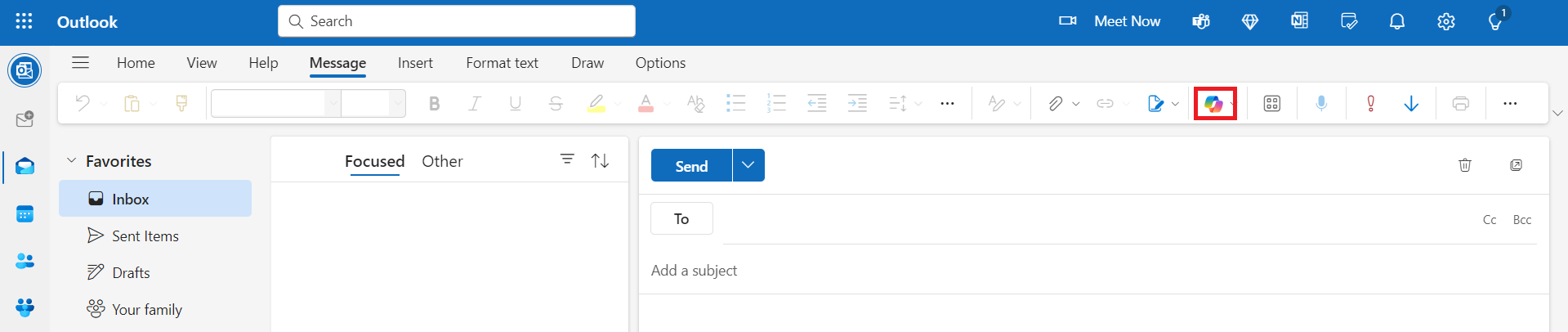
If you don’t see the Copilot icon, make sure your Outlook is updated to the latest version of Microsoft 365.
Draft a New Email
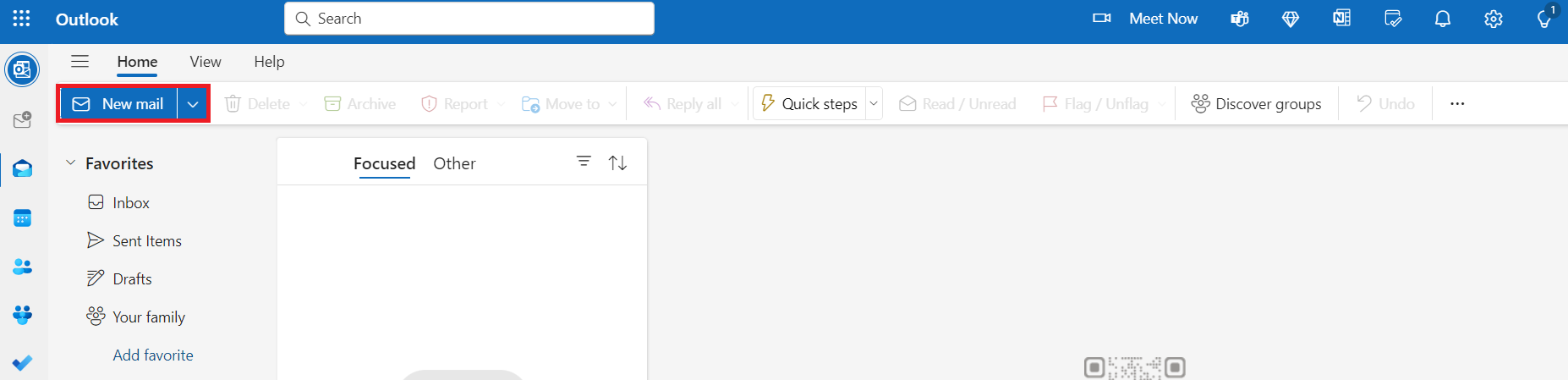
STEP 1: Click New Mail from the top-left of the Outlook window.
STEP 2: When the email draft window opens, look for the Copilot button.
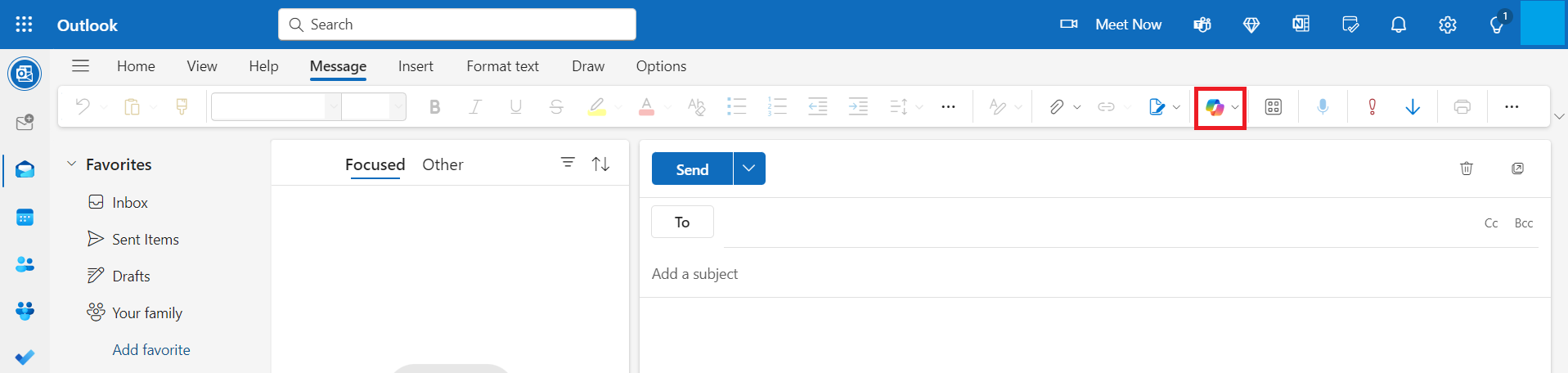
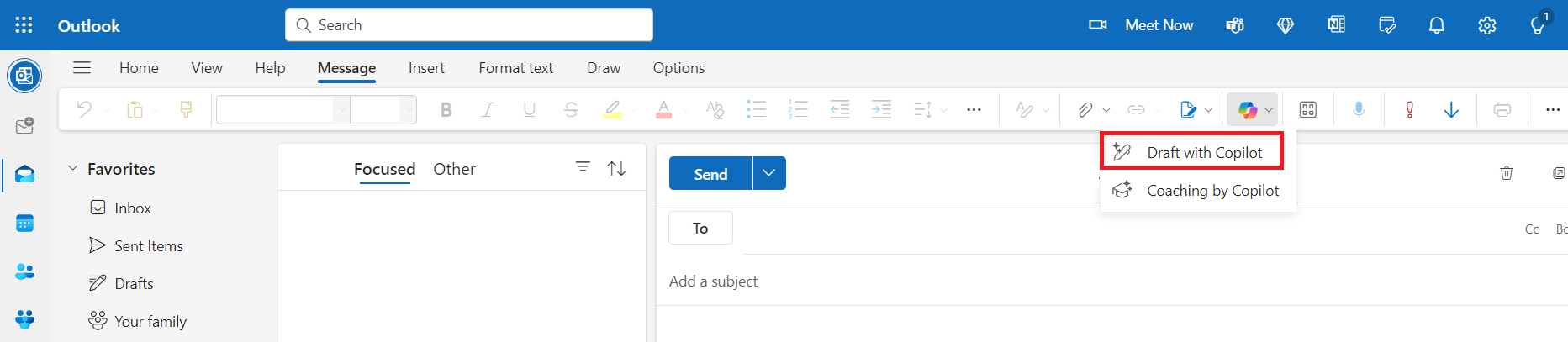
STEP 3: Click Draft with Copilot.
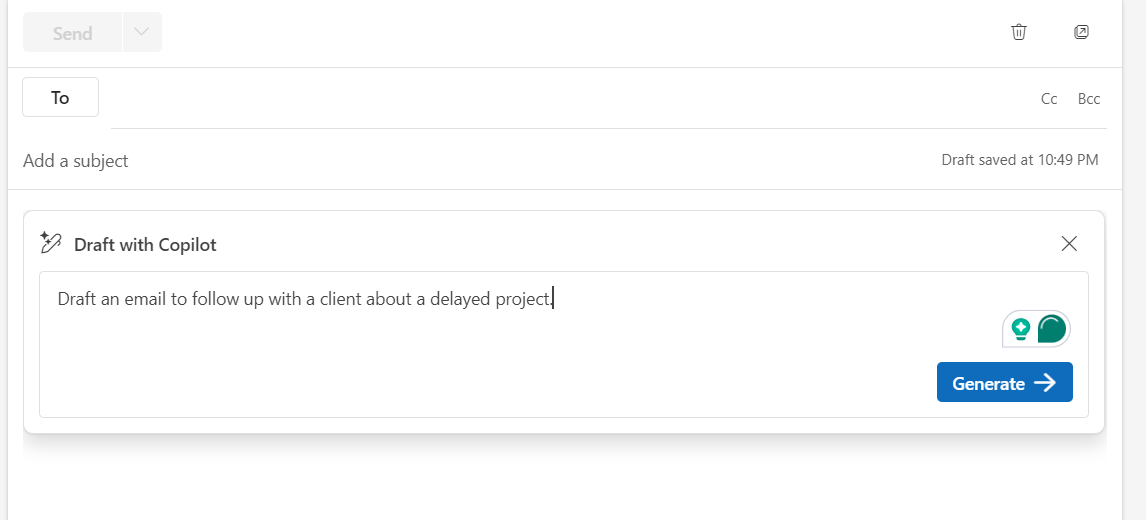
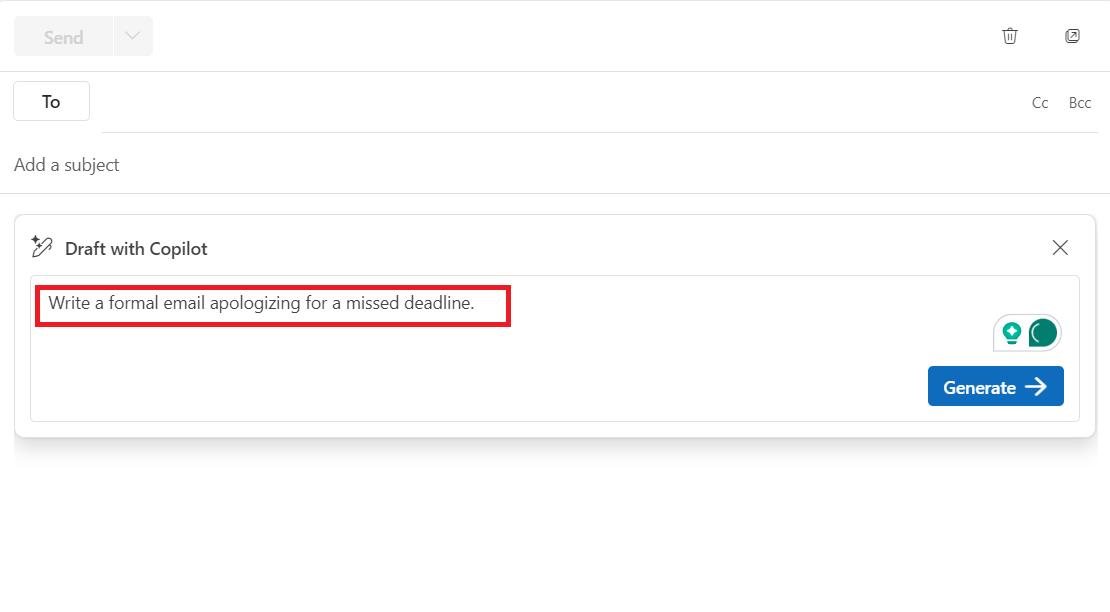
STEP 4: In the Copilot panel, type the instructions or context for the email you want drafted.
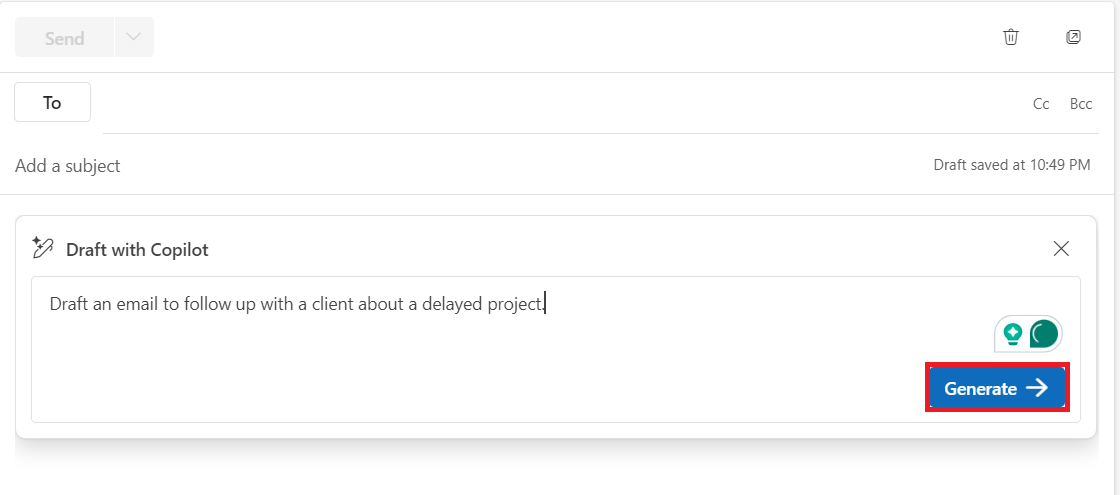
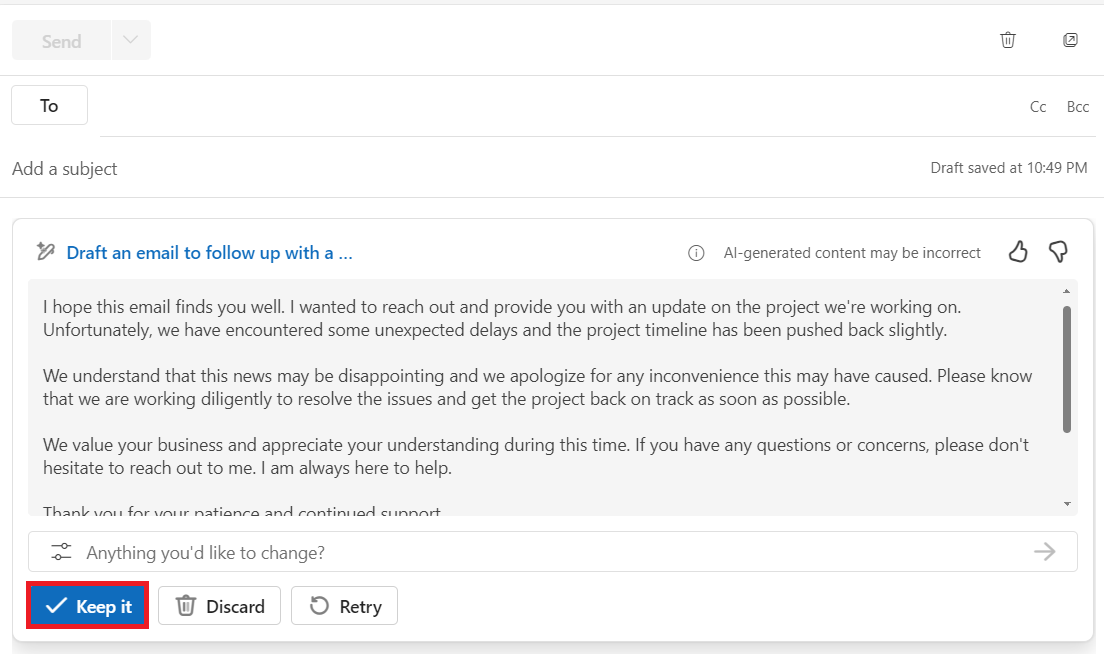
STEP 5: Click Generate. Copilot will create a draft email for you.
STEP 6: Click Keep it.
Summarize Long Email Threads
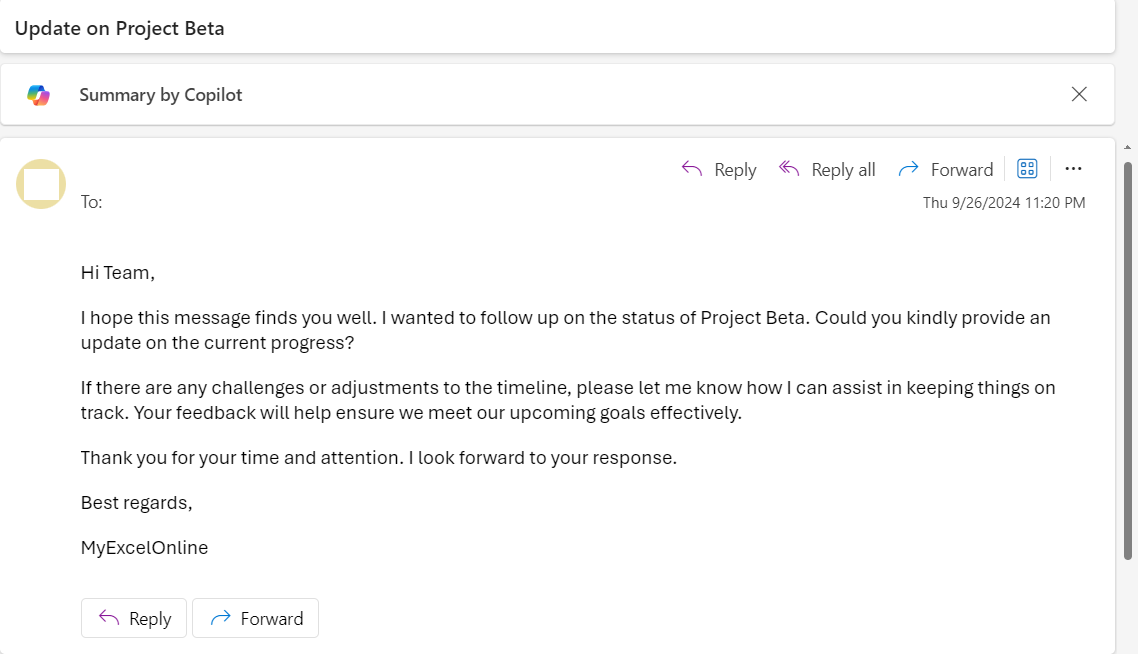
STEP 1: Open a long email thread in your inbox.
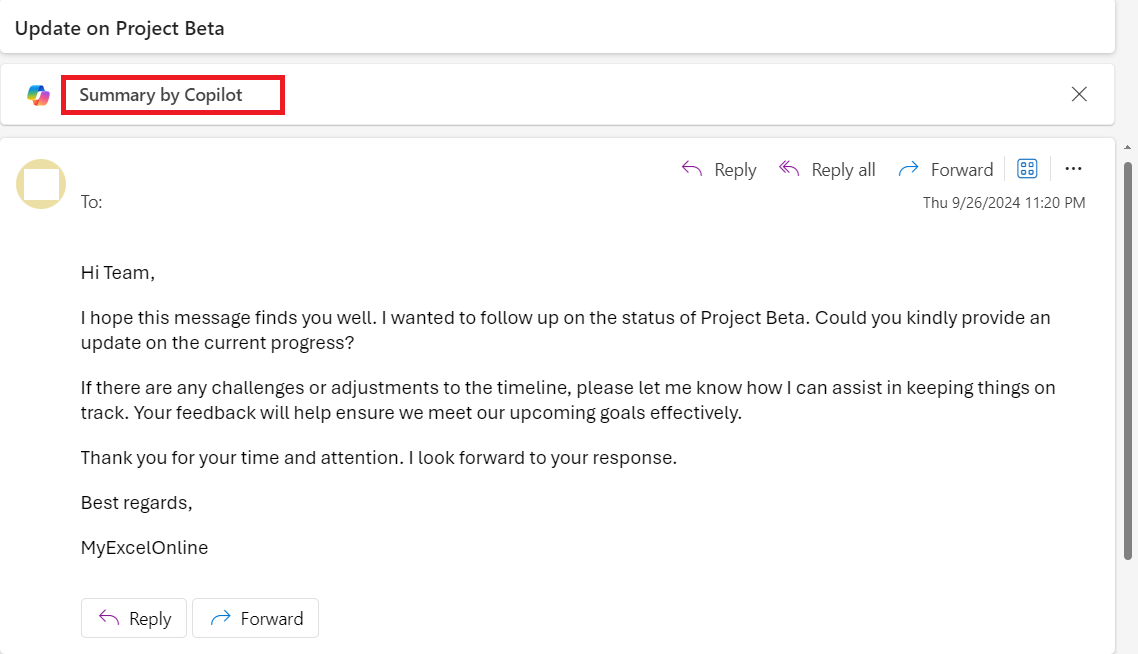
STEP 2: Click on the Summary by Copilot button at the top of the email thread.
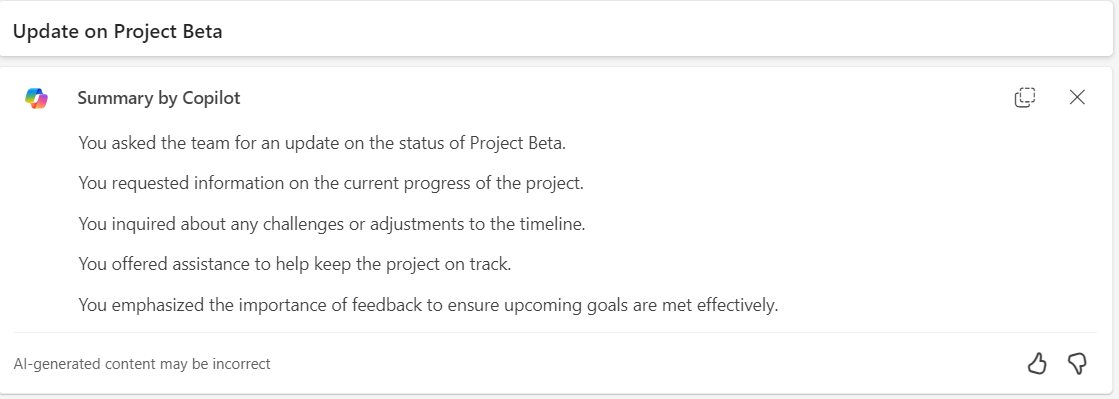
Copilot will provide a concise summary of the conversation.
Personalize Emails with Copilot
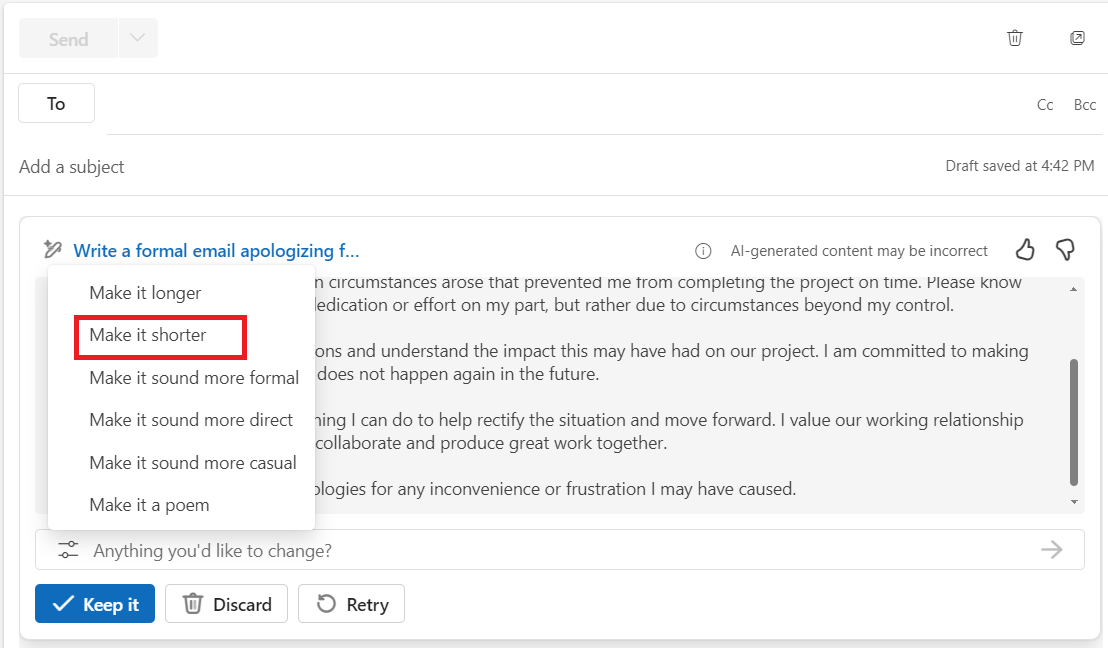
STEP 1: While drafting or replying to an email using Copilot, provide context on the tone.
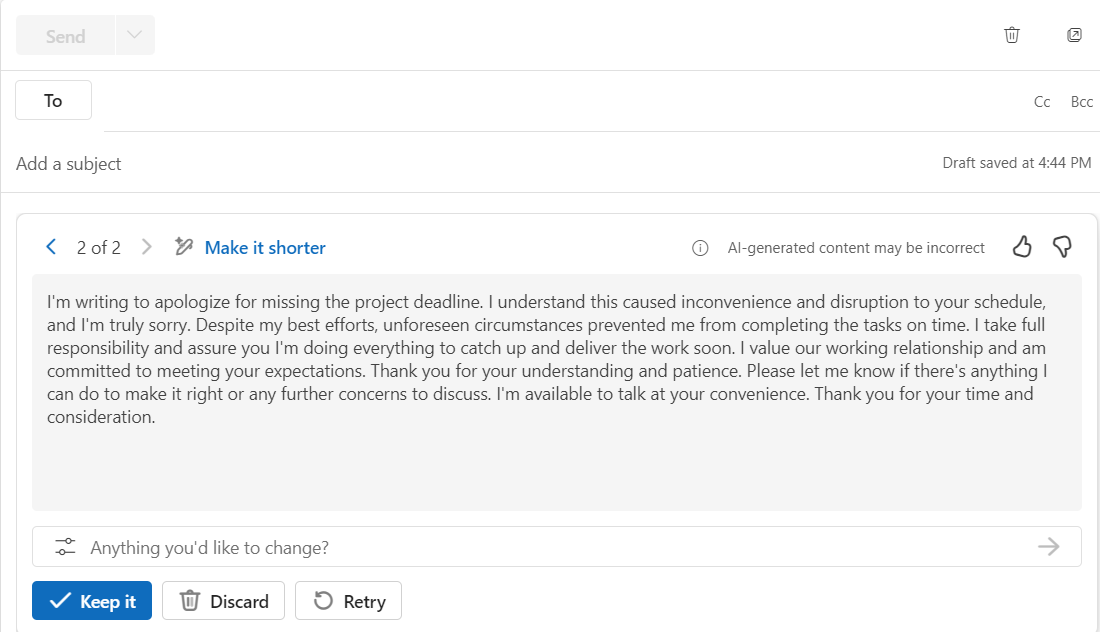
STEP 2: Copilot can even adjust the language.
You can review and make any additional changes before sending.
FAQ
Is Copilot available in Outlook?
Yes, Copilot is available in Outlook for users with Microsoft 365 subscriptions.
How to activate Microsoft Office Copilot?
To activate Microsoft Office Copilot, follow the steps below:
- Launch Outlook
- Go to the settings
- Search for Copilot
- Follow the on-screen instructions to enable Copilot
Why can’t I access Copilot in Outlook?
If you can’t access Copilot in Outlook, it may be due to:
- Non-compatible email account
- Outdated version of Outlook
- Not having the right Microsoft 365 subscription.
Is Copilot Available for All Outlook Versions and Languages?
Copilot is not universally available for all Outlook versions and languages.

John Michaloudis is a former accountant and finance analyst at General Electric, a Microsoft MVP since 2020, an Amazon #1 bestselling author of 4 Microsoft Excel books and teacher of Microsoft Excel & Office over at his flagship MyExcelOnline Academy Online Course.

 30 Days - Full Access









