 Free Practice Workbook
Managing dates in Microsoft Excel is a common task when working with schedules or deadlines. One simple requirement is adding one month to a given date. Excel has various ways to add months to a date without manual calculations. In this article, you will learn different methods to add months to a date.
Key Takeaways:
- Excel stores dates as numbers.
- January 1, 1900 is stored as 1.
- The EDATE function helps add or subtract months easily.
- You can combine EDATE with DAY, MONTH, and YEAR for more control.
- EDATE handles different month lengths and leap years automatically
Understanding Excel’s Date System
Excel stores dates as serial numbers. This begins with January 1, 1900, considered day one. Each subsequent day is one number higher. For example, January 2, 1902, is stored as 2.
So, the serial number for January 1, 2023, reflects the many days that have passed since 1900.
Excel provides a toolkit of date functions to perform date arithmetic, like adding days or months to a given date. The functions such as DAY(), MONTH(), YEAR(), and EDATE() lets you jump forward or backward in time by specifying the number of days, months, or years you want to move.
How to Add Months to a Date
EDATE Function
The EDATE function can be used to add months to a date in Excel.
=EDATE(start_date, months)
The months is the number of months you want to add to the start date. You can insert a positive number when you want to move forward in time and a negative number when you want to go back in time.
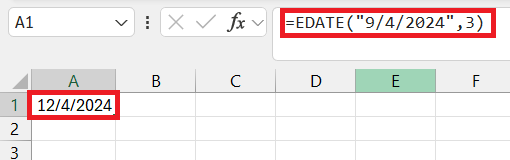
Imagine you are working on a project that ends 6 months from today. You can use the EDATE function to get the deadline of the project.
=EDATE(TODAY(), 6)
Or, if you need to set a reminder three months before a year-long subscription expires
=EDATE(expiry_date, -3)
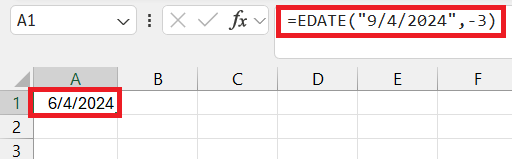
DATE Function
You can also use the DATE function to add one month manually.
=DATE(YEAR(A1), MONTH(A1)+1, DAY(A1))
- YEAR(A1) – gets the year from the date
- MONTH(A1)+1 – gets the months and then adds one month
- DAY(A1) – gets the day from the date
Simple Addition
You can also add 30 days to the date.
= A1 + 30
But this may not be the correct method as months have different lengths and is not fixed at 30.
Alternative Techniques
Combining Functions
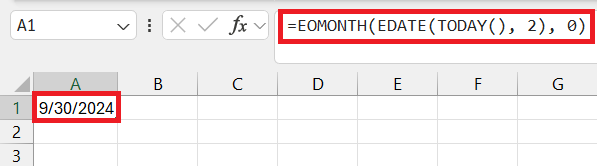
You can combine the EDATE and EOMONTH functions to get the last of the two months from today.
=EOMONTH(EDATE(TODAY(),2),0)
- TODAY function gets the current date
- EDATE function moves the date 2 months ahead
- EOMONTH function returns the last day of that month
FAQs
How to add months to date in Excel?
To add months to a date, use the EDATE function.
=EDATE(start_date, months)
- start_date is the cell containing the date you’re starting from
- months is the number of months you wish to add
How to subtract months instead of adding them?
You can use a negative number in the EDATE function to subtract months from a date.
How to Add a Specific Number of Months to Multiple Dates?
To add a specific number of months to multiple dates in Excel,
- Enter the number of months you want to add
- Use the EDATE function
- Use the fill handle to apply the formula to multiple dates at once
How to Add Both Days and Months to a Date?
If you need to add both days and months to a date in Excel, combine the EDATE and DATE functions.
=DATE(YEAR(EDATE(start_date, months)), MONTH(EDATE(start_date, months)), DAY(EDATE(start_date, months))+days)
Use =EDATE(start_date, months) to add months
Nest it within the DATE function to add days.
How to add 1 month to a date in Excel?
To add 1 month to a date in Excel, you can use the EDATE function and add 1 as the second argument.
=EDATE(start_date, 1)
Can Excel adjust for leap years?
Yes. The EDATE function can adjust dates automatically for leap years.

John Michaloudis is a former accountant and finance analyst at General Electric, a Microsoft MVP since 2020, an Amazon #1 bestselling author of 4 Microsoft Excel books and teacher of Microsoft Excel & Office over at his flagship MyExcelOnline Academy Online Course.

 30 Days - Full Access









