 Free Practice Workbook
Microsoft Excel offers a versatile platform to streamline birthday management, making sure no special day goes unnoticed. From organizing celebrations to strengthening team bonding, Excel’s features provide a complete solution for maintaining accurate records and providing a lively office culture. Join us as we explore the power of Excel for smooth birthday tracking and celebration.
Key Takeaways:
- Excel helps you track and manage birthdays easily in one place.
- You can sort birthdays by month and day without using the birth year.
- Conditional formatting points out upcoming birthdays automatically.
- Free templates let you create a personalized birthday calendar quickly.
- Protecting and organizing your file keeps birthday data safe and easy to use.
Table of Contents
Creating a Birthday List in Excel
Sorting Birthdays by Month and Day
To sort the birthdays, one requirement will be to focus only on the month and day, and ignore the year. This will keep the focus on upcoming celebrations and remove any clutter of irrelevant data. To achieve this, follow the steps below –
STEP 1: Enter the formula to convert the date to a text string in the format ‘mm dd’.
TEXT(A2,”mm dd”)
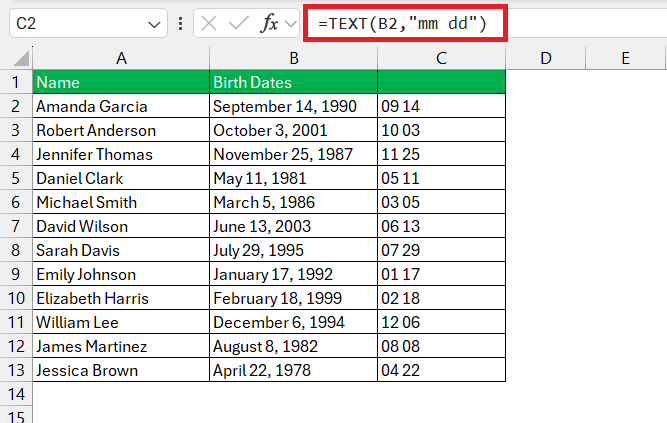
This formula will take the date in cell A2 and convert it to a text string in the “mm dd” format. For example, if A2 contains the date January 17, 1992, the formula will return “01 17”.
STEP 2: Select the entire data.
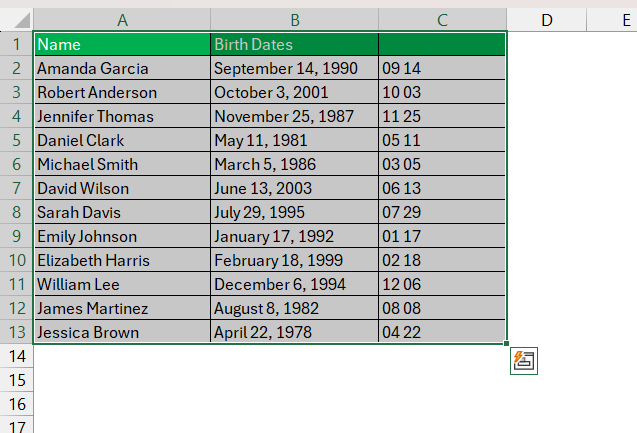
STEP 3: Go to the Data tab and select Sort.

STEP 4: In the Sort dialog box, select Column C as Sort by and Order as A to Z. Click OK.
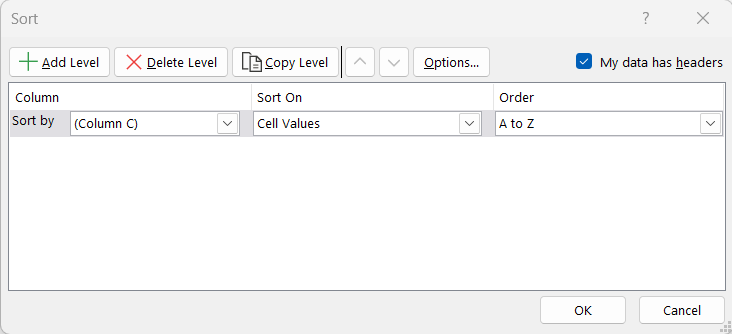
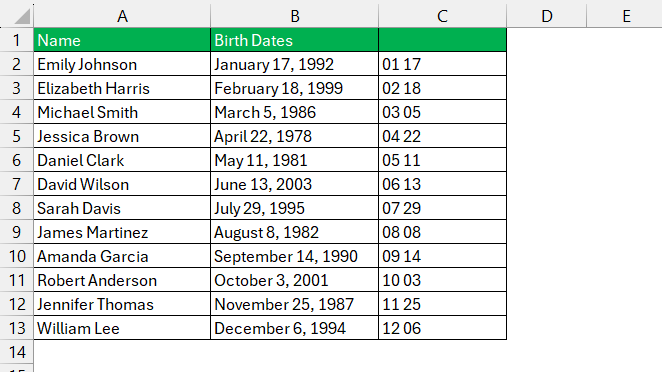
This method makes sure that the birth year does not reorder your list, presenting you with a clear view of whose special day is next on the calendar.
Replace Birth Year with Current Year
Another method will be to first replace the birth year with the current year and then sort the dates. Assume that the names and birth dates are mentioned in columns A and B, respectively. Follow the steps below to create a sorted birthday list:
STEP 1: Use the formula below to replace the birth year with the current year:
=DATE(YEAR(TODAY()), MONTH(B2), DAY(B2))
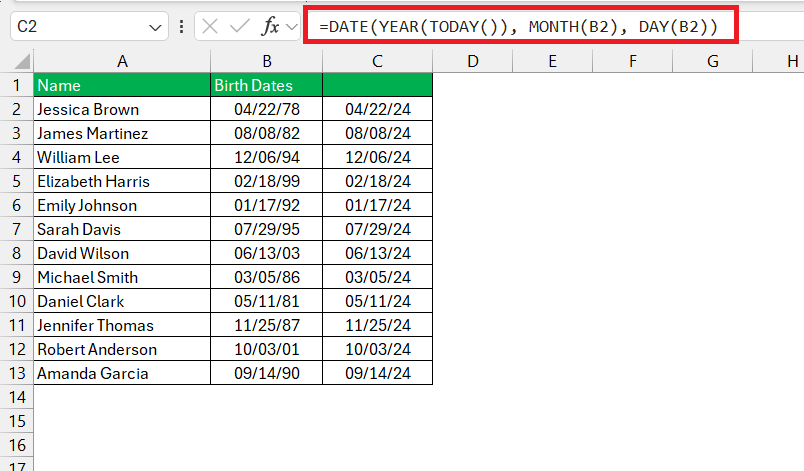
This formula will replace the year of the date in B2 with the current year.
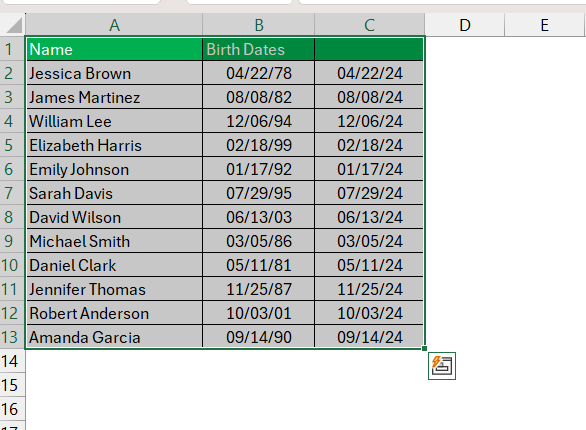
STEP 2: Select the entire range of data containing name, birth dates, and changed birth dates.
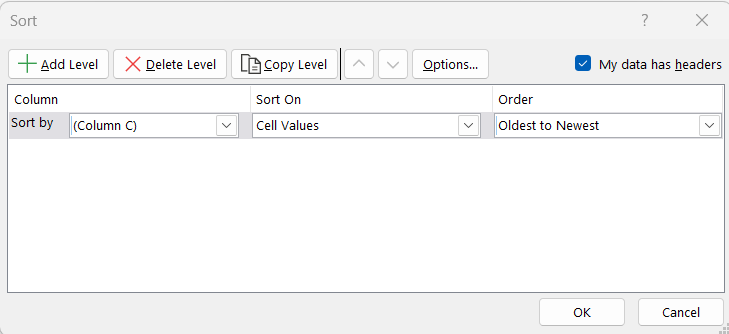
STEP 3: Go to the Data tab on the Ribbon. Click the Sort Oldest to Newest or Sort Newest to Oldest button to sort the dates accordingly.
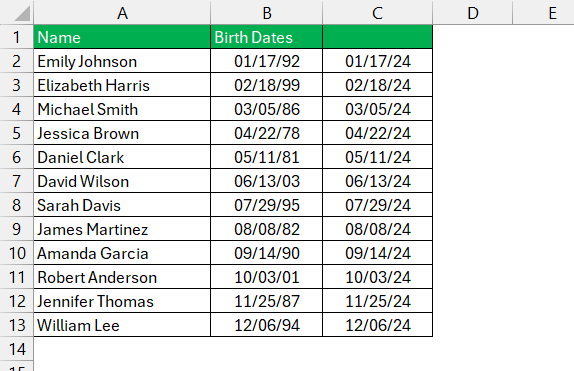
The birthdates will now be sorted.
Personalizing Your Birthday Calendar
Exploring Template Styles for Birthdays
Excel provides a plethora of templates with different styles, formats, and usability. You can choose a colorful, month-by-month layout or a professional-looking template as per your requirement. These designs are absolutely free to download, can be customized, and can even be printed to add a visual reminder to your workspace.
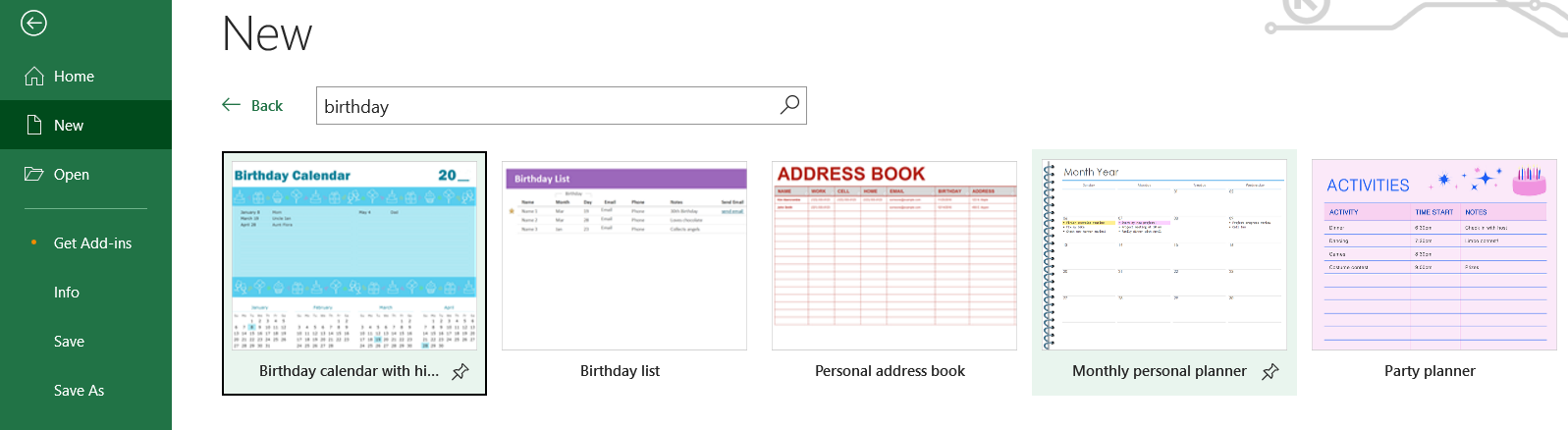
Apply Conditional Formatting
You can use conditional formatting to easily highlight the birthdays that are upcoming in the current month. These visual cues will help us not to miss a birthday of your teammates. To get this accomplished, use the formula below:
=AND(MONTH(B1)=MONTH(TODAY())) to highlight birthdays in the current month.
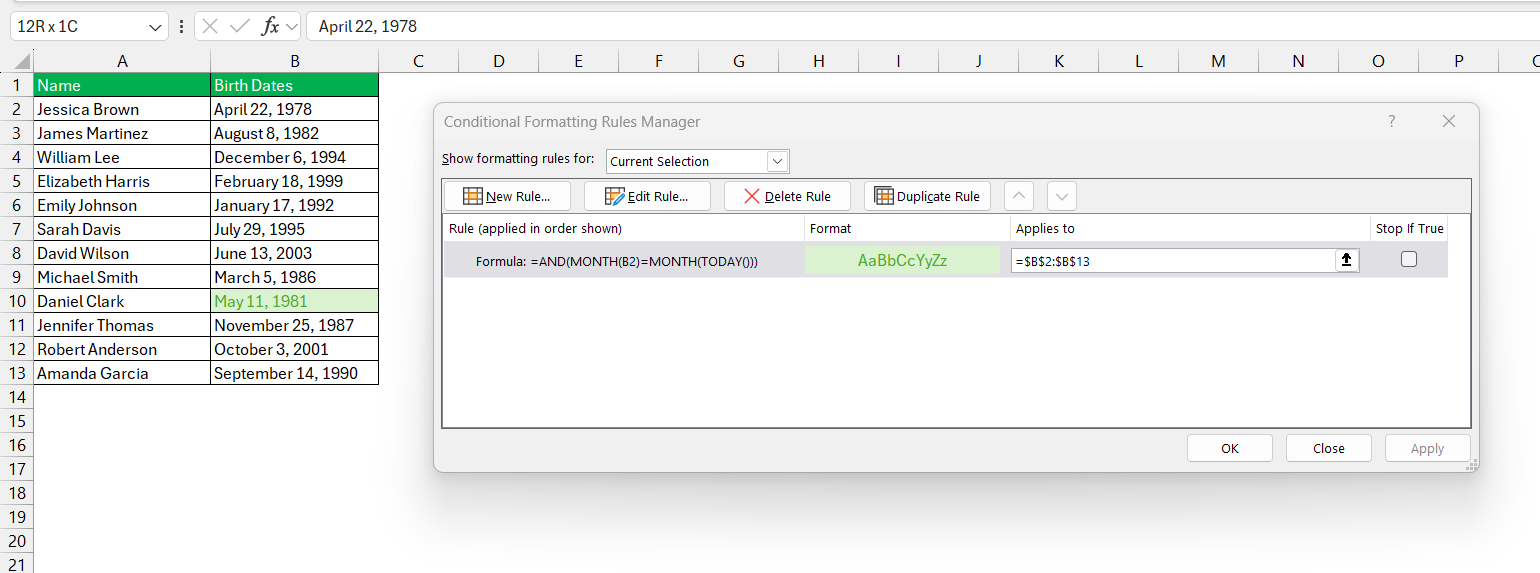
This will make the workbook organized and help you focus on relevant dates with minimal effort on your end.
FAQs
What is the formula to check if today is a teammate’s birthday in Excel?
To check if today is anyone’s birthday in Excel, you can use the IF function for a simple reminder: =IF(MONTH(B2)=MONTH(TODAY()),IF(DAY(B2)=DAY(TODAY()),"Happy Birthday",""),""). Here, cell B2 contains the birthdate of the teammate. The result will display a ‘Happy Birthday’ message if today is indeed their birthday, else it will show a blank.
Can you sort the birthday list by month?
To sort the birthday list by month, use the SORTBY function with the TEXT function: =SORTBY(data,TEXT(birthdays,"mmdd")). First, the TEXT formula converts the birth date into a text string in the format ‘mmdd’. For example, 15-Mar-1990 will become “0315” and ignore the year. Then, the SORTBY function uses the output and sorts it by month and day.
How to create a birthday list in Excel?
Creating a birthday list in Excel is quite straightforward. Simply enter each person’s birth date in a column and format it as ‘mm/dd/yyyy’. Later, in your list, add conditional formatting or reminders as needed.
Can you set up automatic reminders for birthdays in Excel?
Yes, you can set up automatic reminders for birthdays in Excel by using conditional formatting. This feature will visually alert you to any upcoming birthdays in the current month.
What if I want to see birthdays for the entire year?
If you want to view birthdays for the entire year in Excel, you can create a yearly calendar or use the FILTER or SORT functions to organize your list by date. Then apply conditional formatting for visual cues or pivot tables for a complete summary of all the birthdays throughout the year.

John Michaloudis is a former accountant and finance analyst at General Electric, a Microsoft MVP since 2020, an Amazon #1 bestselling author of 4 Microsoft Excel books and teacher of Microsoft Excel & Office over at his flagship MyExcelOnline Academy Online Course.

 30 Days - Full Access









