 Free Practice Workbook
An Array Formula performs an Excel operation (math, comparative, join, or function argument) on an array or range of data. This could be a range of cells, a worksheet reference, or a defined name. One of the most popular uses of an array formula is to calculate Total Sales in Excel. If we had to calculate Total Sales in Excel the normal way, we would have to create a “helper column” for the Totals column and then enter a formula to Sum all the Totals. Using an Array Formula we skip the “helper column” and just enter one formula only. Quick and simple!
Key Takeaways:
- Array formulas allow you to perform calculations on multiple rows and columns of data simultaneously.
- A common method to calculate total sales is using the SUMPRODUCT function, which multiplies corresponding values (e.g., quantity and price) and sums them up in a single formula.
- For older versions of Excel, array formulas must be entered using Ctrl + Shift + Enter enclosing the formula in curly braces.
- Array formulas eliminate the need to create intermediate calculations in separate columns.
- In newer versions like Excel 365, array formulas are dynamic, meaning you don’t need to use Ctrl + Shift + Enter anymore, as they calculate automatically.
Table of Contents
Foundation of Array Formulas in Excel
What is the Array Formula?
With array formulas, you’re stepping into an area of Excel that combines the power of mathematics with the capability to handle bulk data. Unlike standard formulas, arrays can process a multitude of values simultaneously, making them especially beneficial when crunching numbers across large datasets.
Single-cell vs Multi-cell Array Formulas: Understanding the Difference
Single-cell array formulas are the go-to when you need to perform operations on multiple data sets and desire a single outcome. Picture yourself needing to find the average of numerous cells.
{=SUM(B2:B6*C2:C6)}
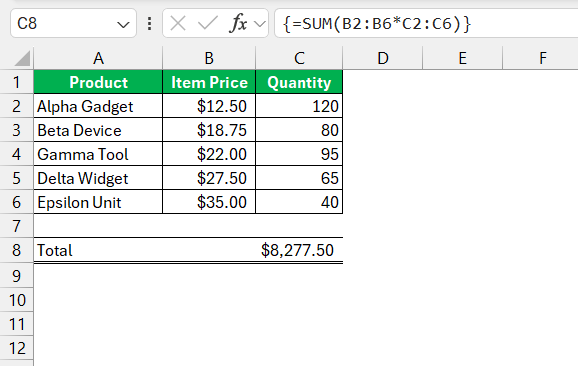
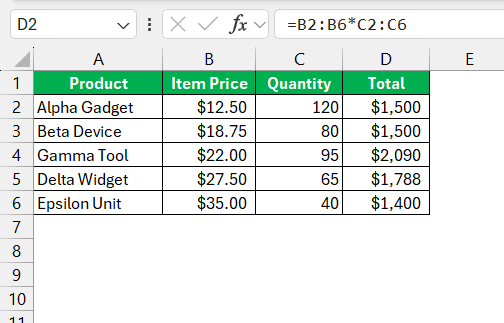
Multi-cell array formulas work best when you needmultiple results from your data manipulations. If you’re calculating sums for every row in a spreadsheet, a multi-cell array formula elegantly and efficiently gives you individual totals.
=B2:B6*C2:C6
Calculate Total Sales in Excel With An Array Formula
Let’s do an example of an Array Formula to Calculate Total Sales in Excel for various products.
Follow the step-by-step guide below on How to calculate Total Sales in Excel:
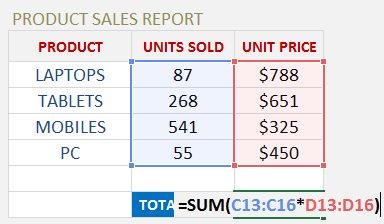
STEP 1: Enter the SUM formula =SUM(
STEP 2: Select the array/range of data for the UNITS SOLD, enter the multiplier sign * and select the array/range of the data for the UNIT PRICE:
=SUM(C13:C16*D13:D16)
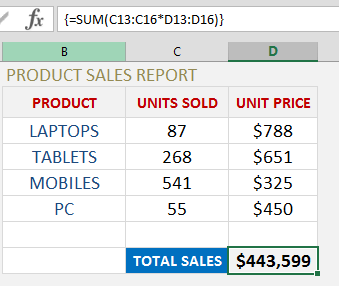
STEP 3: Instead of pressing ENTER to evaluate the formula, you need to press CTRL+SHIFT+ENTER to turn the formula into an Array Formula which will look like this:
{=SUM(C13:C16*D13:D16)}
STEP 4: By pressing F9 on the selected formula array will give you the resulting array of numbers (press CTRL+Z to get out of this mode when you are done checking the formula results):

If we had to get the above result using a non-Array Formula we would have to create a helper column which multiplies UNITS SOLD by UNIT PRICE and then enter the SUM formula to get the same result. This is double the work!
Frequently Asked Questions
How can I calculate total sales in Excel using an array formula?
To calculate total sales with an array formula, use the SUMPRODUCT function. For example, if column A contains quantities and column B contains prices, the formula =SUMPRODUCT(A2:A10, B2:B10) will multiply each pair of quantity and price and then sum the results to give you the total sales.
Do I need to press Ctrl + Shift + Enter to use an array formula in Excel?
In older versions of Excel (2019 or earlier), you must press Ctrl + Shift + Enter when entering an array formula which will enclose it in curly braces {}. However, in modern versions like Excel 365 or Excel 2021, this step is no longer necessary, as these versions support dynamic array formulas.
What happens if the ranges in my array formula are mismatched in size?
If the ranges in your array formula (e.g., quantities and prices) are mismatched in size, Excel will return a #VALUE! error. Ensure that both ranges have the same number of rows and columns for the formula to work correctly.
Can I use array formulas for conditional total sales calculations?
Yes, you can use array formulas for conditional calculations. For example, to calculate total sales only for a specific product category, you can use an array formula like =SUMPRODUCT((C2:C10="Category1")*(A2:A10)*(B2:B10)), where column C contains the product category. This formula multiplies only the rows that match the condition and sums the results.

John Michaloudis is a former accountant and finance analyst at General Electric, a Microsoft MVP since 2020, an Amazon #1 bestselling author of 4 Microsoft Excel books and teacher of Microsoft Excel & Office over at his flagship MyExcelOnline Academy Online Course.

 30 Days - Full Access









