 Free Practice Workbook
Microsoft Excel offers different methods to check and analyze the contents of an Excel cell. You can verify data by searching for specific strings. It is useful when you have to clean exported data or search for any important keywords. In this article, you will learn how to check if a cell contains text in Excel.
Key Takeaways:
- Check if a cell contains specific text using functions like IF, SEARCH, and ISNUMBER.
- Text functions are used to clean and organise data.
- Use the combination of IF, AND, and OR functions to test multiple conditions.
- Wildcards like * and ? make text searches more flexible.
- A well-structured formula helps avoid errors and saves time.
A cell in Excel can be used to store different types of data, like numbers, text, dates, etc. It is important to understand what is stored inside a cell to be able to analyze it correctly. You can search for important words or key details. You can also extract specific text from a cell using Excel’s built-in functions. For example, you can extract a name from an email address.
Table of Contents
Text Formulas
IF Function
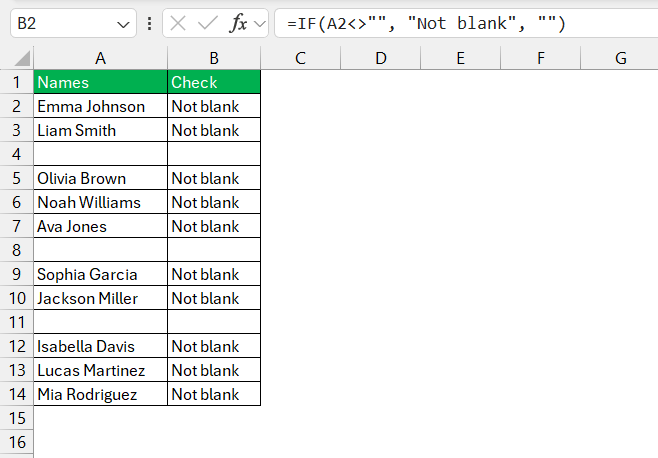
The IF function is used to check the contents of a cell. You can use the IF function to check if the cell is blank or not.
IFS & IFERROR
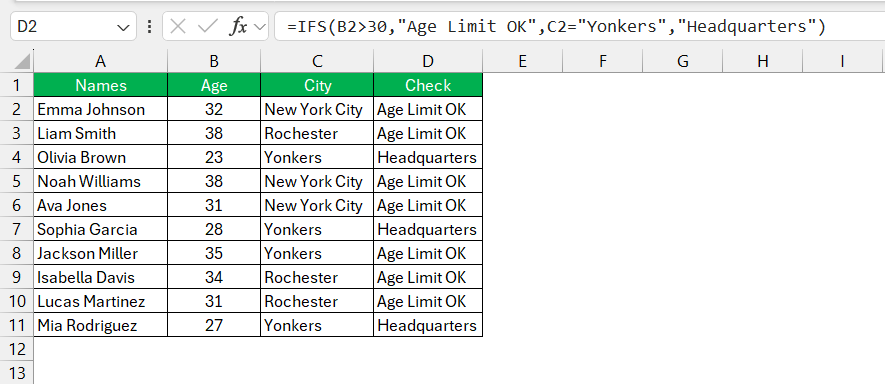
Excel has other functions like IFS and IFERROR to handle errors. The IFS function is used to check multiple criteria.
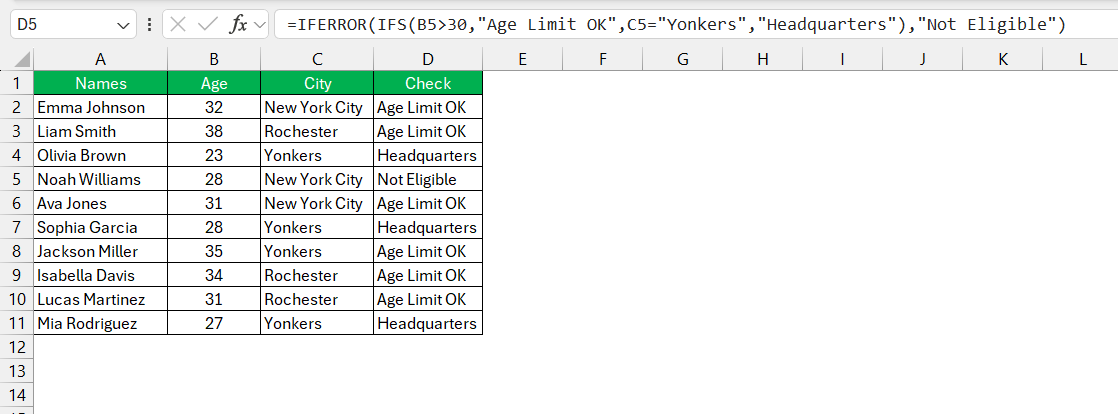
The IFERROR function is used to return a custom text for any error.
Advanced Techniques
Wildcards
Wildcards in Excel can be used for flexible searches.
- Asterisk – It means any number of characters. It can match many letters, numbers, spaces, or even nothing.
- Question Mark – It means exactly one character. It replaces only one letter or number.
You can use an asterisk to check if the text is color or colour.
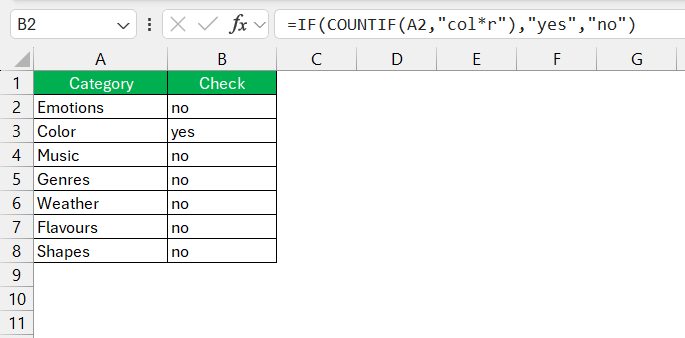
It can help you match partial text strings or check for any typos.
Combining Functions for Complex Conditions
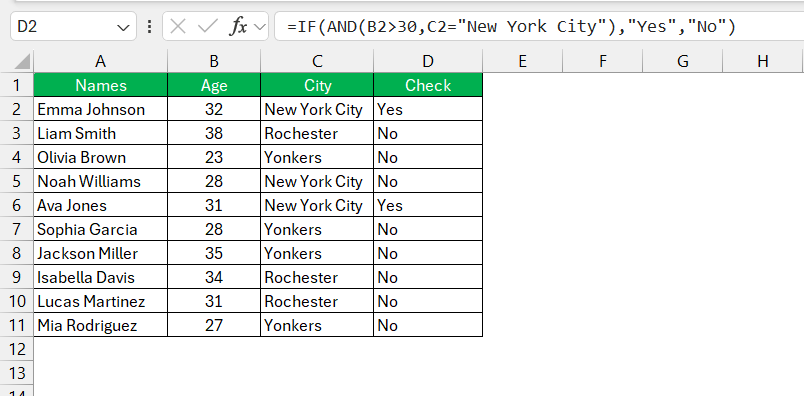
Excel allows you to combine functions to create a custom function to suit your needs. In this example, you can use IF, AND, and OR functions to check two criteria:
- Age is greater than 30
- City is New York City
If both conditions are met, Excel will return Yes or else No.
Tips & Tricks
Avoid Common Pitfalls
When you’re working with Excel, you need to follow these points to avoid making common mistakes:
- Check that all parentheses in the formula are properly closed. A missing parenthesis can change the result of the calculation.
- Use the correct comparison operator. If you use >+ instead of <=, it can return inaccurate results.
- Always remember to enclose text values within double quotes.
- Make sure to test the formulas under various text scenarios.
Best Practices
Here are some best practices to keep your text formulas readable:
- Break complex formulas into smaller parts. This will be useful when you are trying to troubleshoot the formula later.
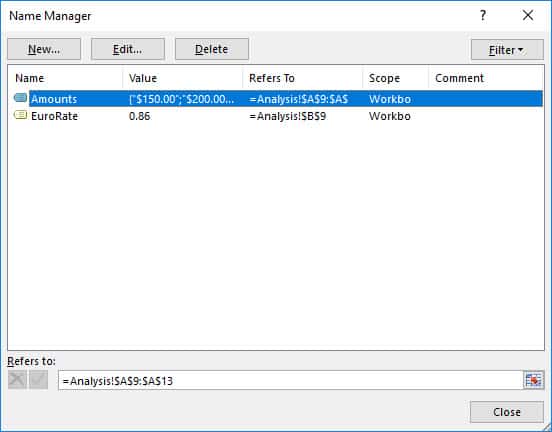
- Use named ranges instead of cell references. This makes your formulas more readable.
- Add a helper column where you can mention the logic behind the formulas.
- When writing a formula, insert a space after operators and commas.
- Use uniform formatting to make your work more organized.
You should apply these practices to transform formulas into easy-to-interpret expressions.
FAQs
How to check if a cell contains a specific string of text?
To check if a cell contains a specific string, you can use the formula.
=IF(ISNUMBER(SEARCH(“specific text”, cell)), “Yes”, “No”)
How to search multiple text strings within a single cell?
To search for multiple text strings within a single cell, you can use a formula:
=IF(AND(ISNUMBER(SEARCH(“text1”, cell)), ISNUMBER(SEARCH(“text2”, cell))), “Yes”, “No”)
How to check if a cell contains a specific text in Excel?
To check for specific text in Excel, you can use the combination of IF and SEARCH functions.
=IF(ISNUMBER(SEARCH(“specific text”, A1)), “Found”, “Not Found”).
This function will search if the word is present in the cell or not and display the result accordingly.
Why use asterick in a search formula?
Asterisks are used to match any number of characters before or after your text.
What is SUMIFS function?
The SUMIFS function is used to sum cells that meet multiple criteria.
=SUMIFS(sum_range, criteria_range, “*text*”)

John Michaloudis is a former accountant and finance analyst at General Electric, a Microsoft MVP since 2020, an Amazon #1 bestselling author of 4 Microsoft Excel books and teacher of Microsoft Excel & Office over at his flagship MyExcelOnline Academy Online Course.

 30 Days - Full Access









