 Free Practice Workbook
Table of Contents
CONCATENATE Excel Function
What does it do?
Joins two or more text strings into one string. The item can be a text value, number, or cell reference.
Formula breakdown:
=CONCATENATE(text1, [text2], [text3], …)
What it means:
=CONCATENATE(the first text, the second text, and so on…)
Line Break in Excel
Line Break in Excel is added to end the current line and start a new line within the same cell. A long text with a line break and without a line break is shown below.
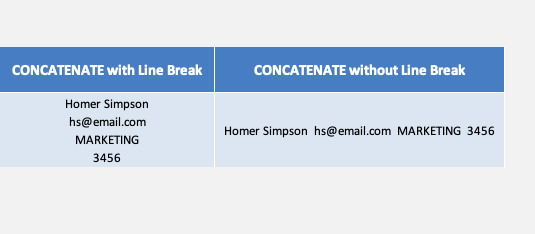
In general, when you are typing a text in Excel and you need to add a line break, you can simply press Alt + Enter and Excel will take you to the new line within the same cell.
But what if you want that line break when you are trying to combine texts from different cells using a formula.
This is exactly what we will cover in the next section!
3 ways to Excel Concatenate with Line Break
Want to add a line break in between each text string?
This is done by entering the CHAR( ) function in between each text string/argument.
CHAR function returns a character specified by a number from 1 to 255. For example, CHAR(10) returns a line break in windows, CHAR(34) returns a ” (double quote), CHAR(64) returns @, etc.
So, by simply adding CHAR(10) in between your formula you can enter a line break. You will need to select WRAP TEXT in order to see each text on a separate line.
Follow the step-by-step tutorial below to see how easy it is to add a line break in Concatenate Excel using employee data on the example below. Don’t forget to download the Excel workbook and follow along:
download excel workbook Concatenate.xlsx
METHOD 1: Use Concatenate Excel Formula
STEP 1: We need to enter the CONCATENATE Excel function in a blank cell:
=CONCATENATE(
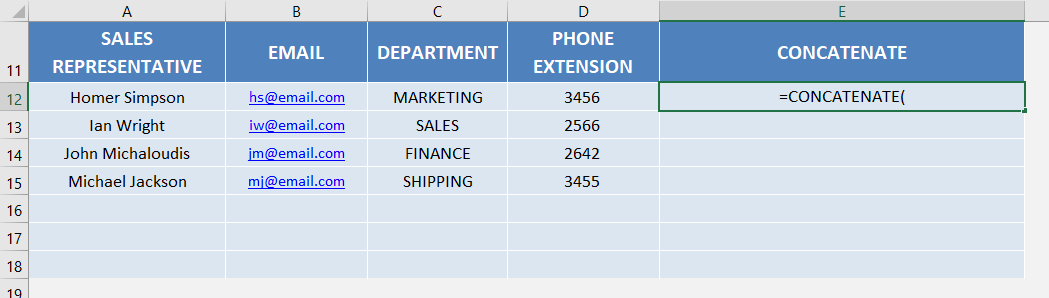
STEP 2: The CONCATENATE arguments:
text1, [text2], [text3], …
Which text do you want to join together?
Let us select all the columns:
=CONCATENATE(A12, B12, C12, D12)
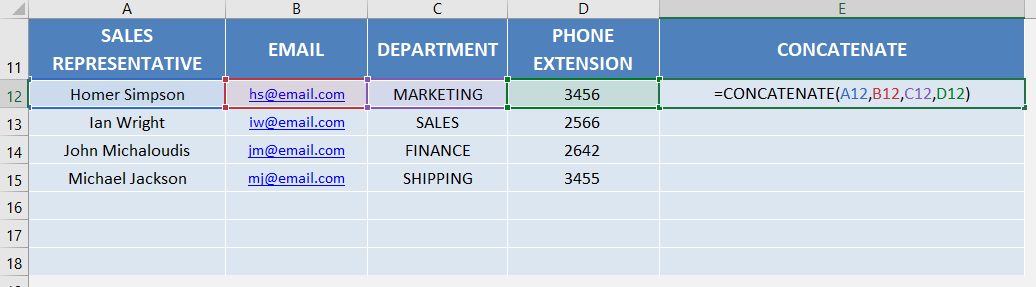
Now let’s add the function CHAR(10) to add a line break between each text
=CONCATENATE(A12, CHAR(10), B12, CHAR(10), C12, CHAR(10), D12)
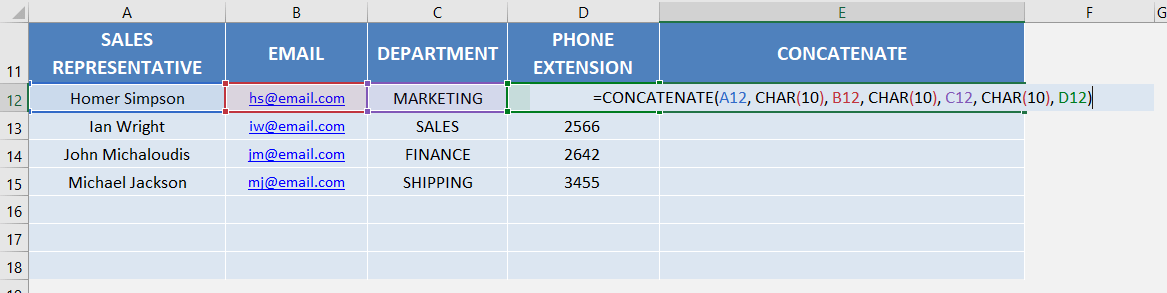
Apply the same formula to the rest of the cells by dragging the lower right corner downwards.
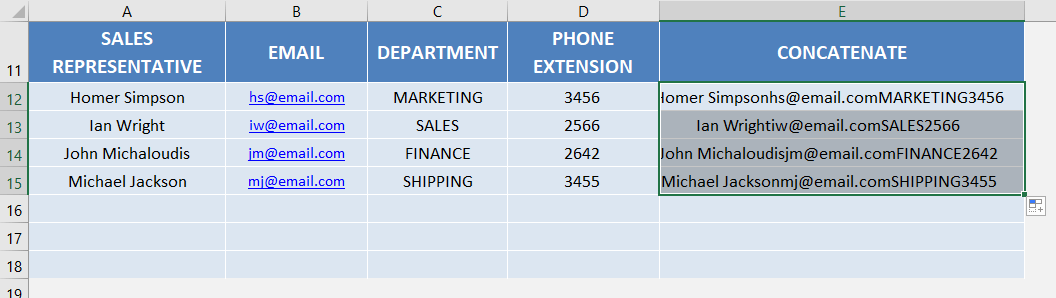
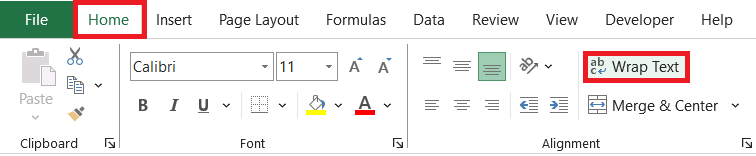
STEP 3: Go to Home > Alignment > Wrap Text to show the text in multiple lines and you now have all of the results!
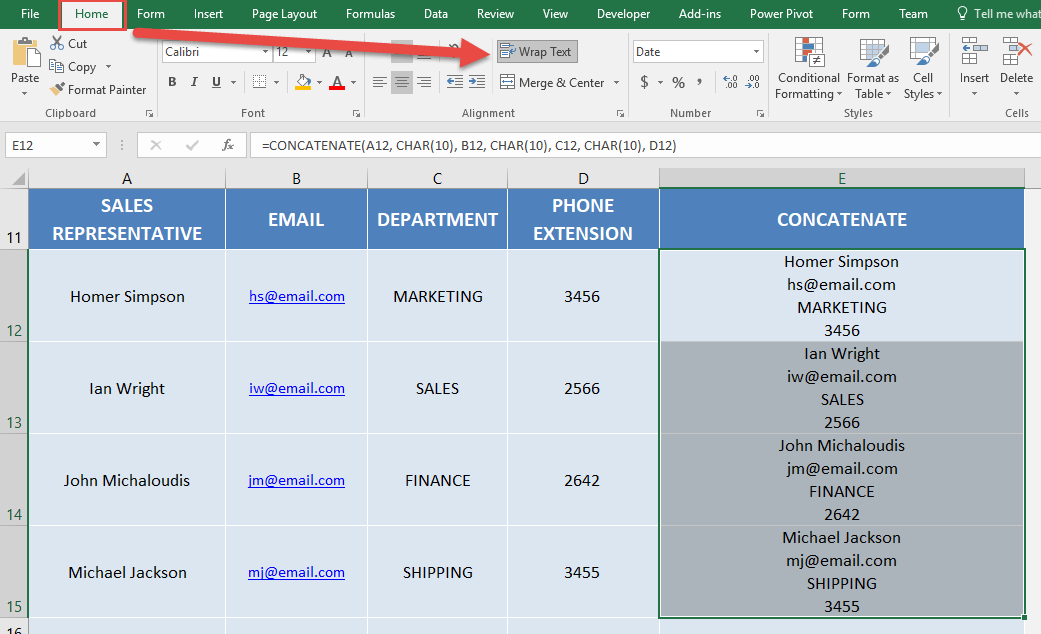
This is how you can add a new line in excel concatenate formula. Let’s look at the other two methods as well!
METHOD 2: Use & (Ampersand) Sign
Instead of joining text using the Concatenate function, you can use the Ampersand (&) sign. The & sign works as a concatenation operator and clues together text for different cells as well as the char function.
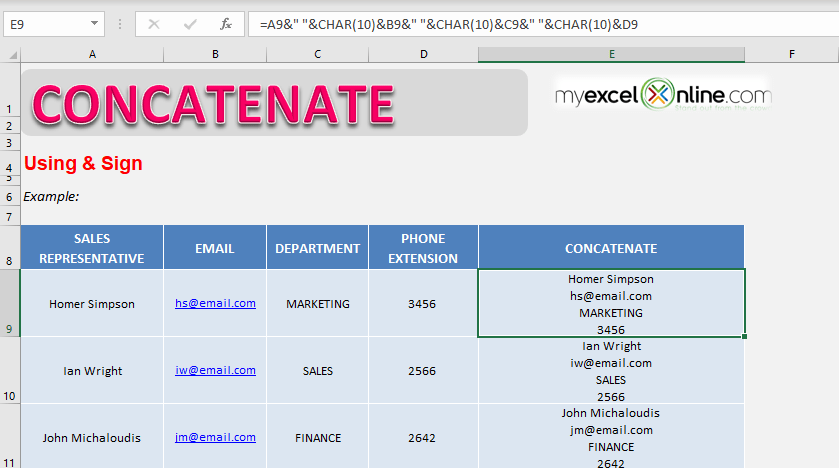
The formula to combine text with line break in the previous example with & sign will be:
=A9 & CHAR(10) & B9 & CHAR(10) & C9 & CHAR(10) & D9
METHOD 3: Use TEXTJOIN formula
This function is available in Excel 2019 & Office 365 only.
Instead of selecting individuals cells and adding a CHAR function again and again in the formula, you can use the advanced versions of concatenate function – TEXTJOIN.
TEXTJOIN can be used to concatenate a range of cells using a delimiter.
Excel requires three arguments for TEXTJOIN function:
=TEXTJOIN(delimiter, ignore_empty, text1, [text2], [text3],..)
- Delimiter – The character you need to insert in between each text.
- Ignore_empty – It should be TRUE if you want to ignore empty cells and FALSE if you want to include the empty cells.
By default, the value will be TRUE. - Text – Range of cells you want to combine.
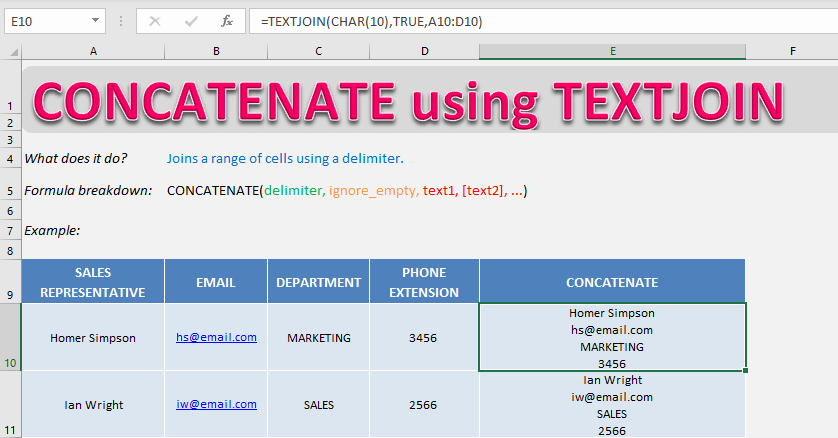
So, TEXTJOIN function in our example will look like this:
=TEXTJOIN(CHAR(10), TRUE, A10:D10)
Other Excel Features to Pair with Concatenate
Wrap Text
To make sure you text displays correctly, go Home > Alignment > Wrap Text. Your concatenated text will be displayed correctly afterwards.
Differences between Windows and Mac
Make use of the correct CHAR function for line breaks—CHAR(10) on Windows or CHAR(13) on Mac—to insert a new line. Also ensure that number formatting carries over correctly. Concatenating a cell with numbers might result in strings of text, so you may need to combine with the TEXT function to preserve number formats.
Frequently Asked Questions
How do I add a line break within an Excel cell using concatenate?
To add a line break inside an Excel cell using the CONCATENATE function, use the CHAR function with code 10. Here’s the formula: =CONCATENATE(text1, CHAR(10), text2, ...). Activate “Wrap Text” for the cell to display the line break correctly.
What are some common uses of concatenation with line breaks in Excel?
Common uses of concatenation with line breaks include creating multi-line address labels from separate columns, combining lists where each item appears on a new line, and formatting output for improved readability, such as in reports or dashboards.
How do you CONCATENATE with a separator in Excel?
In Excel, use the CONCATENATE function or the ‘&’ operator to merge cells with a separator like so: =CONCATENATE(A2, " - ", B2) or =A2 & " - " & B2. Replace ” – ” with any separator desired. For multiple cells with the same separator use the TEXTJOIN function: =TEXTJOIN(" - ", TRUE, A2:C2). The second argument specifies if empty cells are ignored (TRUE) or not (FALSE).

How do you code a line break in Excel?
In Excel, a line break is coded using the CHAR function with the number 10. In a formula, you’d use =CHAR(10). Remember to turn on “Wrap Text” in the cell format to make the line break appear.

John Michaloudis is a former accountant and finance analyst at General Electric, a Microsoft MVP since 2020, an Amazon #1 bestselling author of 4 Microsoft Excel books and teacher of Microsoft Excel & Office over at his flagship MyExcelOnline Academy Online Course.

 30 Days - Full Access









