 Free Practice Workbook
In Microsoft Excel, efficiently counting distinct values is a crucial task for data analysis and reporting. Whether you’re managing customer lists or survey responses, knowing how to accurately tally unique entries can streamline decision-making.
Key Takeaways:
- Understanding these in Excel is crucial. Unique values appear once, while distinct values include all occurrences, crucial for thorough data analysis.
- Excel provides formulas like UNIQUE and COUNTA for accurate counting of distinct values.
- Options include COUNTIF, Advanced Filter, Remove Duplicates, PivotTables, and Power Query, each serving specific data analysis needs.
Table of Contents
Top 5 Methods to Excel Count Distinct Values
Method 1: Using the COUNTIF Function
The COUNTIF function is one of the simplest ways to count distinct values in a range.
STEP 1: Select a new cell where you want the distinct count to appear.
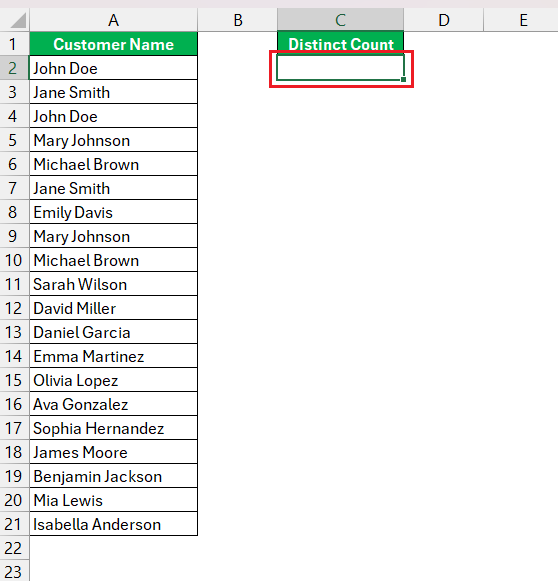
STEP 2: Enter the following formula:
=SUM(1/COUNTIF(A2:A21, A2:A21))
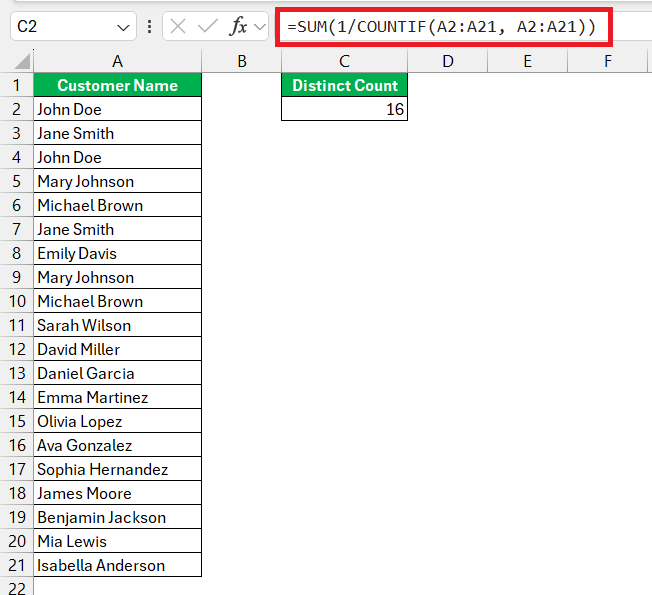
This formula creates an array of 1 divided by the count of each value in the range, summing up to the distinct count.
Method 2: The Advanced Filter Option
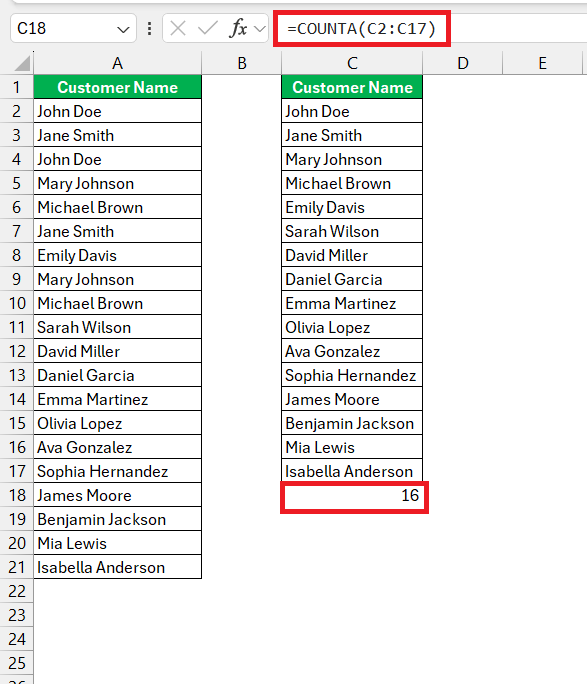
The Advanced Filter option allows you to extract unique values from a list, which you can then count.
STEP 1: Select data you want to filter.
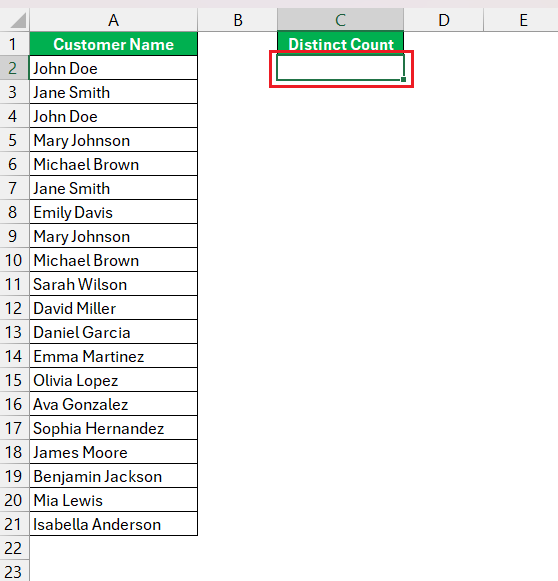
STEP 2: Go to the Data tab on the Ribbon, then click on Advanced.

STEP 3: In the Advanced Filter dialog box,
- Select Copy to another location.
- Specify the range for the data and the location to copy the unique values.
- Check ‘Unique records only’.
- Click OK.
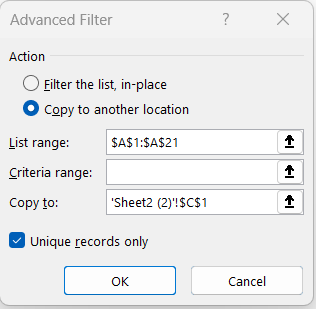
STEP 4: Once the unique values are copied, use the COUNTA function to count them: COUNTA(C2:C17)
Method 3: Remove Duplicates
Excel’s built-in Remove Duplicates feature can also be used to count distinct values.
STEP 1: Select the cells containing your data.
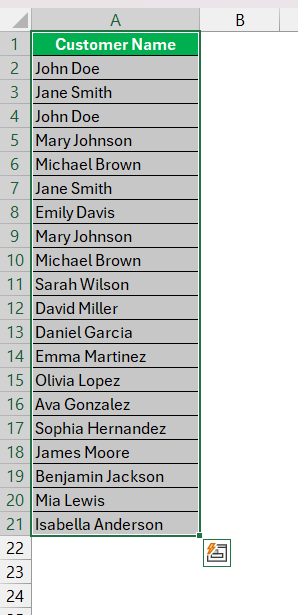
STEP 2: Go to Data > Remove Duplicates.

STEP 3: In the Remove Duplicates dialog box, select the columns that need to be checked for duplicates.
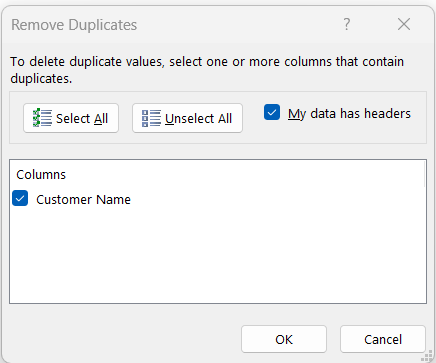
STEP 4: Click OK. A message box will show the number of duplicate values removed and how many unique values remain.
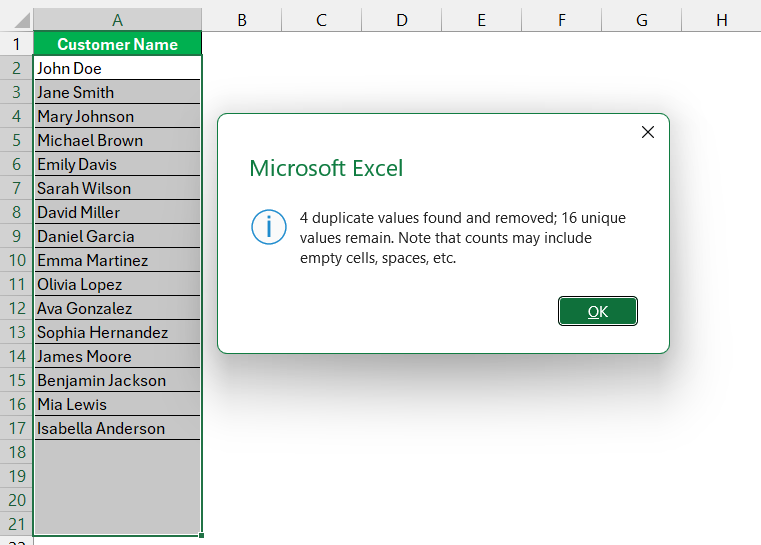
Use the COUNTA function to count the remaining unique values.
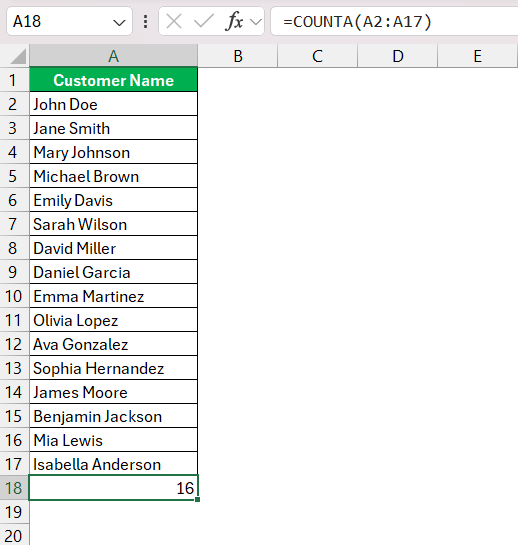
Method 4: Pivot Tables
STEP 1: Select the data range and create a pivot table. Tick ‘Add this data to Data Model’.
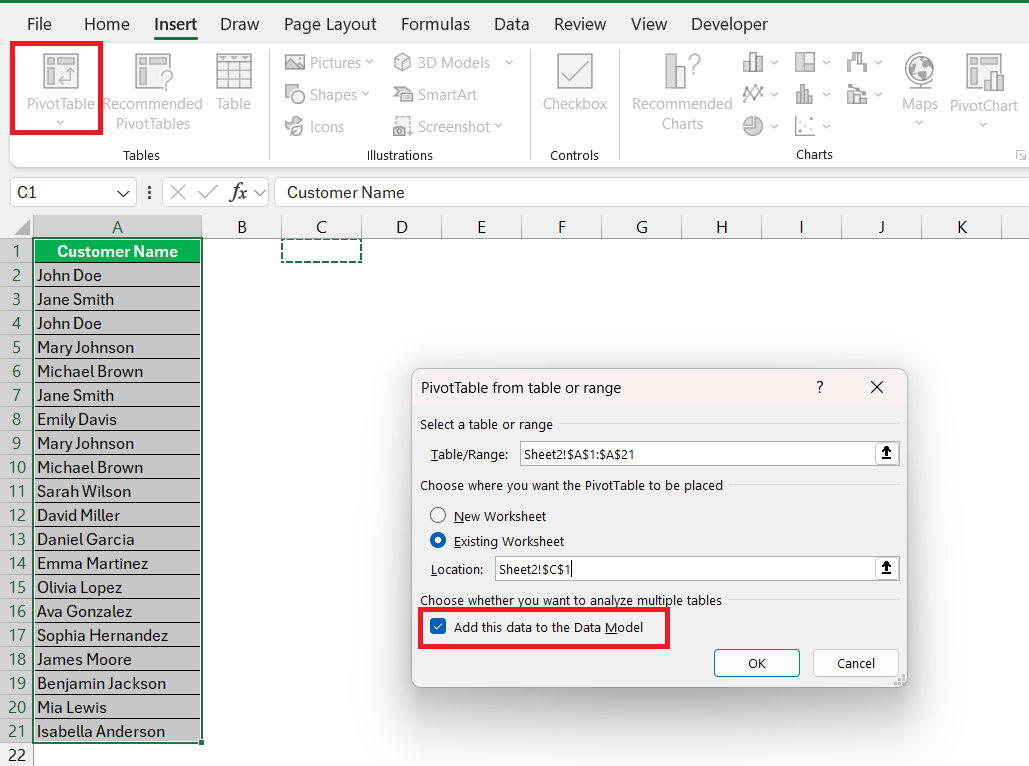
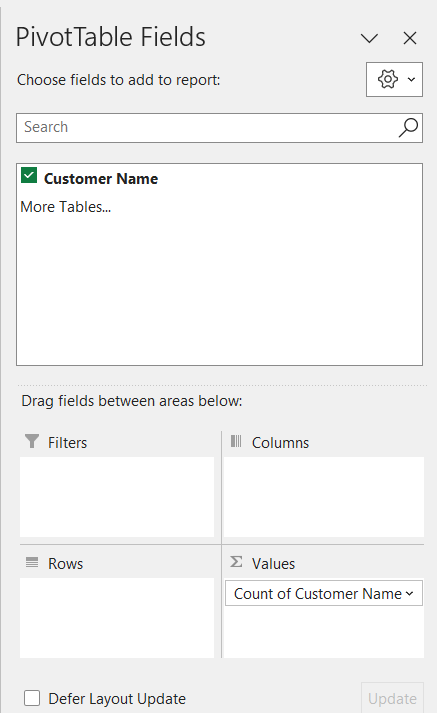
STEP 2: Move Customer Name into the Values area.
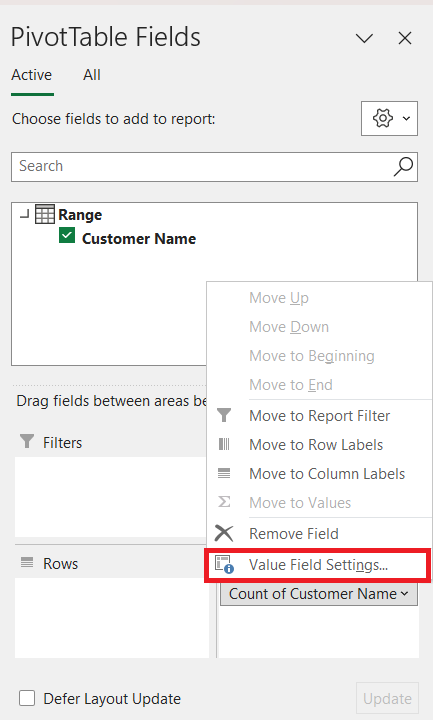
STEP 3: Go to the “Value Field Settings”.
STEP 4: Change the method to “Distinct Count.”
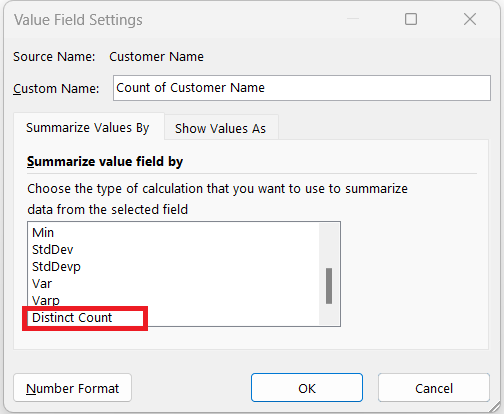
Now you have the count of unique values!
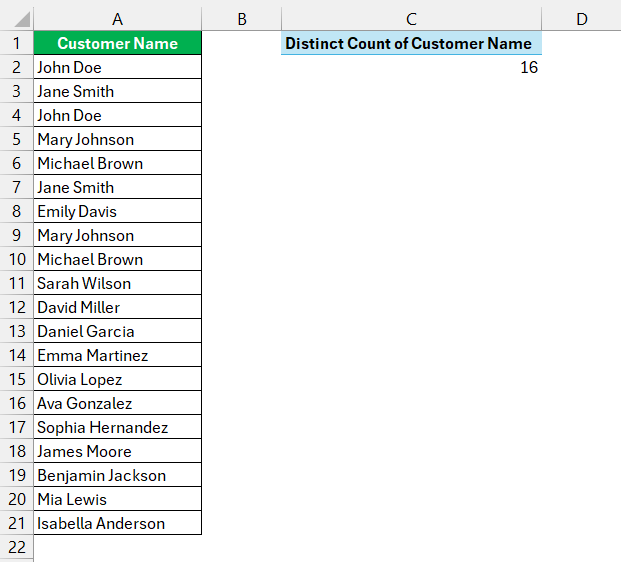
Method 5: Power Query
Power Query in Excel that can be used for data transformation, including counting distinct values.
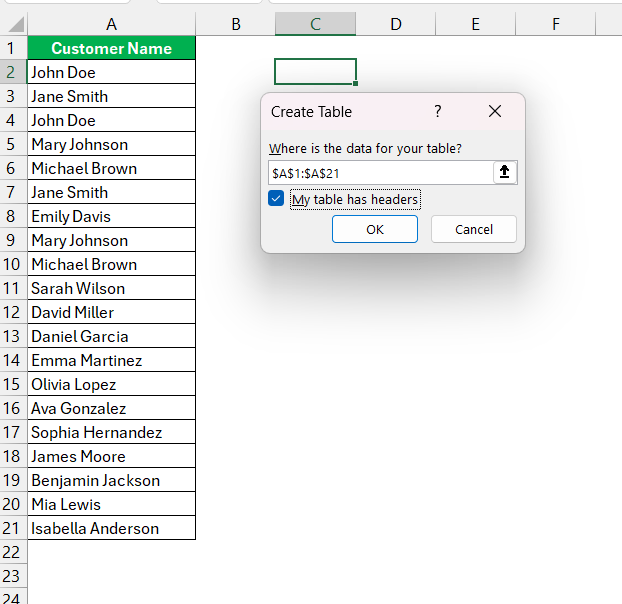
STEP 1: Go to Data > From Table/Range.

STEP 2: In the dialog box, select the range and click OK.
STEP 3: In the Power Query Editor, select the column you want to analyze.
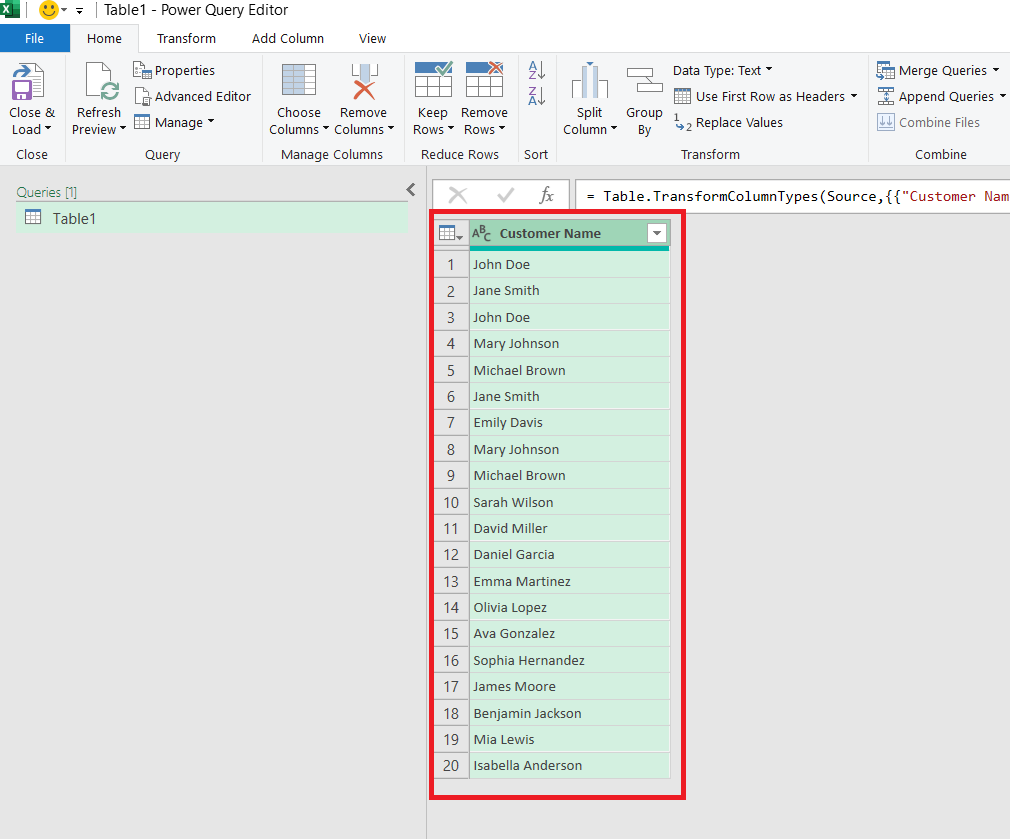
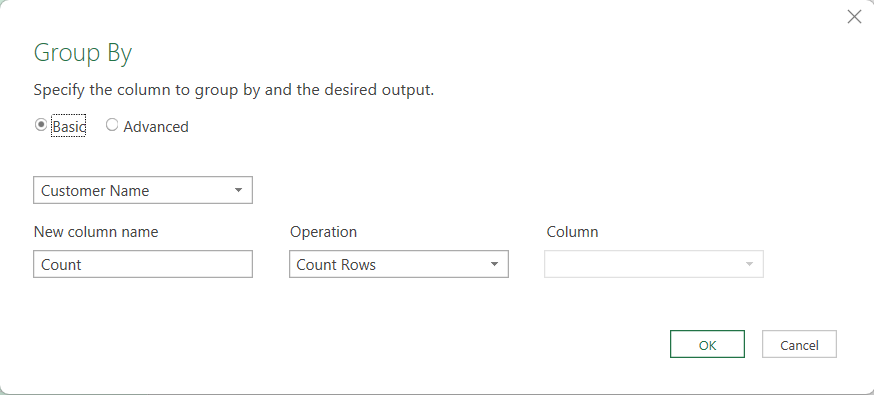
STEP 4: Go to the Transform tab. Click on Group By.

STEP 5: In the Group By dialog box, select the column and choose Count Rows.
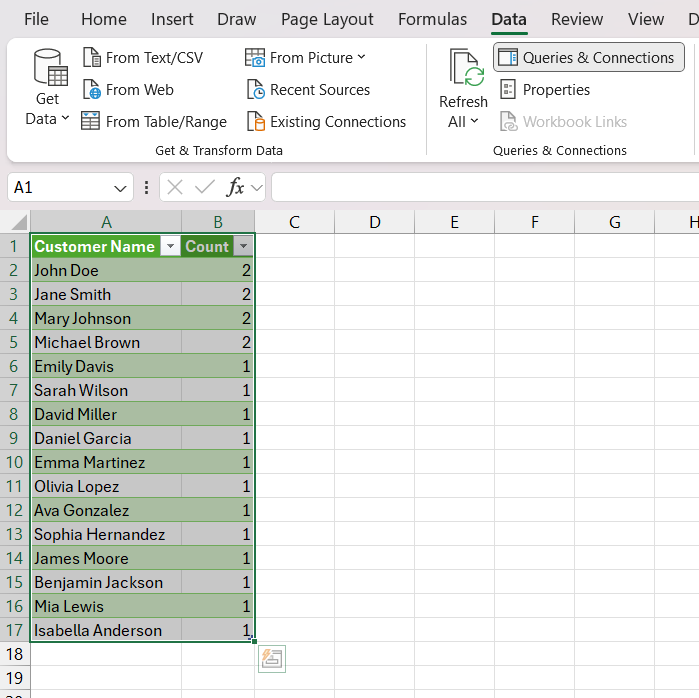
STEP 6: Click Close & Load.

Power Query will create a new table with a distinct count of values.
FAQs
Q1. How do distinct counts differ from unique counts in Excel?
Distinct counts consider all values but count duplicates only once, while unique counts include only those values that appear exactly once in your data.
Q2.How to count unique values across multiple columns in Excel?
Combine the SUM and COUNTIFS functions to count unique values across multiple columns in Excel. Don’t forget to enter the formula as an array if they’re not on Excel 365.
Q3. Why isn’t the distinct count functioning in Excel?
If the distinct count isn’t working, they might need to check for correct formula usage, hidden data, filters, or ensure data is formatted correctly.
Q4. Is there a count distinct function in Excel?
No, there isn’t a built-in count distinct function in Excel, but they can create one using formulas like COUNTA with UNIQUE, or use PivotTables or VBA.
Q5. How do unique values differ from distinct values?
Unique values appear only once in a dataset, with no duplicates. Distinct values include all different items in the dataset, irrespective of how many times they appear.

John Michaloudis is a former accountant and finance analyst at General Electric, a Microsoft MVP since 2020, an Amazon #1 bestselling author of 4 Microsoft Excel books and teacher of Microsoft Excel & Office over at his flagship MyExcelOnline Academy Online Course.

 30 Days - Full Access









