- IF function are used to test conditions and help in decision making.
- Match function finds the position of a value in the list.
- IF and MATCH can be combined to filter and categorize data.
- These are used to automate repetitive tasks.
- ISNUMBER function is used to check if the value is a number or not.
Table of Contents
IF Function
The IF function can be used to check if a condition is met or not, and return a value if the condition is met and another value if not. It is one of the most commonly used functions and is useful to automate decision-making.
Syntax:
=IF(logical_test, [value_if_true], [value_if_false])
- logical_test: This is the condition you want to check.
- value_if_true: This value will return if the condition is met.
- value_if_false: This value will return if the condition is not met.
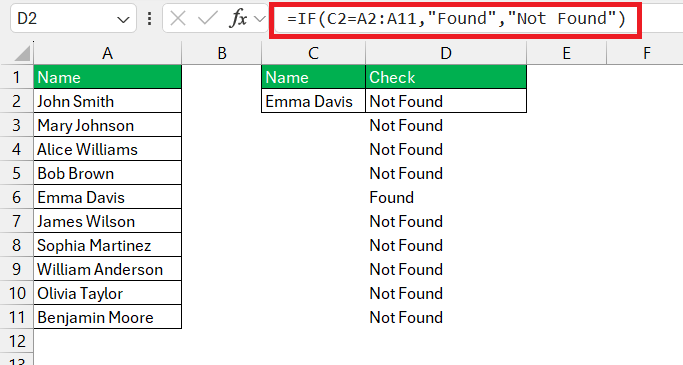
The formula checks whether names mentioned in cell C2 exist in the range A2:A11. If the value exists, the formula will display the text Match, else it will show Not Found.
Understanding the MATCH Function
The MATCH function can be used to find a specific value in a range and return its position. This function is useful in looking up values in a table, comparing data, creating dynamic formulas, etc.
Syntax:
=MATCH(lookup_value, lookup_array, [match_type])
- lookup_value: The value you want to find.
- lookup_array: The range of cells where Excel should search for the lookup_value.
- match_type (optional): This argument specifies the type of match Excel should make. It can be 1 (for an exact match), 0 (for the first value that’s exactly equal to the lookup_value), or -1 (for the last value that’s less than or equal to the lookup_value).
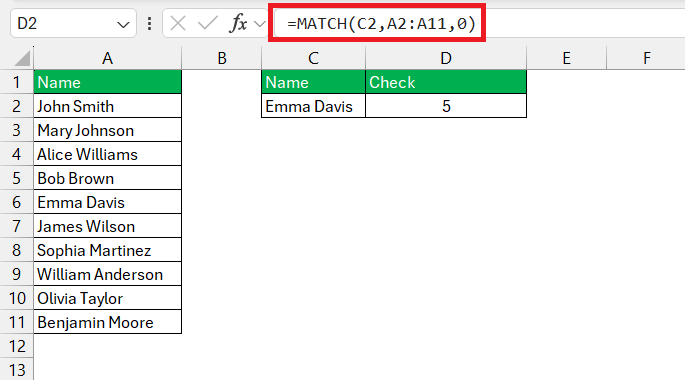
The formula =MATCH(C2, A2:A11, 0) is an Excel function that searches for a specified value (C2) in a specified range of cells (A2:A11) and returns the relative position of that value within the range.
Combining IF and MATCH
IF and MATCH are powerful functions when used on their own. But when combined, they become even more effective. Let us look at an example to understand this.
Example Scenario:
Let’s say you have a dataset containing names, and you want to check if a particular name exists in the list. You can achieve this using a combination of the IF and MATCH functions.
STEP 1: Using MATCH to Determine Row Number
First, you use the MATCH function to determine the position of a name you are searching in a list. For example:
=MATCH(C2,A2:A11,0)
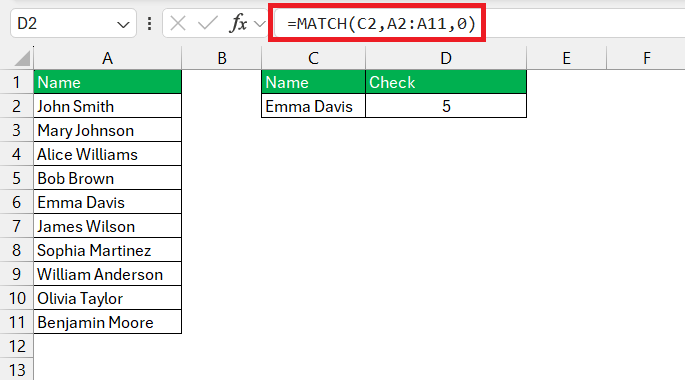
The MATCH function will check if a value is present in the specified range. If the value is present in the list, it will return the position of the value. Otherwise, it will return an error. The final argument 0 specifies that an exact match is required.
STEP 2: Applying ISNUMBER
=ISNUMBER(MATCH(C2,A2:A11,0))
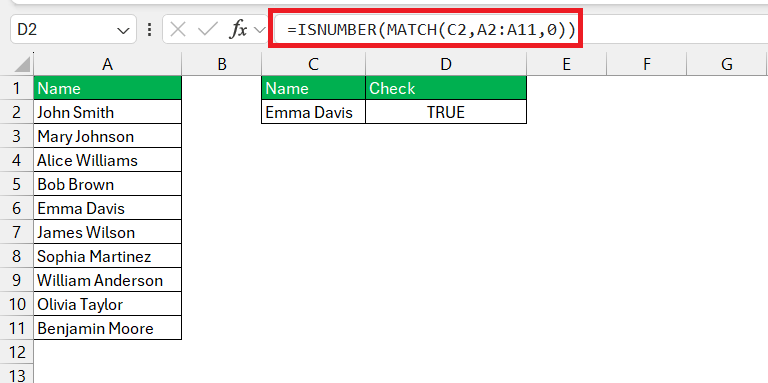
The ISNUMBER function will check if the result of the MATCH function is a number or not.
- If the MATCH function finds a value and returns a number, ISNUMBER will return TRUE.
- If MATCH is not found, it will return an error and ISNUMBER will return FALSE.
STEP 3: Applying IF
=IF(ISNUMBER(MATCH(C2,A2:A11,0)),”Found”,”Not Found”)
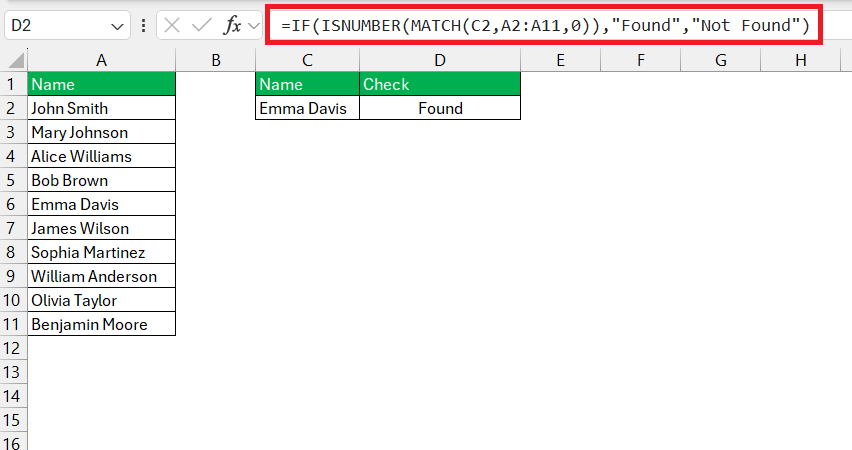
This is the IF function, which evaluates whether the condition provided (ISNUMBER(…) = TRUE) is met. If the condition is TRUE (meaning the value in C2 is found within the range A2:A11), the formula returns “Found”. If the condition is FALSE (meaning the value is not found), the formula returns “Not Found”.
So, in summary, this formula checks if the value in cell C2 is found within the range A2:A11. If it is found, it returns “Found”; otherwise, it returns “Not Found”. It’s commonly used in Excel for searching and indicating whether a value exists within a specified range.
FAQs:
Can IF and MATCH be used together in Excel?
Yes, IF and MATCH can be combined to perform tasks like dynamic data categorization or conditional referencing.
What happens if no match is found with the MATCH function?
If no match is found in the MATCH function, Excel will return #N/A error. You can use the IFERROR function to return a custom text instead of displaying the error.
Can I use a wildcard in the MATCH function?
Yes, you can use wildcard characters in MATCH functions. Wildcard characters like asterisk and question mark are used to perform a partial match.
Can you combine IF and MATCH functions with other Excel functions?
Yes, you can combine IF and MATCH with other Excel functions like INDEX, VLOOKUP, COUNTIFS, SUMIFS, etc. This can be used to build a complex formula for a detailed analysis.
Is there any limit on the number of conditions we can use in the IF function?
We can use up to 64 nested functions in a single IF formula in Excel.

John Michaloudis is a former accountant and finance analyst at General Electric, a Microsoft MVP since 2020, an Amazon #1 bestselling author of 4 Microsoft Excel books and teacher of Microsoft Excel & Office over at his flagship MyExcelOnline Academy Online Course.

 30 Days - Full Access









