 Free Practice Workbook
Importing data from different sources into your Excel workbook can be time-consuming if you need to do it on a regular basis. Microsoft Copilot can easily automate this task. By typing a simple prompt, Copilot can bring data into your current workbook or create formulas that reference another file. In this article, you will learn how to import data from another workbook using Copilot.
Key Takeaways:
- Copilot can help import data from another workbook.
- You can use prompts to copy and combine data.
- Copilot can create formulas to reference another workbook.
- Keep your source data clean and organized.
- Always check the imported data before using it.
Table of Contents
What is Copilot?
Copilot is an AI assistant available inside Microsoft Excel that can help execute tasks for you. You need to explain what you want in simple language, and the rest will be taken care of. Before you start, make sure you have:
- A Microsoft 365 Copilot license.
- Access to both Excel workbooks.
- Save the workbook in OneDrive or SharePoint.
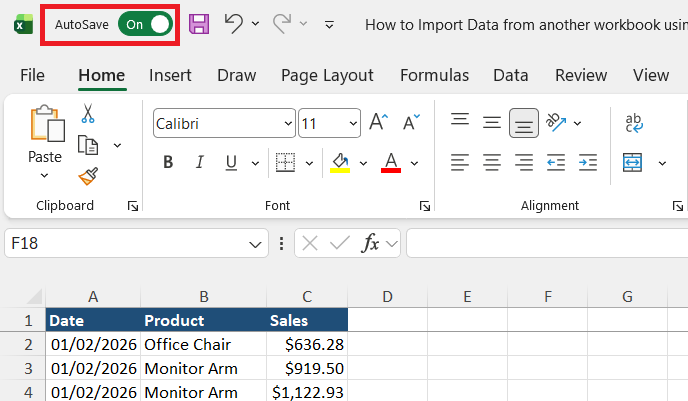
- Turn on AutoSave.
How to Import Data From Another Workbook Using Copilot
Copy Paste Rows
STEP 1: Open the Excel workbook where you want to import the data.
STEP 2: Go to the Home tab and select Copilot.
STEP 3: In the Copilot pane, enter this prompt:
Import the sales data from the Jan, Feb, and Mar worksheets and add them together in a new worksheet.
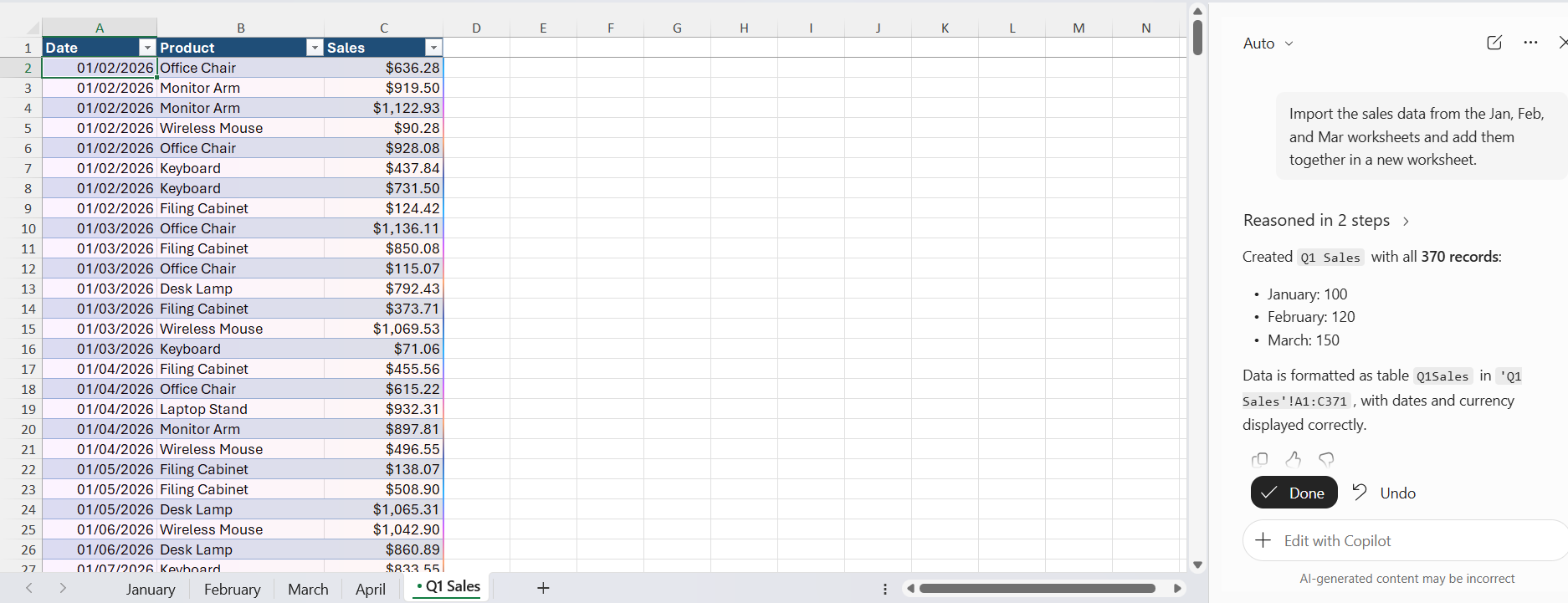
Make sure to check the result before using it.
Import Data Using a Formula
Copilot can also help create formulas that reference data from another workbook.
STEP 1: Open the workbook where you want to use the imported data.
STEP 2: Open Copilot from the Home tab.
STEP 3: Enter a prompt such as:
Create a formula to pull sales data from different worksheets – Jan, Feb, Mar and Apr.
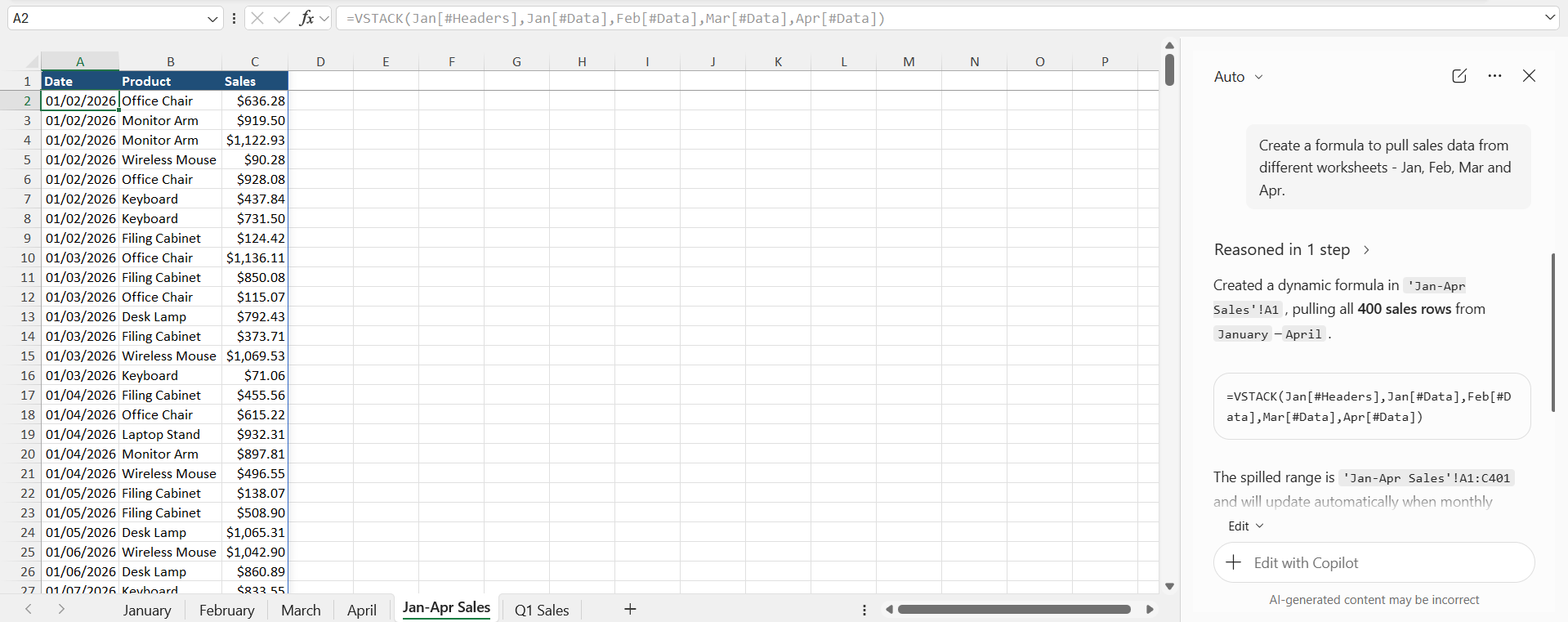
Copilot may suggest a VSTACK formula based on the information in your prompt. You should check the workbook name, worksheet name, lookup column, and return column before using the formula.
STEP 4: Review the result.
This method is useful when you want the data to update when the source workbook changes.
Tips & Tricks
- Use clear and specific prompts.
- Mention the workbook and worksheet names when possible.
- Keep the source data organized.
- Make sure column headers are the same across files.
- Check formulas created by Copilot.
- Verify imported values against the source workbook.
- Save the source files in OneDrive or SharePoint when required.
- Do not rely on Copilot without reviewing the final result.
Common Problems When Importing Data
Sometimes Copilot may not be able to access another workbook directly. This can happen if the file is stored locally or you do not have access to it. Make sure you have permission to access the source workbook. If required, save the workbook to OneDrive or SharePoint and make sure AutoSave is enabled.
Another problem can occur when the source and destination workbooks have different column names or layouts. In this case, check the structure of both files before asking Copilot to import the data.
Copilot may also produce an incorrect formula or import data in an unexpected way. Always review the result before using it in reports or calculations.
FAQs
Can Copilot import data from another workbook?
Yes, Copilot can help import data from another Excel workbook.
Can Copilot combine data from multiple workbooks?
Yes, you can ask Copilot to combine data from multiple workbooks.
Can Copilot create formulas for another workbook?
Yes, Copilot can create formulas such as XLOOKUP to reference another workbook.
Does the source workbook need to be saved online?
Some Copilot features may require the workbook to be saved in OneDrive or SharePoint.
Should I check the data imported by Copilot?
Yes, always check the imported data and formulas before using them.

John Michaloudis is a former accountant and finance analyst at General Electric, a Microsoft MVP since 2020, an Amazon #1 bestselling author of 4 Microsoft Excel books and teacher of Microsoft Excel & Office over at his flagship MyExcelOnline Academy Online Course.

 30 Days - Full Access









