 Free Practice Workbook
When you are working across multiple Excel files, merging or combining them manually can be tedious and error-prone. Microsoft Copilot can help you accomplish this task with a simple prompt. In this article, you will learn how to combine and merge Excel sheets with Copilot.
Key Takeaways:
- Copilot can combine data from multiple Excel sheets.
- VSTACK can combine data into one table.
- XLOOKUP can merge data using a common key.
- Power Query can merge large datasets.
- Always review the results before using them.
Table of Contents
Combine vs Merge Data
What is Combine Data?
Combining means inserting data from multiple tables one below the other. For example, if the
- January sales table has 100 rows
- February sales table has 120 rows
- March sales table has 150 rows
- April sales table has 30 rows
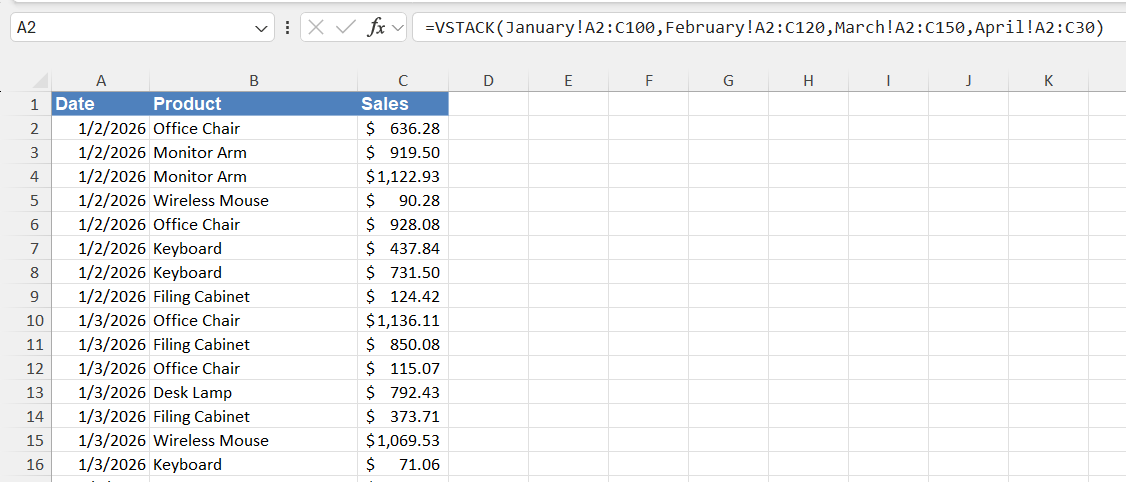
The combined table will have 400 rows. You can use the VSTACK function to combine sales data from all the months.
=VSTACK(January!A2:C100,February!A2:C120,March!A2:C150,April!A2:C30)
What is Merging?
Merging means adding columns from one sheet to another based on a key column. For example, there are two tables with different columns except for a key column called Customer ID. You need to join two datasets based on a matching column or key.
XLOOKUP or Power Query can be used to merge data from different tables.
Choose Between Combine and Merge
- You should combine tables when they have the same columns, and you want the rows together.
- You should merge tables when they have different information but a common key column.
How to Combine Excel Sheets with Copilot
Simple Prompt
STEP 1: Open the workbook that contains the sheets you want to combine.
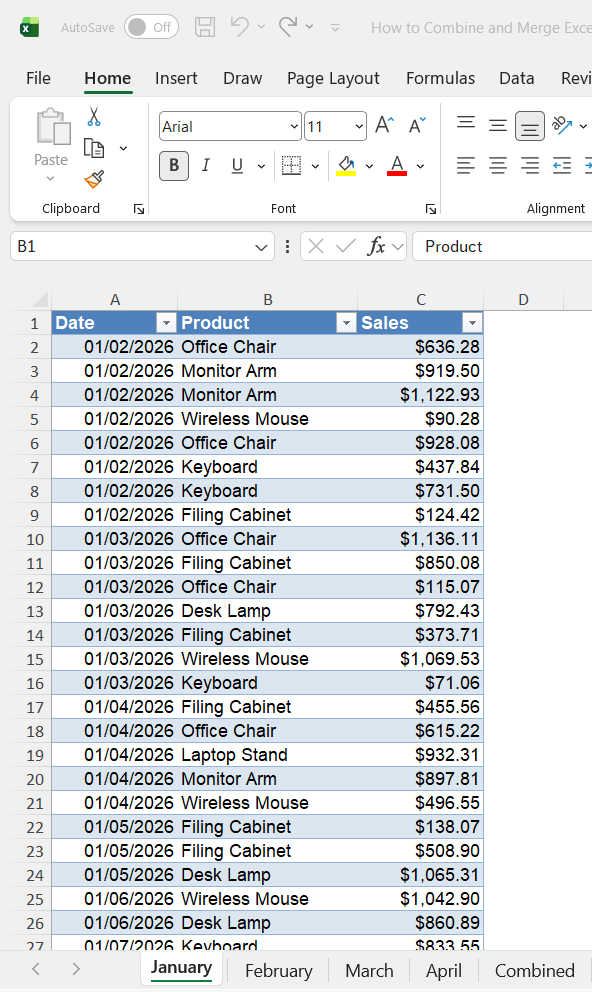
STEP 2: Go to the Home tab and select Copilot.

STEP 3: In the Copilot chat panel, enter a prompt:
Combine the data from the January, February, March, and April sheets into one table.
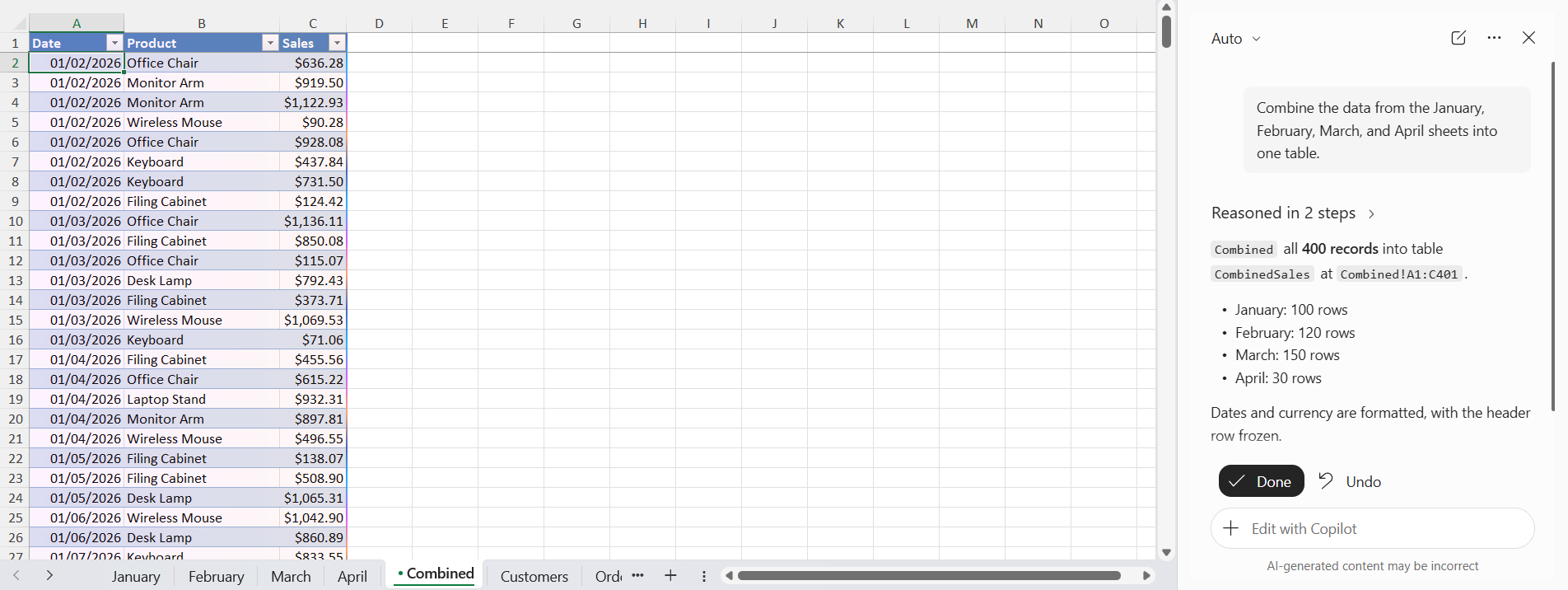
STEP 4: Make sure to review the combined data.
VSTACK Function
You can automate this process of combining the data by using the VSTACK function.
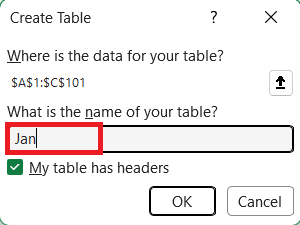
STEP 1: Convert the data into table format by pressing Ctrl + T.
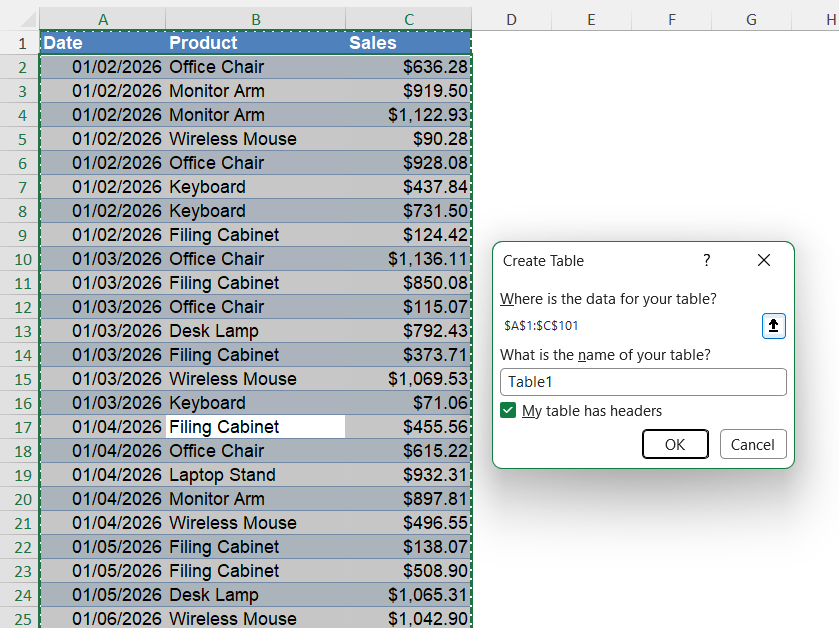
STEP 2: Name the sales data tables as Jan, Feb, Mar, and Apr.
STEP 3: Go to the Home tab and select Copilot.
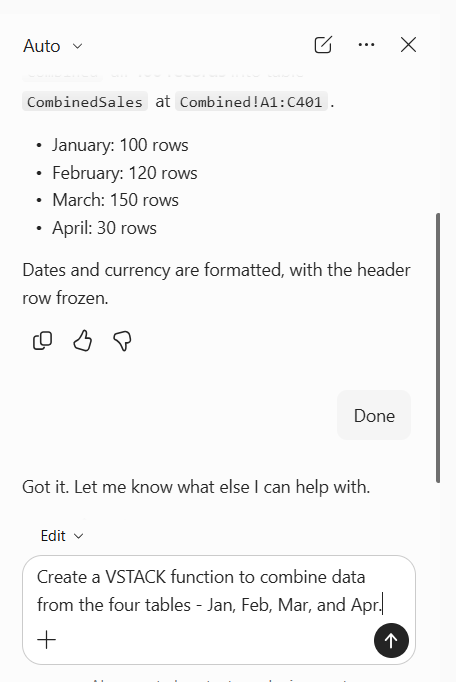
STEP 4: In the Copilot panel, enter the prompt:
Create a VSTACK function to combine data from the four tables – Jan, Feb, Mar, and Apr.
Copilot can create a formula similar to:
=VSTACK(Jan,Feb,Mar,Apr)
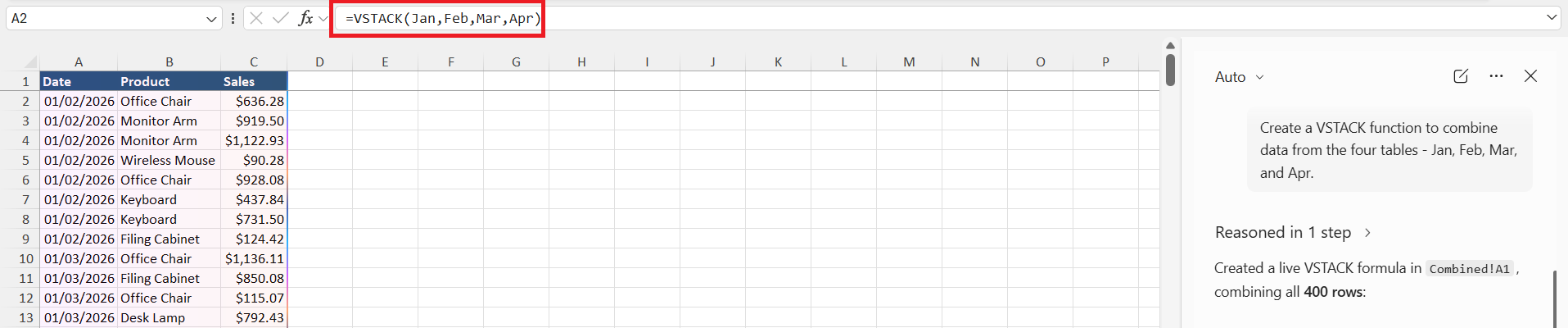
The combined table will update when you add or remove data from the source tables. Please review the formula before using it.
How to Merge Excel Sheets with Copilot
Sometimes, you do not want to add rows together but add columns from different sheets based on a key column. This is called merging data, and it can be done using Copilot.
XLOOKUP function
Suppose you have two tables.
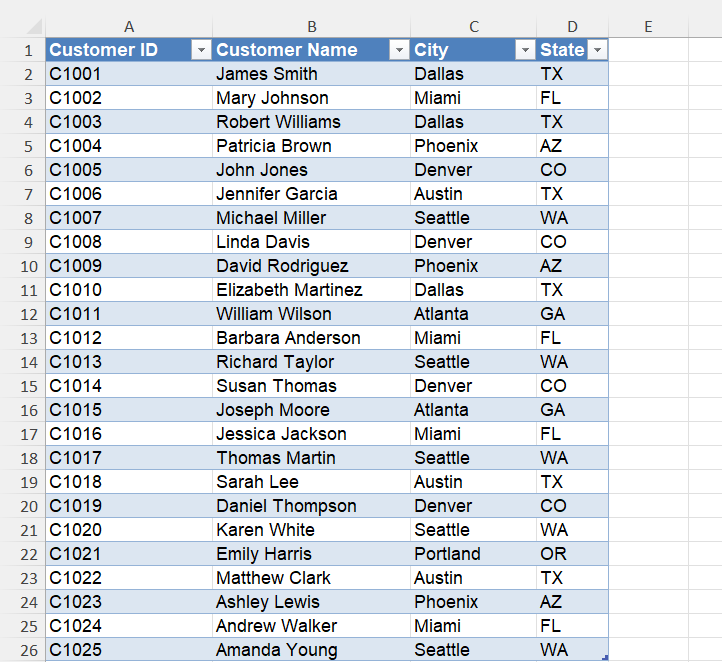
The first table contains customer information:
The second table contains customer orders:
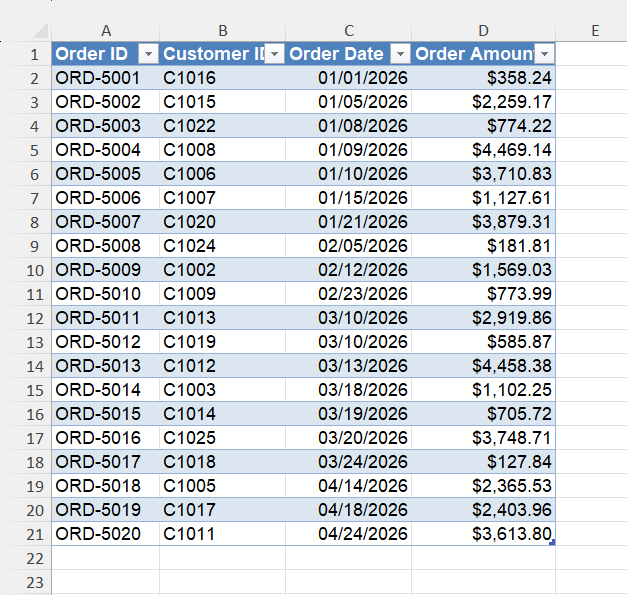
You can use Customer ID to bring the Order Amount into the first table.
STEP 2: Go to the Home tab and select Copilot.
STEP 3: Enter a prompt such as:
Use XLOOKUP to bring the Order Amount from the Orders table into the Customer table based on Customer ID.
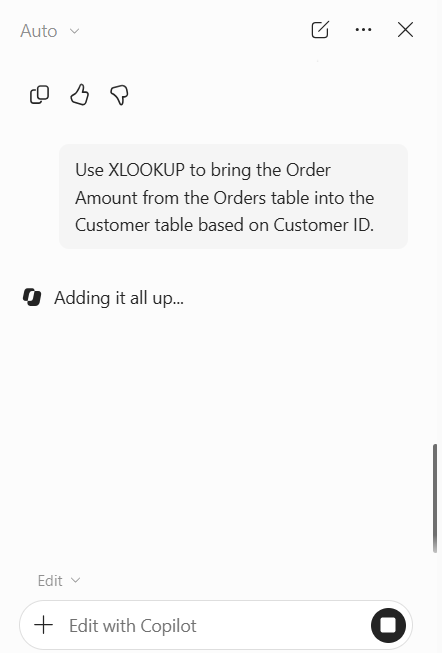
STEP 4: Review the formula suggested by Copilot.
=XLOOKUP([@[Customer ID]],Orders[Customer ID],Orders[Order Amount],””)
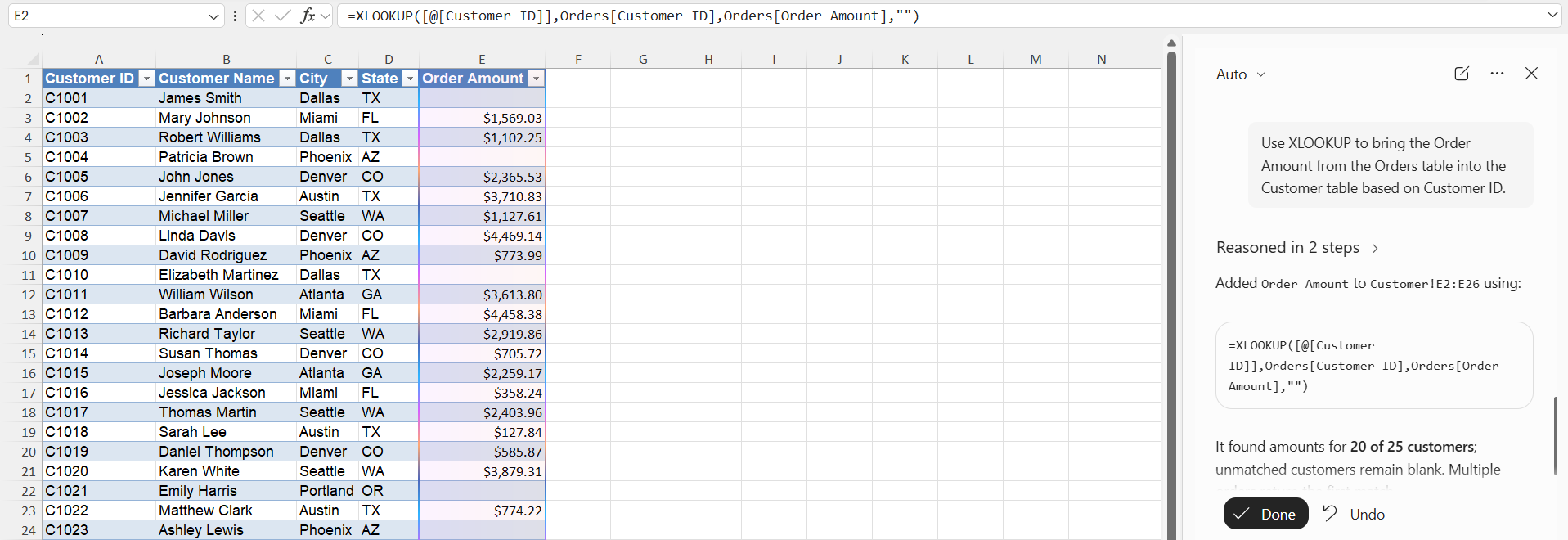
The formula will search for the Customer ID in the Orders table and return the matching Order Amount.
Power Query
Power Query is another option that can be used to merge Excel sheets with Copilot. You can ask Copilot:
Explain how to merge the Customer and Orders tables using Customer ID in Power Query.
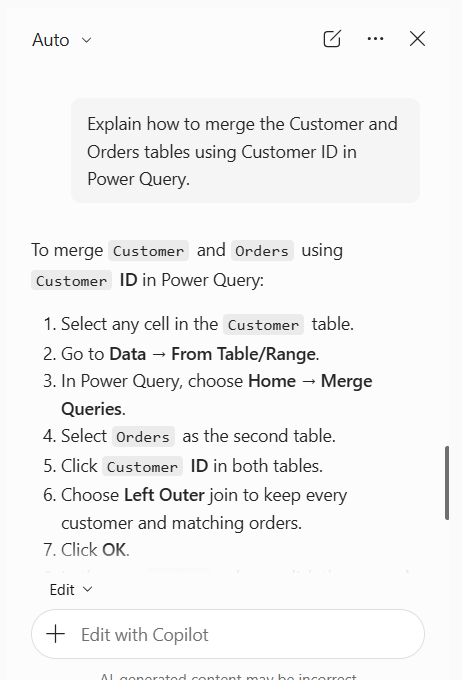
Copilot can help explain the steps and suggest which columns to use for the merge.
FAQs
1. Can Copilot combine Excel sheets?
Yes. You can ask Copilot to combine data from multiple Excel sheets into one table.
2. Which Excel function can combine multiple sheets?
The VSTACK function can combine data from multiple ranges or tables into one table.
3. Can Copilot merge two Excel tables?
Yes. Copilot can either create an XLOOKUP function to merge the data or explain the steps to use Power Query for the same.
4. What is the difference between combining and merging Excel sheets?
Combining means stacking data from multiple tables into one table. Merging means joining related data using a key column.
5. How to merge Excel sheets?
You can use Power Query to merge tables using a common column such as Customer ID or Employee ID.

John Michaloudis is a former accountant and finance analyst at General Electric, a Microsoft MVP since 2020, an Amazon #1 bestselling author of 4 Microsoft Excel books and teacher of Microsoft Excel & Office over at his flagship MyExcelOnline Academy Online Course.

 30 Days - Full Access









