Table of Contents
How to Mute in Microsoft Teams
Mute Yourself
To mute yourself in Teams, follow these steps:
- For Desktop: Click on the microphone icon at the bottom of the screen.
- For Mobile: Tap on the screen to view the bottom menu and then press Mute.
Muting Others
A presenter can control the audio settings of other participants. If they want to mute a participant, they can follow these steps:
STEP 1: Click on People.
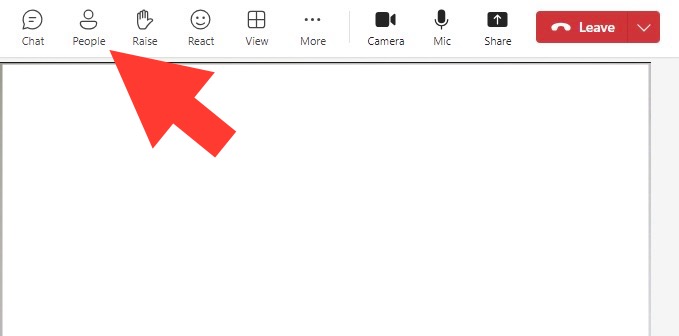
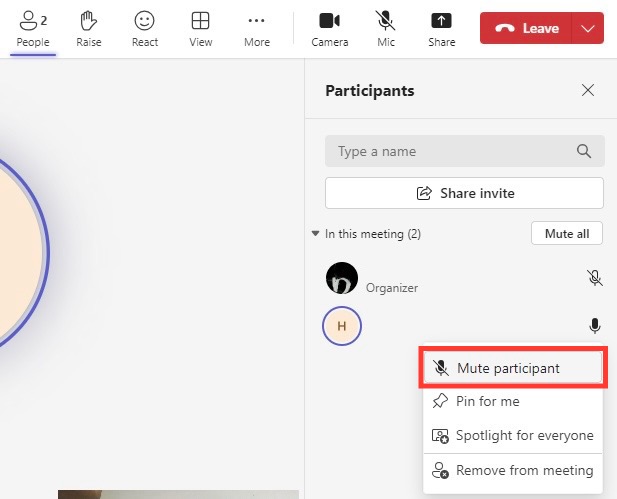
STEP 2: Click on Mute All to mute all the participants.
STEP 3: To mute a single participant, you should find their name and click on the three dots next to the mic symbol. Select Mute participant
Quick tip: Consider adding a co-organizer to handle audio controls, allowing you to focus on presenting. Go to Meeting options and choose Co-organizers.
For mobile users:
STEP 1: Tap your screen to view the bottom menu.
STEP 2: Tap Participants.
STEP 3: Select the participant that you want to mute.
STEP 4: Tap the three dots.
STEP 5: Choose Mute.
Both platforms are easy to use, but the desktop version provides more flexibility. Managing your mute functions in Microsoft Teams from any location allows for flexible participation in meetings.
- Use mobile apps to access mute controls on-the-go.
- Depend on cloud sync to keep your settings consistent across devices.
With the Teams mobile app, you have the power to mute and unmute, as well as control other aspects of the meeting right from your smartphone or tablet.
Customizing Your Audio Controls
Change Notification Settings
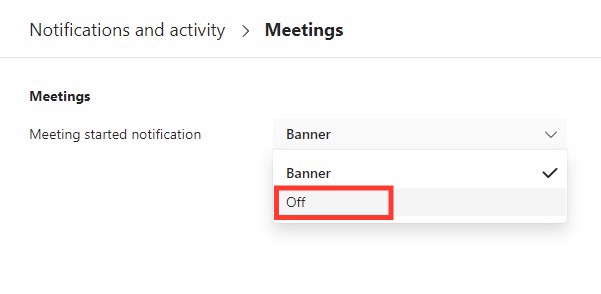
Follow the steps below to change notification settings for minimal distraction:
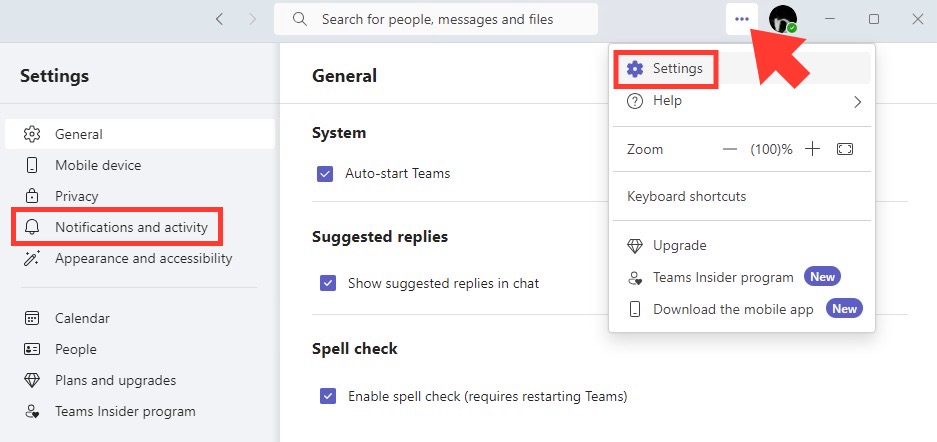
STEP 1: Click on your profile picture at the top right of Teams.
STEP 2: Select Settings.
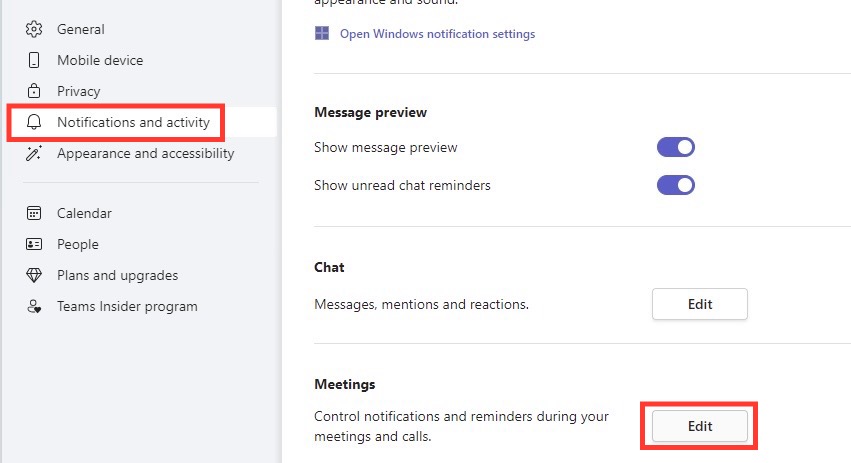
STEP 3: In the left panel, select Notifications.
STEP 4: Under each section, such as Mentions, Messages, and Other, turn off alerts.
FAQs
How to mute all participants before entering a meeting?
You can set up your Microsoft Teams meeting in a way that all participants enter muted by default.
- Go to Calendar and select your event.
- Go to Meeting options.
- Turn off Allow mic for attendees.
What to do if you are not able to unmute yourself in a Teams meeting?
If you are not able to unmute in Microsoft Teams, follow these points:
- Check with the organisers if they have applied any restrictions.
- Check if your device’s microphone is disabled.
- USe troubleshooting option under Settings.
- Restart the application.
- Contact Microsoft Support.
What are the shortcuts to mute participants on different devices?
The shortcuts to mute participants in Microsoft Teams are:
- On Windows, use Ctrl + Shift + M.
- On Mac, use Cmd + Shift + M.

John Michaloudis is a former accountant and finance analyst at General Electric, a Microsoft MVP since 2020, an Amazon #1 bestselling author of 4 Microsoft Excel books and teacher of Microsoft Excel & Office over at his flagship MyExcelOnline Academy Online Course.

 30 Days - Full Access









