Key Takeaways
- Outlook allows you to create meetings from emails.
- Meeting details can be pulled directly from the email.
- Attendees from the email can be added automatically.
- It saves you time and improves productivity.
- You can edit meeting details before sending the invitation.
Table of Contents
How to Create Meetings from Emails
To create a meeting from an email in Microsoft Outlook, follow these steps:
STEP 1: Open Microsoft Outlook and navigate to your email inbox.
STEP 2: Find and select the email message from which you want to create a meeting.
STEP 3: Click on the “Home” tab in the Outlook ribbon (the toolbar at the top of the screen).
STEP 4: Look for the “Respond” group within the “Home” tab.
STEP 5: Click on “Meeting” within the “Respond” group.
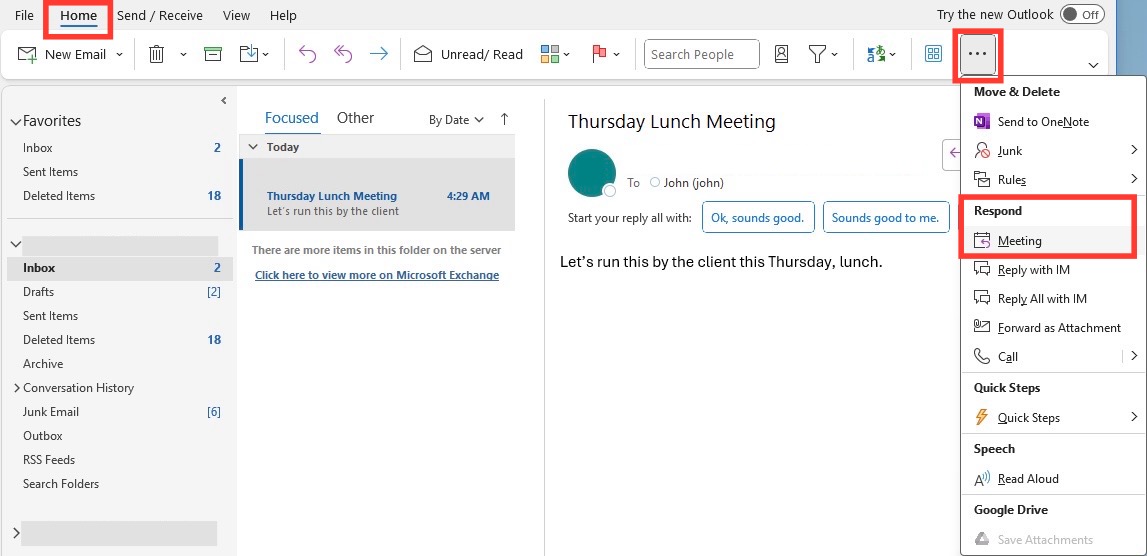
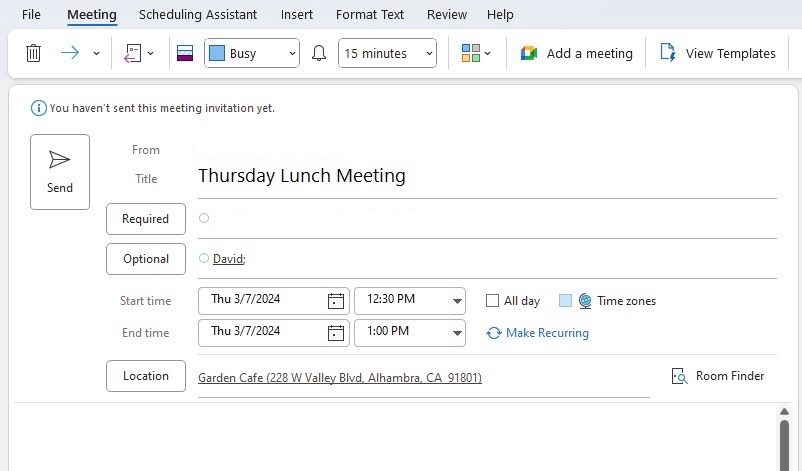
STEP 6: A new meeting request will open with the original email message included in the body of the meeting request.
STEP 7: The sender of the email will automatically be added to the “To” line as a Required attendee.
STEP 8: If there are any recipients in the “CC” field of the original email, they will be added as Optional attendees.
STEP 9: Fill in the meeting details such as Subject, Location, Start Time, and End Time.
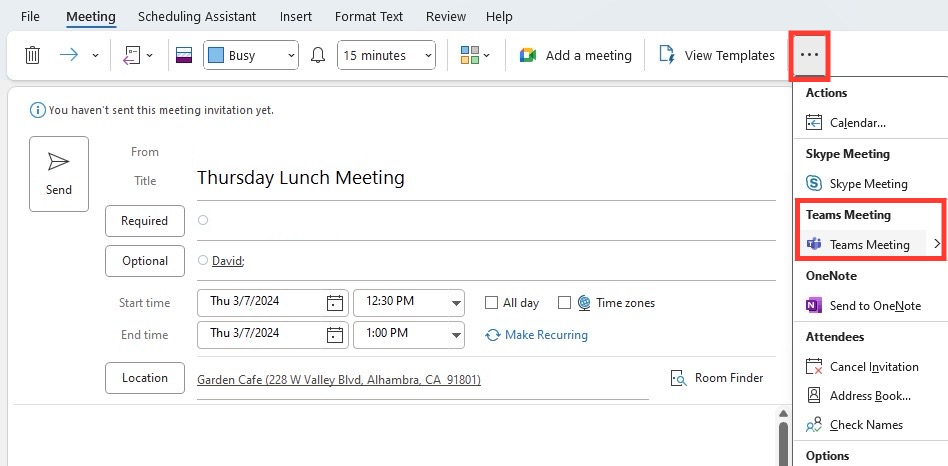
STEP 10: To convert the meeting to a Microsoft Teams meeting, click on the “Teams Meeting” button to add a Teams link.
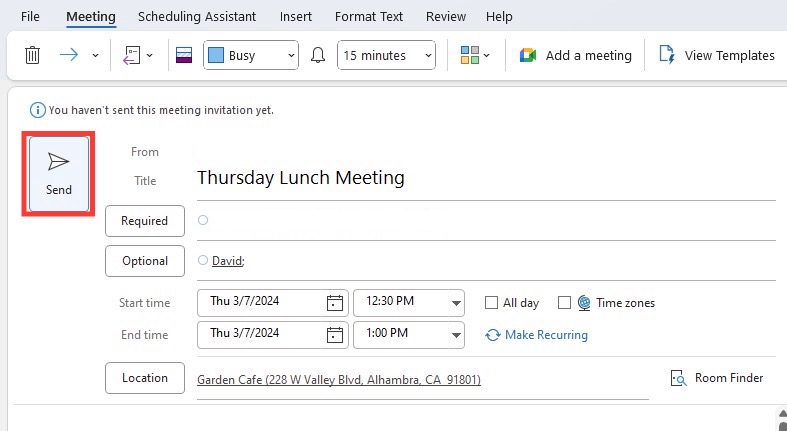
STEP 11: Review the details and make changes if required.
STEP 12: Click “Send” to send out the meeting invitations to all attendees.
Tips to Streamline the Process
Quick Shortcuts and Commands
Next, let’s turbocharge your Outlook efficiency with some keyboard wizardry! Outlook presents a plethora of shortcuts that streamline the meeting setting process. For instance, Ctrl+Shift+Q whisks you straight to a new meeting request, and Alt+S sends your invite on its merry way. Remembering a few of these can shave precious seconds off your scheduling, transforming you into an Outlook power user.
Scheduling Features You Can’t Miss
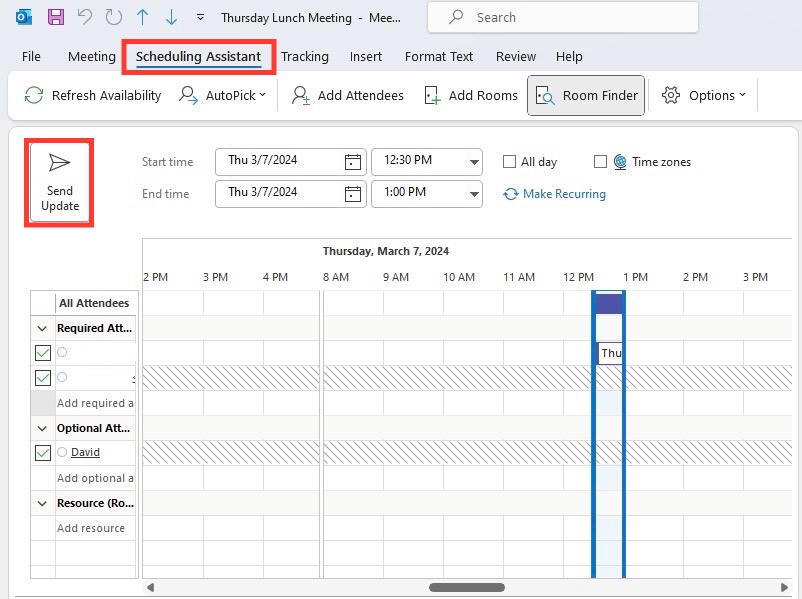
Outlook boasts remarkable features that you simply shouldn’t overlook. The Scheduling Assistant, for instance, is like having a personal planner, showing you when everyone’s available. And if you’re scheduling recurring meetings, the Repeat option ensures no one forgets the bi-weekly check-in. Plus, with the Room Finder, securing a spot for your meeting is as easy as picking a time. These features work in concert to ensure you can focus on the meeting’s content rather than get bogged down by planning logistics.
Troubleshooting Common Issues
When Outlook Doesn’t Cooperate
Sometimes, technology throws a curveball, and Outlook might not play ball. If you’re struggling to drag an email into the calendar or find that meeting invites aren’t sending, don’t fret. Often, it’s a simple fix like restarting Outlook or checking for updates. If the issue persists, a quick check of your internet connection or even the outlook support forums can offer a solution. For the less common issues, Microsoft’s support desk is just an email or a call away.
Avoiding Double Bookings and Conflicts
Double bookings and scheduling conflicts can throw a wrench into even the best-laid plans. To steer clear of these hiccups, utilize the power of Outlook’s automatic conflict detection. When you attempt to schedule a meeting, Outlook informs you if participants have prior engagements. Stay observant of these alerts and possibly activate the option for Outlook to end meetings early to allow buffer time for transit, helping everyone stay punctual and prepared.
Tips & Tricks
- Outlook helps turn individual tasks into team projects. You can assign tasks to team members directly from Outlook.
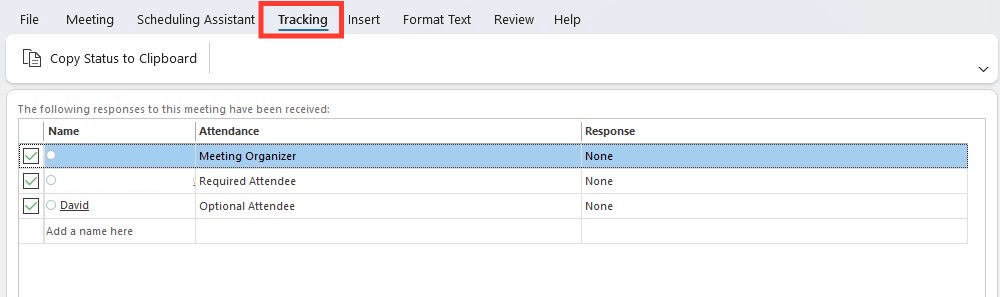
- Outlook allows you to track the responses of the attendees in one place. You can see who accepted, declined, or has not responded in the form of a dashboard.

- You can also schedule recurring meetings in Outlook. You can set meetings to repeat daily, weekly, monthly, or yearly.
- Room Finder helps you locate available meeting rooms quickly.
- Scheduling Assistant shows attendees’ availability in one view.
FAQs
How to create meetings from emails?
To create meetings from emails,
- Click on Home > Meeting
- This will open a new meeting request with the email contents and recipients as attendees
If you want a Teams meeting, click “Teams Meeting”.
How to schedule a meetings from email conversation?
To open the email,
- Click the three dots in the message view
- Select Meeting
- A new meeting invite will pop up with the email recipients pre-added
- Adjust the details
- Hit send
How to attach the original email to the Outlook meeting invitation?
To attach the original email to an Outlook meeting invitation,
- Select the ‘Attach Item’ option from the ribbon
- Choose ‘Outlook Item’
- Find the original email
- Attach it
Is it possible to create recurring meetings from a single email thread?
Absolutely, you can create recurring meetings from a single email thread in Outlook. After turning your email into a meeting invite, choose ‘Recurrence’ from the ribbon to set the frequency, pattern, and range of recurrence before sending out the invitation.

John Michaloudis is a former accountant and finance analyst at General Electric, a Microsoft MVP since 2020, an Amazon #1 bestselling author of 4 Microsoft Excel books and teacher of Microsoft Excel & Office over at his flagship MyExcelOnline Academy Online Course.

 30 Days - Full Access









