Managing the Attendee List
Understanding who to loop into your meeting can be likened to crafting a guest list for a special event. In the Outlook universe, it’s handy to know that not everyone needs to be an MVP. Making attendees optional in Outlook is what you need to do when you want to keep them in the loop with the freedom to join at their discretion. Think of them as your informed bystanders — aware and able to step in if needed, but not obligated.
By clearly separating out the must-haves from the nice-to-haves on your attendee list, you’re communicating priorities and maintaining an organized approach to meeting management.
Download our 141 Free Excel Templates and Spreadsheets!
Key Takeaways
- Outlook makes scheduling and managing meetings simple and organized.
- You can provide information to the Optional attendee, without forcing them to attend.
- Separating required and optional attendees sets clear priorities.
- Optional attendees are useful when input is helpful but not critical.
- Clear invites and updates keep everyone aligned and confusion-free.
Table of Contents
Add Optional Attendees in Outlook
You can easily add optional attendees to your Outlook meeting by following the steps below –
STEP 1: Open your Outlook calendar.
STEP 2: Select New Meeting.
STEP 3: Fill in the required attendees in the To field.
STEP 4: Go to the Optional field.
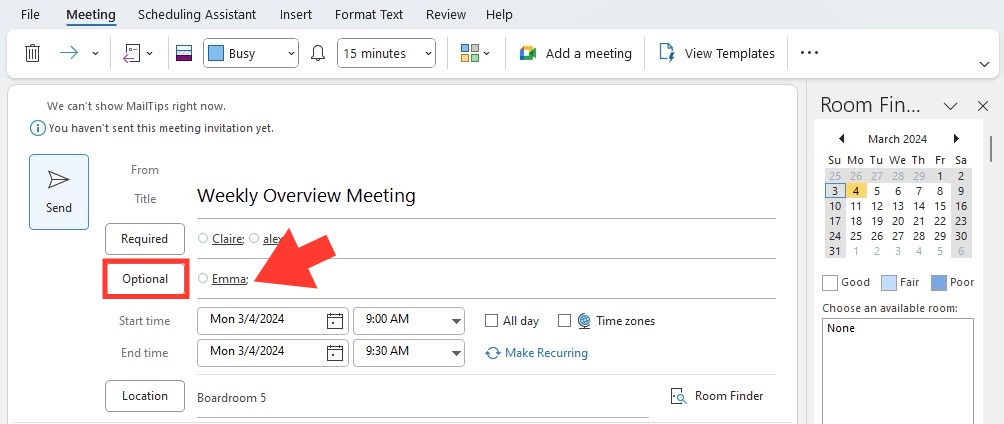
STEP 5: Enter the email addresses of those you’re inviting on an optional basis.
STEP 6: Hit Send.
For Mobile:
STEP 1: Open the Outlook app and tap on the calendar icon.
STEP 2: Tap ‘+’ to create a new meeting.
STEP 3: Required attendees go in the ‘Invitees’ section.
STEP 4: Tap on the ‘People’ sign to include optional attendees.
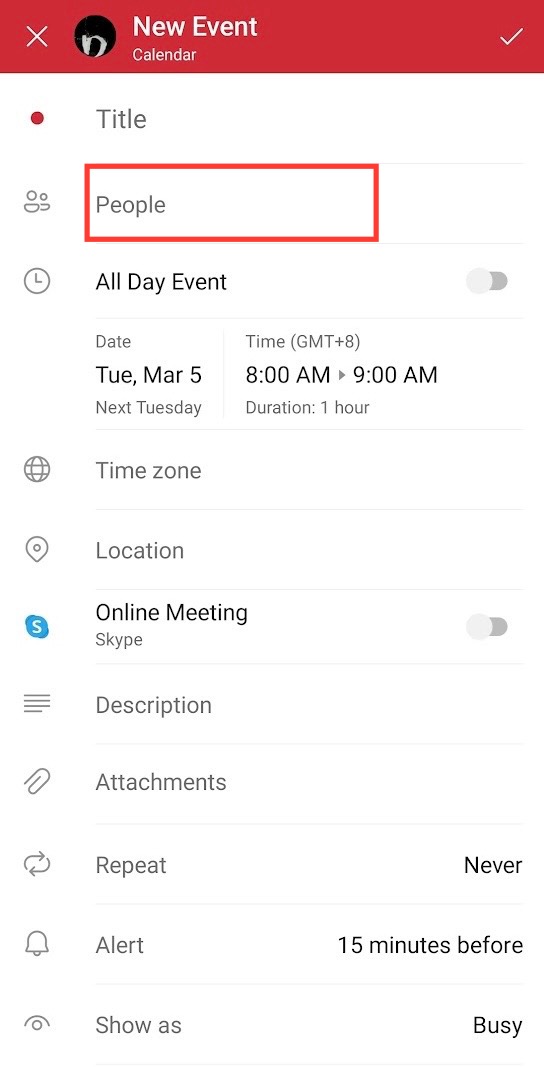

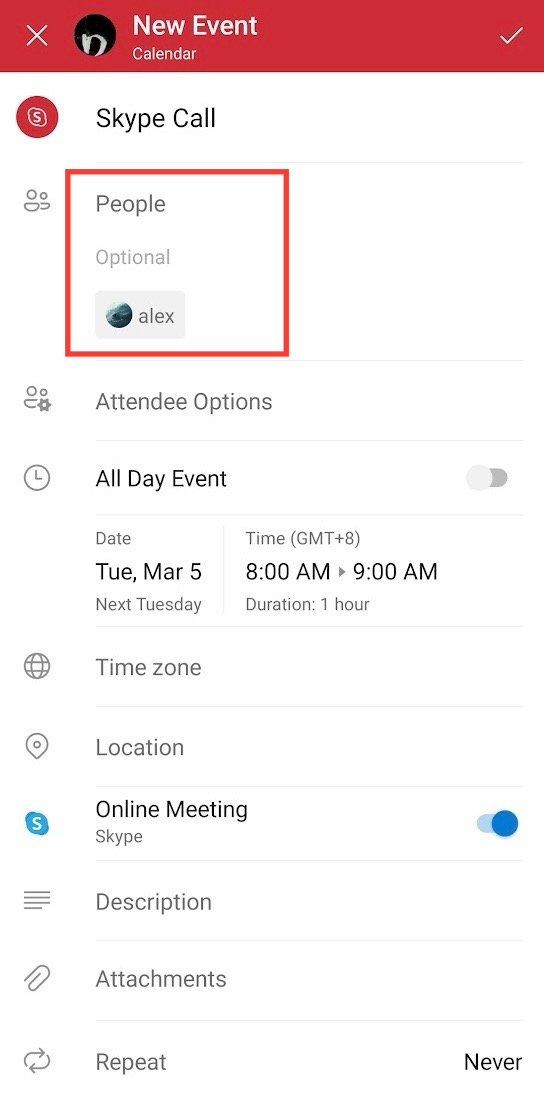
STEP 5: Fill in the meeting details and tap ‘Send’.
Adapting these steps to your device makes sure that everyone, required or optional, gets looped into the meeting without hiccups, and your invite list is always spot-on, no matter where you are.
FAQs
Mention the difference between optional and required.
Below are the differences between required and optional attendees –
- Required – It is necessary for these participants to attend the meeting. Their presence and input are important and required for the meeting.
- Optional – It is not necessary for these participants to attend the meeting. They were included in the meeting invite, but their attendance is not important, and the meeting can proceed without them.
Can optional attendees view the responses of other participants?
If the organizer has enabled the Request Response feature, the optional attendees will be able to see each other’s responses. This helps us in maintaining transparency and provides everyone with information about who will be attending the meeting.
How do changes to a meeting invite impact optional attendees?
When you make any changes to the meeting, like a new meeting time, location, or agenda, both required and optional attendees are informed. They receive the same notification at the same time.
Can we change the attendee’s status from required to optional?
You can change an attendee’s status from required to optional after the invite has been sent.
- You need to first open the meeting request.
- Move the attendee to the optional field
- Send the update.
Once you have sent the update, the participants will be informed about this change.

John Michaloudis is a former accountant and finance analyst at General Electric, a Microsoft MVP since 2020, an Amazon #1 bestselling author of 4 Microsoft Excel books and teacher of Microsoft Excel & Office over at his flagship MyExcelOnline Academy Online Course.

 30 Days - Full Access









