 Free Practice Workbook
Paid Time Off accrual is a common requirement for HR departments and managers. Employees typically earn a set number of vacation or leave hours each pay period or month. Tracking this manually can be error-prone. Excel allows you to calculate PTO balances easily. In this guide, we will learn how to build a PTO accrual calculator in Excel.
Key Takeaways
- PTO accrual can be calculated by multiplying accrual rates by time worked.
- Excel can calculate balances automatically as employees accumulate leave hours.
- Use a helper columns for start dates, accrual rates, and rollover logic.
- Conditional formatting and dashboards can highlight employees at risk of exceeding limits.
Table of Contents
What is PTO Accrual?
PTO accrual is a process used to calculate how much an employee is earning based on leave hours. For example, if an employee earns 8 hours of PTO for each month, at the end of the month PTO allocated will be 96 hours. It is used for vacation, personal time, sick leave, etc.
How to PTO Accrual Calculator in Excel
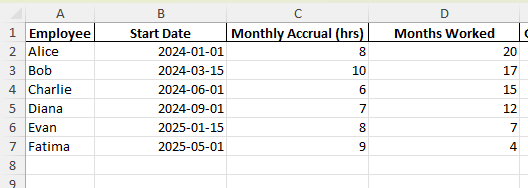
STEP 1: Create the Data Table with the following columns:
STEP 2: Add a new column with the name Gross Accurred. Type this formula:
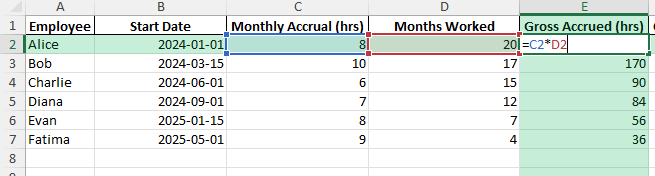
This multiplies the monthly accrual rate by the number of months worked to calculate total PTO accrued.
STEP 3: Drag the formula down the column to calculate accrued PTO for each employee.
STEP 4: You can use an IF formula to apply a rollover and maximum limit.

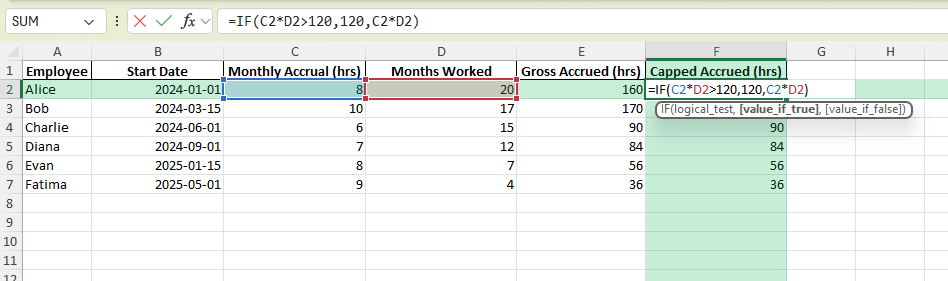
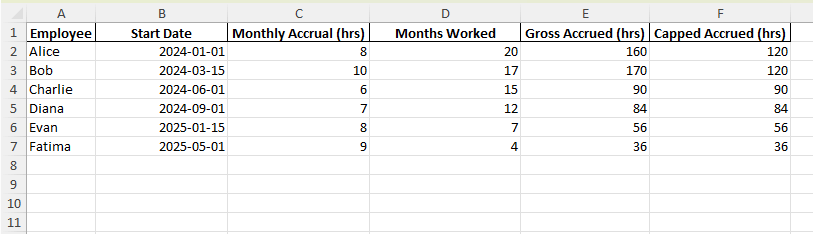
This will make sure that no employee accrues more than 120 hours of PTO.
Common Mistakes and How to Fix Them
- Make sure the “Months Worked” column is accurate by using
=DATEDIF(StartDate,TODAY(),"m"). - Apply caps using IF formulas to avoid over-calculation.
- Ensure the sheet refreshes monthly or use
=TODAY()for dynamic updates. - Decide on a consistent unit (hours or days) and use it across the sheet.
- Add data validation to ensure accrual rates and months worked are numeric.
Tips & Tricks
- You can use DATEIF and TODAY function to calculate the months worked.
- You can use conditional formatting to highlight employees who are about to reach the maximum accrual limit.
- You can use Power Query to import employee records from the HR system to Excel.
- You can also add a helper column to separate current year accrual and rollover balances.
Use cases of PTO Calculator
- HR Department – Create a PTO calculator to track PTO accruals, balances, and leave usage.
- Small Business – It is useful for small businesses as this reduces the need to use expensive software to manage PTO.
- Employee Self Service – Employees can use the PTO calculator to view their balances and leave history.
- Management Reporting: Monitor PTO liabilities and generate reports for workforce and financial planning.
- Compliance and Record Keeping: Maintain accurate leave records to support audits and labor law requirements.
FAQ
What is PTO accrual?
PTO accrual is the process of employees earning paid leave over time.
How to calculate PTO accrual in Excel?
You can multiply the accrual rate by the time worked using a simple multiplication formula.
Can Excel track PTO balances automatically?
Yes. Excel updates PTO balances when the data changes.
Can Excel handle negative balances?
Yes, you can subtract PTO used from accrued PTO. Negative results will show if employees have taken more than they have earned.
How to convert PTO hours into days?
You can divide total hours by standard daily hours to convert PTO hours into days.
=E2/8

John Michaloudis is a former accountant and finance analyst at General Electric, a Microsoft MVP since 2020, an Amazon #1 bestselling author of 4 Microsoft Excel books and teacher of Microsoft Excel & Office over at his flagship MyExcelOnline Academy Online Course.

 30 Days - Full Access









