 Free Practice Workbook
Key Takeaways
- Excel offers built-in rounding functions like ROUND, ROUNDUP, and ROUNDDOWN.
- To round to the nearest cent, use 2 as the number of digits in your formula.
- Formatting cells will only affect display, not the underlying value.
Table of Contents
Understand Rounding in Excel
In Excel, rounding formulas can adjust numerical data to a specified degree of precision. The most commonly used function for rounding numbers is ROUND.It allows you to specify the number of decimal places you need. For instance, ROUND(A1, 2) rounds the number in cell A1 to the nearest cent, i.e., two decimal places.
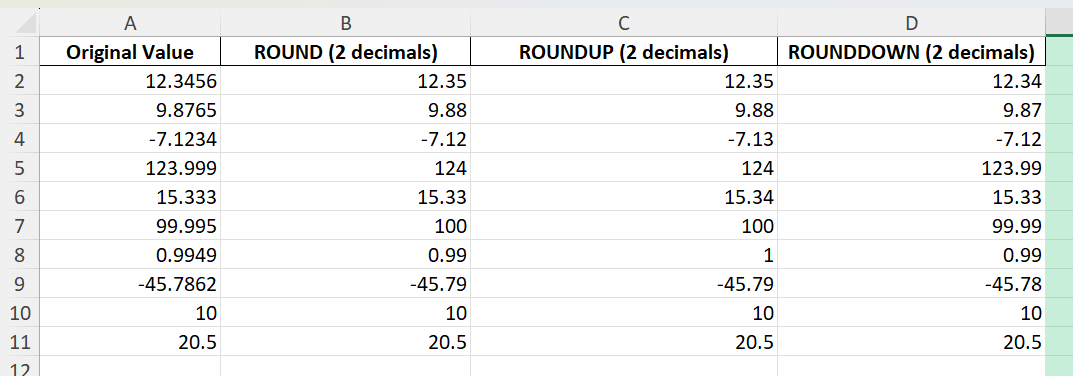
Excel also provides ROUNDUP and ROUNDDOWN functions to round values up or down regardless of their decimal part.
How to Round to Nearest Cent
ROUND Function
To round to the nearest cent, enter the following formula in cell B2:
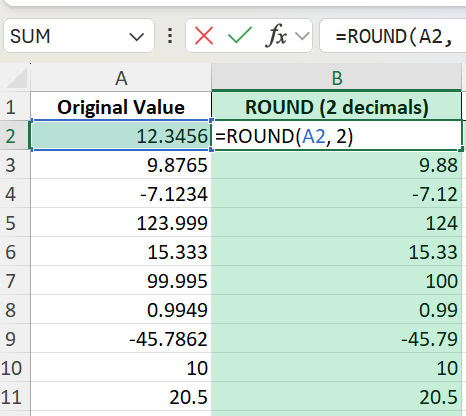
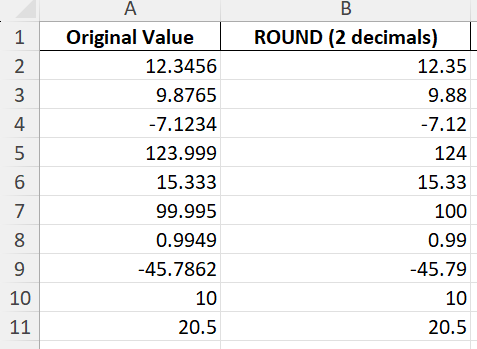
This formula tells Excel to round the value in A2 to two decimal places. The result will be 12.35.
ROUNDUP and ROUNDDOWN
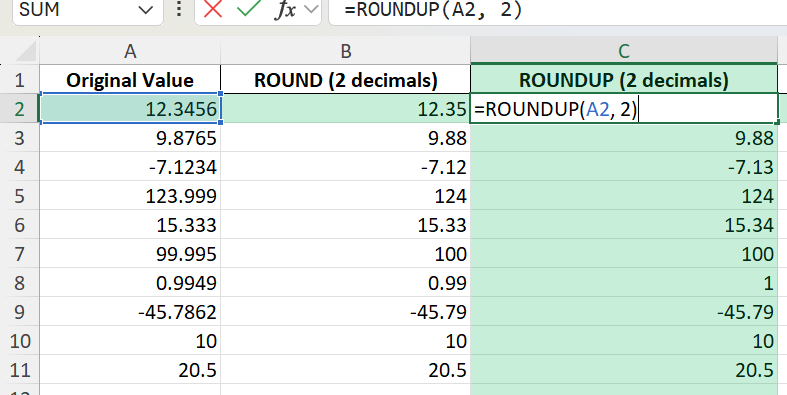
Use the ROUNDUP function to round up to the next cent.
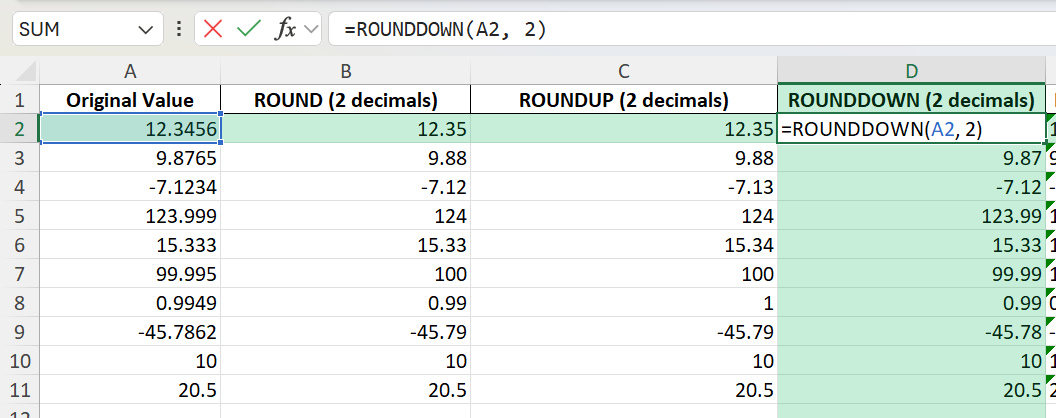
Use the ROUNDDOWN function to round down to the previous cent.
AutoFill and Copy Formulas
To apply rounding to an entire column of values,
- Drag the fill handle down, or
- Double-click the handle for an automatic fill.
Tips & Tricks
- When you format a cell, it will change how the number looks. The actual value stays the same when used in a calculation.
- To round a number to the nearest whole number, use this formula: =ROUND(A2, 0)
- You can combine the SUM and ROUND functions to calculate totals.
- If you import data from another system, it may contain more than two decimals.
Bonus Tips and Advanced Scenarios
Using Power Query to Round Values
When working with large datasets, you can use Power Query’s “Number.Round” function.
In the Power Query Editor, add a custom column:
Number.Round([Amount], 2)
This will automate rounding during data import only.
Using VBA for Batch Rounding
You can automate rounding for a range of cells using VBA:
Sub RoundToCent()
  Dim cell As Range
  For Each cell In Selection
    If IsNumeric(cell.Value) Then
      cell.Value = Round(cell.Value, 2)
    End If
  Next cell
End Sub
- Select your data
- Run this macro
- All numbers will be rounded to two decimals.
Conditional Rounding
Sometimes you only want to round numbers above or below a certain threshold. For example:
=IF(A2>100, ROUND(A2, 2), A2)
This only rounds values greater than 100.
Advanced Rounding Techniques
Negative Numbers
The ROUND function in Excel treats negative numbers similarly to positive ones.
= ROUND(-1.256, 2)
= -1.26
However, functions like ROUNDUP and ROUNDDOWN may need specific attention, as they always round numbers away from zero or towards zero.
Nesting Formulas
You can combine ROUND with functions such as SUM, AVERAGE, or IF. It will allow you to simultaneously calculate and round results.
= ROUND(SUM(A1:A10)/COUNT(A1:A10), 2)
This will calculate the average of numbers in a range and round it to the nearest cent.
FAQ
What is the difference between formatting and rounding in Excel?
Formatting only changes how a number looks. Rounding changes the actual value. For calculations, always use a formula like ROUND.
How to round negative numbers to the nearest cent?
Rounding works for both positive and negative values. You can use this formula:
=ROUND(-12.3456, 2)
-12.35
How to round multiple columns at once?
You can use a helper column to create the rounding formula. Then, copy and paste as values if needed.
Can I use rounding with IF or SUM functions?
Yes, you can nest ROUND inside IF, SUM, and other formulas for complex calculations.
Is there a shortcut to round all values in a table?
For large ranges, use Power Query or a VBA macro to automate rounding for the entire dataset.

John Michaloudis is a former accountant and finance analyst at General Electric, a Microsoft MVP since 2020, an Amazon #1 bestselling author of 4 Microsoft Excel books and teacher of Microsoft Excel & Office over at his flagship MyExcelOnline Academy Online Course.

 30 Days - Full Access









