 Free Practice Workbook
Rounding numbers in Microsoft Excel is important for ensuring accuracy in financial reports and data analysis. This article discusses the significance of precise rounding, explores Excel’s various rounding functions, and offers step-by-step guidance on rounding to the nearest dollar using the ROUND, ROUNDUP, ROUNDDOWN, MROUND, FLOOR, and CEILING functions.
Key Takeaways:
- Accurate rounding is essential for presenting financial data clearly and adhering to accounting standards.
- Excel offers multiple rounding functions, each suited for different rounding needs and scenarios.
- The ROUND function is versatile, allowing for precise control over rounding up or down to a specified number of digits.
- The CEILING and MROUND functions offer specialized rounding options for pricing strategies and rounding to specific increments.
- Properly applied rounding techniques can streamline data analysis, improve readability, and minimize calculation errors.
Download the spreadsheet and follow along with the tutorial on How to round to the nearest dollar in Excel – Download excel workbookRound-to-the-Nearest-Dollar-Easily-and-Accurately.xlsx
Table of Contents
Introduction to Rounding in Excel
When working with financial figures, it is important to use rounding functions to present data. It will make sure that the figures are displayed in a standard accounting format. You may also require rounding to display amount to the nearest dollar for budgeting and forecasting.
Excel’s rounding capabilities are versatile, providing you with several functions that can handle almost any rounding task you may come across. Understanding these capabilities allows for precision and control over your data. Excel doesn’t simply trim off excess digits; it uses specific rounding rules that you can customize according to your needs. By grasping how different rounding functions work, you can adapt your approach to different scenarios, whether you’re preparing financial statements, performing statistical analysis, or managing a complex dataset.
Methods for Rounding to the Nearest Dollar in Excel
ROUND Function
When it comes to rounding numbers in Excel, the classic ROUND function is the go-to tool. It’s straightforward and flexible, capable of rounding your numbers either up or down to a specific number of digits. Let’s say you need to present your financial data rounded to the nearest dollar. Here’s how to do it:
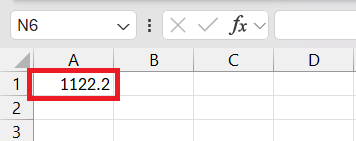
STEP 1: In cell A1 enter the number that is to be rounded off.
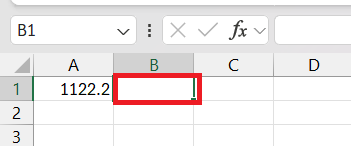
STEP 2: Select cell B1, where the rounded-off result will be displayed.
STEP 3: Enter the formula:
=ROUND(A1, 0)
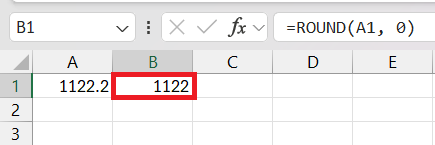
If the number of digits is set to 0, Excel will round the value to the nearest whole number. It is useful to create reports where you want to remove the cents from the currency figures.
ROUNDUP and ROUNDDOWN Function
The ROUNDUP and ROUNDDOWN functions can be used when you want to get more control over the direction of rounding.
- ROUNDUP will always round a number up and away from zero. It is used when you are estimating cost so that you are more conservative.
- ROUNDDOWN will always round down the number, closer to zero. It is used for an optimistic forecast when you are budgeting.
For ROUNDUP:
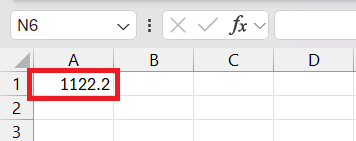
STEP 1: In cell A1 enter the number that is to be rounded up
STEP 2: Select cell B1, where the rounded-up result will be displayed.
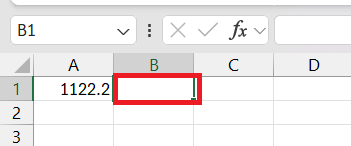
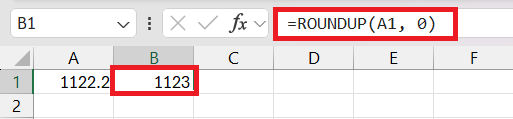
STEP 3: Enter =ROUNDUP(A1, 0) into the cell B1. Press Enter to round the value in cell A1 up to the nearest dollar.
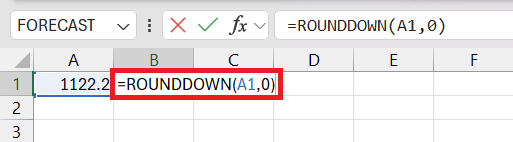
For ROUNDDOWN:
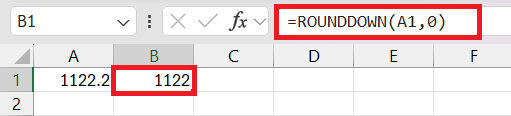
STEP 1: Similarly to the steps used above, in cell B1 use =ROUNDDOWN(A1, 0) in the formula bar.
STEP 2: Hit Enter to round the value in cell A1 down to the nearest dollar.
Advanced Techniques
CEILING Function
The CEILING function in Excel is a great tool to round up to a particular multiple. The syntax of the CEILING function is:
=CEILING(number, significance)
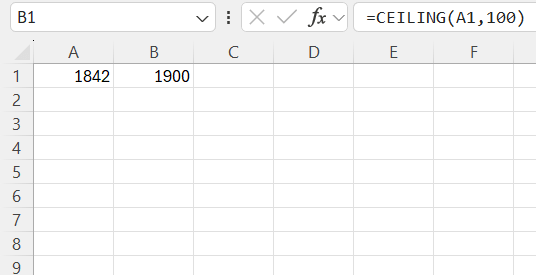
It is useful to round up prices to the nearest dollar. In the example below, you can use the CEILING function to round up the price to the nearest 100.
MROUND Function
The MROUND function is your precision artist in Excel; it smartly rounds a number to your desired multiple. So if you’re aiming to round to the nearest dollar, MROUND is your friend. It is particularly useful when you need your figures to be in specific increments—like rounding times to the nearest quarter-hour or adjusting measurements to the nearest half unit.
Here’s how to wield the MROUND function:
- Enter
=MROUND(value, multiple)wherevalueis the number you want to round. - And
multipleis the nearest increment to which you want to round the number. - Hit Enter, and Excel rounds your value to the nearest multiple you provided.
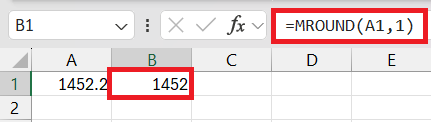
For example, if you’re rounding up to the nearest dollar, =MROUND(A1, 5) would round up the value in cell A1 to the next dollar.
Real-World Examples
Retail Inventory
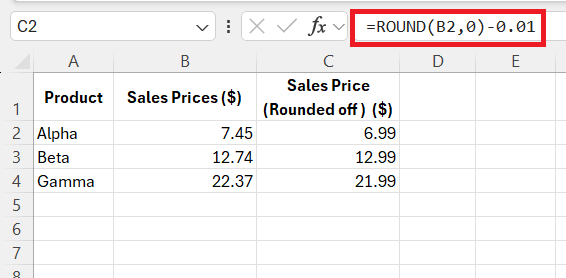
Rounding plays an important role when working on pricing strategies. Retailers may want to set prices in multiples of 0.99 so that they look cheaper.
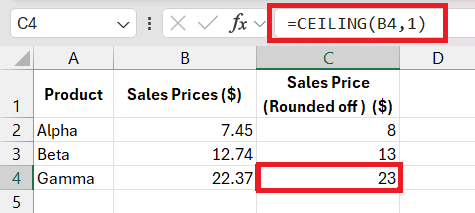
Some retailers may want to set prices to the nearest dollar for simple pricing.
Managing Financial Reports
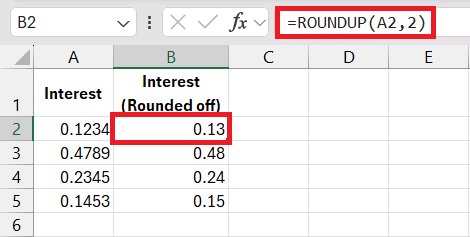
Rounding is also a key player in managing financial reports, particularly for interest payments. When interest payments are small, they can carry over several decimal places, but it’s standard practice to round these to two places for reporting purposes.
Let’s consider a bank that manages customer savings accounts where interest is calculated daily. When it’s time to credit accounts, they need to round the interest payment to the nearest cent before applying it. They use the ROUNDUP function, ensuring that customers always receive a slightly generous interest amount.
The formula they apply is =ROUNDUP([Interest Payment Amount],2), which rounds up the interest payments to the next highest penny. This establishes trust and goodwill, as customers perceive the bank as fair and possibly more generous.
Additional Tips
Dealing with Decimals
Dealing with decimals in Excel doesn’t have to be confusing. Embracing a few tips and tricks can help you manage decimals effectively:
Use the Increase/Decrease Decimal Buttons: Quickly adjust the number of decimal places displayed without affecting the cell’s actual value. Perfect for quick formatting.

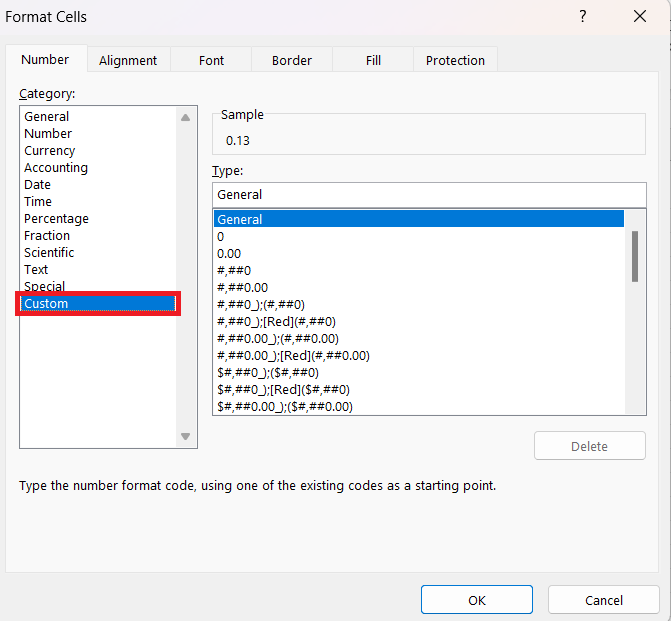
Apply a Custom Format: Tailor how Excel displays numbers by customizing the number format. This way, cells can show rounded numbers while retaining their original decimal values for calculations.
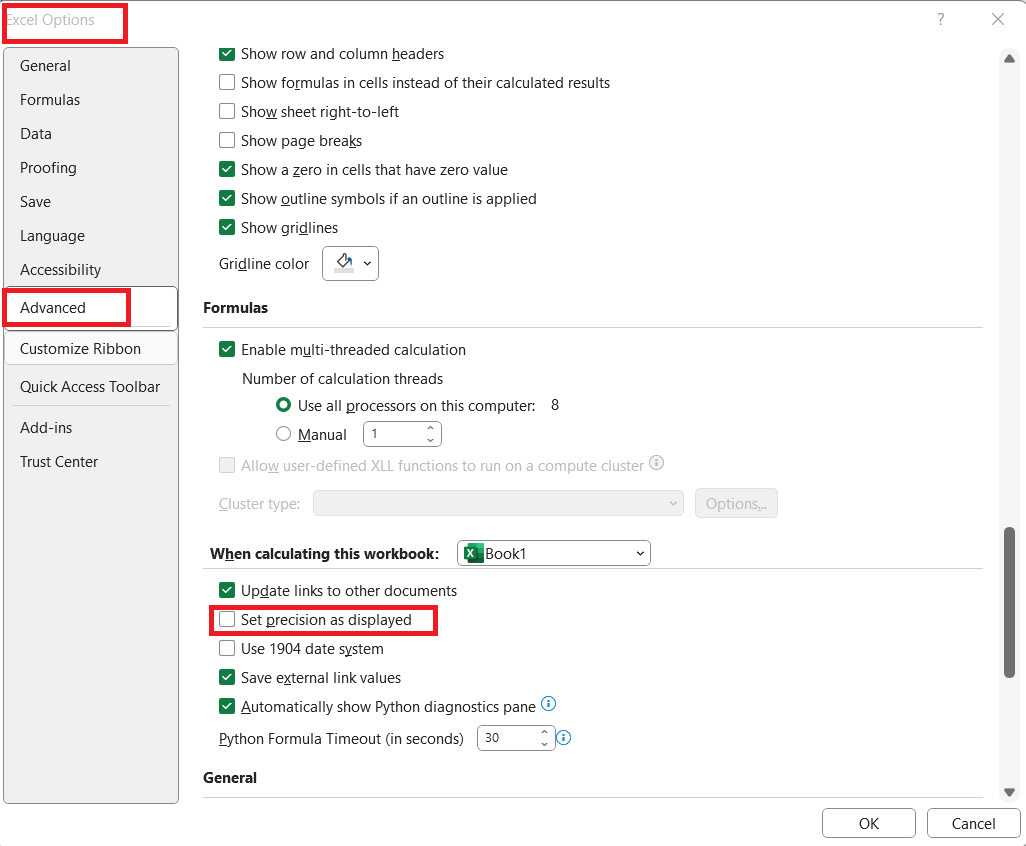
Set Precision as Displayed: In the Excel options, there’s a setting to “Set precision as displayed,” which will round stored values to the displayed format. Use this with caution as it changes the actual data.
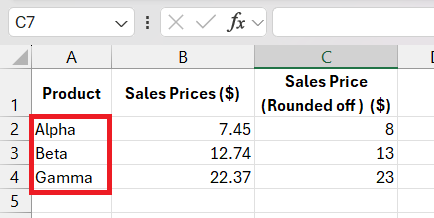
Consider Using Helpers Columns: If you need to maintain the original values and the rounded ones, helper columns can keep your workbook organized and your calculations accurate.
Avoiding Common Mistakes
- Make sure that the number of decimal places mentioned in the formula is correct.
- Use ROUNDDOWN when you want to reduce the number.
- Remember that
CEILINGrounds up, andFLOORrounds down to the nearest specified multiple. - Remember that Custom Number Formats round numbers for display only, not the underlying data, which could cause discrepancies in calculations.
Excel’s Formatting Options
Decrease Decimal Button
For those times when you’re making a presentation or preparing a report and require numbers rounded only for visual clarity, Excel’s Decrease Decimal button offers a one-click solution. Here’s how to leverage this feature:
STEP 1: Select the cells with the numbers you want to format.
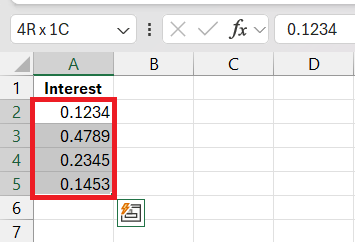
STEP 2: Round to the Nearest Dollar Easily and Accurately – 1Click the Decrease Decimal button (with the zero and arrow pointing left) in the toolbar.

STEP 3: With each click, Excel decreases the number of decimal places by one.
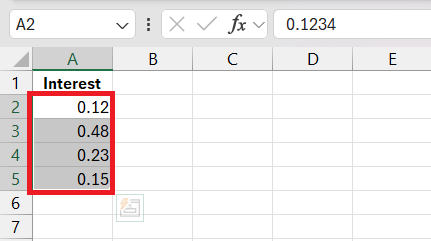
The decrease decimal button lets you change the display without changing the actual value.
FAQs
What is the difference between the ROUND and MROUND?
The ROUND function in Excel rounds a number to a specified number of decimal places. The MROUND function rounds a number to the nearest specified multiple.
How to round to the nearest dollar while keeping cents visible?
Yes, you can round to the nearest dollar while keeping cents visible using custom formatting in Excel. Set the cell format to show two decimal places, which keeps the appearance of cents, but use a rounding function, like ROUND or MROUND, to ensure the underlying value is rounded to the nearest dollar. This way, your data retains its original precision while the displayed value shows the rounded figure.
Apply rounding for calculations, but retain cent details for display.
How to round numbers to the nearest dollar in Excel?
To round numbers to the nearest dollar in Excel, you can use the ROUND function. Simply input =ROUND(A1, 0) in a cell, where A1 is the cell containing the number you want to round. This function will round the value in A1 to the nearest whole number, effectively giving you the nearest dollar amount.
Use ROUND with 0 decimal places for nearest dollar rounding.
How to round to the nearest $5 in Excel?
You can use the MROUND function to round to the nearest multiple of 5 dollars.
=MROUND(A1, 5)
This function is suitable for pricing, budgeting, or cost estimates with base-5 increments.
How to use the round function?
You can use the function below to use the ROUND in Excel:
=ROUND(number, num_digits)
The num-digits argument tells Excel how many the number of decimal places you want the number rounded to.

John Michaloudis is a former accountant and finance analyst at General Electric, a Microsoft MVP since 2020, an Amazon #1 bestselling author of 4 Microsoft Excel books and teacher of Microsoft Excel & Office over at his flagship MyExcelOnline Academy Online Course.

 30 Days - Full Access









