Free Practice Workbook
Copilot can be used to make edits in the workbook directly, but the result may not always follow your preferred formatting or workbook structure. You can use workbook rules to guide Copilot and get more consistent results. In this article, you will learn how to set workbook rules for Copilot in Excel.
Key Takeaways:
- Workbook rules are instructions that Copilot should follow.
- Rules can control formatting, formulas, naming conventions, and layouts.
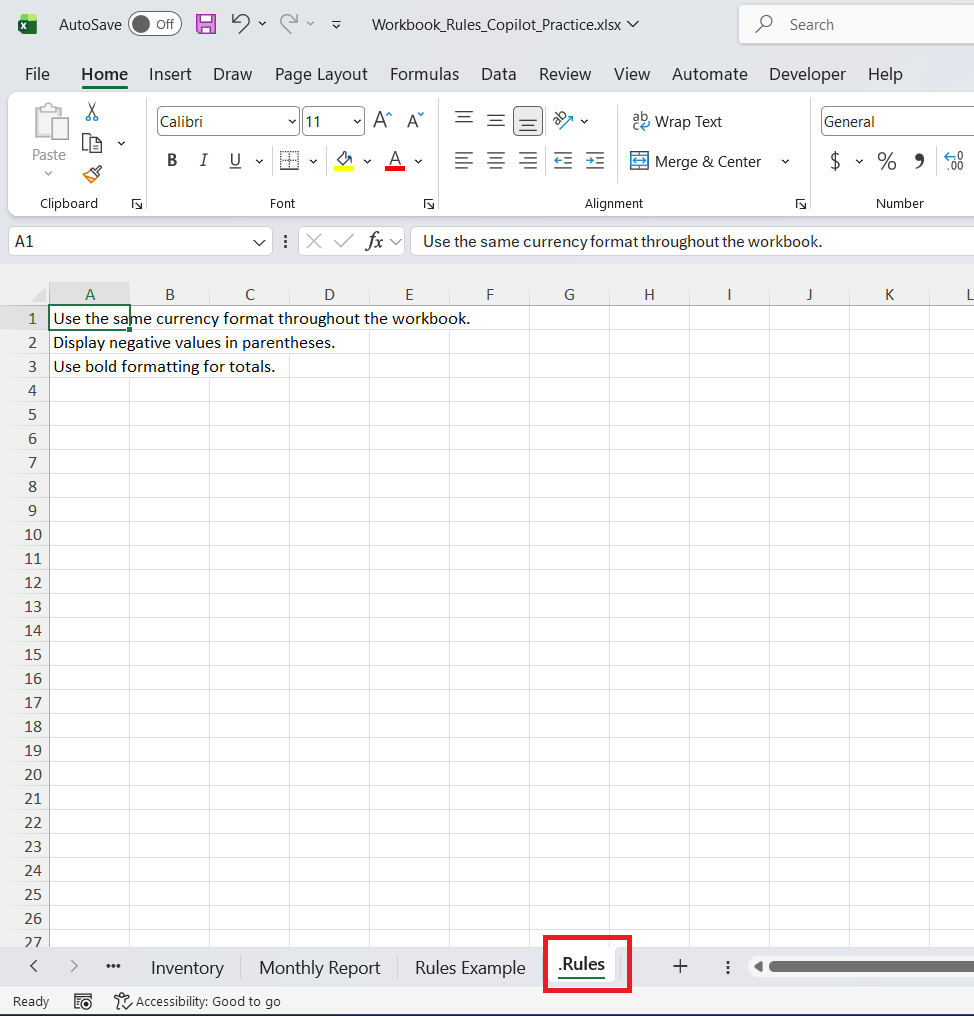
- Workbook rules are stored in the .Rules worksheet.
- You can create rules for reports and data analysis.
- Test the rules to check whether Copilot follows them.
Table of Contents
Introduction to Workbook Rules in Excel
What are Workbook Rules?
Workbook rules are the instructions that tell Copilot how to work with Excel. You can mention any specific format or formula that you want to follow when making changes to the file. For example, you can set rules to:
- Use a specific currency format.
- Avoid merging cells.
- Convert new datasets into a table.
- Apply a standard format to charts.
- Follow a predefined report layout.
Personalization vs Workbook Rules
| Feature | Workbook Rules | Personalization |
|---|---|---|
| Applies to | A specific workbook | All your workbooks |
| Stored in | .Rules worksheet |
Your Microsoft account |
| Shared with others | Yes | No |
| Main purpose | Maintain workbook standards | Apply personal preferences |
How to Set Workbook Rules for Copilot in Excel
STEP 1: Open the Excel workbook where you want to set rules.
STEP 2: Go to the Home tab and select the Copilot button.

STEP 3: In the Copilot pane, click on the Add (+) menu and select Create workbook rules.
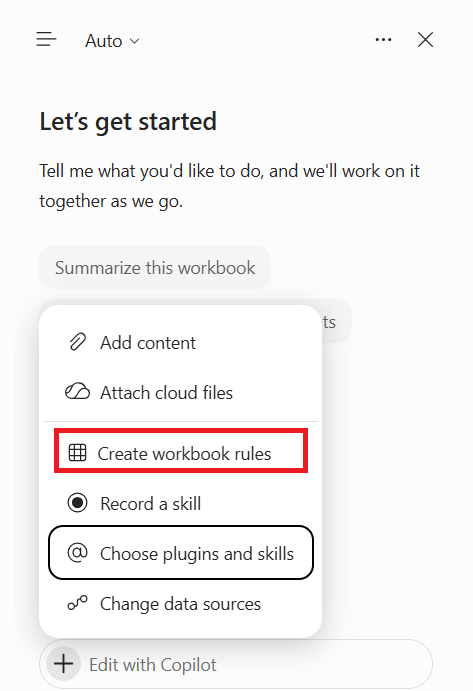
STEP 4: A worksheet will open with suggested rules. You can review and make changes as per your requirements.
STEP 5: After setting up the rules, test them using Copilot.
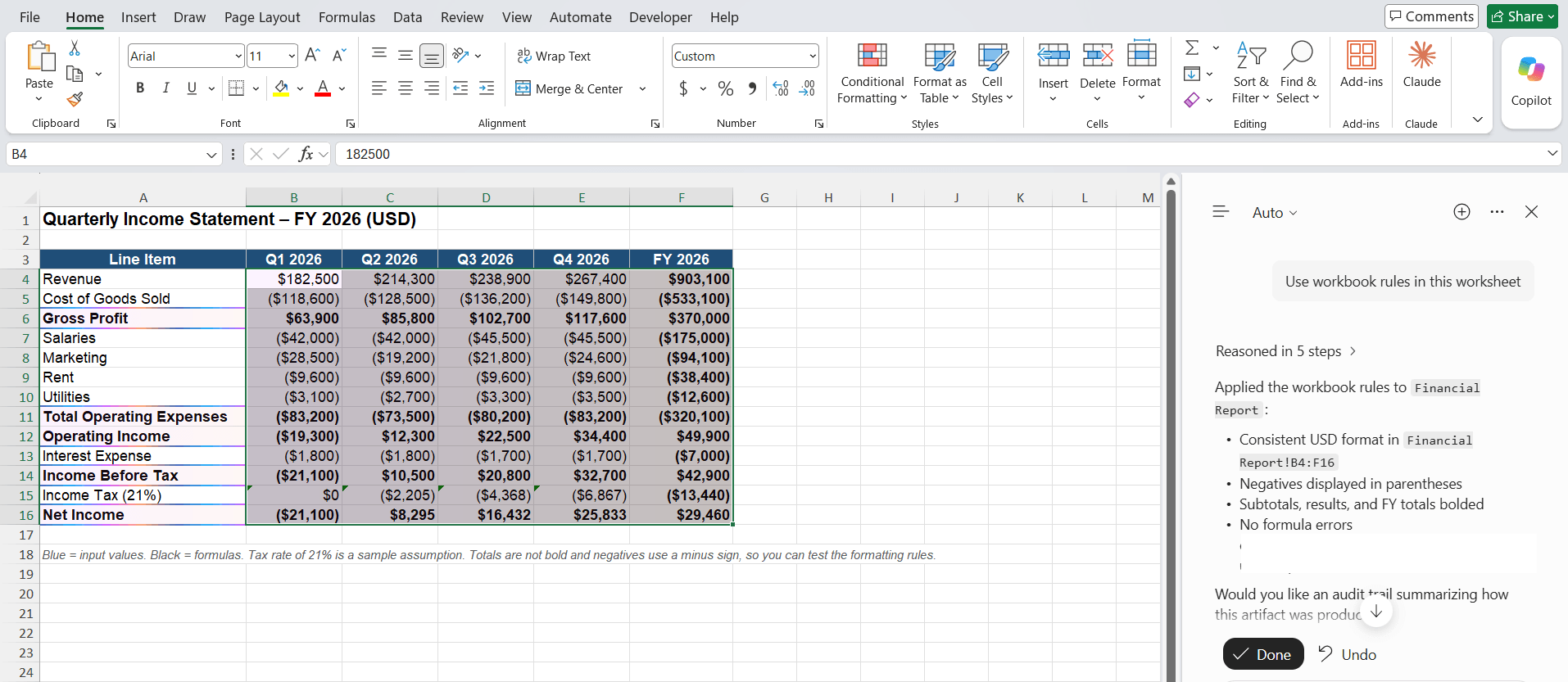
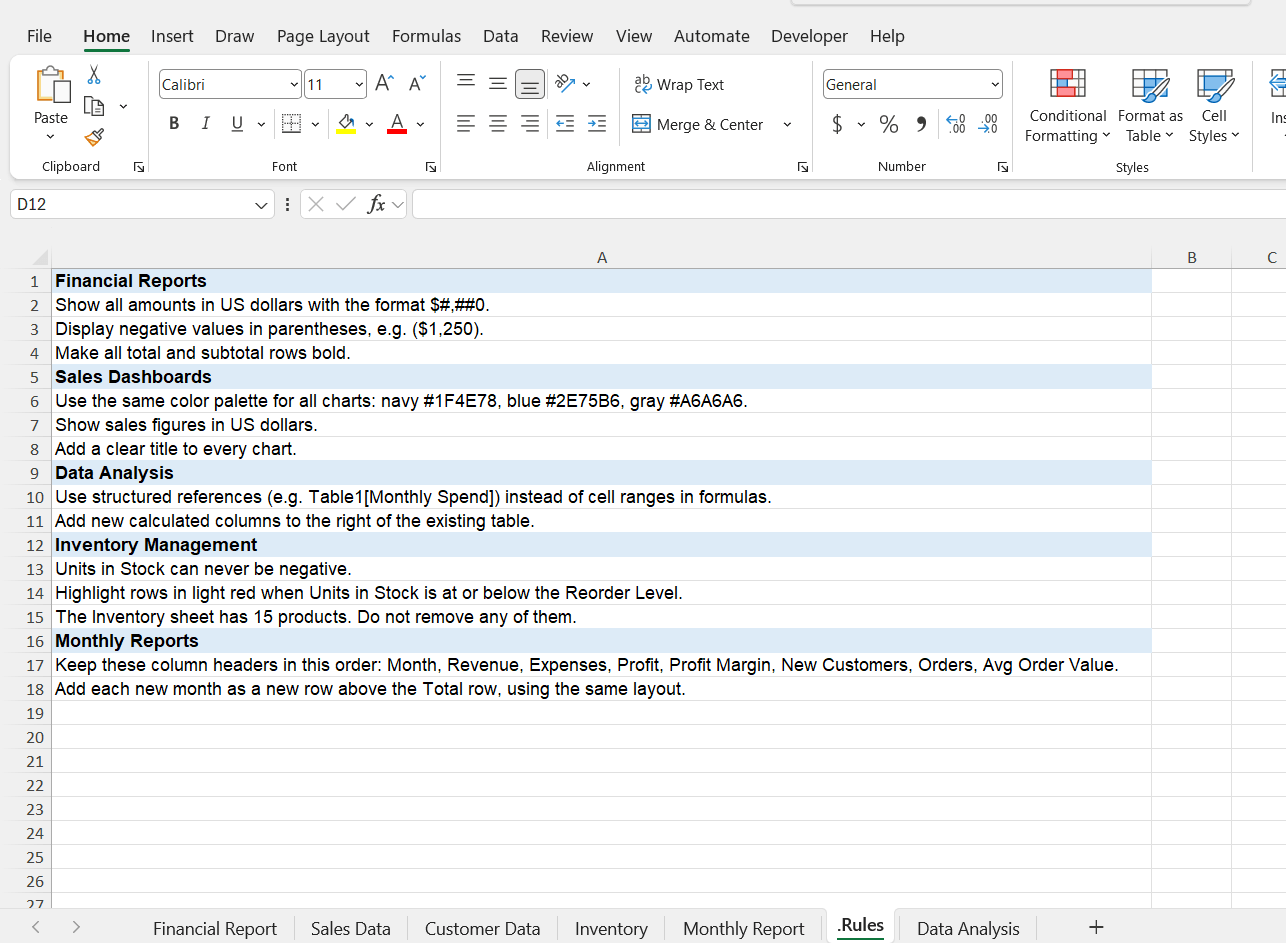
Examples of Workbook Rules for Copilot in Excel
1. Financial Reports
If you are creating financial reports, you can set rules such as:
- Use the same currency format throughout the workbook.
- Display negative values in parentheses.
- Use bold formatting for totals.
2. Sales Dashboards
For sales dashboards, you can use rules such as:
- Use a consistent colour palette for all charts.
- Display sales figures using the appropriate currency format.
- Include a title for every chart.
3. Data Analysis
If you use Copilot to analyse data, you can set rules such as:
- Use Excel Tables for structured datasets.
- Do not remove rows unless specifically instructed.
- Use structured references in formulas.
4. Inventory Management
If you use Excel to track inventory, you can set rules such as:
- Stock cannot be negative.
- Consistent date format for stock entries.
- If the stock levels are low, highlight it.
5. Monthly Reports
If you prepare monthly reports, you can set rules such as:
- Column headers should be the same in all reports.
- Date format should be DD-MM-YYYY.
- Row and column layout should be the same across all reports.
Tips & Tricks
- Instead of writing a long text description, show an exact formatted range or short example.
- Write one rule in each cell in column A.
- You can use Excel formulas inside the rule worksheet to create rules that change as per the data.
- For related rules, you should use proper headings.
- Review the rules before sharing the workbook.
- Make sure that the .Rules worksheet is visible.
FAQs
1. What are workbook rules in Copilot in Excel?
Workbook rules are instructions that help Copilot follow specific formatting, formula, naming convention, and layout requirements.
2. Where are workbook rules stored in Excel?
Yes. You can create a worksheet named .Rules and add your instructions in column A.
3. Can I customise workbook rules?
Yes. You can edit the rules based on your requirements.
4. Are workbook rules shared with other users?
Yes. Workbook rules are stored in the Excel file and are shared when you share the workbook.
5. Can workbook rules control formatting?
Yes. You can use formulas to create rules that change based on workbook data or user selections.

John Michaloudis is a former accountant and finance analyst at General Electric, a Microsoft MVP since 2020, an Amazon #1 bestselling author of 4 Microsoft Excel books and teacher of Microsoft Excel & Office over at his flagship MyExcelOnline Academy Online Course.

 30 Days - Full Access