 Free Practice Workbook
While working with data, you might come across scenarios where determining the strength and direction of the relationship between two variables becomes important. This is where the Spearman correlation, a non-parametric measure of rank correlation, comes into play. Let me guide you through the process of calculating Spearman correlation in Excel.
Key Takeaways:
- Spearman correlation measures the strength of rank based relationship.
- Use the RANK.AVG formula to rank data in Excel.
- This correlation works with non linear relaionship.
- It can be used when your data contains outliers.
- It is useful in fields like psychology, finance, healthcare, and environmental studies.
Table of Contents
How to Calculate Spearman Correlation in Excel
Prepare Your Data
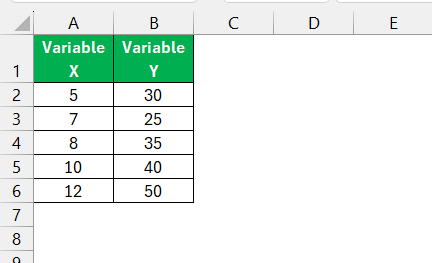
Make sure that your dataset is organized in two columns—one for each variable you want to analyze. For example:
Rank the Data
Spearman correlation requires you to rank the values in each variable. You can use Excel’s RANK.AVG function to handle this:
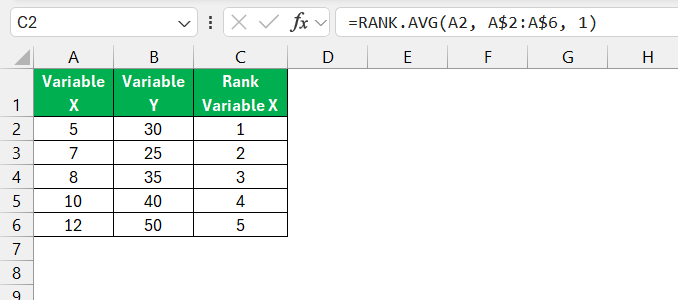
Rank Variable X: In a new column, use the formula:
=RANK.AVG(A2, A$2:A$6, 1)
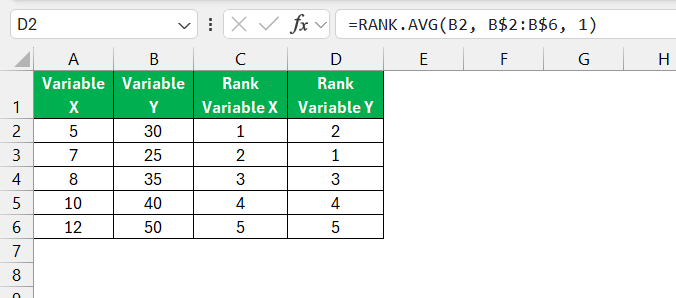
Rank Variable Y: In another column, use the formula:
=RANK.AVG(B2, B$2:B$6, 1)
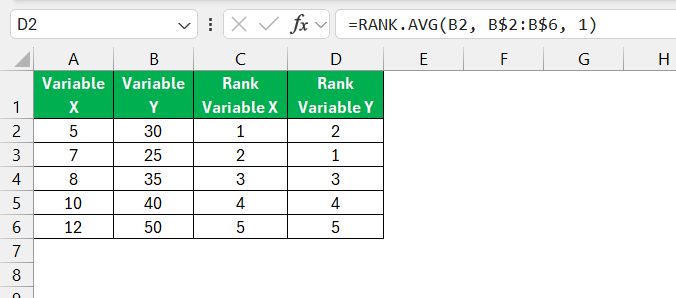
You should now have ranked data for both variables.
Calculate the Difference Between Ranks
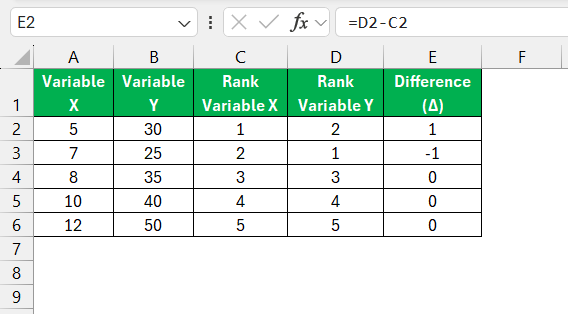
Create a column for the difference (Δ) between the ranks of each variable:
=D2 – C2
Square the Differences
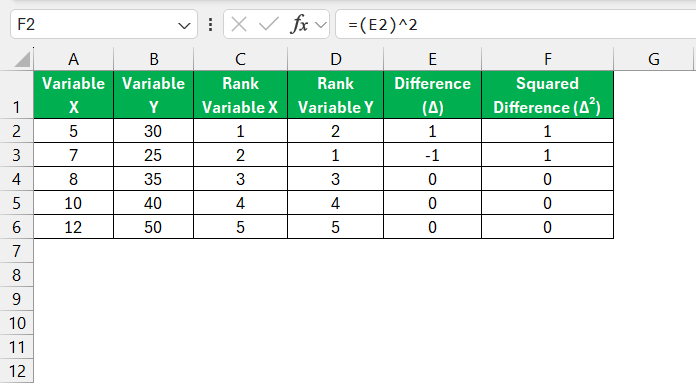
Create another column to square the differences (Δ²):
=(E2)^2
Sum the Squared Differences
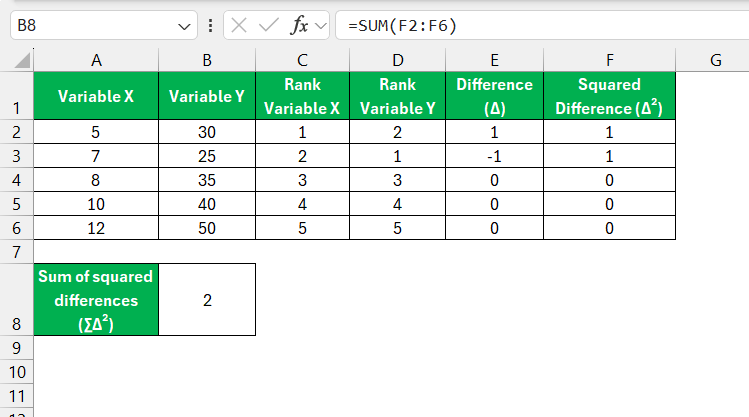
At the bottom of the Δ² column, use the SUM function to calculate the total sum of squared differences (∑Δ²):
=SUM(F2:F6)
Apply the Spearman Correlation Formula
The formula for Spearman correlation (ρ) is:
Where:
- ∑di² is the sum of squared differences.
- n is the number of data points.
Use this formula in Excel:
=1 – (6 * B8) / (COUNTA(A2:A6) * (COUNTA(A2:A6)^2 – 1))
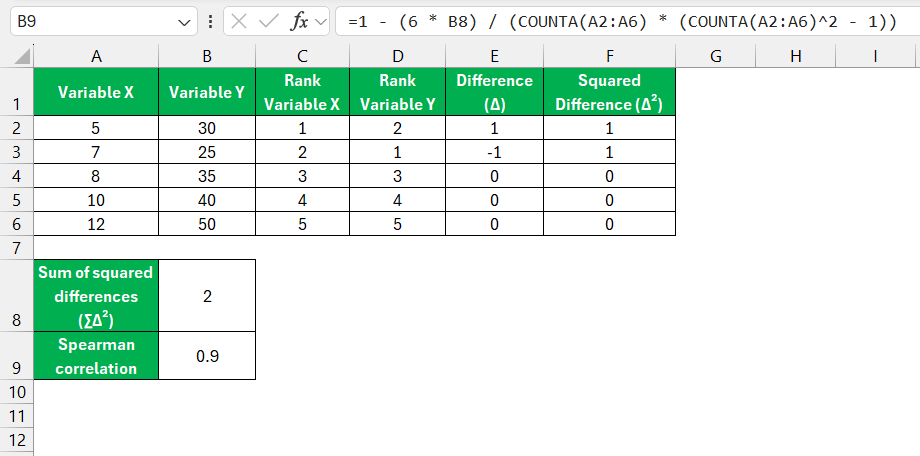
This will give you the Spearman correlation coefficient.
Interpreting the Result
The Spearman correlation coefficient ranges from −1 to 1. A coefficient closer to 1 indicates a strong positive relationship, and -1 means a strong negative relationship. Whereas a coefficient near 0 means a weak or no relationship.
Data Analysis ToolPak
If manual calculations seem daunting, you can use the Analysis ToolPak add-in for statistical computations. Unfortunately, Excel doesn’t have a built-in Spearman correlation function, but you can calculate Pearson correlation on ranked data to achieve the same result.
STEP 1: Rank Your Data by following the steps mentioned above.
STEP 2: Use the CORREL function to get the correlation coefficient.
=CORREL(C2:C6,D2:D6)
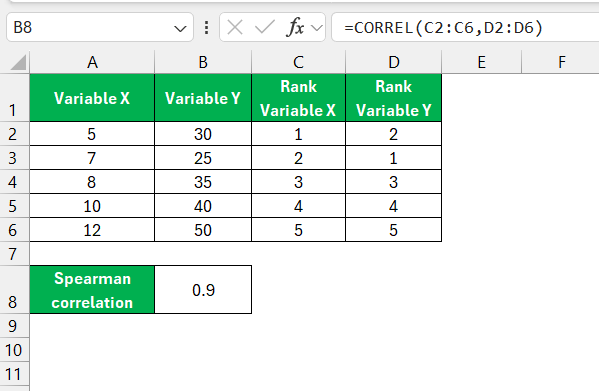
This gives you the Spearman correlation coefficient.
FAQs
How to calculate Spearman correlation?
Follow the steps below to calculate spearman correlation:
- Rank both data sets.
- Find the difference between each pair of ranks.
- Square the difference.
- Sum all the squared differences.
- Use the formula:
rs = 1 – (6 * Σd^2) / (n * (n^2 – 1))
Here, Σd^2 is the sum of squared rank differences, and n is the number of observations.
What are the advantages of using Spearman correlation?
Spearman correlation is a robust measure as it doesn’t require assumptions of normality and linearity. It is useful for ordinal data, non-linear relationships, or when outliers are present.
How to handle tied ranks when calculating Spearman correlation?
In Excel, use the RANK.AVG function to handle tied ranks. It gives each tied value the average of the ranks they would cover.
Is Spearman correlation used for non-linear relationships?
Yes, Spearman correlation is suitable for non-linear relationships. This is because they can assess the monotonic relationship based on rank rather than the absolute values.
What does a Spearman correlation coefficient of zero mean?
A Spearman correlation coefficient of zero means that there is no relationship between the ranked variables. These ranks do not increase or decrease together.

John Michaloudis is a former accountant and finance analyst at General Electric, a Microsoft MVP since 2020, an Amazon #1 bestselling author of 4 Microsoft Excel books and teacher of Microsoft Excel & Office over at his flagship MyExcelOnline Academy Online Course.

 30 Days - Full Access









