Quick Restore: How to Uncancel Meetings in Outlook Easily

John Michaloudis
The ability to uncancel meetings in Outlook is a valuable feature that can save you from the repercussions of unintentional deletions or misunderstandings.
Should you find yourself in a situation where a meeting has been canceled by mistake, Outlook provides several options to retrieve it.Whether it's a one-time event or a recurring series, these mechanisms can act as a safety net, enabling you to restore critical appointments without having to recreate them from scratch.
How to Retrieve a Canceled Meeting in Outlook
Using the ‘Deleted Items’ or ‘Trash’ Folder
Restoring a meeting in Outlook can often be quickly resolved by checking the ‘Deleted Items’ or ‘Trash’ folder. Here are the steps to retrieve a meeting from these folders:
STEP 1: Open Outlook.
STEP 2: Navigate to the folder list and click on ‘Deleted Items’ or ‘Trash.’
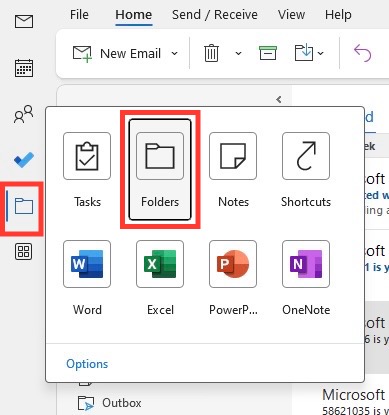
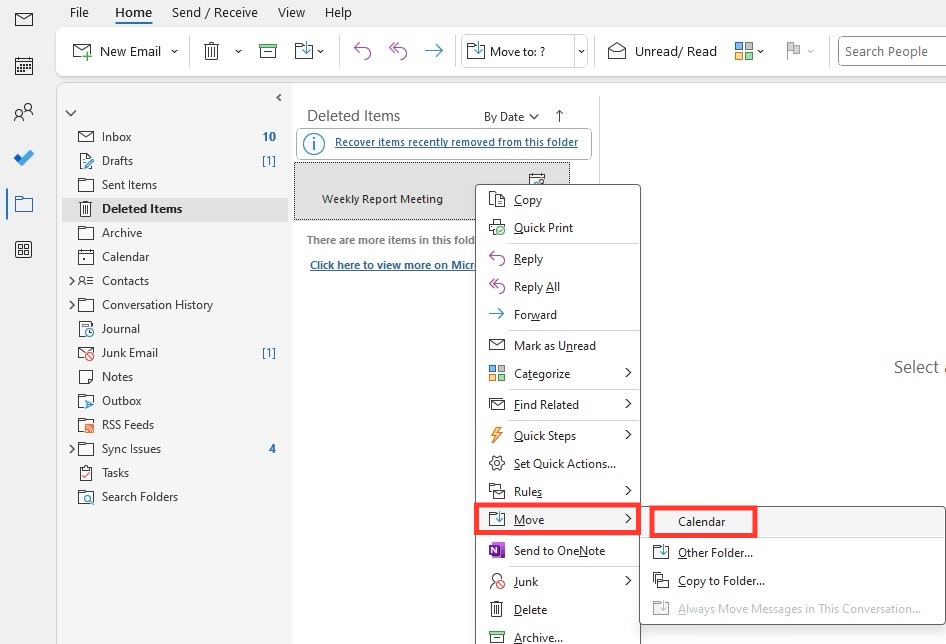
STEP 3: Scroll through the contents to find the deleted meeting.
STEP 4: Right-click on the item you wish to restore.
STEP 5: Go to Move > Calendar
How to Use ‘Recover Deleted Items From Server’
For instances where you’ve permanently deleted a meeting from the ‘Deleted Items’ or ‘Trash’ folder, Outlook provides the ‘Recover Deleted Items From Server’ feature that allows you to restore it during a specific retention period set by your server administrator. Here is how to use this option:
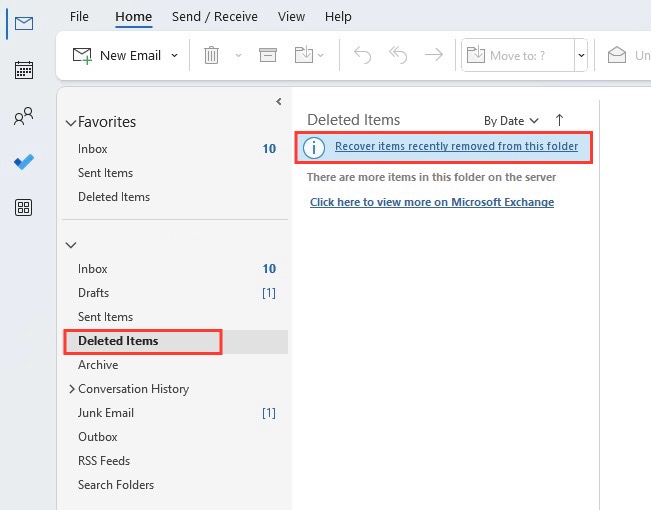
STEP 1: Within Outlook, go to the folder list and select ‘Deleted Items.’
STEP 2: On the Home tab, find and click on ‘Recover items recently removed from this folder.’ This is usually found within the “Clean Up” group.
STEP 3: A dialog box will open, displaying a list of items that can be recovered.
STEP 4: Select the meeting you want to restore by clicking on it.
STEP 5: Once the desired meeting is highlighted, click on the ‘Restore Selected Items’ button.
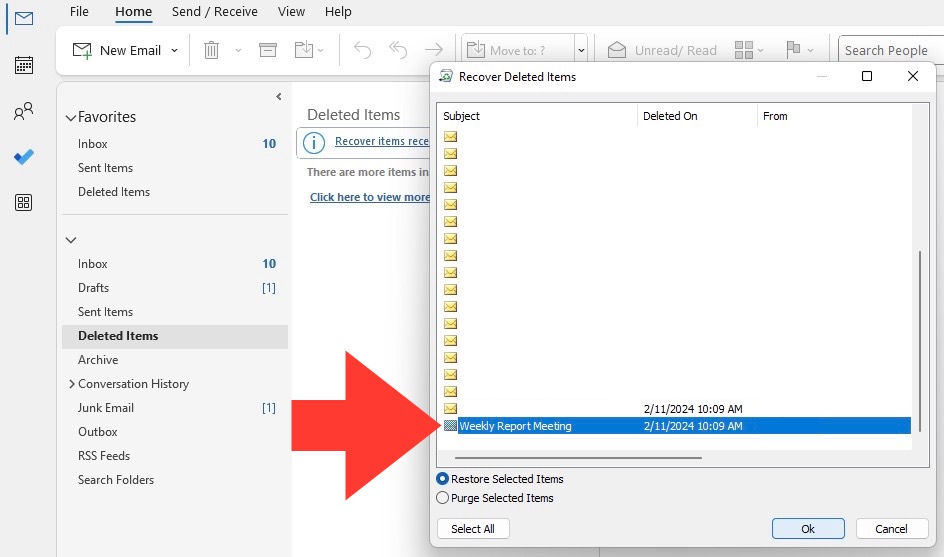
STEP 6: Press ‘OK’ to confirm and the meeting will be placed back into your Calendar.
Do note that this action doesn’t uncancel the meeting. The status of the meeting will still be marked as canceled, and you will have to resend the invites to the participants.
Remember that this feature is available only if your Outlook account is connected to a Microsoft Exchange server and the retention settings allow for recovery. Always check your server’s specific settings and policies for detailed information on the retention period and recovery capabilities.
Best Practices for Meeting Management in Outlook
Checking Calendar and Reminders
Here are some best practices we recommend in managing the calendar:
- Daily Review: Begin your day by reviewing your calendar to be aware of scheduled meetings, their times, and their locations.
- Reminder Notifications: Outlook allows customization of reminder times for each meeting.
- Update Notifications: Turn on update notifications so you are immediately aware when a meeting time or location has been changed.
- Mobile Sync: Make sure your mobile devices are synced with your Outlook calendar.
- Calendar Clearance: Regularly clear outdated or canceled meetings from your calendar.
Managing Notifications to Avoid Missing Changes
Here are some tips to manage notifications effectively:
- Customize Alert Sounds: Differentiate meeting notifications from other alerts with specific sounds.
- Email Rules: Set up email rules to prioritize and organize meeting-related messages into a designated folder.
- Desktop Alerts: Make use of desktop alerts in Outlook for immediate pop-up notifications when changes occur.
- Follow-up Flags: In cases where immediate action isn’t possible, use follow-up flags to remind yourself to revisit the invite or notification later.
- Notification Preview: Enable notification previews to quickly see the essence of updates without having to open the email.
- Calendar Views: Use different calendar views to keep an overview of the daily, weekly, and monthly schedules.
- Disable Non-Essential Alerts: Minimize distractions by turning off non-essential alerts, thus allowing you to focus on important meeting notifications.
How can I prevent meetings from being canceled accidentally?
To prevent meetings from being canceled accidentally in Outlook, we have these suggestions:
- Double-Check Before Sending Cancellations
- Utilize Outlook’s Permissions
- Create a Confirmation Step
- Use Categories and Flags
John Michaloudis is a former accountant and finance analyst at General Electric, a Microsoft MVP since 2020, an Amazon #1 bestselling author of 4 Microsoft Excel books and teacher of Microsoft Excel & Office over at his flagship MyExcelOnline Academy Online Course.

 30 Days - Full Access









