 Free Practice Workbook
If you have ever worked with large or small numbers in Excel, you might have come across values like 1e+06 or 2.5e-04. This notation is called scientific notation, and it is Excel’s way of displaying such numbers. In this article, you will learn what does 1e mean in Excel.
Key Takeaways
- 1e notation in Excel stands for scientific notation.
- “e” means “times ten raised to the power of”.
- 1e+06 in Excel is equal to 1 × 10⁶.
- Scientific notation appears automatically for very large or very small values.
- You can convert these numbers to standard values using Excel’s formatting options.
Table of Contents
Scientific Notation in Excel
Basics of Scientific Notation in Excel
Scientific notation is a compact way to write numbers that are either very large or very small. In Excel, numbers like 1e+06 are shorthand for 1 × 10⁶, or one million. The “e” stands for “exponent,” and the number following it indicates the power of ten.
1e+03 = 1 × 103 = 1,000
How “E” Functions in Excel Calculations
In Excel, the “E” in scientific notation is used as a shorthand for expressing powers of ten. It is an integral part of calculations involving very large or very small numbers. For instance, when you enter a number in the format (1E6), Excel interprets it as (1 times 10^6). This feature is useful when you’re dealing with calculations across diverse data ranges.
It also reduces the need to manually type long strings of zeros.
Excel performs arithmetic operations with numbers in scientific notation. For example, adding (1E3) to (2E3) will give you a result of (3E3). The result can then be formatted as a standard number if required.
Positive and Negative Exponents
A positive exponent moves the decimal point to the right.
5E+03 = 5,000
A negative exponent moves the decimal point to the left.
2.5E-04 = 0.00025
How to Work with Scientific Notation in Excel
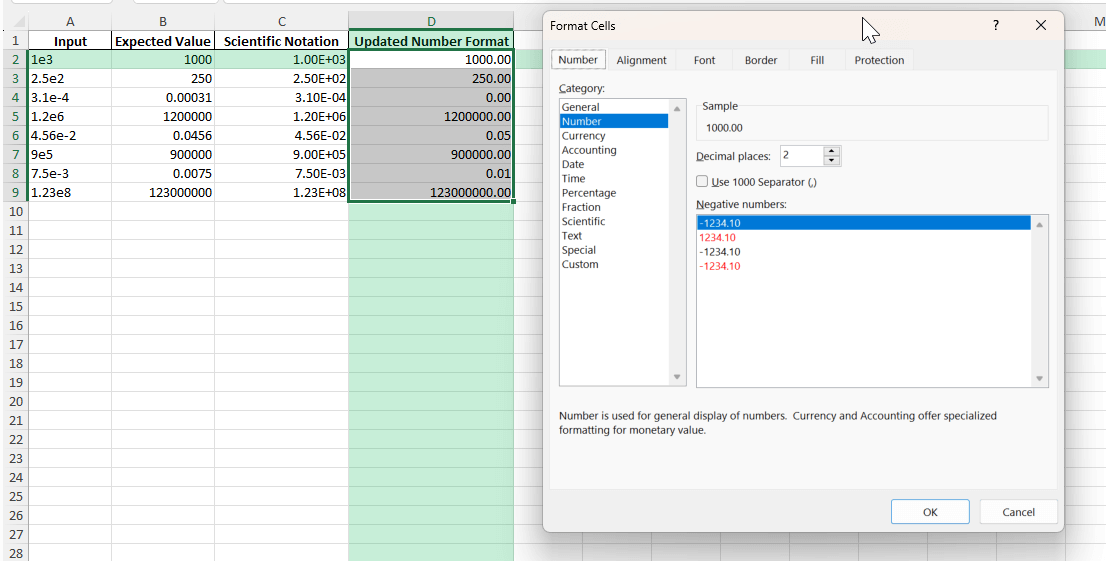
Method 1: Change the Cell Format
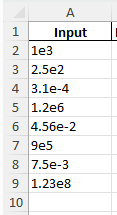
- Type 1e6 in a cell and press Enter. Excel will display it as 1.00E+06.
- Right-click on this cell and select Format Cells.
- In the dialog box, go to the Number tab and select a number.
- Click OK.
Method 1: Increase the Column Width
In many cases, Excel uses scientific notation simply because there is not enough space to display the entire number. Follow the steps below to increase column width:
- Select the column.
- Move your cursor to the column boundary.
- Double-click to AutoFit the column width.
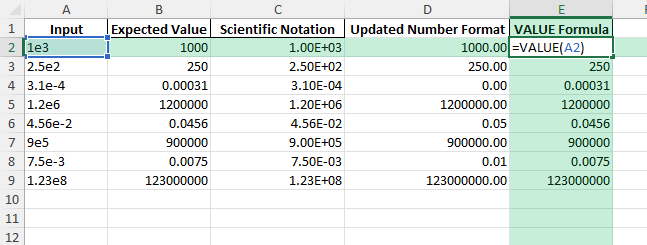
Method 3: VALUE function
Use the VALUE function to convert text entries like “1e6” to numbers
=VALUE("1e6")
Tips & Tricks
- E in Excel means exponent, not Euler’s number.
- Do not import numbers as text, as they may not calculate correctly.
- Format IDs, codes, and account numbers as text.
- Very large or very small numbers may automatically round off in Excel.
- Use custom number formats for scientific or engineering reports.
- Increase the column width if Excel displays numbers in scientific notation unnecessarily.
Bonus Tips and Advanced Scenarios
Power Query: When importing data, set column data type to Text or Number as needed to avoid unwanted conversion.
VBA Automation:
Sub ConvertScientificToNumber()
    Dim cell As Range
    For Each cell In Selection
        If IsNumeric(cell.Value) Then
            cell.NumberFormat = "0"
        End If
    Next cell
End Sub
Advanced Formulas: Use =TEXT(A2,"0") to convert scientific to regular number text in Excel.
FAQ
Q: What does 1e6 mean in Excel?
A: 1e6 means 1 × 106 = 1,000,000.
Q: How to stop Excel from converting my numbers to scientific notation?
A: Format the cells as Text or Number before entry or import.
Q: Can I use 1e notation in Excel formulas?
A: Yes, Excel supports 1e notation directly in formulas.
Q: Why do some numbers automatically display as scientific notations?
A: Excel switches to scientific notation if a value is too long for the cell or exceeds its default formatting.
Q: How to convert 1e notation back to a regular number in Excel?
A: Use the VALUE function, or change the cell’s number formatting.

John Michaloudis is a former accountant and finance analyst at General Electric, a Microsoft MVP since 2020, an Amazon #1 bestselling author of 4 Microsoft Excel books and teacher of Microsoft Excel & Office over at his flagship MyExcelOnline Academy Online Course.

 30 Days - Full Access









