 Free Practice Workbook
Microsoft Copilot can help automate everyday Excel tasks without requiring complex formulas or VBA code. Instead of manually performing the task, you can describe what you want in simple language and let Copilot help you complete it. In this article, you will learn how to automate Excel tasks with Copilot.
Key Takeaways:
- Copilot in Excel lets you automate tasks by typing what you want in plain English.
- You need a Microsoft 365 Copilot licence, and your file must be saved in OneDrive or SharePoint.
- Copilot works best when your data is formatted as a table with clear column headers.
- Skills let you save repeatable tasks so you do not have to explain them every time.
- Always review what Copilot changes before you accept it.
Table of Contents
Introduction to Copilot in Excel
What is Copilot?
Copilot in Excel is Microsoft’s AI assistant built into the Excel ribbon. It can help you analyze data, create formulas, spot trends, organize information, and generate insights. You can describe what you want in normal language instead of remembering the steps or function syntax.
For example, instead of creating a formula to calculate total sales, you can ask:
Calculate total sales for each region.
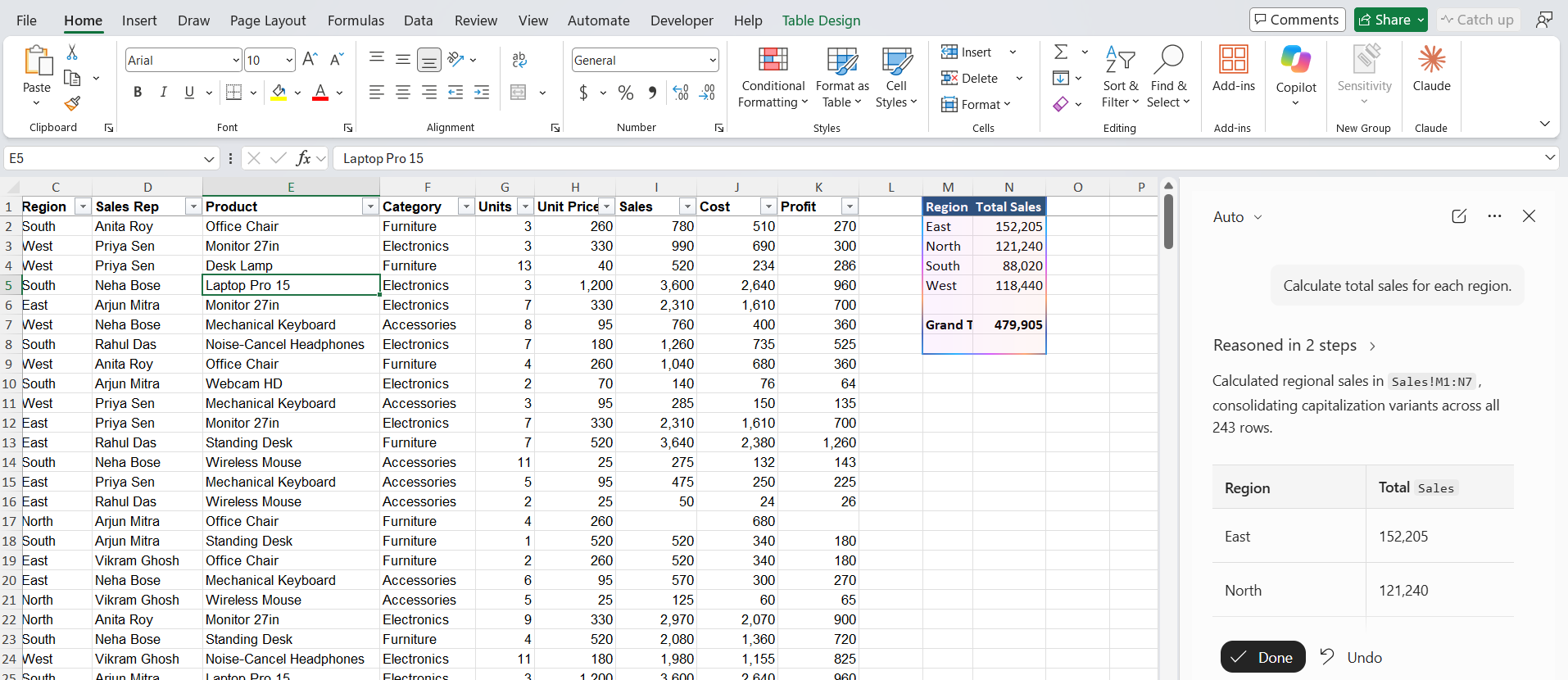
Copilot can analyze your data and suggest a formula.
How to use Copilot
To use Copilot in Excel,
- Go to the Home tab.

- Click on the Copilot button.

- Open a chat pane and type a request in plain English.
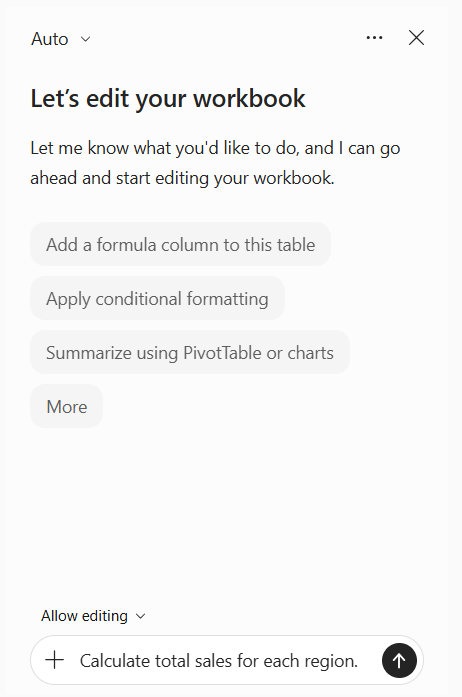
- Review the suggestion and press Done.
How to Automate Excel tasks with Copilot
Automate Data Cleaning
When you import data from different sources, it may contain duplicate or missing data, inconsistent entries, etc. You will need to clean the data to work with it and perform analysis. For example, you can ask Copilot:
Identify missing values in the sales column.
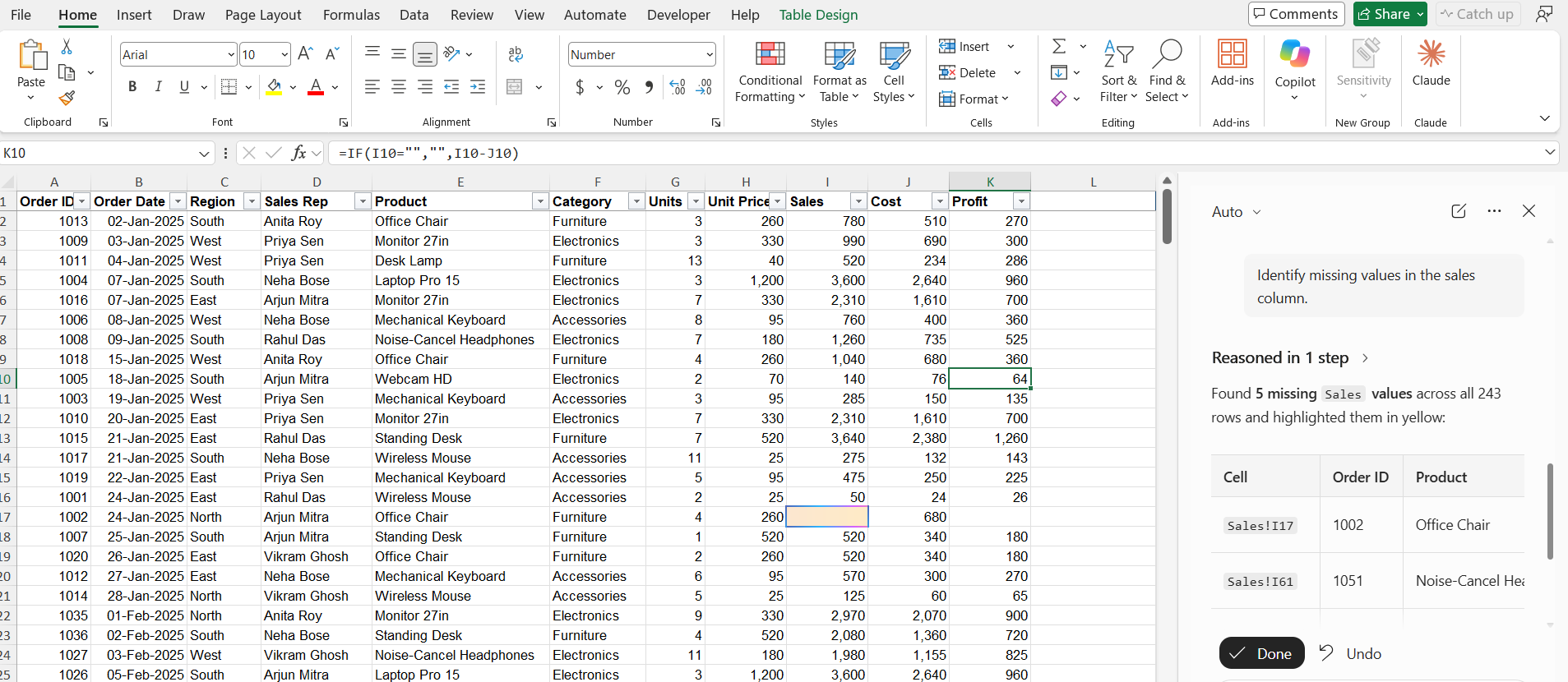
Automate Excel Formulas
Copilot can also help create formulas based on plain-language instructions. You can use Copilot to calculate profit margin instead of writing the formula manually.
Add a column that calculates profit margin as Profit divided by Sales.
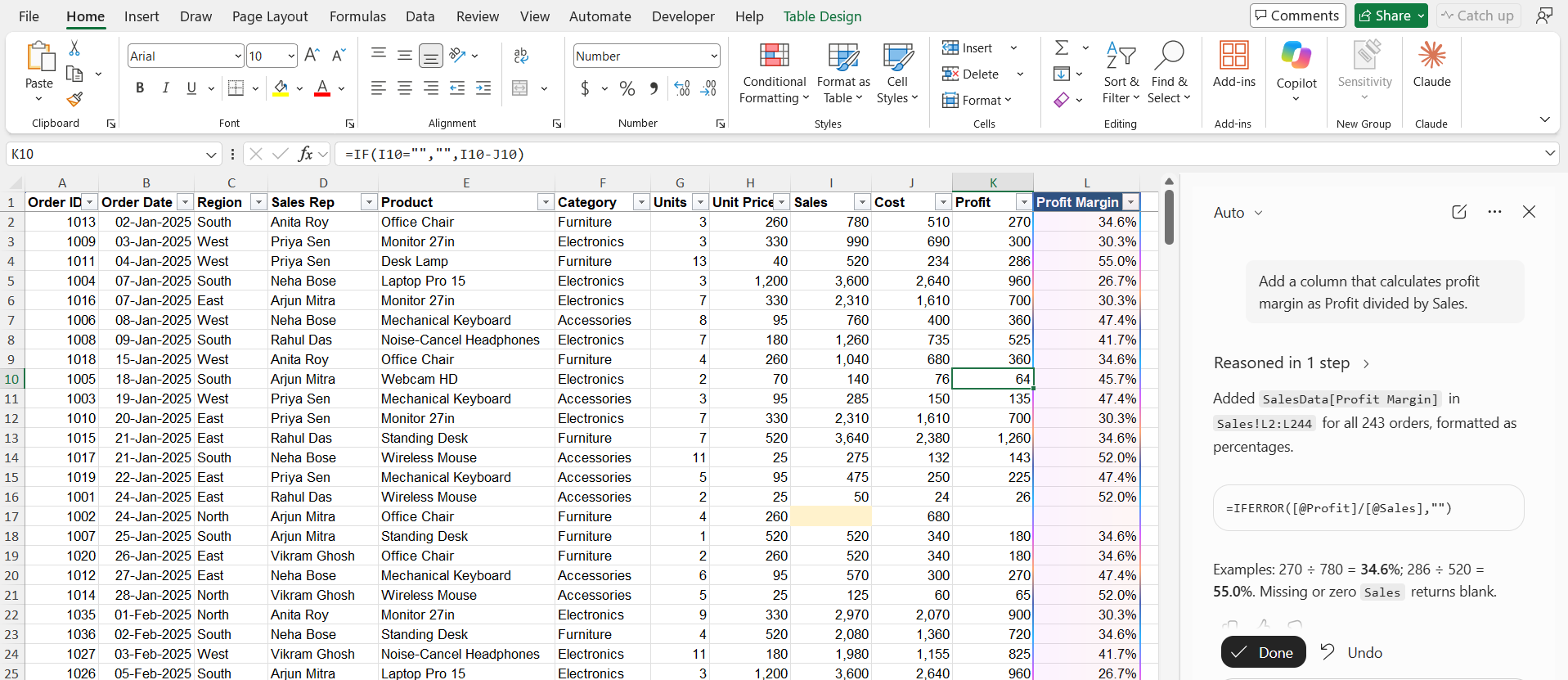
Automate Sorting and Filtering
You can use Copilot to sort and filter data by typing prompts in simple language.
For example:
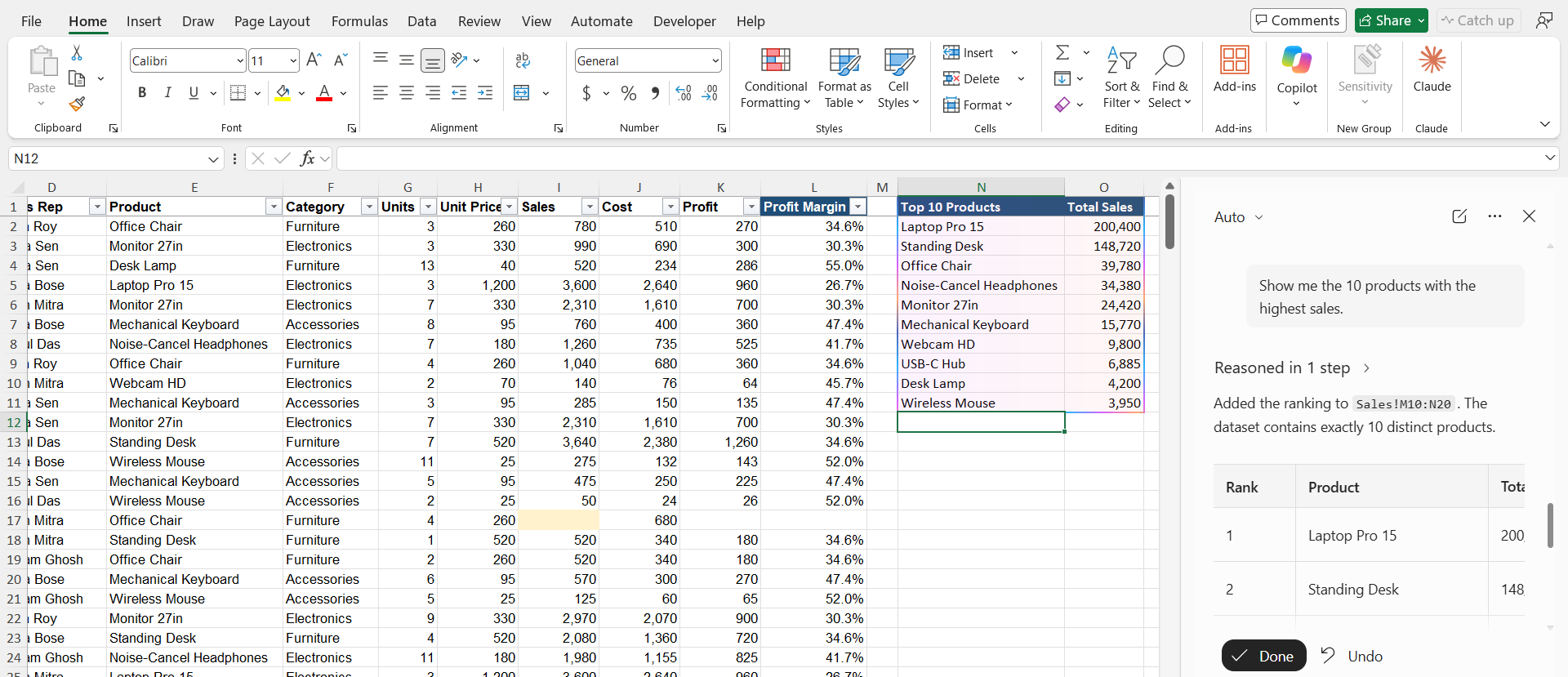
Show me the 10 products with the highest sales.
Automate Data Summarization
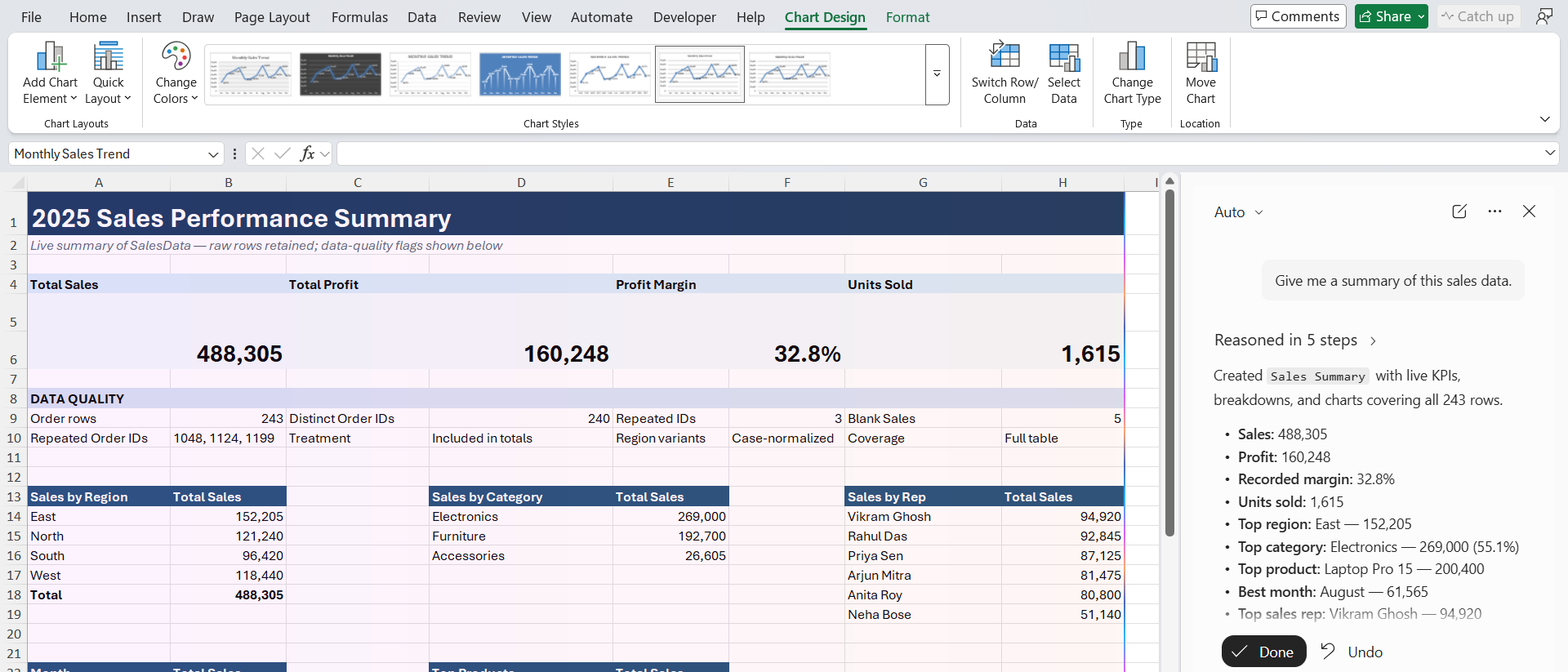
Copilot can summarize large amounts of data and highlight important information.
For example, I can ask:
Give me a summary of this sales data.
Automate Charts
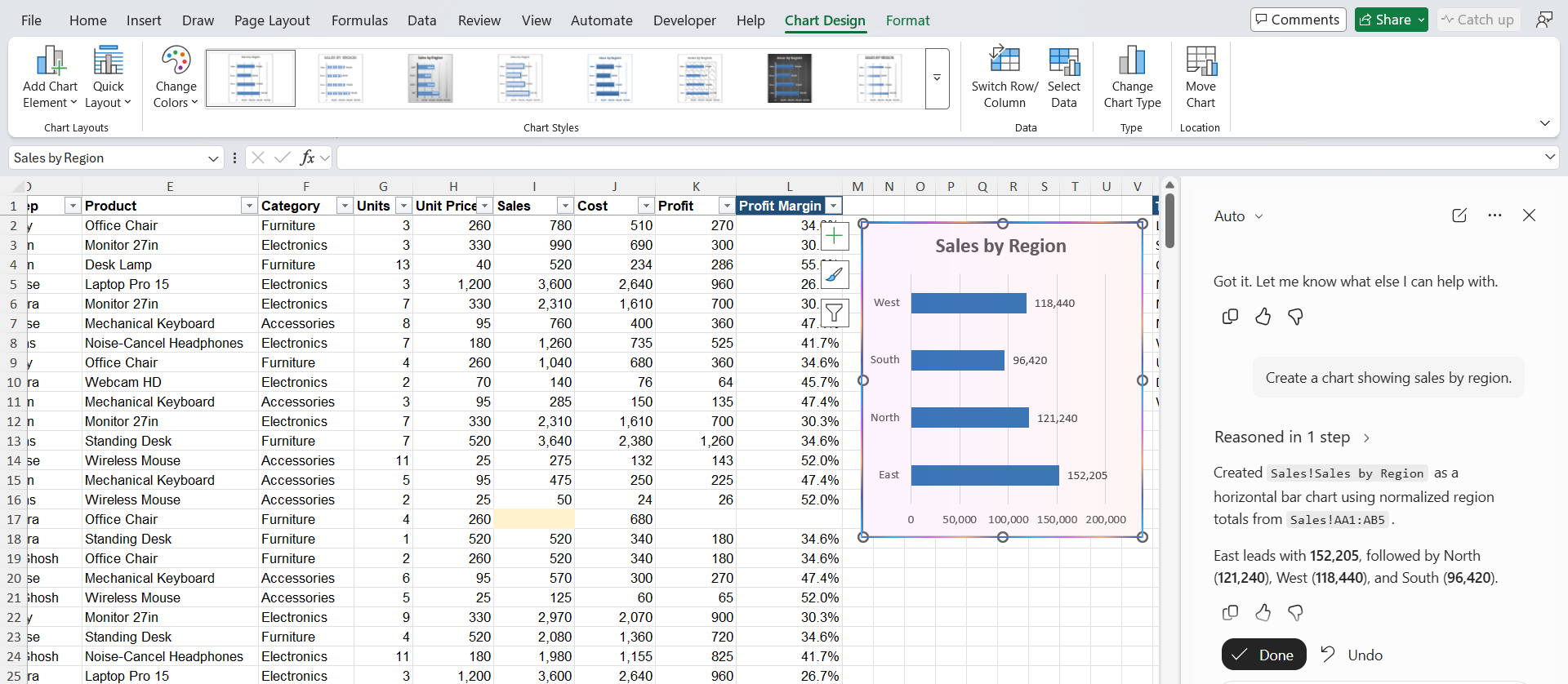
Charts can make Excel data easier to understand. Copilot can help determine which chart may be suitable for the data.
For example, I can ask:
Create a chart showing sales by region.
Automate Conditional Formatting
Conditional formatting is another task that I can simplify with Copilot.
Suppose I want to highlight products where profit is greater than $5,000.
I can ask:
Highlight rows where profit is greater than 5000.
Automate Data Analysis
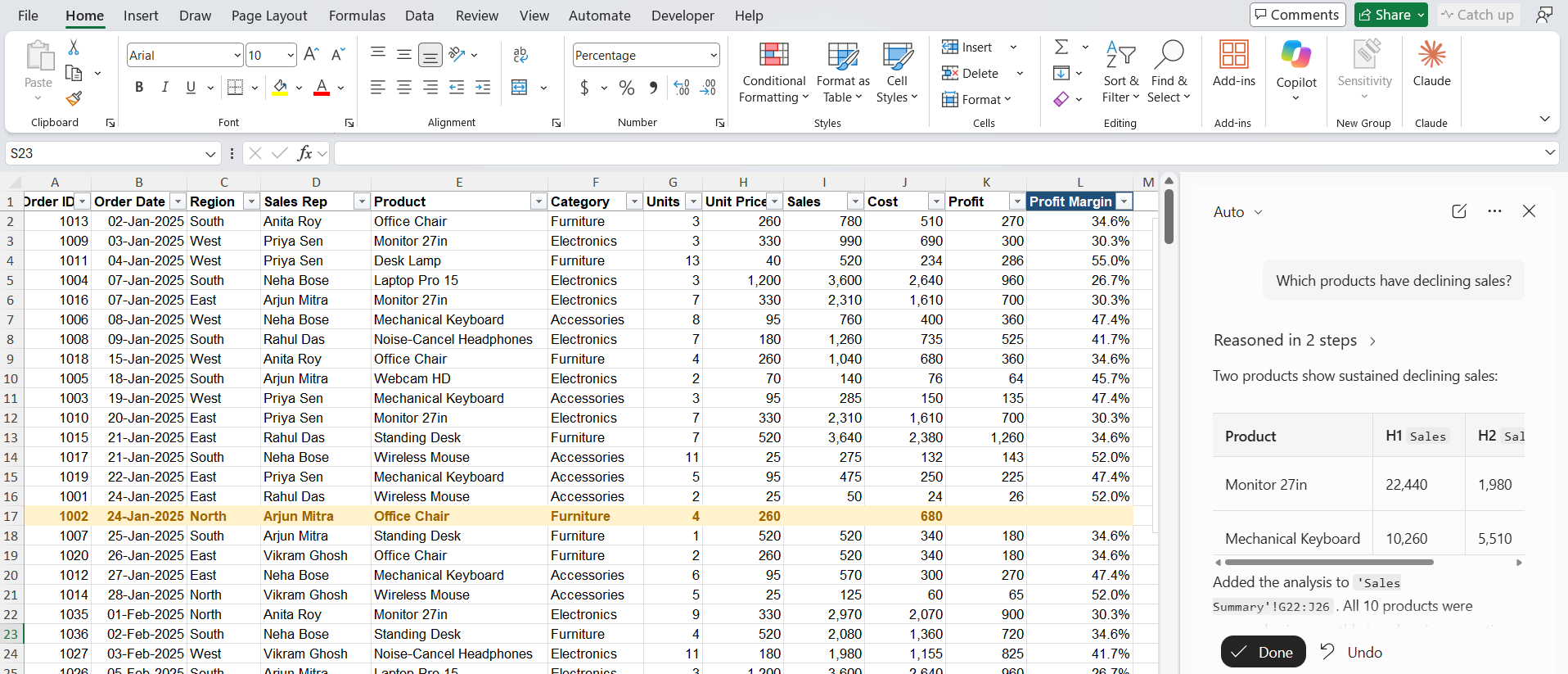
Copilot can also help identify trends and patterns in Excel data.
For example, I can ask:
Which products have declining sales?
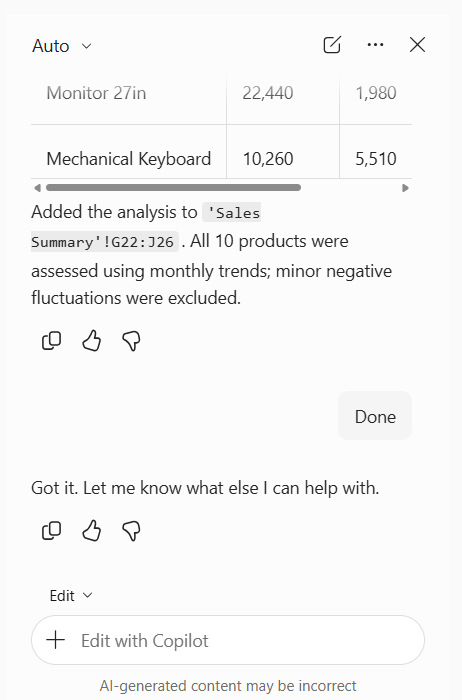
Automate Repeatable Tasks with Skills
A skill is a saved set of instructions for one task. It tells Copilot how you want the work done. Instead of explaining the same report or check every week, you explain it once and call the skill by name.
Excel comes with built-in skills. For example, @chart-design helps with charts and PivotTables, and @python-in-excel writes Python formulas. Microsoft has also added finance skills for tasks like variance commentary.
To use a skill,
- Open the Copilot pane.
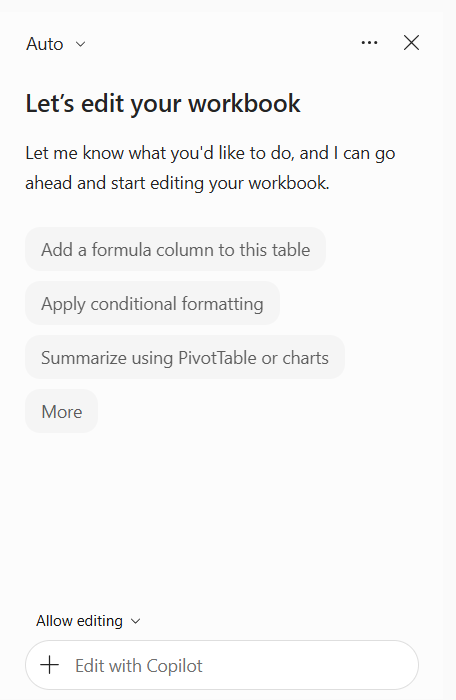
- Click the + sign in the prompt box and select Choose skills.
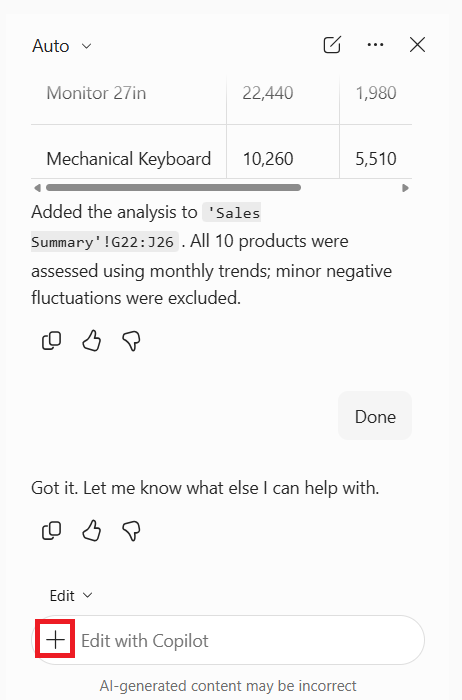
- Pick a skill from the list.
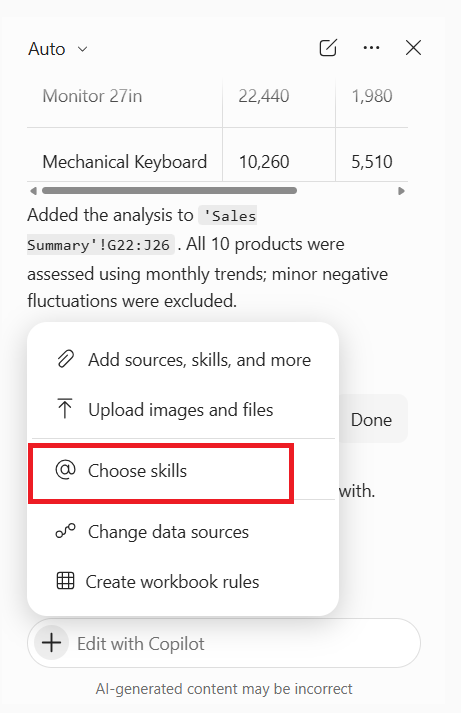
- Type the rest of your request and press Enter.
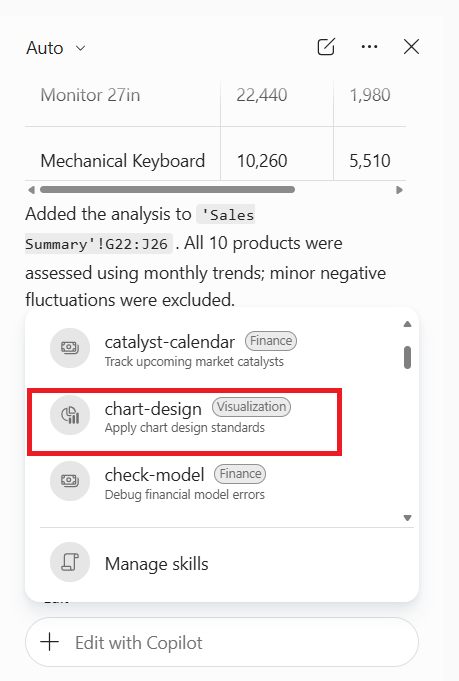
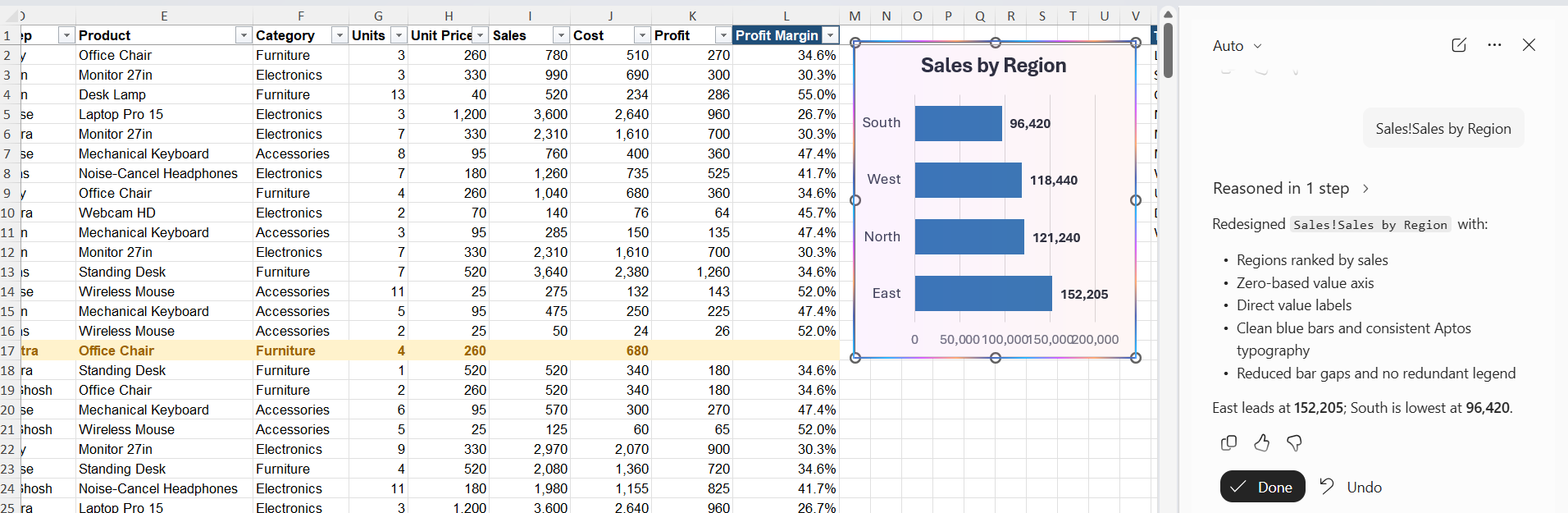
The chart will be redesigned.
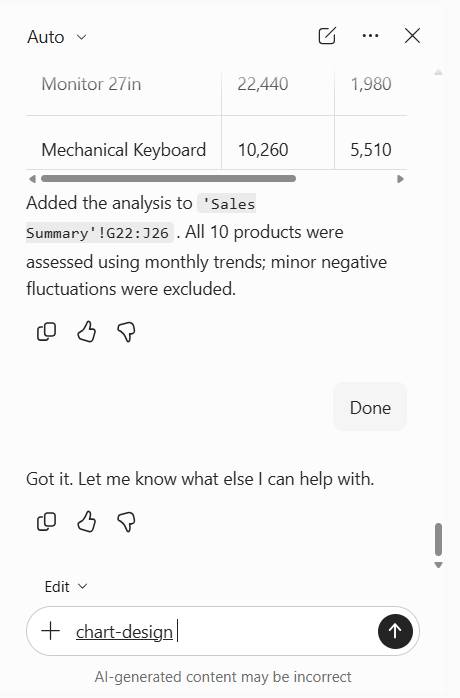
You can also type the skill name directly. For example:
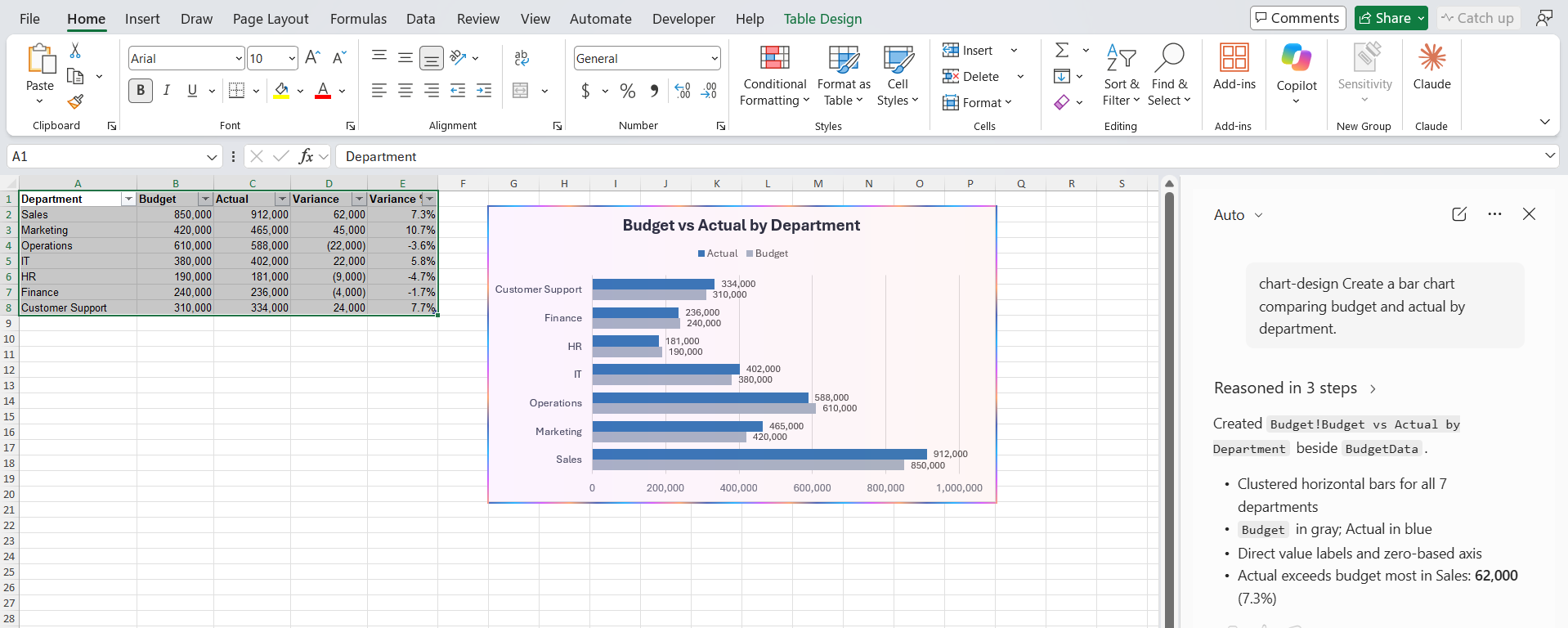
@chart-design Create a bar chart comparing budget and actual by department.
The newly designed chart will be added to the workbook.
FAQs
Do I need to know formulas to use Copilot in Excel?
No. You describe what you want in plain language, and Copilot writes the formula for you. Knowing some Excel helps you check the result.
Is Copilot in Excel free?
No. It needs a Microsoft 365 Copilot licence in addition to a regular Microsoft 365 subscription.
Why is the Copilot button greyed out?
Your file is probably saved on your computer, not in the cloud. Save it to OneDrive or SharePoint and reopen it.
Can Copilot run macros or VBA?
Not directly. It works through the chat pane and skills. For macro-style automation, you still need VBA or Office Scripts.
Can Copilot make mistakes?
Yes. It can misread a column or apply the wrong logic. Treat every result as a draft and spot-check a few rows before you rely on it.

John Michaloudis is a former accountant and finance analyst at General Electric, a Microsoft MVP since 2020, an Amazon #1 bestselling author of 4 Microsoft Excel books and teacher of Microsoft Excel & Office over at his flagship MyExcelOnline Academy Online Course.

 30 Days - Full Access









