 Free Practice Workbook
Annual Percentage Yield is a key metric in finance and banking. It is used to return the true annual return on an investment or savings account, considering compounding. In this article, you will learn how to calculate APY in Excel.
Key Takeaways
- Calculate APY in Excel with a simple, accurate formula.
- Understand the difference between APR and APY for investment analysis.
- Apply the formula for any compounding period: daily, monthly, quarterly, or yearly.
- Use built-in Excel functions like EFFECT for quick results.
Table of Contents
What is APY in Excel?
APY (Annual Percentage Yield) shows how much you can earn on your savings or investment in one year, including the effect of compounding interest. It gives a more accurate picture of your actual earnings.
APY vs. APR
- APY shows the total interest you earn, including compounding.
- APR shows the interest charged without compounding.
The main difference is that APY includes compounding, while APR does not.
How to Calculate APY in Excel
Step-by-Step Guide
The formula for APY is:
APY = (1 + r/n)n – 1
r = nominal annual interest rate (as a decimal, e.g., 0.05 for 5%)
n = number of compounding periods per year (12 for monthly, 4 for quarterly, 365 for daily)
Prepare Data
- List your annual interest rates as decimals in column A.
- List the number of compounding periods per year in column B.
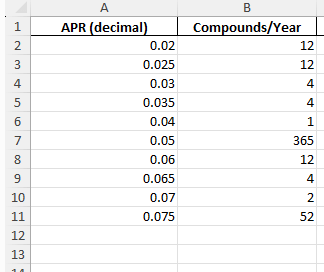
Step 2 – Enter the APY Formula
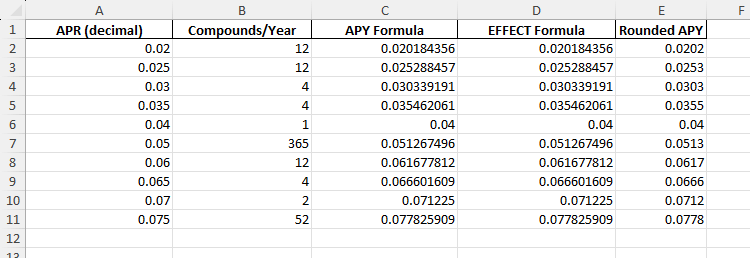
In cell C2, enter this formula:
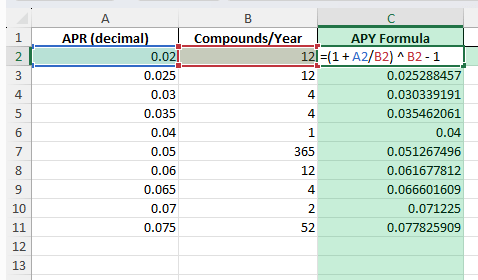
- Right-click on the cell
- Select Format Cells.
- In the dialog box, select Decimal.
- Drag the formula down.
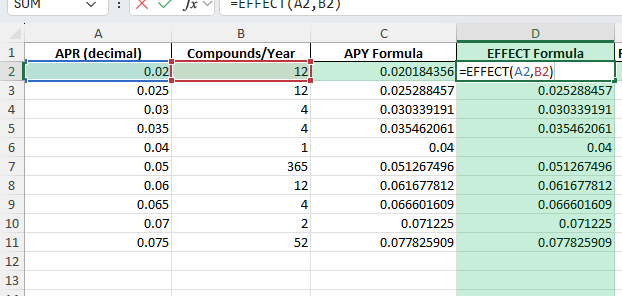
EFFECT Function
The EFFECT function is used to convert nominal rate and compounding periods into the effective annual rate.
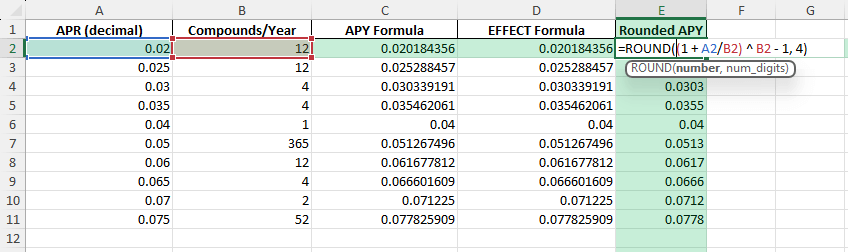
To round APY to two decimal places, use this formula:
Common Mistakes and Tips
- Always use rates as decimals in the formula. For 5%, use 0.05, not 5.
- Make sure that the number of periods mentioned in the calculation is correct. You need to enter 12 for monthly, 4 for quarterly, and 365 for daily.
- The EFFECT formula returns the value in decimal format. You have to format it as a percentage.
Advanced Tips
Batch Calculation for Multiple Banks or Offers:
Enter all your rates and periods in a table. Apply the formula or EFFECT function to analyze and compare at a glance.
Power Query for APY Calculations:
In Power Query, you can create a custom column to calculate APY. This will be useful when importing a CSV of rates and for bulk conversion.
VBA Function for APY:
Function CalcAPY(rate As Double, periods As Integer) As Double
    CalcAPY = (1 + rate / periods) ^ periods - 1
End Function
After adding to a module, use =CalcAPY(A2,B2) in your worksheet.
FAQ: APY Formula in Excel
What does APY stand for?
Annual Percentage Yield, showing the real annual return with compounding.
What’s the difference between APR and APY?
- APR is the simple annual rate
- APY factors in compounding and is always equal to or higher than APR.
Can I use EFFECT for APY?
Yes, =EFFECT(rate, periods) provides APY from a nominal rate.
How to format APY as a percentage?
To format APY as percenatge,
- Select the cell containing APY
- Right-click on it
- Select Format cells
- Select Percentage
How to calculate APY for different compounding frequencies?
You can change the compounding frequency by changing the n value in the formula
APY = (1 + r/n)n – 1
You can use 12 for monthly, 4 for quarterly, 365 for daily.

John Michaloudis is a former accountant and finance analyst at General Electric, a Microsoft MVP since 2020, an Amazon #1 bestselling author of 4 Microsoft Excel books and teacher of Microsoft Excel & Office over at his flagship MyExcelOnline Academy Online Course.

 30 Days - Full Access









