 Free Practice Workbook
Microsoft Excel‘s ability to manage date formats offers a bridge between simplicity and complexity, catering to both basic and advanced user needs.
Key Takeaways
- Excel pulls default date formats from the system’s regional settings, which can be seen and changed in the Format Cells dialog box.
- Built-in date format options provide a quick way to change date formats.
- Using custom formats, like MM YY, allows you more control on how you want your date to look like.
Table of Contents
Detailed Guide to Converting Dates
Using Built-in Date Format Options
Select the dates you want to reformat, navigate to the Home tab on the ribbon, and find the Number group. Click the little arrow next to the Number Format box shows a dropdown menu with various formats—the short date, long date, and time.
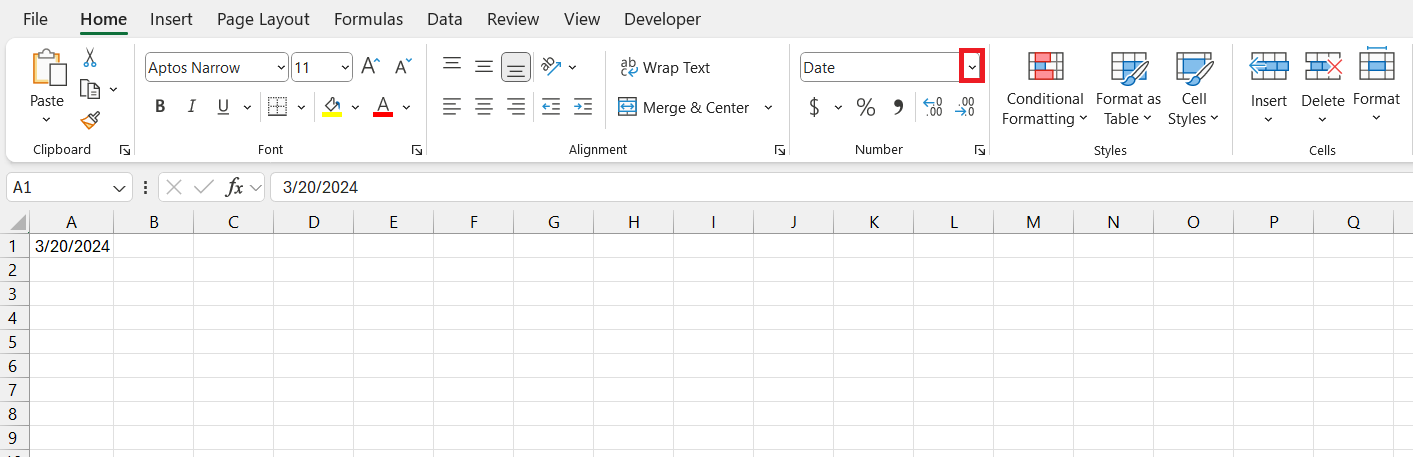
One more click is all it takes to shift your date’s attire from casual to formal or any style in-between that Excel offers. It’s almost like magic! If you have a go-to format that you use often, this is the quickest way to apply consistent styling across your data sets without much fuss.
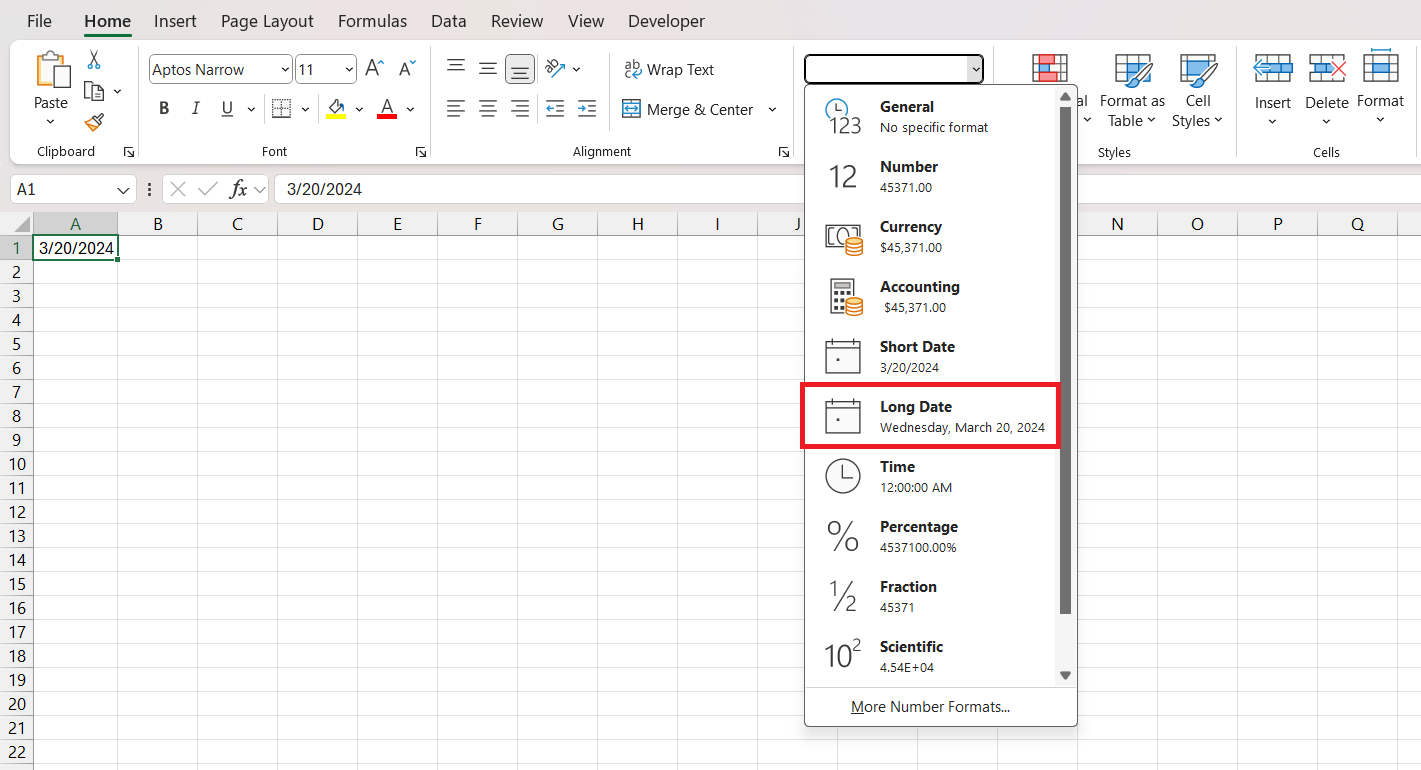
The new formatting will be applied in the cell.
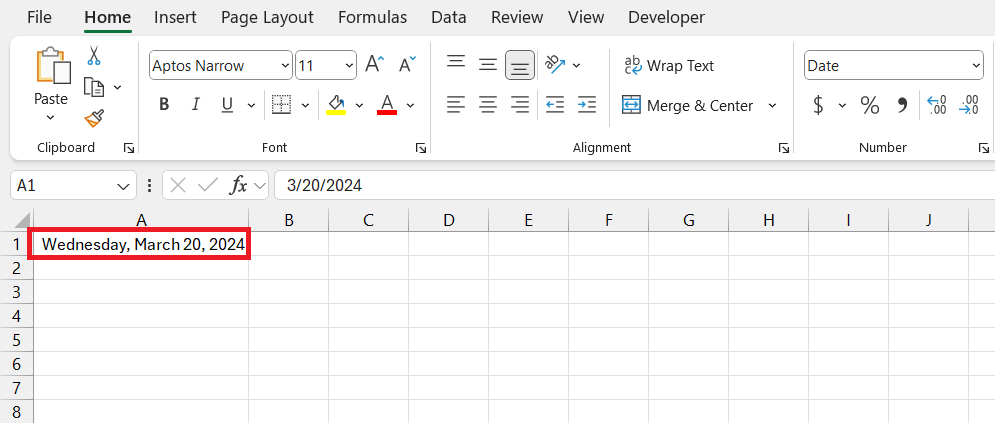
You can check the More Number Formats link at the bottom of the dropdown list for more options.
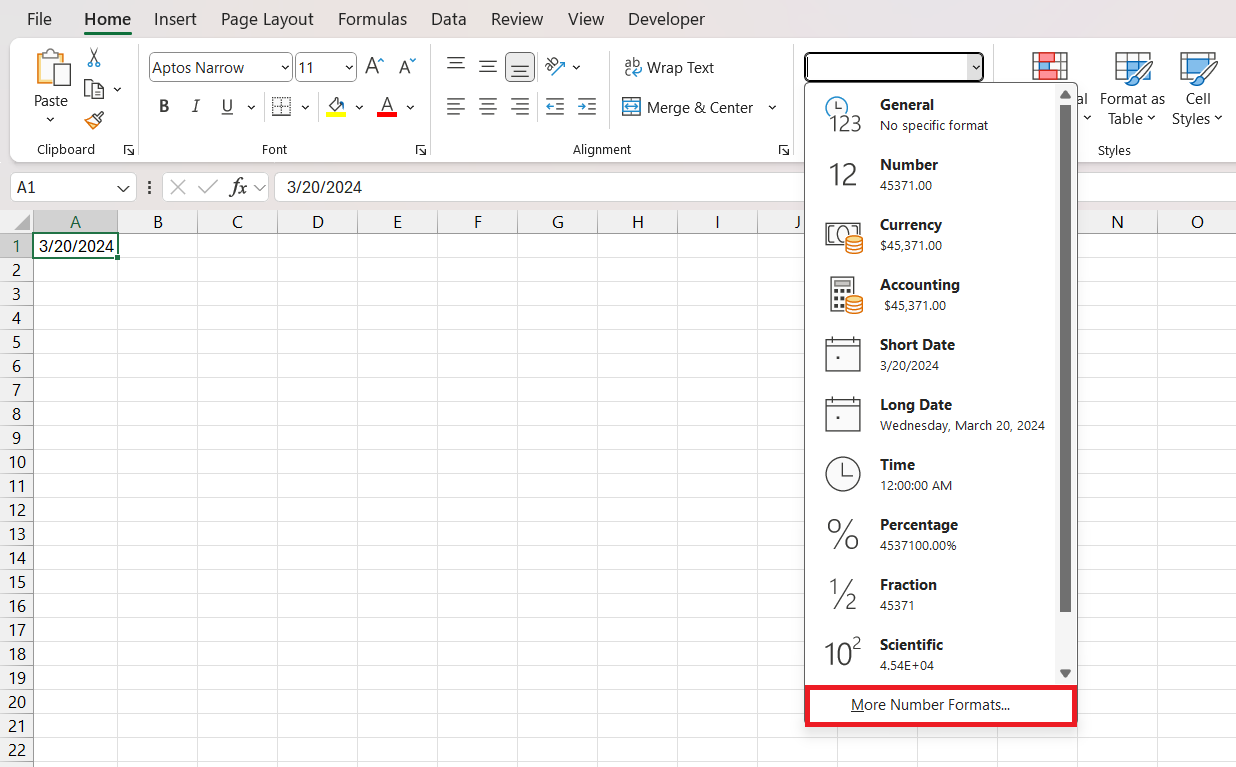
From there, tailor your dates precisely how you like them—Excel is quite accommodating in that regard.
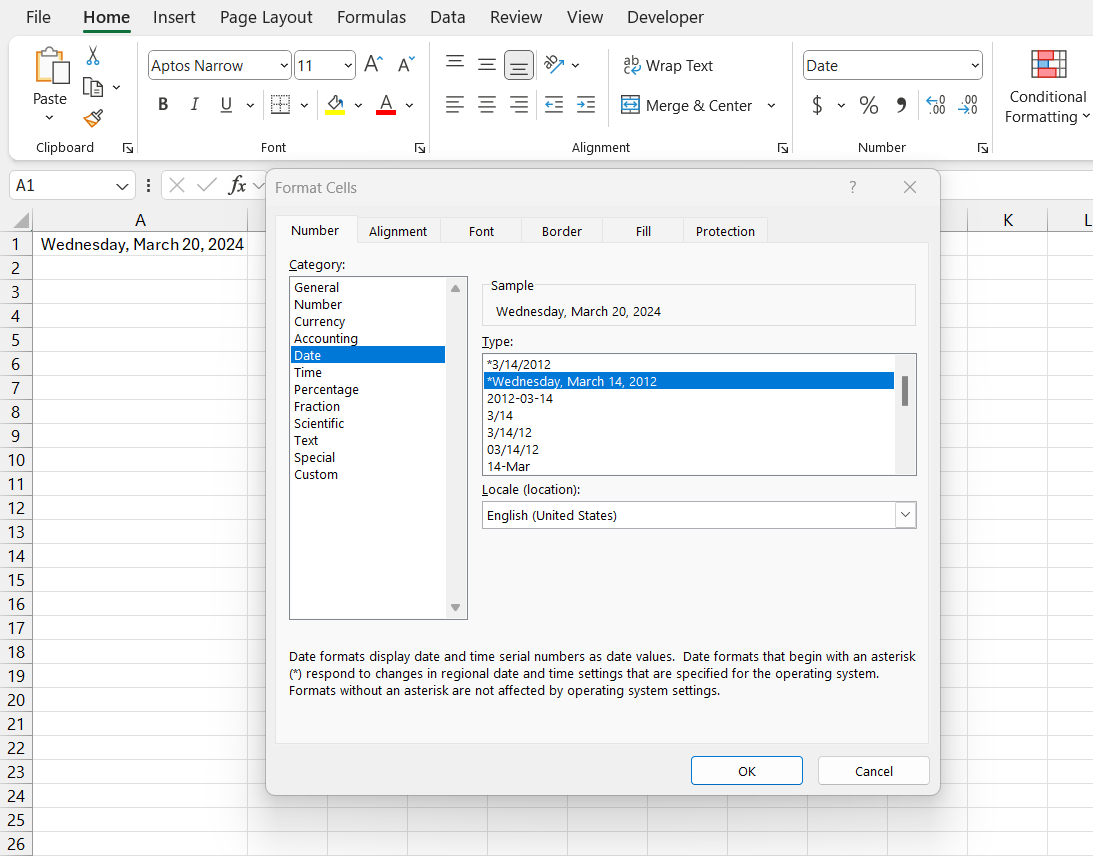
Crafting Dates to MM YY format
When the existing options in Excel don’t suffice, crafting a custom date format becomes your creative playground. Let’s say you want your dates to sing a specific tune: just the month and year, in a MM YY format. Here’s how you can set up that stage to convert date to mm yy format:
STEP 1: Select the cells where you want this special date format.
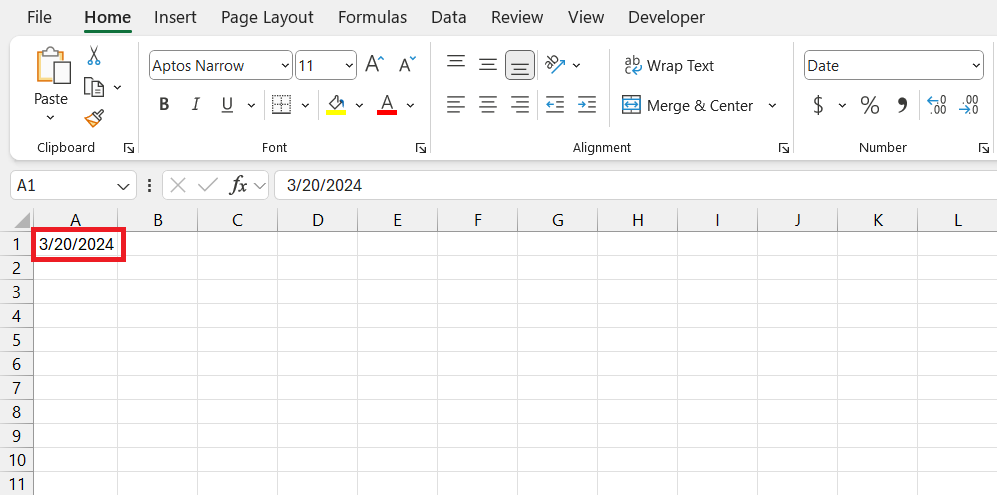
STEP 2: Then, move your cursor to the Home tab and click on the Number group’s little launcher, or simply press Ctrl + 1, to open the Format Cells dialog.
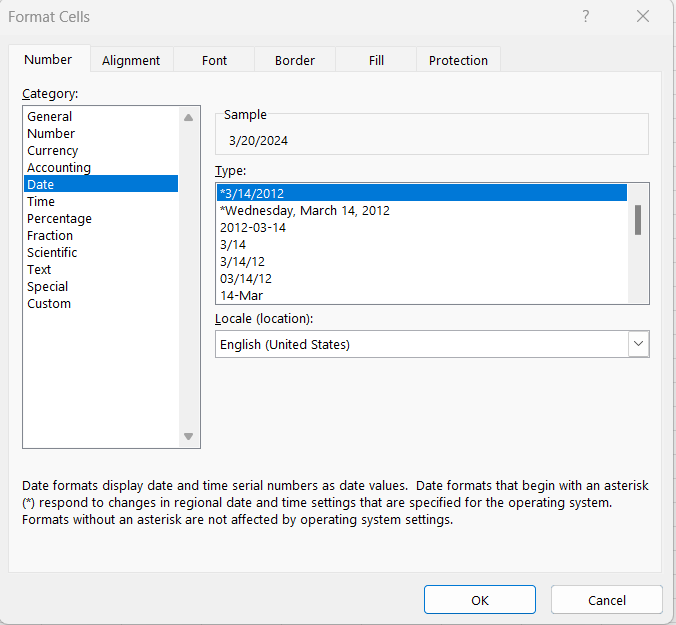
STEP 3: In the dialog that appears, choose ‘Custom’ from the Category list.
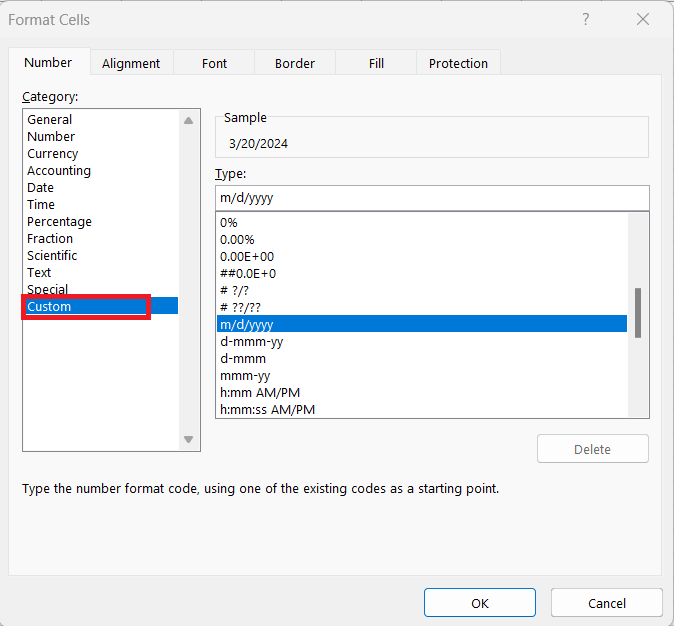
STEP 4: Now, in the Type box, enter mm yy.
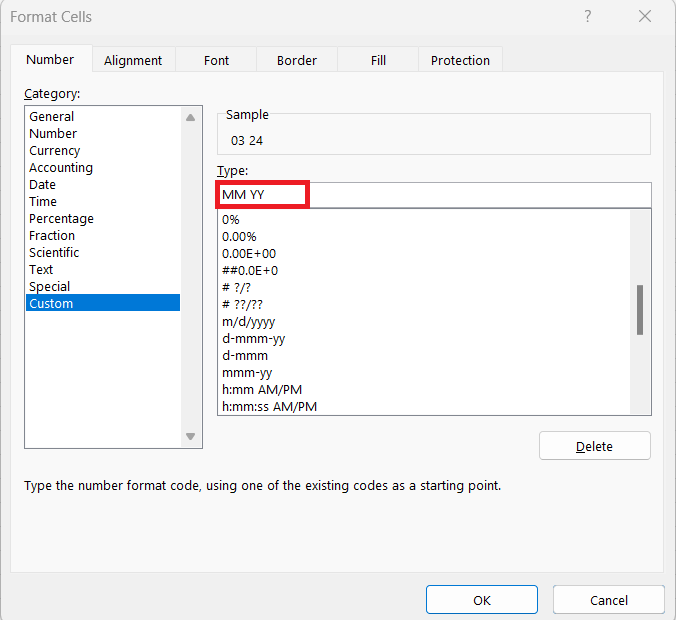
The result looks like this –
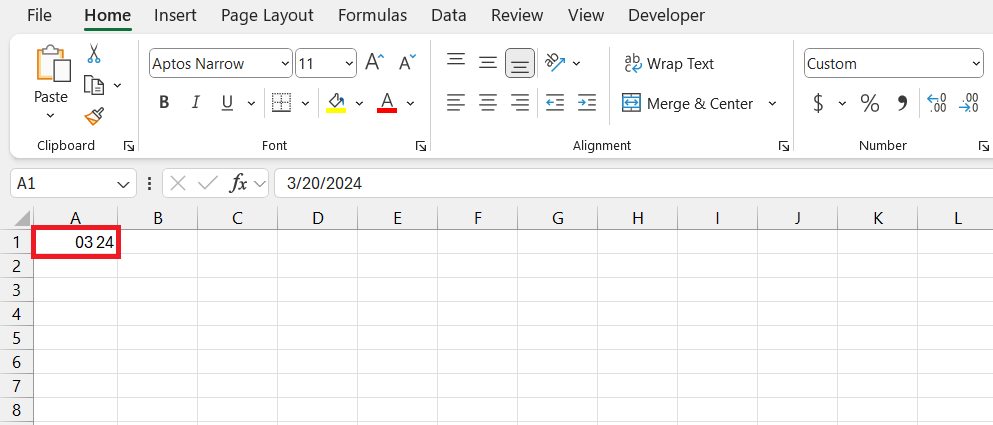
This sequence crafts a simple attire for your dates, focusing on just the month and year, giving your data a neat, uniform look perfect for summarizing information over time. Whether for tracking events, milestones, or financial periods, this format keeps it succinct.
Keep in mind that although this approach changes the display format, it doesn’t alter the underlying date. So, while your spreadsheet might now showcase a simplified 04 23, rest assured the full date is still there, working behind the scenes.
Advanced Techniques for Date Conversion
Leveraging Formulas for Conversion
Leveraging formulas in Excel provides a dynamic way to convert dates into your desired format, especially when dealing with a vast array of data. Formulas can be designed to extract specific parts of a date, such as the month and year, and piece them together in a new format.
One such formula that you might find handy is the TEXT function, which can transform dates into a plethora of textual representations. To achieve the MM YY format, you would use:
=TEXT(your_date_cell,"MM YY")
Replace your_date_cell with the actual cell containing the date you wish to convert.
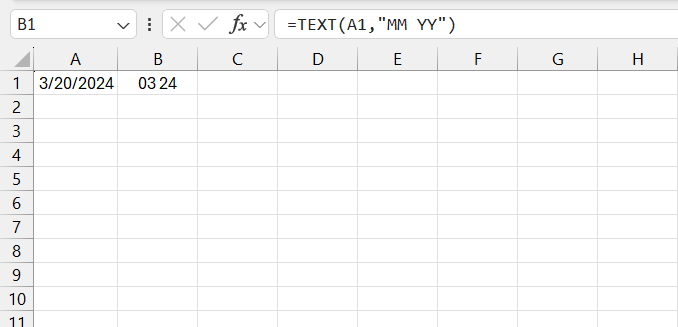
By applying this formula to a column next to your dates, you instantly create a new column with the converted format. This method ensures that your original dates remain intact while granting the versatility to display them however you like.
Utilizing Text Functions for a Quick Fix
Sometimes, you don’t need the full heft of a formula to convert your dates; a quick textual manipulation is all it takes. Utilizing text functions like LEFT, MID, and RIGHT alongside DATE and TEXT can be ideal for simple fixes, particularly if your data has been unceremoniously plopped down as text rather than in the proper date format Excel loves.
For instance, should you have dates typed out as ‘ddmmyyyy’ and need them in a ‘MM YY’ format, you could combine RIGHT, MID, and TEXT functions like this:
=TEXT(DATE(RIGHT(A1,4), MID(A1,3,2), LEFT(A1,2)),"MM YY")
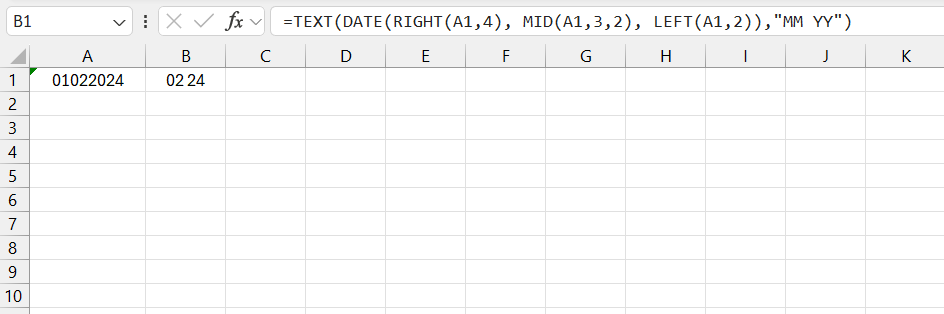
Here, you’re pulling the year from the right, the month from the middle, and the day from the left of your text string, then weaving them into an actual date with DATE before applying the TEXT function to format it.
Frequently Asked Questions
How Can I Convert a Series of Dates all at Once?
To convert a series of dates all at once in Excel, you can apply the same formatting to multiple cells simultaneously. Select the range containing the dates, then use the ‘Format Cells’ dialog to choose or create the desired date format.
Why Aren’t My Dates Converting Properly in Excel?
If your dates aren’t converting properly in Excel, it’s common that they may be formatted as text or affected by regional settings. Use the DATEVALUE() function on these ‘text dates’ to turn them into actual date values. Additionally, ensure your computer’s regional settings match the date format of your data.
How do I change the date format to MM YY in Excel?
To change the date format to MM YY in Excel, select the dates you wish to change, right-click and choose ‘Format Cells,’ then select ‘Custom’ in the Category list. In the Type field, enter “MM YY” and click ‘OK’ to apply the new format.
How do you convert date from MM DD YYYY to DD MM YYYY in Excel?
To convert the date from MM DD YYYY to DD MM YYYY in Excel, use the Format Cells feature. Select your dates, right-click, choose ‘Format Cells’, click on ‘Custom’ and type “DD MM YYYY” into the Type box, then click ‘OK’.

John Michaloudis is a former accountant and finance analyst at General Electric, a Microsoft MVP since 2020, an Amazon #1 bestselling author of 4 Microsoft Excel books and teacher of Microsoft Excel & Office over at his flagship MyExcelOnline Academy Online Course.

 30 Days - Full Access









